Gateway node management
This document describes how to view gateway node information and manage gateway nodes after a gateway instance is created (only supported in the Pro Edition).
operation steps
Step 1: Viewing the Deployment Architecture
1. Log in to the Microservices Platform console, and click Cloud Native Intelligent Gateway > Instance List in the left sidebar.
2. On the Instance List page, click the gateway instance ID to go to the Basic Information page of the gateway instance. Click the Deployment Architecture tab to view the deployment architecture of the gateway instance.
3. The deployment architecture diagram displays the deployment of the access layer (Cloud Load Balancer (CLB)) and gateway nodes under the selected group.
Remarks:
Nodes of the Cloud Native Gateway Standard and Pro Editions are deployed in multiple AZs by default.
Step 2: Viewing Node Information
The node list displays information about gateway nodes in the selected group.
Node Name: the name of the gateway node.
Group: the cluster group to which the gateway node belongs.
Private Network Address: the private network address of the gateway node.
Status: the current running status of the gateway node, which includes Running and Modifying.
AZ: the current AZ of the gateway node.
Node Weight: the current weight of the gateway node. A higher weight indicates that the node carries more traffic. The initial weight is the default weight of the group, and the value range is 0 - 100.
Default Group Weight: the default weight for nodes within a gateway group. When a node is added to the group, this value is used as its initial weight.
Step 3: Modifying the Node Weight
You can adjust the weight of a node in the console to manage traffic of the node.
1. In the node list, select the node whose weight needs to be adjusted, click Adjust Node Weight, and enter the target weight in the displayed dialog box.
2. Click OK to complete the node weight modification.
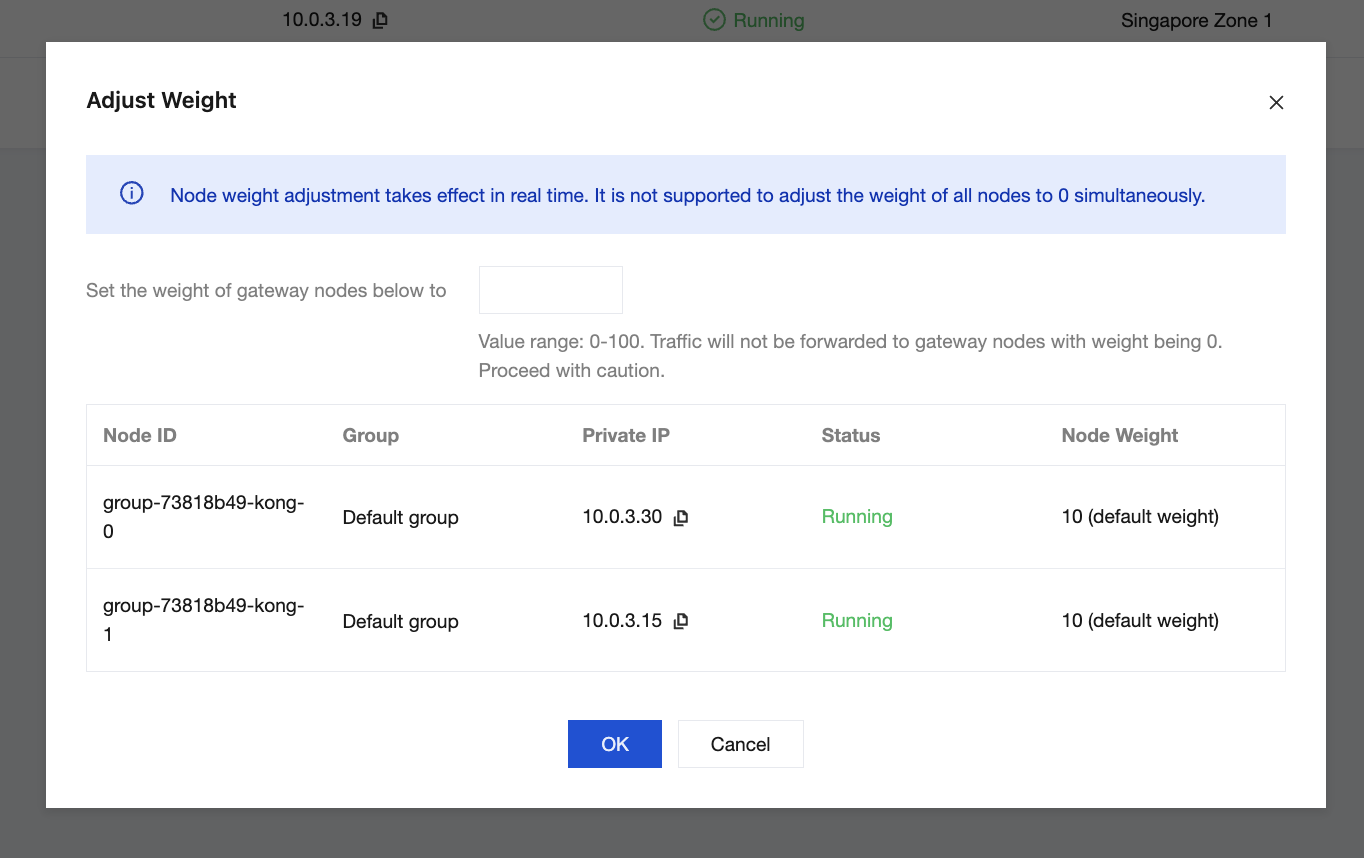
Remarks:
1. Adjusting the node weight is supported only in the Pro Edition.
2. Node weight adjustment takes effect immediately. Traffic will not be forwarded to nodes with a weight of 0. Proceed with caution.
3. To ensure gateway availability, you cannot set the weights of all nodes to 0 simultaneously.
Step 4: Modifying the Default Group Weight
The default group weight determines the weight value of newly created nodes and nodes without custom weights configured. You can adjust the default group weight in the console to manage the default weight of nodes.
1. In the Node Weight column, click Modify and enter the target default node weight in the displayed dialog box. The default value is 10, and the value range is 0 to 100.
2. Click OK to complete the default group weight modification.
Remarks:
Adjusting the node weight is supported only in the Pro Edition.
Default group weight adjustment takes effect immediately.
Nodes with custom weights configured are not affected.
Help and Support
Was this page helpful?
You can also Contact sales or Submit a Ticket for help.
Help us improve! Rate your documentation experience in 5 mins.
Feedback