Using Prometheus Monitoring
Scenarios
This document describes how to use Prometheus to obtain monitoring data for cloud-native gateways. TSF supports two methods: associating with a Tencent Cloud Prometheus instance and configuring a self-built Prometheus instance.
Associating with a Tencent Cloud Prometheus instance: After associating with a Prometheus instance, the gateway automatically reports monitoring data to the associated Prometheus instance.
Configuring a self-built Prometheus instance: Configure the gateway node information on your Prometheus Server to collect data.
Prerequisites
A cloud-native gateway instance has been purchased. For details, see Operations.
You have a Tencent Cloud Prometheus instance or a self-built Prometheus instance.
Method 1: Associating with a Tencent Cloud Prometheus Instance
1. Log in to the TSF console.
2. In the left sidebar, choose Cloud Native Gateway > Data Observation, and then select a gateway instance at the top of the page.
3. Click the Prometheus tab, and click the edit icon in the Associate with Tencent Cloud Prometheus module.
4. Select the Tencent Cloud Prometheus instance you want to associate with. (You can only select Prometheus instances in the same VPC as the gateway instance.)
5. Click Confirm to complete the association.
Method 2: Configuring a Self-Built Prometheus Instance
Step 1: Enabling the Prometheus Plugin
To use Prometheus for monitoring, you must enable the Prometheus plugin on the cloud-native gateway. You can choose from the following two feature scenarios based on your needs:
Scenario 1: Enabling the Prometheus Plugin for a Specified API
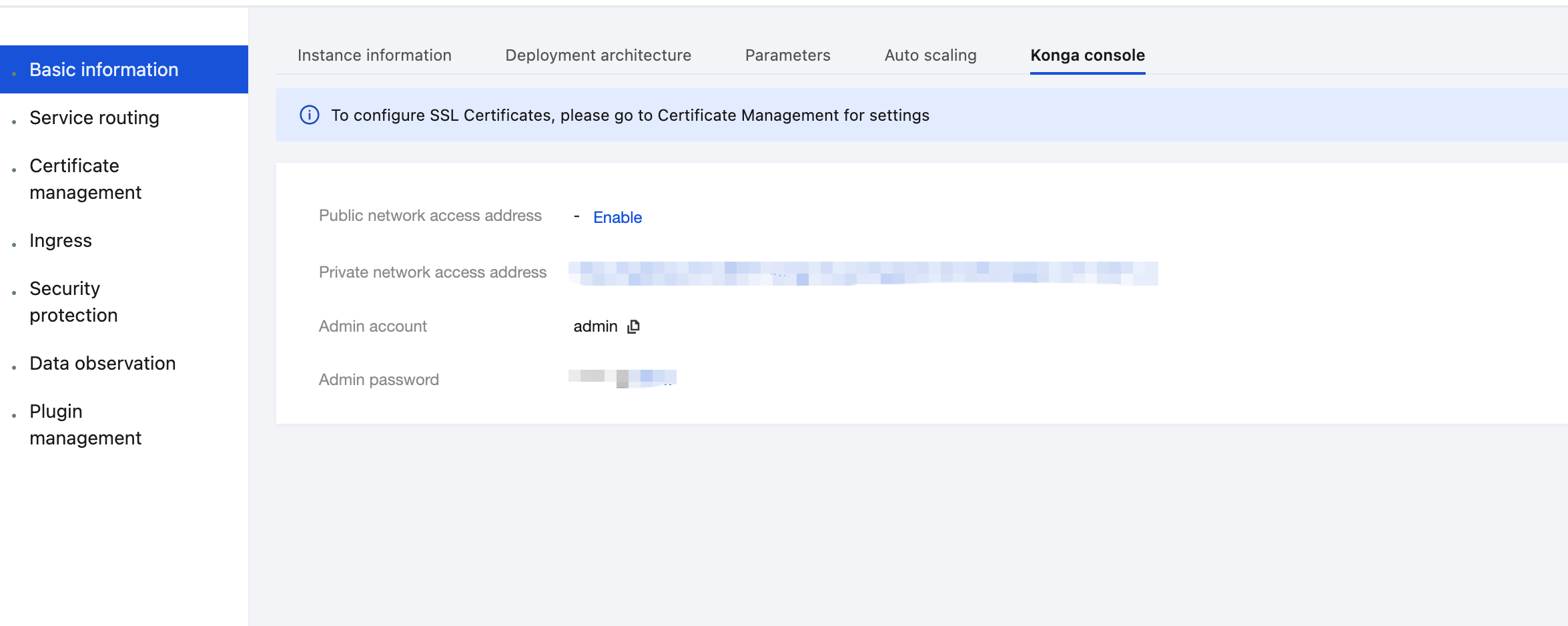
1. Log in to the TSF console, go to the details page of the gateway instance for which the Prometheus plugin needs to be configured, and view the Konga console login method on the Konga Console tab page.
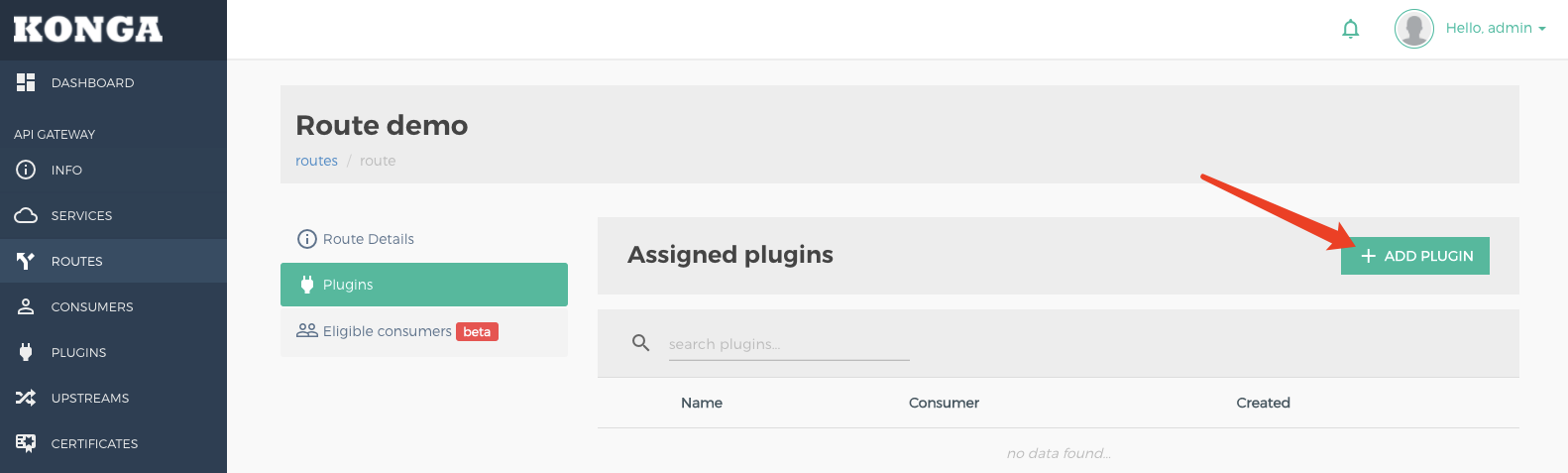
2. Log in to the Konga console, go to the details page of the route for which the Prometheus plugin needs to be added, click ADD PLUGIN, and select Prometheus under the Analytics & Monitoring group.
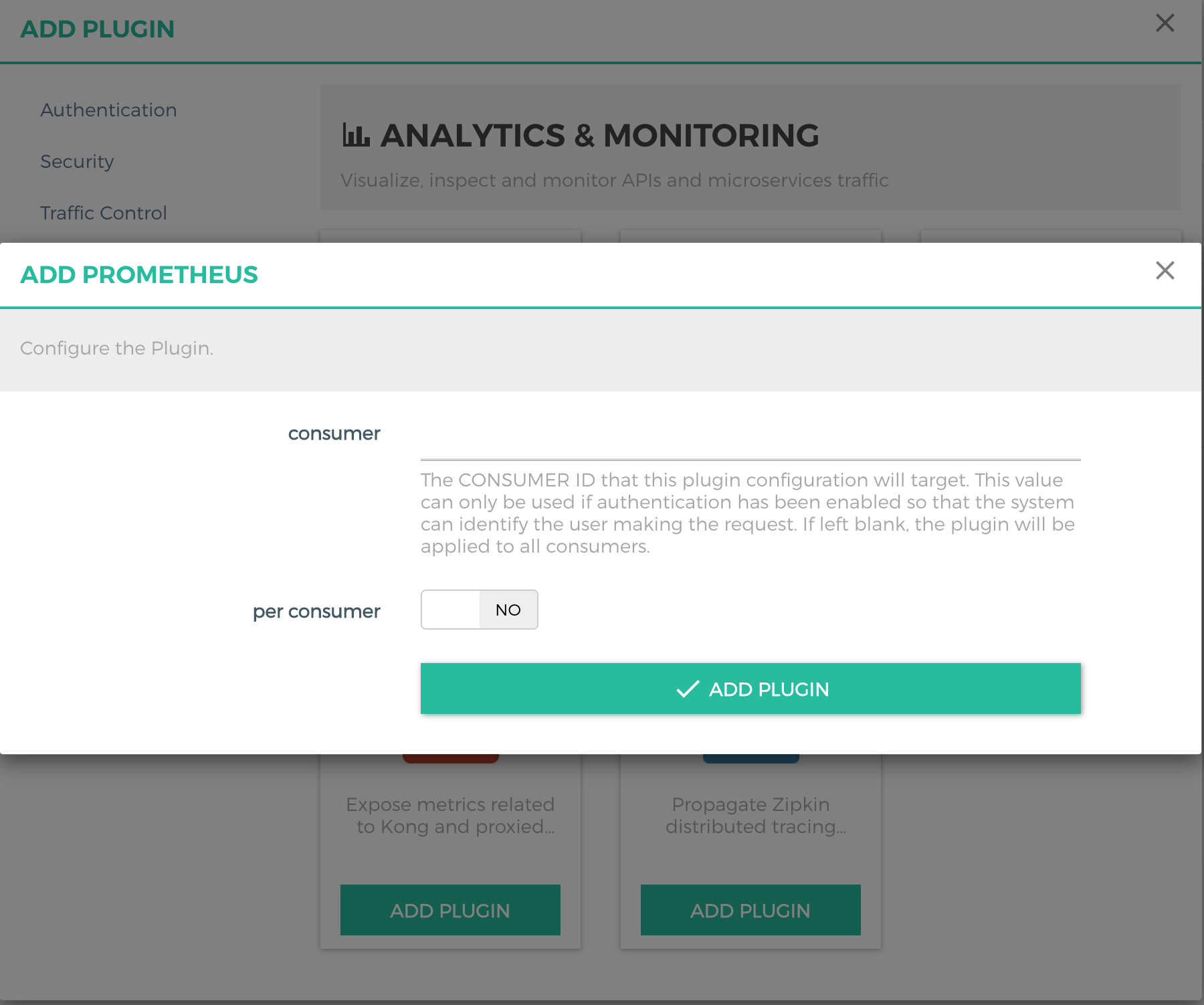
3. On the Prometheus plugin configuration page, retain the default settings if you do not need to collect metric data by consumers.
Scenario 2: Enabling the Prometheus Plugin Globally
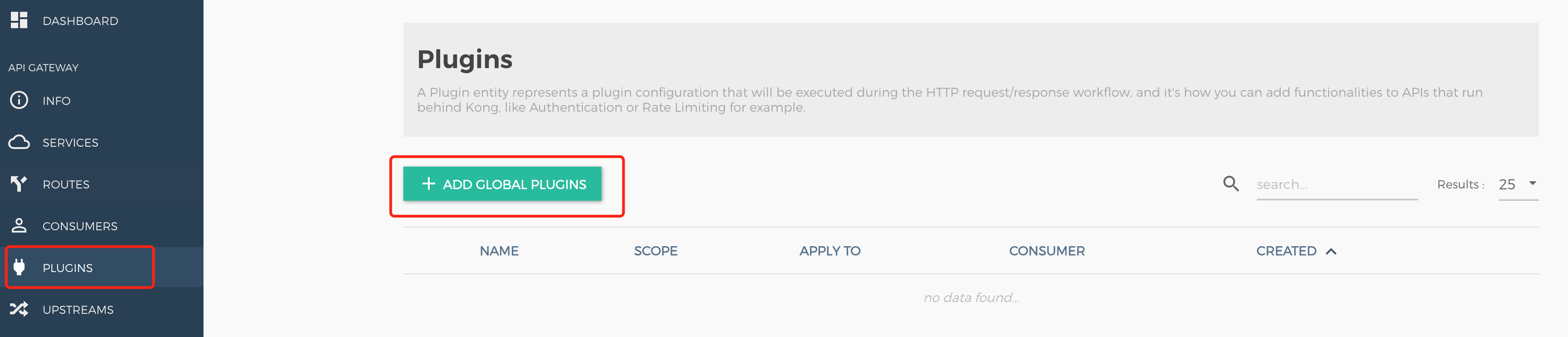
1. In the left sidebar, click PLUGINS, click ADD GLOBAL PLUGINS, and select Prometheus under the Analytics & Monitoring group.
2. Log in to the TSF console, go to the details page of the gateway instance for which the Prometheus plugin needs to be configured, and view and Konga console login method on the Konga Console tab page.
Step 2: Configuring the Data Pulling Address
1. Prepare a Tencent Cloud or self-built Prometheus instance. This Prometheus instance is used to pull monitoring data from the cloud-native gateway kong.
Note:
For details on how to purchase Tencent Cloud Prometheus instances and activate mapping Grafana instances, see documents related to TencentCloud Managed Service for Prometheus.
2. Log in to the TSF console, click Cloud Native API Gateway, and click an instance ID to go to the instance details page. Choose Basic Information > Deployment Architecture, and view the private network node address of the gateway instance.
3. If you use the Prometheus agent, you can add a list of private network node addresses in scrape_configs.static_configs.targets in the prometheus.yml configuration file. Note that the port should be set to 2100. (For instances created before April 18, 2023, set the port to 8100). For example, for the private network address list shown in the preceding figure, configure the prometheus.yml configuration file based on the following parameters:
job_name: konghonor_timestamps: truemetrics_path: /metricsscheme: httpstatic_configs:- targets:- 172.27.0.35:2100- 172.27.0.133:2100- 172.27.0.79:2100labels:instance: gateway-f3bdaaa7relabel_configs:- source_labels: [__address__]target_label: node
Note:
1. Configure relabel_configs to ensure metric reporting accuracy.
2. Ensure that the Prometheus agent and gateway instance are in the same VPC to maintain network connectivity.
3. Ensure that the security group at the egress direction of the Prometheus agent allows port 2100 (port 8100 for instances created before April 18, 2023) to allow the gateway to collect data.
4. If you use a custom program to pull data, you can automatically obtain the node IP address list through the DescribeCloudNativeAPINodes API of Cloud Native API Gateway.
Step 3: Importing the Cloud Native API Gateway Dashboard Template on Grafana (Optional)
This step guides you on how to display the gateway monitoring data collected by Prometheus in the Grafana instance.
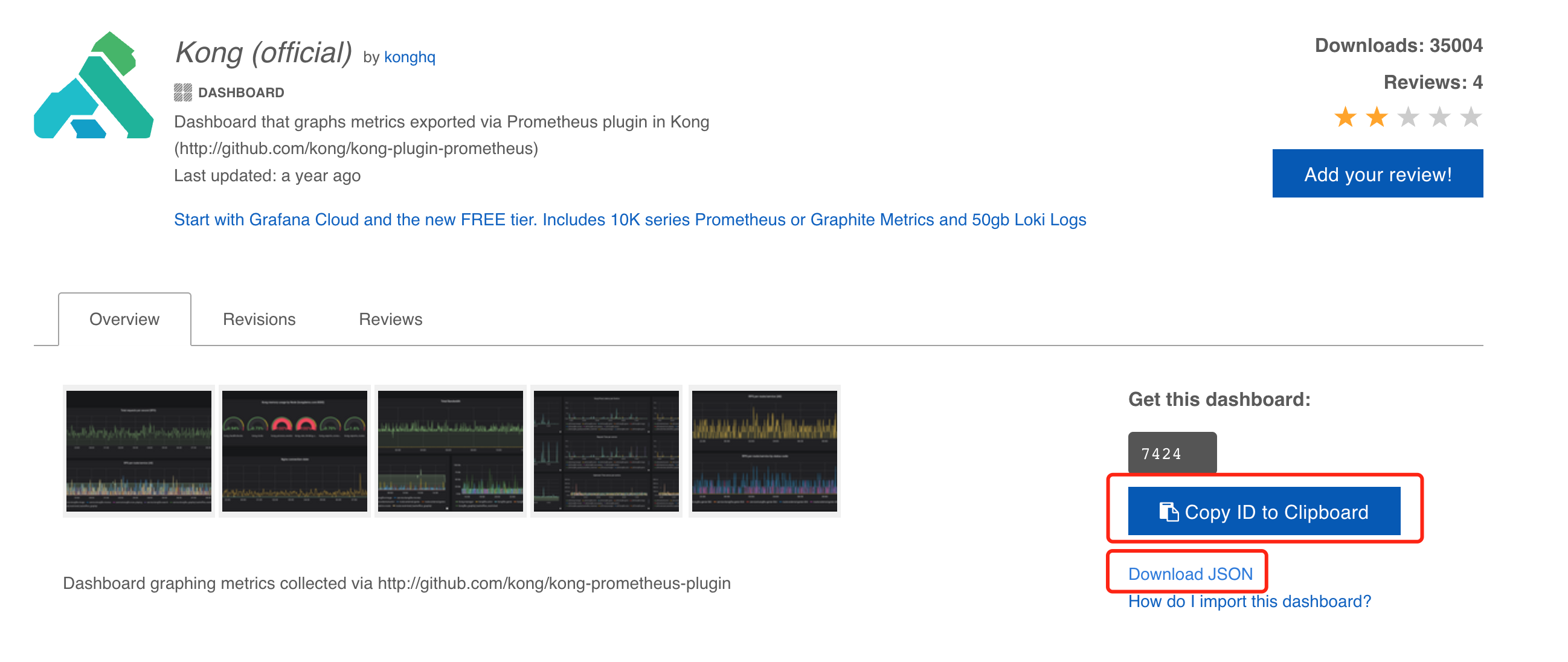
1. Go to the Grafana-Kong official website and download the dashboard configuration JSON file.
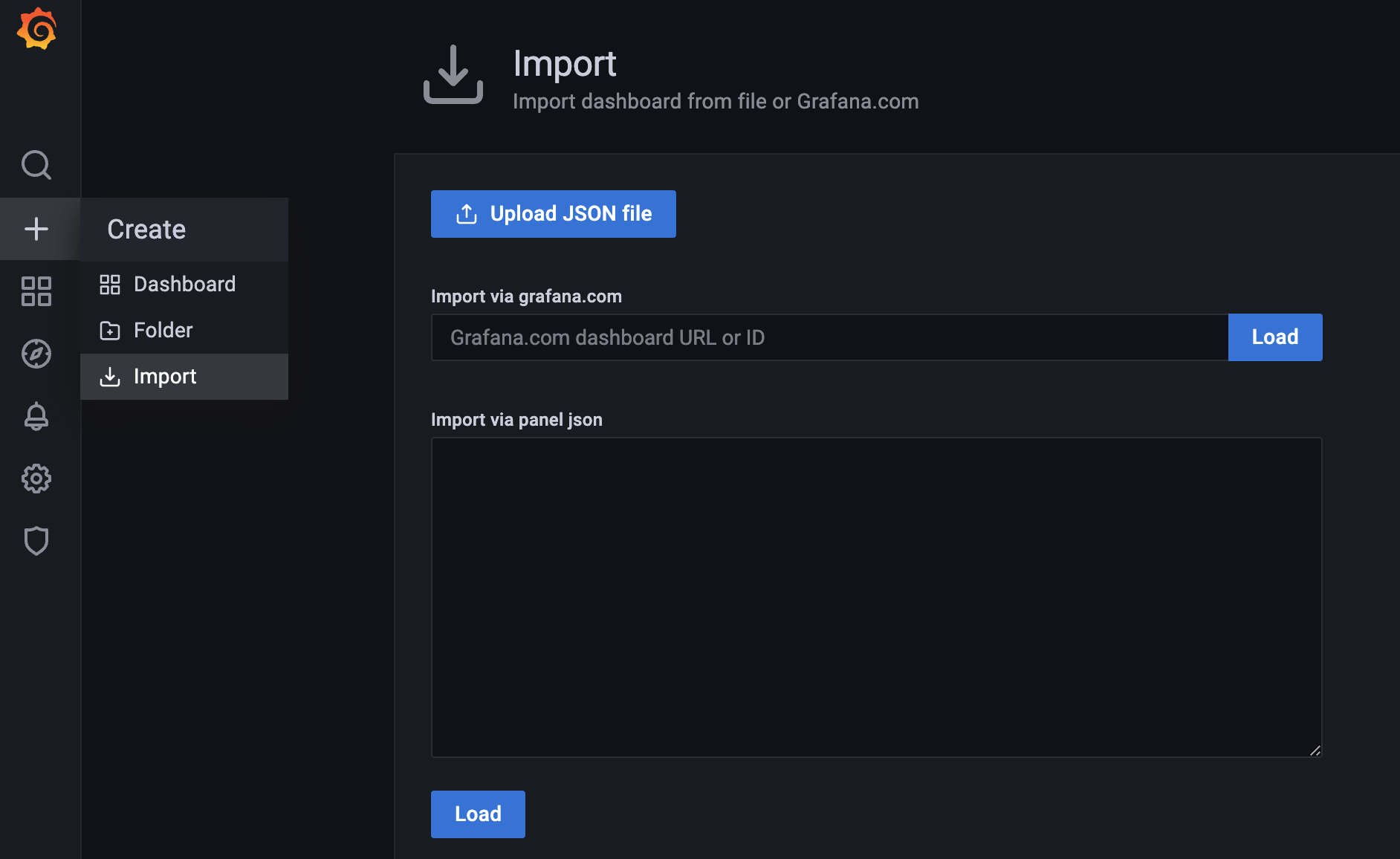
2. Import the dashboard template of Cloud Native API Gateway to your Grafana instance.
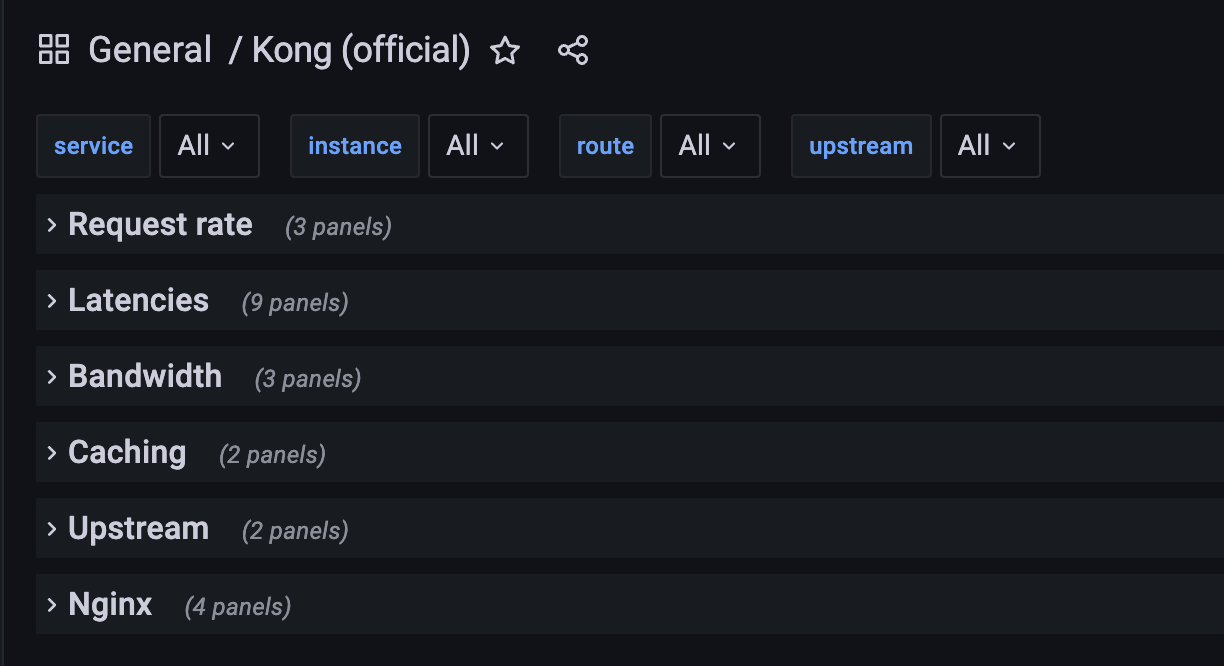
3. After the dashboard template of Cloud Native API Gateway is imported, Grafana displays views similar to the following figure if data is reported to Prometheus.
Must-Knows
Enabling the Prometheus plugin affects data stream performance of the gateway. You are advised to enable the Prometheus plugin only for specific APIs (routes) that require monitoring.
Purchasing Cloud Monitor Prometheus on Tencent Cloud will charge fees, which you should bear.
For simplicity, the preceding operations are demonstrated in the Konga console. You can also call the admin API of Cloud Native API Gateway to bind the Prometheus plugin. For details, see Prometheus plugin documentation of Cloud Native API Gateway. For details on how to enable the admin API of Cloud Native API Gateway, see Enabling the Admin API and Configuring Security Authentication.
Reference
Help and Support
Was this page helpful?
You can also Contact sales or Submit a Ticket for help.
Help us improve! Rate your documentation experience in 5 mins.
Feedback