Migrating Configurations from the Self-Built Cloud Native API Gateway to Tencent Cloud
Note:
Currently, the Cloud Native Gateway supports the purchase of new allowlists only in microservice scenarios. New access is not supported in other scenarios. If you have a purchase requirement, please submit a ticket for processing.
Scenarios
This document describes how to use the official Cloud Native API Gateway tool decK to migrate configurations from a self-built Cloud Native API Gateway to Cloud Native API Gateway of Tencent Cloud.
Prerequisites
If you have purchased and created a gateway instance, refer to the Operations Guide and configure the admin-api.
A self-built Cloud Native API Gateway is available, and services, routes, and plugins are configured.
decK is installed on the terminal. Visit the Cloud Native API Gateway official website, download decK, and install it on your terminal.
Operation Steps
Step 1: Exporting Configurations of the Self-Built Cloud Native API Gateway Using decK
1. Start the terminal and run the following command to export the configurations of the self-built Cloud Native API Gateway:
# Replace kong-zj with the IP address or domain name of the self-built Cloud Native API Gateway.deck --kong-addr http://kong-zj:8001/ dump
2. Check the generated
kong.yaml file.# Note that the kong.yaml content will be different from the actual situation.cat kong.yaml
_format_version: "1.1"plugins:- config:per_consumer: falseenabled: truename: prometheusprotocols:- grpc- grpcs- http- httpsservices:- connect_timeout: 60000host: 127.0.0.1name: admin-apipath: /port: 8001protocol: httpread_timeout: 60000retries: 5routes:- https_redirect_status_code: 426name: admin-apipath_handling: v1paths:- /admin-apipreserve_host: falseprotocols:- http- httpsregex_priority: 0request_buffering: trueresponse_buffering: truestrip_path: truewrite_timeout: 60000- connect_timeout: 60000host: www.tencent.comname: tencentpath: /port: 80protocol: httpread_timeout: 60000retries: 5routes:- https_redirect_status_code: 426id: 040b0c62-4d31-4286-a595-1832e55bf568path_handling: v1paths:- /preserve_host: falseprotocols:- http- httpsregex_priority: 0request_buffering: trueresponse_buffering: truestrip_path: truewrite_timeout: 60000
Step 2: Importing Configurations to the Cloud Native Gateway Kong Using decK
1. Open the terminal and run the following command to view the configuration differences between
Kong.yaml and the Cloud Native Kong Gateway.# Replace kong-tencent with the proxy address of the Tencent Cloud Cloud Native Gateway Kong.deck --kong-addr http://kong-tencent/admin-api diffcreating service tencentcreating route 040b0c62-4d31-4286-a595-1832e55bf568creating plugin prometheus (global)Summary:Created: 3Updated: 0Deleted: 0
2. Run the following command to import the configurations in
Kong.yaml into Cloud Native API Gateway.# Replace kong-tencent with the proxy address of the Tencent Cloud Cloud Native Gateway Kong.deck --kong-addr http://kong-tencent/admin-api synccreating service tencentcreating route 040b0c62-4d31-4286-a595-1832e55bf568creating plugin prometheus (global)Summary:Created: 3Updated: 0Deleted: 0
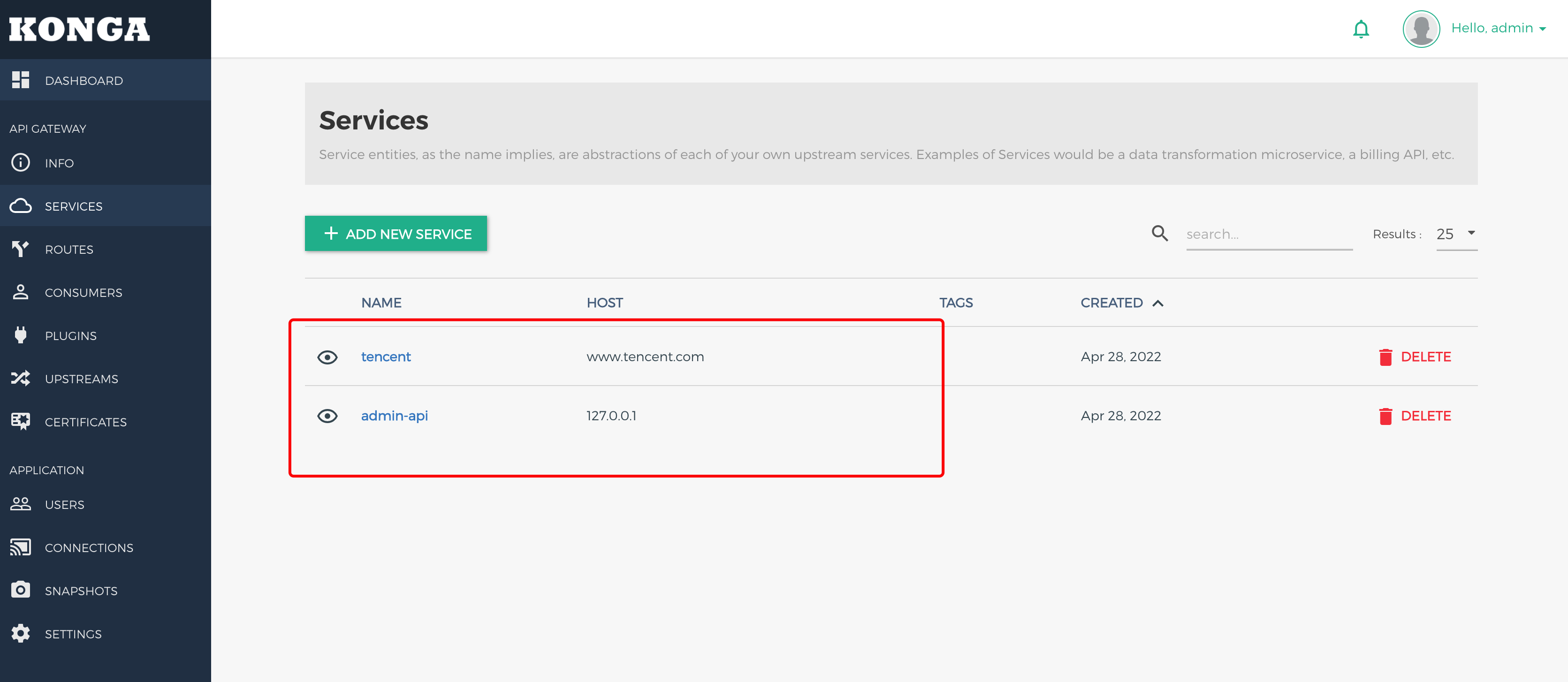
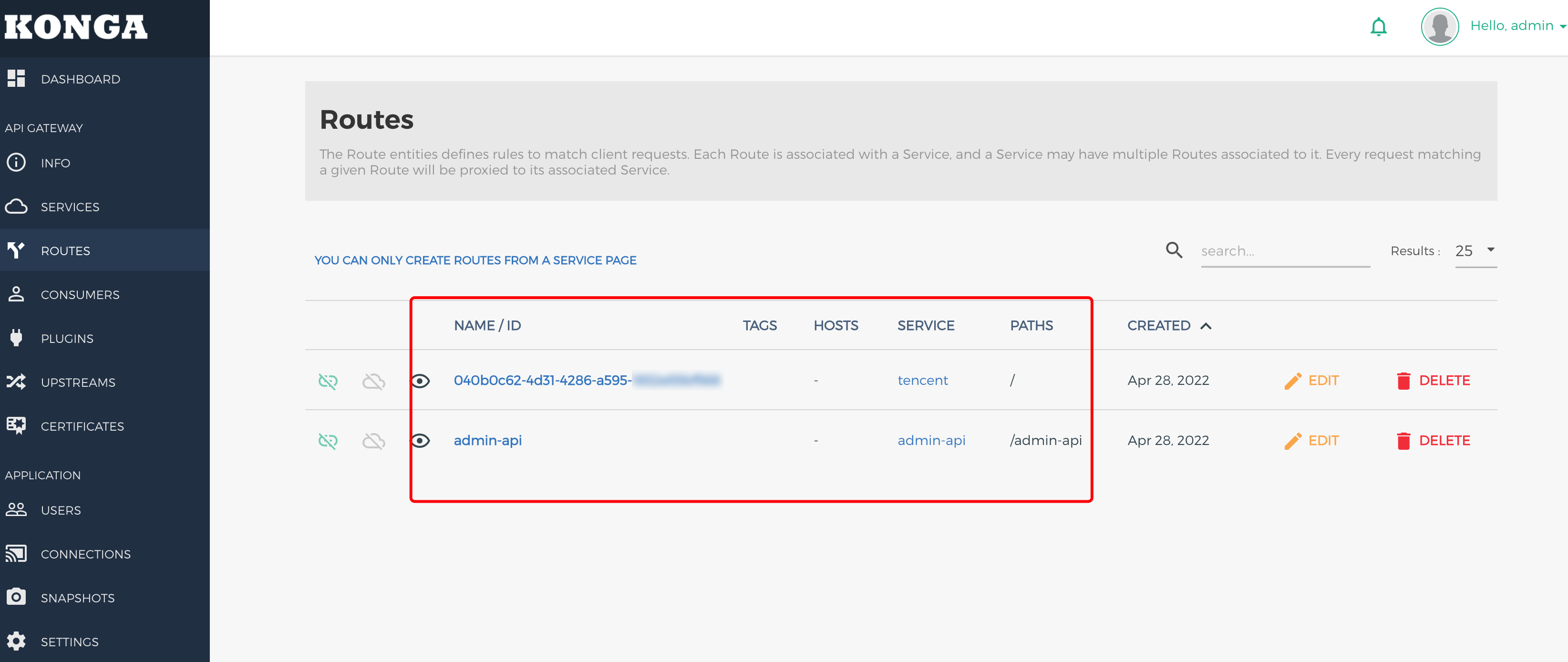
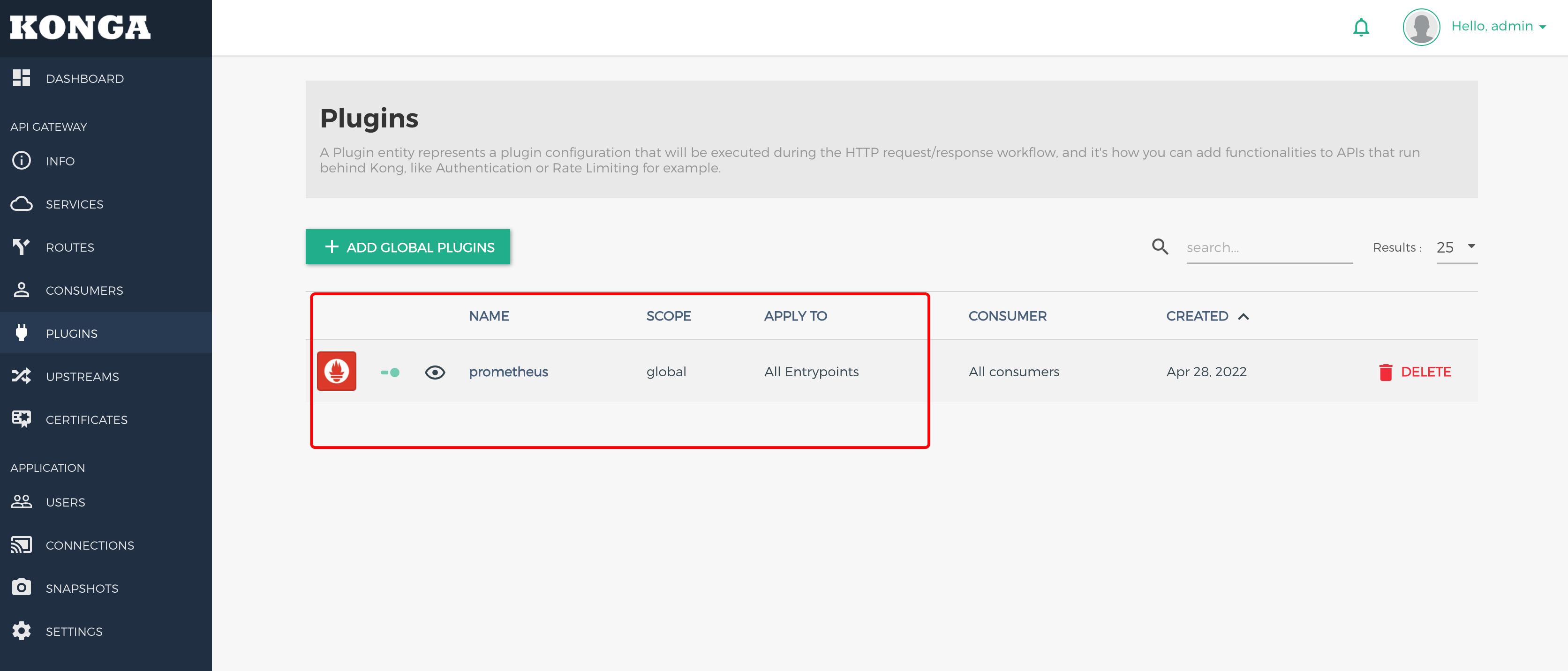
3. Log in to the Tencent Cloud console and check whether the configurations are imported successfully.
Must-Knows
For operational convenience, the security authentication plugin is not enabled on admin-api. It is strongly recommended to enable the security authentication plugin for admin-api after configuration synchronization is complete.
Reference
Help and Support
Was this page helpful?
You can also Contact sales or Submit a Ticket for help.
Help us improve! Rate your documentation experience in 5 mins.
Feedback