Calling Hunyuan API Through AI Gateway
AI gateway calling the Hunyuan API manages access to multiple AI models through a unified interface, enabling efficient, secure, and scalable AI capability integration. It simplifies the Hunyuan API invocation process and provides one-stop services including traffic control, monitoring, and billing. This article will quickly guide you through the initial configuration to experience the complete process of invoking Hunyuan large model services via AI gateway. You will sequentially configure model keys, model services, and model APIs, create caller identities (consumers and consumer groups), and finally initiate successful invocations through the gateway.
Prerequisite
1. AI gateway instances have been created. For detailed operations, see Create AI Gateway.
2. have obtained the API invocation key for the Hunyuan large model.
Operation Overview
The core operational workflow is as below. You will sequentially complete the following six steps:
1. Create Model Key: Securely configure the API keys required to access Hunyuan in the gateway.
2. Create Model Service: Add Hunyuan as an AI model provider and associate it with the key created in the previous step.
3. Create Model API: creates an API that provides text generation capabilities externally and binds it to the service created in step 2.
4. Create Consumer: Create a caller representing your own application and add identity credentials (API Key) for it.
5. Create Consumer Group and Grant Permissions: Group consumers and grant the group access permissions to the model API created in step 3.
6. Obtain Address and Initiate Invocation: Find the API access address in the console and use the consumer's credentials to initiate the invocation request.
Next, complete each step as per the detailed instructions below.
Operation Steps
Step 1: Create Model Key
Model keys are used to securely store and manage credentials required to access third-party large model services.
1. Log in to the Microservices Platform Console, choose Cloud-Native Intelligent Gateway > Instance List in the left sidebar, select the instance you want to use, and go to the instance details.
2. In the left sidebar, click Key Management.
3. On the "Key Management" page, click Create.
4. In the "Create Key" window, configure the key information by referring to the following table.
Parameter | Filling Instructions |
Key Type | Select Model Key. |
Key Name | Custom name, such as hunyuan-key. |
Generation Method | Select Custom. |
Credential Content | Enter the API key obtained from Hunyuan official here. |
Description | (Optional) Enter the description. |
5. Click OK to complete key creation.
Step 2: Create Model Service
Model Service is used to encapsulate call configurations for a specific large model vendor (Hunyuan in this case).
1. In the left sidebar, click Model Management > Model Service.
2. On the "Model Service" page, click Create.
3. In the "Create Model Service" window, go to the Basic Info step and configure as follows.
Parameter | Filling Instructions |
Service Name | Custom name, such as hunyuan-service. |
Service Type | Fixed to AI Model Service. |
Model Vendor | Select Hunyuan. |
Model Protocol | Select OpenAI-compatible. |
Service Address | The system will automatically fill in the official endpoint address for Hunyuan. |
Model Key | Select the key (hunyuan-key) you created in Step 1 from the drop-down list. |
Key Usage Policy | Select Polling. |
4. Click Next to go to the Select Model Policy step.
Model selection method: Keep the default specified model.
Default model: Select a Hunyuan model from the drop-down list, such as HY 2.0 Instruct 20251111.
5. Click OK to complete the model service creation.
Step 3: Create Model API
Model API is the invocation endpoint exposed by the gateway. Clients access this API to utilize large model capabilities.
1. In the left sidebar, click Model Management > Model API.
2. On the "Model API" page, click Create.
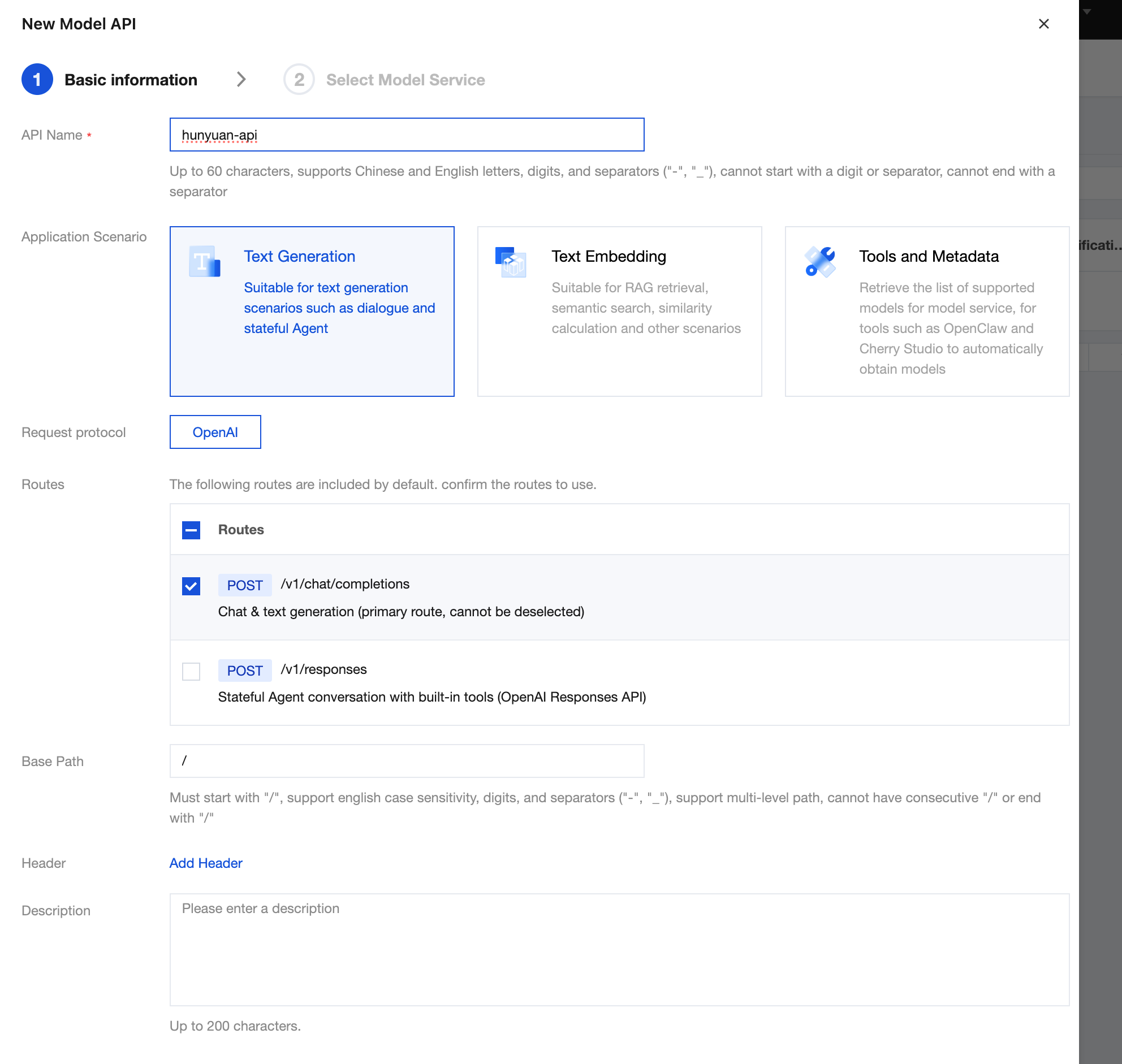
3. In the "Create Model API" window, go to the Basic Info step and configure as per the table below.
Parameter | Filling Instructions |
API Name | Custom name, such as hunyuan-api. |
Usage scenario | Select Text Generation. |
Request Protocol | Select OpenAI. |
Route | /v1/chat/completions is selected by default. Please confirm. |
Base Path | Enter a path prefix as the unique identifier for the API, such as /hunyuan. Clients will access it through this path. |
Path Simplification | It is recommended to keep it enabled so that the backend receives a concise path. |
4. Click Next to go to the Select Model Service step.
Service Type: Select Single Model Service.
Select service: Select the service you created in Step 2 (hunyuan-service) from the drop-down list.
5. Click OK to complete the model API creation. The system will automatically generate an access route.
Step 4: Create Consumer
Consumers represent the client identities that call the API and require configuration of authentication credentials.
1. In the left sidebar, click Consumer Management > Consumers.
2. On the "Consumers" page, click Create.
3. In the "Create Consumer" window, configure the settings by referring to the following table.
Parameter | Filling Instructions |
Consumer Name | Custom name, such as my-app. |
Consumer Group | This can be left unselected for now and associated in the consumer group later. |
Select a key | Click Create Key to generate an API Key for authenticating this consumer when the gateway is called. Note down the generated Key. |
4. Click OK to complete the consumer creation.
Step 5: Create Consumer Group and Grant Permissions
Consumer Group is used to group consumers and uniformly grant them access permissions to the model API.
1. In the left sidebar, click Consumer Management > Consumer Group.
2. On the "Consumer Group" page, click Create.
3. Configure basic information for the consumer group, and in the "Consumers" option, associate the consumer (my-app) created in Step 4.
4. After creation, locate the group, switch to the "Authorized Model APIs" tab, and click the Add Authorization button.
5. On the authorization page, grant access to the model API (hunyuan-api) created in Step 3 to this consumer group.
Step 6: Obtain the Access Address and Initiate the Invocation
After all configurations are completed, you can invoke the large model via the gateway address.
1. Obtain the gateway entry address: Go to Basic Information > Instance Information, and in the Network Configuration tab, view the "public network CLB address" or "private network Private Link address".
2. Obtain the route access address:
Go to Model Management > Model API, and click the name of the API you created in Step 3.
Click the Route Management tab and copy the "Request Path". The complete access address format is:
protocol://gateway entry address/request path.3. Initiate the invocation: Use the curl command or any HTTP client to refer to the following example and initiate the request. Replace <access address> with the full URL obtained in the previous step, replace < API_KEY> with the API Key created for the consumer in Step 4, and replace <MODEL_NAME> with the model selected in Step 2.
curl -i -X POST <access address> \\-H "Content-Type: application/json" \\-H "Authorization: Bearer < API _KEY>" \\-d '{"model": "<MODEL_NAME>","messages": [{"role": "user", "content": "Hello, please introduce yourself."}],"stream": false}'
4. Check the results: If all configurations are correct, you will receive a JSON-formatted response from the Hunyuan large model.
Help and Support
Was this page helpful?
You can also Contact sales or Submit a Ticket for help.
Help us improve! Rate your documentation experience in 5 mins.
Feedback