Scenarios
TDMQ for MQTT provides multiple monitoring metrics for operational resources to monitor the cluster's operational status, and also offers an alarm configuration feature for key metrics. You can configure alarm rules for monitoring metrics. The created alarm compares the monitoring metric in a certain period with the given threshold. When a monitoring metric reaches the set alarm threshold, the observability platform can notify you via email, SMS, WeChat, call, and other methods. You can take appropriate preventive or remedial measures promptly. Properly configuring alarm rules can help improve the robustness and reliability of your application.
Alarm Configuration Suggestions
This section describes metrics requiring special attention and their alarm configuration suggestions during the use of TDMQ for MQTT:
|
Throttling Count for CONNECT packets | Times | Configure alarm policies to trigger an alarm when the 1-minute statistics exceed 0 for five consecutive periods, with alarm notifications sent every 10 minutes. | Number of CONNECT packets that failed to create a connection due to the traffic throttling mode. This may occur when the number of connections exceeds the cluster specification or the actual public network bandwidth exceeds the public network bandwidth configured for the cluster. | |
Throttled PUBLISH Packets | Times | Configure alarm policies to trigger an alarm when the 1-minute statistics exceed 0 for five consecutive periods, with alarm notifications sent every 10 minutes. | Number of PUBLISH packets that failed to create a connection due to the traffic throttling mode. This may occur when the TPS for message sending and receiving exceeds the cluster specification. | |
Throttled SUBSCRIBE Packets | Times | Configure alarm policies to trigger an alarm when the 1-minute statistics exceed 0 for five consecutive periods, with alarm notifications sent every 10 minutes. | Number of SUBSCRIBE packets that failed to create a connection due to the traffic throttling mode. This may occur when the TPS for message sending and receiving exceeds the cluster specification. | |
Client Consume Errors | Times | Configure alarm policies to trigger an alarm when the 1-minute statistics exceed 0 for five consecutive periods, with alarm notifications sent every 10 minutes. | Total number of error codes generated when clients consume specific messages. | First, check other server-side metrics, such as significant changes in production and consumption traffic, to determine whether any server exceptions exist. Then, identify the specific client reporting errors, query its client events, and review its logs and error codes for troubleshooting. If the issue remains unresolved, contact us through a ticket. |
Failed Authorizations | Times | Configure alarm policies to trigger an alarm when the 1-minute statistics exceed 0 for five consecutive periods, with alarm notifications sent every 10 minutes. | | Check the client and Topic reporting errors and the policy configurations related to the authorization policy list to determine whether any permission policies are misconfigured. |
Entering the Alarm Configuration Page
Portal 1: Log in to the TDMQ for MQTT console, go to the Monitor webpage, and click the Alarm button in the upper right corner to navigate to the alarm configuration page. The default alarm object is the cluster corresponding to the monitoring data before redirection. Portal 2: Log in to the Tencent Cloud Observability Platform console, go to the Alarm Configuration page to view all preset and custom policies, click Create Policy, select Cloud Product Monitoring for monitoring type, and choose TDMQ/MQTT/Cluster instance for policy type. Configuring Alarm Policies
1. After you select the policy type on the Alarm Policy Configuration page, the policies available for the current resource type are automatically displayed. You can customize alarm policies based on default alarm policies and your actual business requirements.
2. Select the object for which you want to configure alarms.
Tag: Filter resources by tag to batch select the resources for which you want to configure alarm rules.
Alarm Object: Select the MQTT resource that requires an alarm policy configuration.
3. Configure alarm trigger conditions. You can choose between Select Template and Configure Manually, with Configure Manually selected by default.
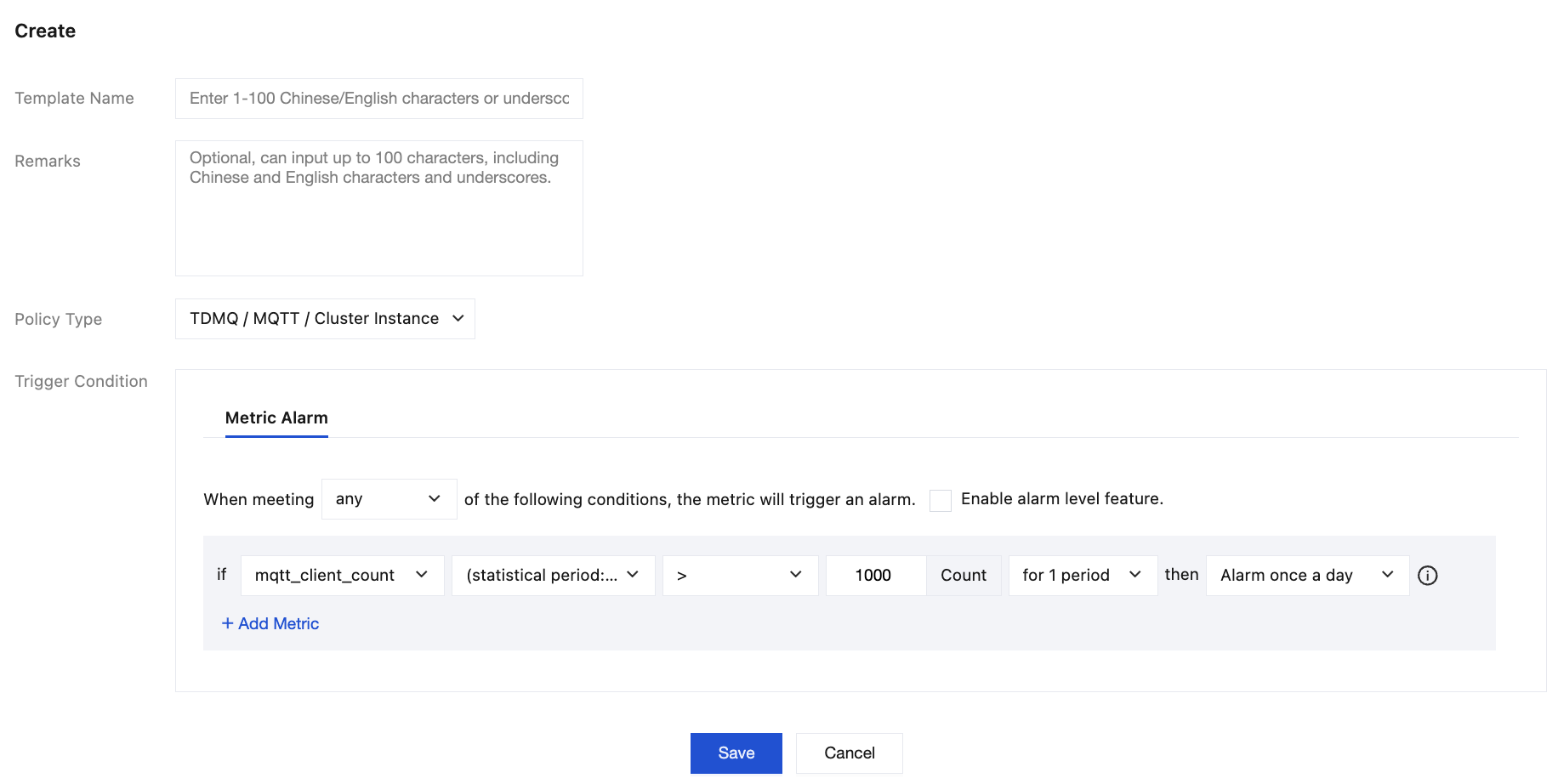
Metric: Take "mqtt_client_count" as an example. If you select 1 minute as the statistical granularity, an alarm is triggered when the quantity exceeds the threshold for N consecutive data points within 1 minute.
Alarm Frequency: Take "Alarm triggered once every 30 minutes" as an example. If a metric exceeds the threshold across multiple consecutive statistical periods, only one alarm is triggered within a 30-minute window. A new alarm will be triggered in the next 30-minute window if the metric continues to exceed the threshold.
1. Select Select Template, and then click Create Trigger Condition Template to go to the Configure Trigger Condition Template page.
2. In the upper left corner, click Create Trigger Condition Template. On the Create Trigger Condition Template page, configure the alarm policy.
Policy Type: Select TDMQ/MQTT/Cluster instance.
Trigger Condition: Set the alarm policy based on your actual business needs.
3. After confirming the configurations, click Save and return to the Create Alarm Policy page. Click Refresh to display the newly configured alarm policy template.
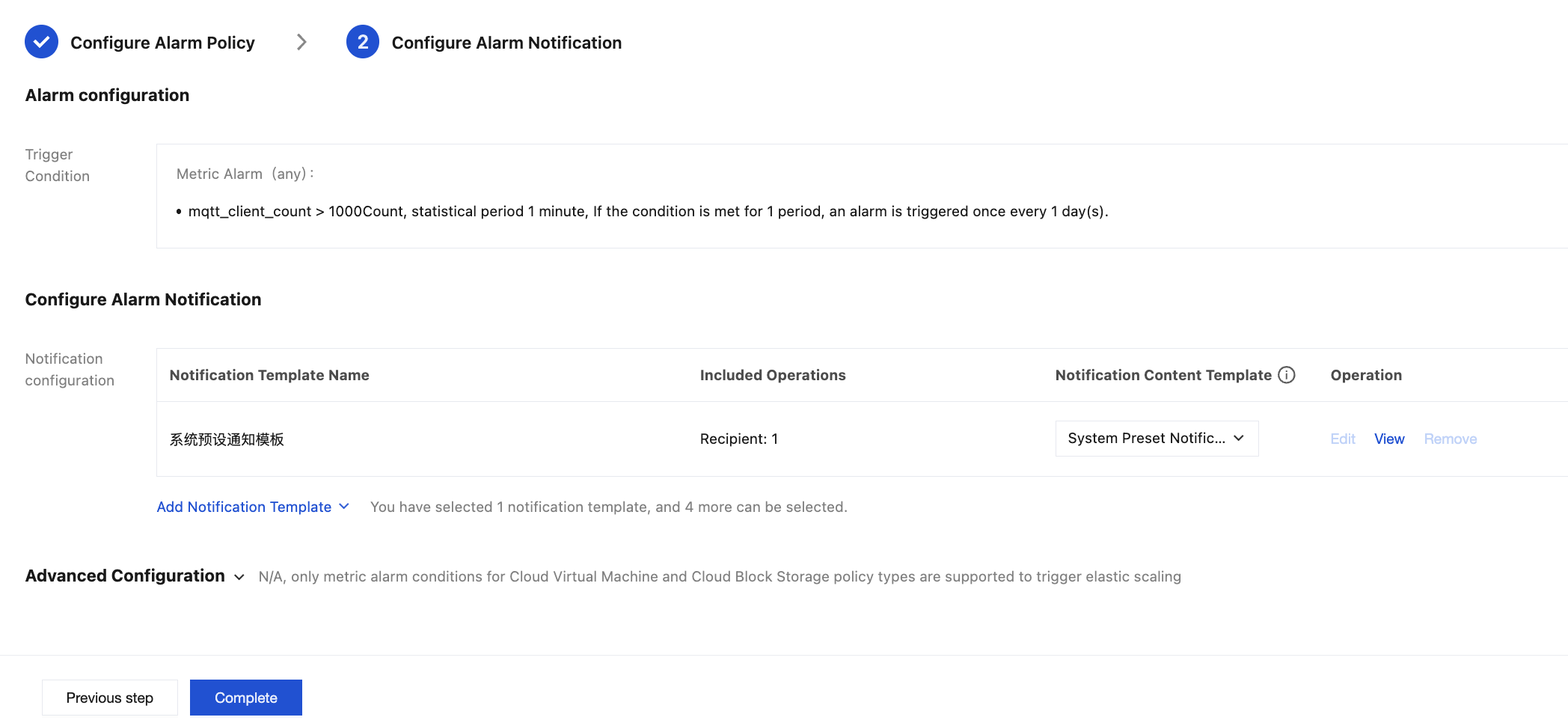
4. Click Next: Configure Alarm Notification to specify the alarm recipients.
Configuring Alarm Notifications
On the Configure Alarm Notification page, you can select a preset notification template. Preset templates notify the root account owner by default. If notifications need to be sent to the instance owner or other recipients, click Create Template to create a custom notification template and specify the alarm recipients and notification channels.