Overview
If the current database specification can‘t sustain massive concurrent application requests due to insufficient connections, Connection Utilization may get too high. To handle such access spikes, you can directly increase the number of maximum connections in the console.
Notes
A single shard can sustain up to 10,000 connections by default, and the maximum number of connections to the entire instance is the maximum number of connections per shard multiplied by the shard quantity. A standard architecture instance has only one shard.
When you adjust the number of connections, the value range per shard is as detailed below:
If the read-only replica feature is disabled
The maximum number of connections to each shard can be 10000–40000.
If the read-only replica feature is enabled
The maximum number of connections to each shard can be 10000–10000 * (replica quantity + 3).
Notes
Increasing the maximum number of connections has no impact on the business.
If the maximum number of connections is decreased, new connections may fail to be established when the number of connections reaches the upper limit.
If the problem persists after you increase the maximum number of connections, contact the aftersales service or submit a ticket for assistance. Prerequisites
The database instance is in Running status, with no ongoing tasks.
Directions
2. Above the instance list on the right, select the region.
3. In the instance list, find the target instance.
4. Click the target instance ID to enter the Instance Details page.
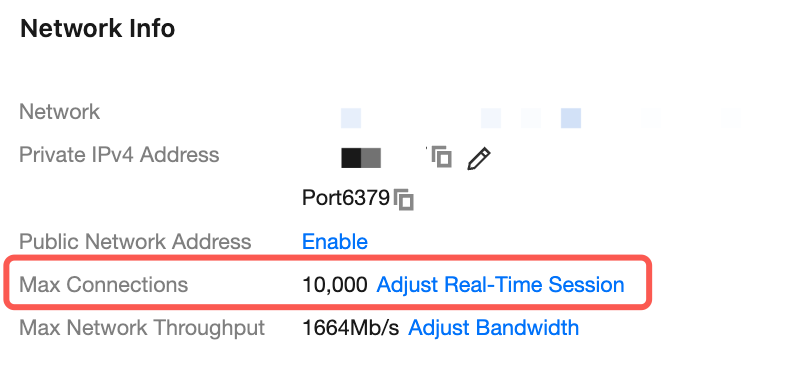
5. In the Network Info section on the Instance Details page, you can view the instance's current maximum number of connections after Max Connections. Click Adjust.
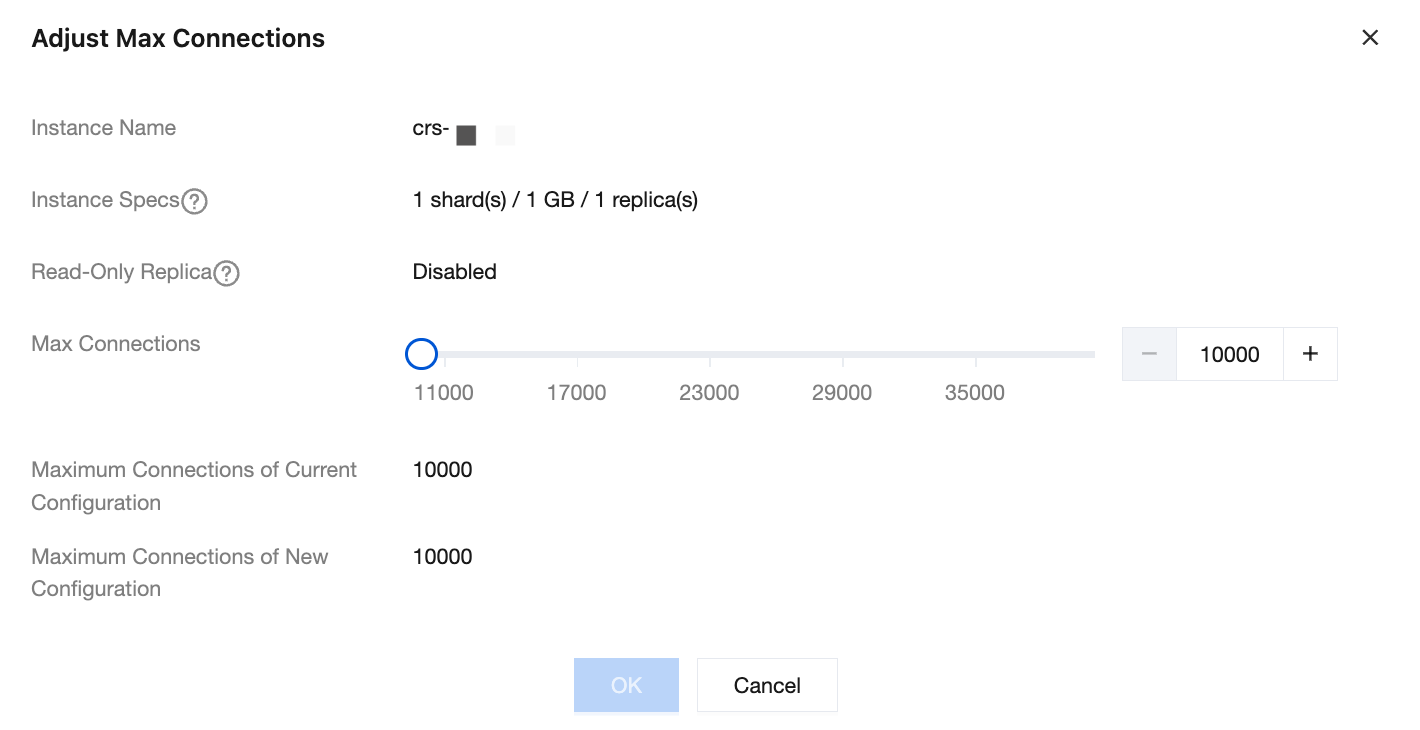
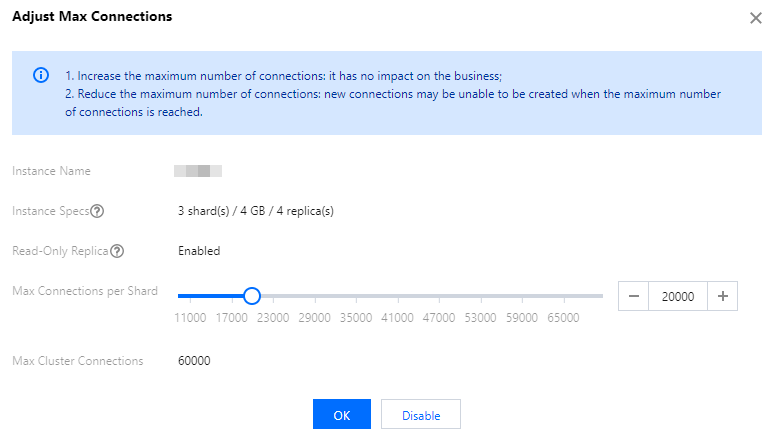
6. In the Adjust Max Connections window, confirm the instance information and specification and increase the value.
Standard architecture
|
Instance Name | Instance name information. |
Instance Specs | Instance specification information, including shard quantity, total memory, and replica quantity. A standard architecture instance has only one shard. |
Read-Only Replica | Set whether the read-only replica feature (read/write separation) is enabled. |
Max Connections | Adjust the maximum number of connections on the slider. |
Current Max Connections | Connections before scaling up. |
New Max Connections | Connections After Being Scaled Up |
Cluster architecture
|
Instance Name | Instance name information. |
Instance Specs | Instance specification information, including shard quantity, shard capacity, and replica quantity. |
Read-Only Replica | Set whether the read-only replica feature (read/write separation) is enabled. |
Max Connections per Shard | Adjust the maximum number of connections to each shard on the slider. |
Maximum Connections of Current Configuration | Connections before scaling up. |
Maximum Connections of New Configurations | Connections After Scale-up |
7. Click OK. On the left sidebar, you can click Task Management to view the task progress. After the task is executed, you can view the new maximum number of connections to the entire instance after Max Connections in the Network Info section on the Instance Details page.
Related APIs
|
| Queries the list of instances. |
| Modifies the connection configuration of the instance (including bandwidth and maximum number of connections). |
FAQs
If you find that Connection Utilization in System Monitoring is too high, adjust the maximum number of connections as instructed in High Connection Utilization.