tencent cloud

Cloud GPU Service

Release Notes and Announcements
Release Notes
Announcements
Product Introduction
Overview
Strengths
Scenarios
Notes
Instance Types
Computing Instance
Rendering Instance
Billing
Billing Overview
Renewal
Getting Started
User Guide
Logging In to Instances
Restarting Instances
Installing NVIDIA Driver
Uninstalling NVIDIA Driver
Upgrading NVIDIA Driver
Using GPU Monitoring and Alarm
Use Cases
Installing NVIDIA Container Toolkit on a Linux Cloud GPU Service
Using Windows Cloud GPU Service to build a Deep Learning Environment
Implementing Image Quality Enhancement with GN7vi Instances
Using Docker to Install TensorFlow and Set GPU/CPU Support
Using GPU Instance to Train ViT Model
Troubleshooting
GPU Instance Troubleshooting Guide
Troubleshooting Common Xid Errors
Collecting Log for GPU Instances
GPU Usage Shows 100%
VNC Login Failures
FAQs
Related Agreement
Special Terms for Committed Sales Model
Contact Us
문서Cloud GPU Service

Creating Self-defined Image of GRID 16 Driver

포커스 모드
폰트 크기
마지막 업데이트 시간: 2024-02-06 14:50:17

Overview

To upgrade to GRID 16 for rendering GPU instances , it is necessary to reinstall using an image installed with the GRID 16 driver. If you wish to retain your operational environment, you may create a self-defined image pre-installed with GRID 16, and reinstall the image on the full-card rendering GPU instance or upgraded split-card rendering GPU instance to complete the upgrade.

Directions

Uninstalling Original GRID Driver

When creating a self-defined image, if the current operating system has installed GRID 11 or GRID 13 driver, you must first uninstall them before installing the new-version driver.
Windows
Tlinux/CentOS
Ubuntu
Take Tencent Cloud's operating systems Windows Server 2019 and Windows Server 2022 as an example.
1. Open the Control Panel.
2. In the Control Panel, select Programs and Features > NVIDIA Graphics Driver, right-click on the GRID driver you need to uninstall, and then click Uninstall.
Upon completing the uninstallation, follow the directions to reboot the instance. When the reboot is concluded, the GRID driver is successfully uninstalled.
As an example, let's consider the Tencent Cloud Operating System: TencentOS Server 3.1 (TK4).
1. Execute the following commands as the root user, uninstall the GRID driver and reboot.
nvidia-installer --uninstall -s
dracut --force && reboot
2. After restarting the Sign instance, execute the following commands to ensure there are no nvidia kernel modules.
lsmod | grep nvidia
Displaying as follows indicates a clean uninstallation.

As an example, let's consider the Tencent Cloud Operating System: TencentOS Server 3.1 (TK4).
1. Sign in to the instance and execute the following command to uninstall the GRID driver and restart.
sudo nvidia-installer --uninstall -s
sudo update-initramfs -u && reboot
2. After restarting the Sign instance, execute the following commands to ensure no nvidia kernel modules.
lsmod | grep nvidia
When the output is displayed as follows, it indicates a clean uninstallation.


Installing the NVIDIA GRID 16 Driver

Windows Operating System

Copy the code below, save it as 1.bat, and then double-click to run it to complete the installation of the new-version driver.
Note:
1. Upon installation completion, the update_nls_token.bat file in the root directory of the C drive must not be removed.
2. In the instance configuration, a GPU count that is an integer signifies a whole card specification, while a count less than one indicates a subdivided card specification.
Full-card Specification for Rendering
Split-card Specification for Rendering
set dl_url='http://mirrors.tencentyun.com/install/GPU/grid/537.70_grid_win10_win11_server2019_server2022_dch_64bit_international.exe'
powershell (new-object System.Net.WebClient).DownloadFile(%dl_url%, 'C:/nvidia.exe')
C:\\nvidia.exe -s
del C:\\nvidia.exe
reg add "HKEY_LOCAL_MACHINE\\SYSTEM\\CurrentControlSet\\Services\\nvlddmkm\\Global\\GridLicensing" /v "FeatureType" /t REG_DWORD /d 2 /f
set dl_url='http://mirrors.tencentyun.com/install/GPU/grid/run.bat'
powershell (new-object System.Net.WebClient).DownloadFile(%dl_url%, 'C:/run.bat')
set dl_url='http://mirrors.tencentyun.com/install/GPU/grid/update_nls_token.bat'
powershell (new-object System.Net.WebClient).DownloadFile(%dl_url%, 'C:/update_nls_token.bat')
call C:/run.bat
set dl_url='http://mirrors.tencentyun.com/install/GPU/grid/537.70_grid_win10_win11_server2019_server2022_dch_64bit_international.exe'
powershell (new-object System.Net.WebClient).DownloadFile(%dl_url%, 'C:/nvidia.exe')
C:\\nvidia.exe -s
del C:\\nvidia.exe
set dl_url='http://mirrors.tencentyun.com/install/GPU/grid/run.bat'
powershell (new-object System.Net.WebClient).DownloadFile(%dl_url%, 'C:/run.bat')
set dl_url='http://mirrors.tencentyun.com/install/GPU/grid/update_nls_token.bat'
powershell (new-object System.Net.WebClient).DownloadFile(%dl_url%, 'C:/update_nls_token.bat')
call C:/run.bat

Linux Operating System

Copy the following code, save as 1.sh:
Tlinux/CentOS
Ubuntu
#!/bin/bash

yum -y install gcc
yum -y install gcc-c++
yum -y install kernel-devel-$(uname -r)

lsmod | grep nouveau
if [ $? == 0 ]; then
rmmod nouveau
rm -rf /lib/modules/$(uname -r)/kernel/drivers/gpu/drm/nouveau/nouveau.ko*
echo blacklist nouveau > /etc/modprobe.d/blacklist-nvidia-nouveau.conf
echo options nouveau modeset=0 >> /etc/modprobe.d/blacklist-nvidia-nouveau.conf
fi

echo "options nvidia NVreg_EnableGpuFirmware=0" > /etc/modprobe.d/nvidia-gsp.conf

url=http://mirrors.tencentyun.com/install/GPU/grid/

cd /tmp
wget $url/NVIDIA-Linux-x86_64-535.129.03-grid.run -O /tmp/nvidia.run
chmod +x /tmp/nvidia.run
/tmp/nvidia.run --ui=none --disable-nouveau --no-cc-version-check -s

cp -a /etc/nvidia/gridd.conf.template /etc/nvidia/gridd.conf
sed -i 's/FeatureType=[0-9]*/FeatureType=2/g' /etc/nvidia/gridd.conf

wget $url/run.sh -O /tmp/run.sh
wget $url/update_nls_token.sh -O /tmp/update_nls_token.sh
chmod +x /tmp/run.sh /tmp/update_nls_token.sh
/tmp/update_nls_token.sh
/tmp/run.sh

dracut --force
#!/bin/bash

apt-get update
apt-get -y install build-essential
apt-get -y install gcc
apt-get -y install g++

lsmod | grep nouveau
if [ $? == 0 ]; then
rmmod nouveau
rm -rf /lib/modules/$(uname -r)/kernel/drivers/gpu/drm/nouveau/nouveau.ko
echo blacklist nouveau > /etc/modprobe.d/blacklist-nvidia-nouveau.conf
echo options nouveau modeset=0 >> /etc/modprobe.d/blacklist-nvidia-nouveau.conf
fi

echo "options nvidia NVreg_EnableGpuFirmware=0" > /etc/modprobe.d/nvidia-gsp.conf

url=http://mirrors.tencentyun.com/install/GPU/grid/

cd /tmp
wget $url/NVIDIA-Linux-x86_64-535.129.03-grid.run -O /tmp/nvidia.run
chmod +x /tmp/nvidia.run
/tmp/nvidia.run --ui=none --disable-nouveau --no-cc-version-check -s

cp -a /etc/nvidia/gridd.conf.template /etc/nvidia/gridd.conf
sed -i 's/FeatureType=[0-9]*/FeatureType=2/g' /etc/nvidia/gridd.conf

wget $url/run.sh -O /tmp/run.sh
wget $url/update_nls_token.sh -O /tmp/update_nls_token.sh
chmod +x /tmp/run.sh /tmp/update_nls_token.sh
/tmp/update_nls_token.sh
/tmp/run.sh

chmod 666 /etc/nvidia/ClientConfigToken/token.tok

update-initramfs -u
Execute the script with root privileges:
chmod +x 1.sh; ./1.sh

Creating Self-defined Image

Upon completion of the GRID driver upgrade in the original operating system, you need to create a self-defined image. The step-by-step instructions can be found in the official document Creating a Self-defined Image. Using the created self-defined image, reinstall the full-card rendering instance or upgraded split-card rendering instance, to finalize the upgrade process.

Checking the Successful Installation of License

Windows
Linux
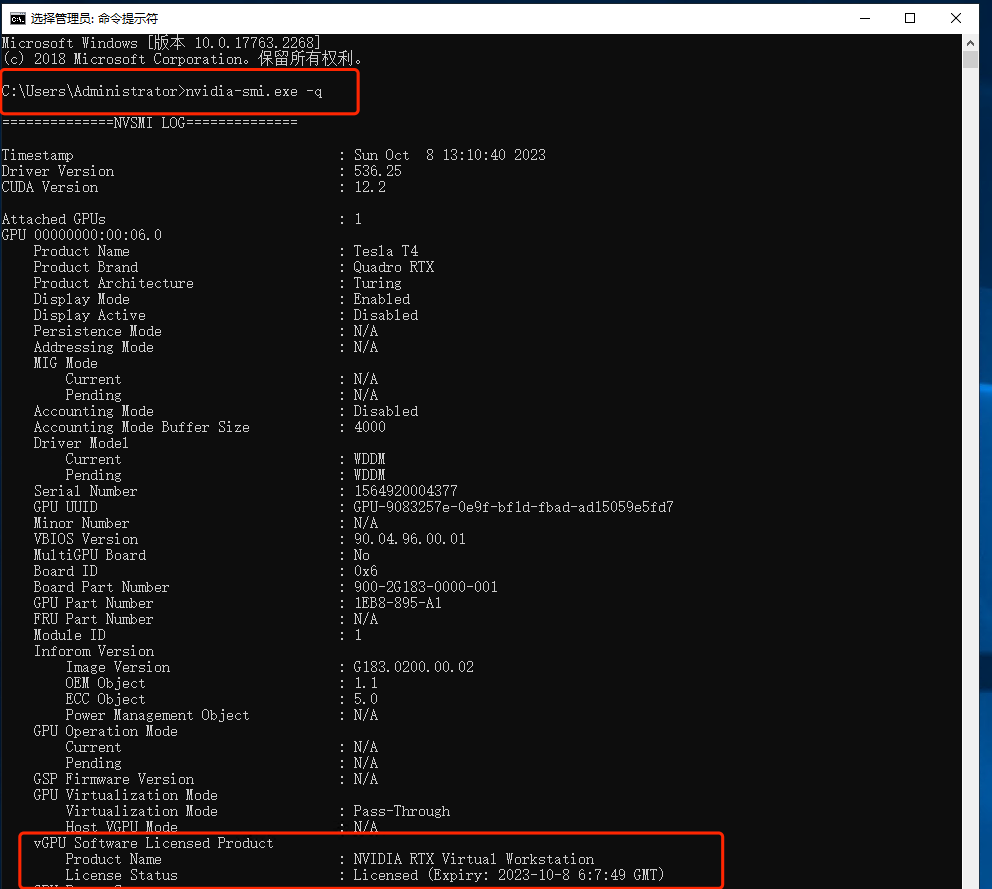
Run the nvidia-smi.exe -q command. If the following output is displayed, the installation was successful:

If the request was successful, skip the following actions. If the license was not successfully applied for, proceed with the following actions:
Navigate to Control Panel->Services, locate Nvidia Display Container LS, click right-click, and select Restart.
Execute the following command to verify the successful link of the License:
sudo systemctl status nvidia-gridd.service
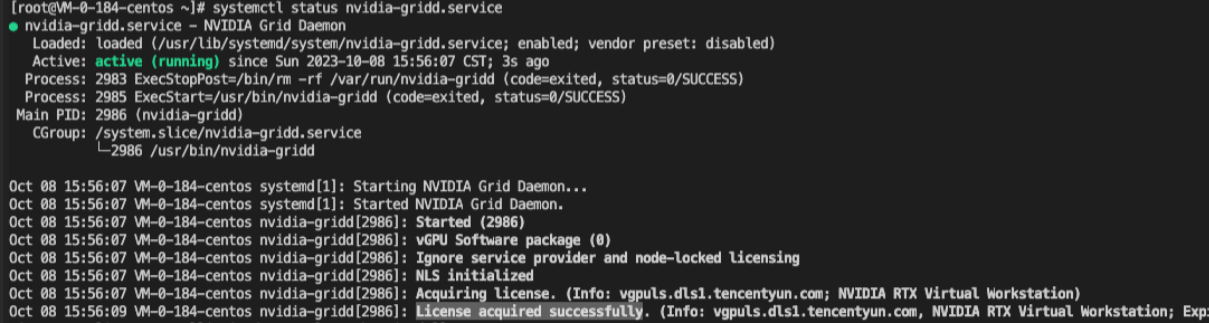
In the peek results, look for:---> License acquired successfully.

If the license application fails, you can restart the service and then reconfirm the license status.
systemctl restart nvidia-gridd.service


도움말 및 지원

문제 해결에 도움이 되었나요?

피드백