Cross-app screen sharing on iOS requires the addition of the Extension recording process to work with the main App process for push streaming.The Extension recording process is created by the system when it needs to record a screen and is responsible for receiving screen images captured by the system. Therefore, you need to:
1. create an App Group and configure it in XCode (optional). The purpose of this step is to allow the Extension screen recording process to communicate across processes with the main App process.
2. In your project, create a new Target for Broadcast Upload Extension and integrate TXLiteAVSDK_ReplayKitExt.framework, which is customised for the Extension in the SDK archive. 3. Click the Screen Sharing button to start sharing your screen.
Note:
If you skip Step 1, i.e. don't configure App Group (the interface passes null), the screen sharing can still work, but the stability will be reduced, so although there are more steps, please try to configure the correct App Group to ensure the stability of the screen sharing function. Step 1:
Create an App Group (optional)
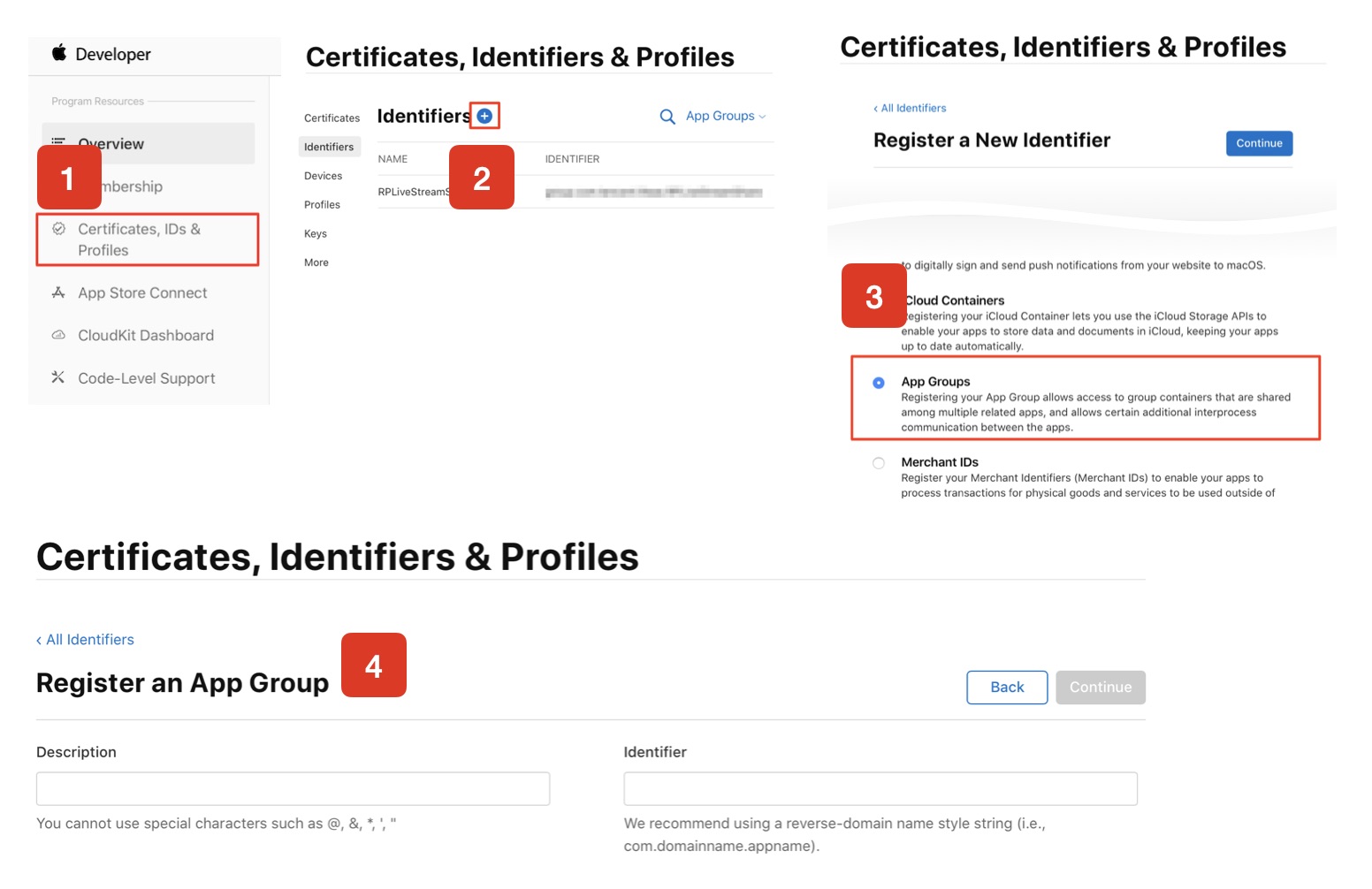
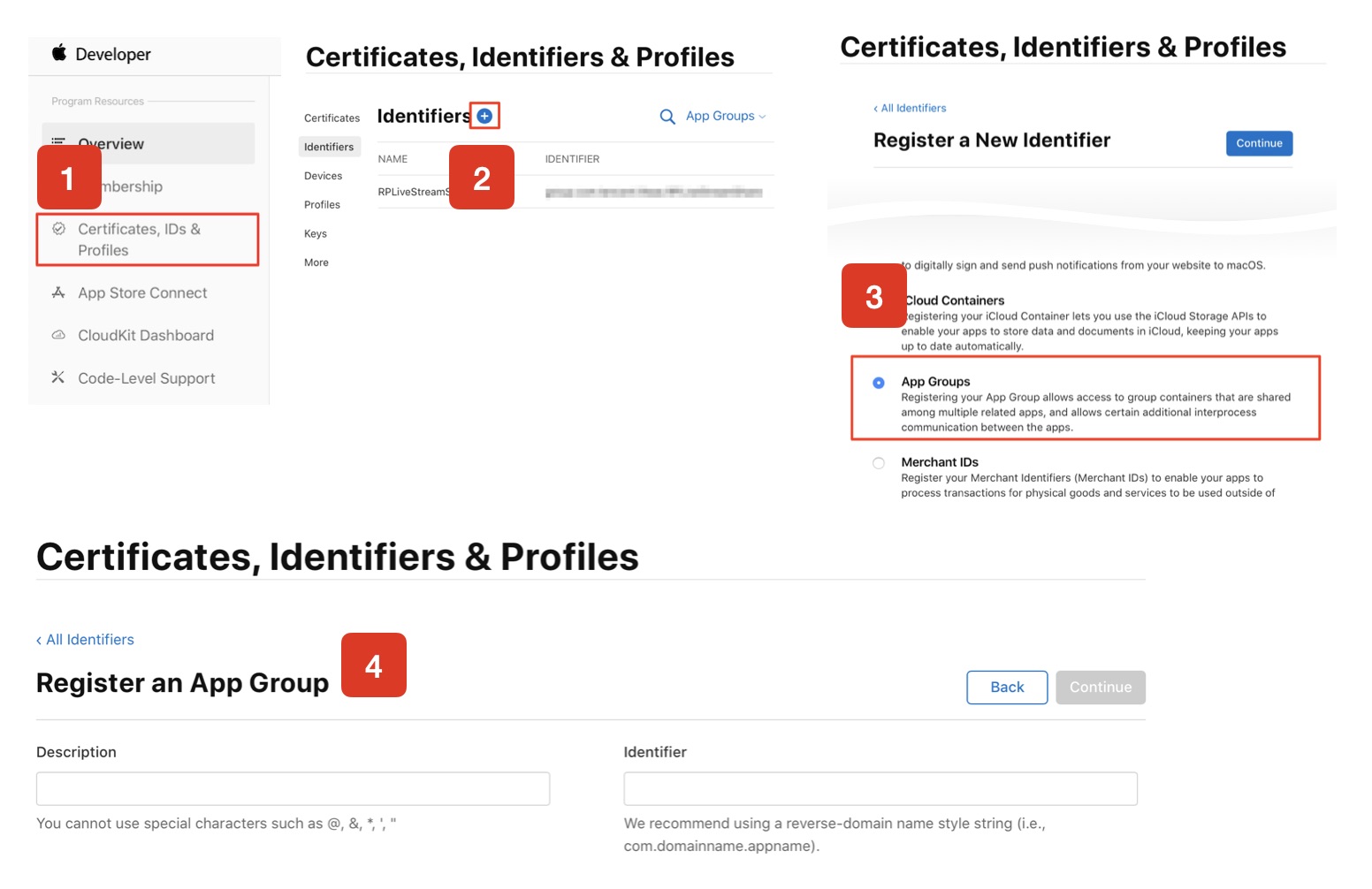
Sign in with your account and do the following, note that you need to re-download the corresponding Provisioning Profile after completing the process. 1. Click Certificates, IDs & Profiles. 2.
2. Click the plus sign on the right side of the screen. 3.
3. Select App Groups and click Continue. 4.
4. In the pop-up form, fill in Description and Identifier, where Identifier needs to be passed into the corresponding AppGroup parameter in the interface. Click Continue when you are done.
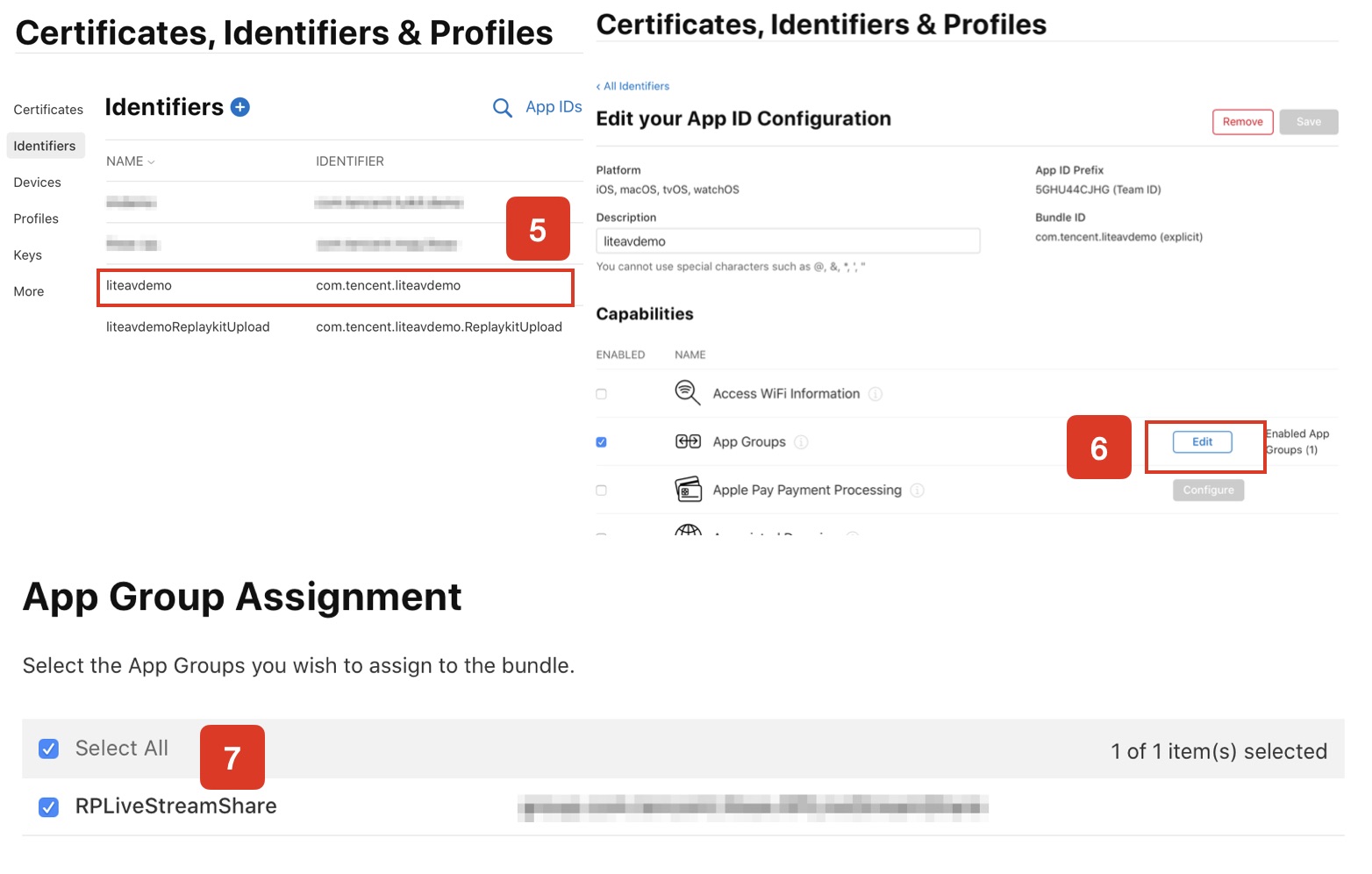
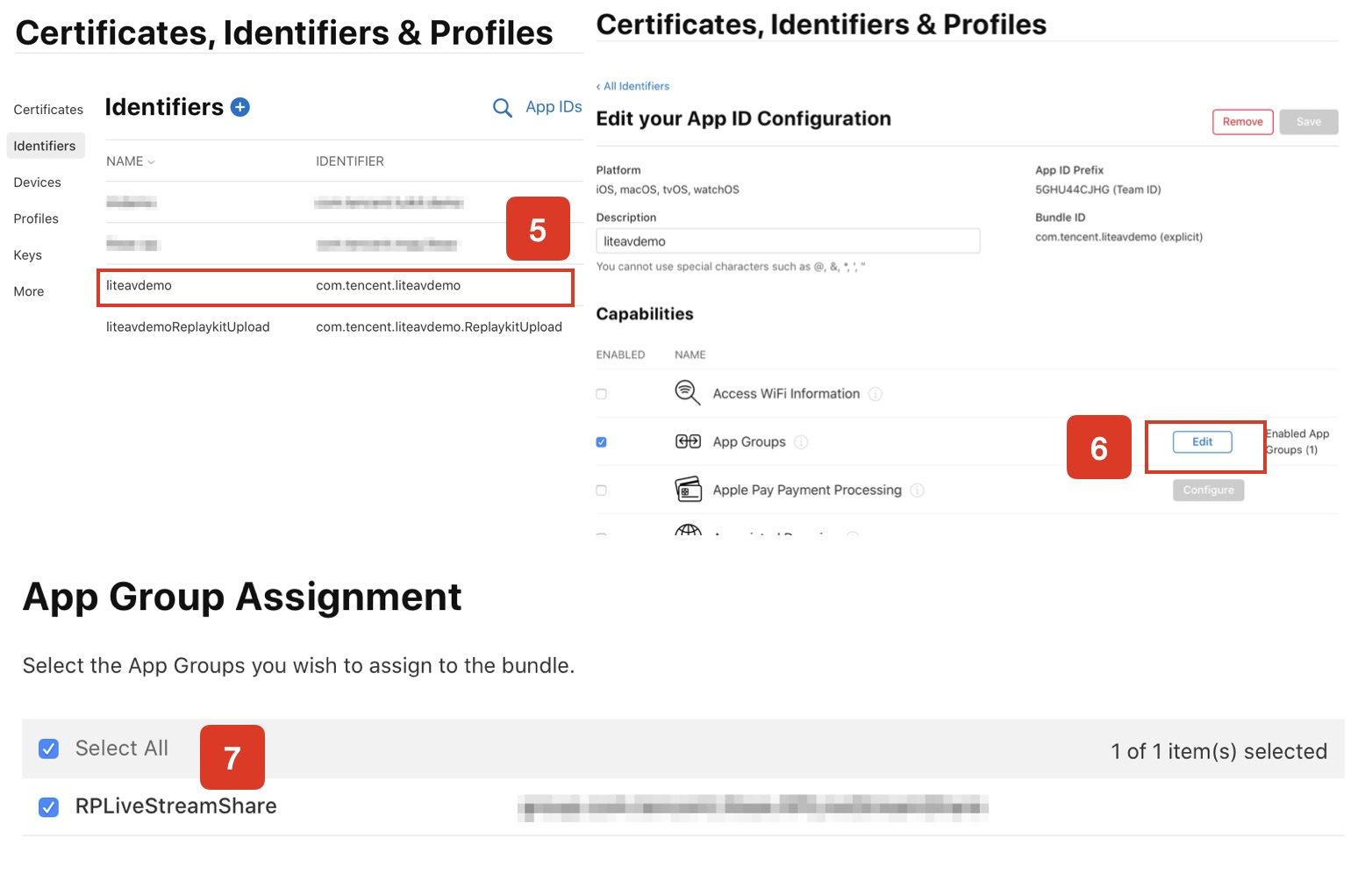
5. Back on the Identifier page, select App IDs from the top left menu and click on your App ID (the AppIDs for the main App and Extension need to be configured the same way).
6. Select App Groups and click Edit.
7. In the pop-up form, select the App Group you created earlier, click Continue to return to the Edit page, and click Save to save it.
8. Redownload the Provisioning Profile and configure it into XCode.
Step 2:Create Broadcast Upload Extension
1. Click File > New > Target... in the Xcode menu. Select Broadcast Upload Extension. 2.
2. Fill in the relevant information in the pop-up dialogue box, without checking Include UI Extension, click Finish to complete the creation.
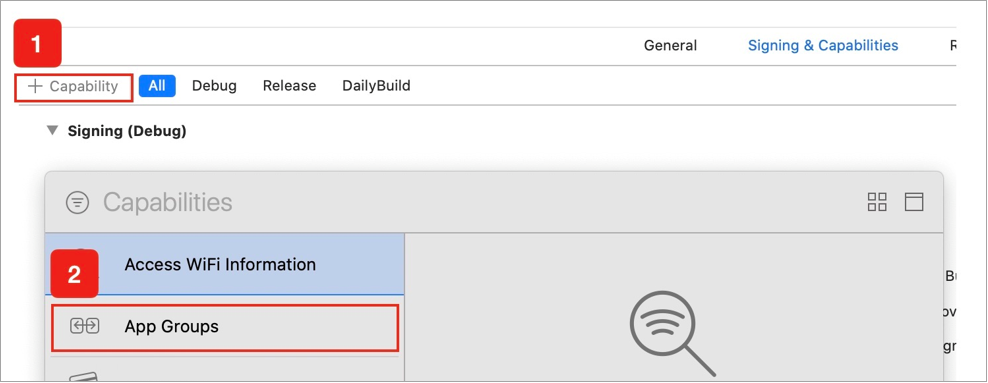
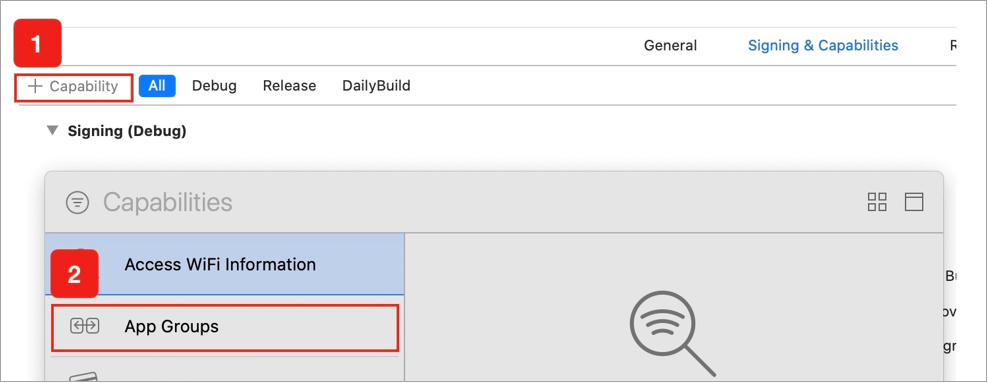
4. If you choose to perform Step 1, you need to click + Capability and double click App Groups in the newly added Target, as shown below: After the operation is completed, a file named Target.entitlements will be generated in the file list, as shown in the following figure, select the file and click the + sign to fill in the App Group in the above steps.
5. Select the Target of the main App and follow the above steps to do the same for the Target of the main App. 6.
6. In the newly created Target, Xcode will automatically create a file named ‘SampleHandler.swift’ and replace it with the following code. If Step 1 was performed, replace APPGROUP in the code with the App Group Identifier you created earlier, and then locate the EngineManager.swift file in TUIRoomKit, and set appGroupString there to App Group Identifier as well. If Step 1 is skipped, you don't need to modify APPGROUP. import ReplayKit
import TXLiteAVSDK_ReplayKitExt
let APPGROUP = "group.com.tencent.comm.trtc.demo"
class SampleHandler: RPBroadcastSampleHandler, TXReplayKitExtDelegate {
let recordScreenKey = Notification.Name.init("TRTCRecordScreenKey")
override func broadcastStarted(withSetupInfo setupInfo: [String : NSObject]?) {
TXReplayKitExt.sharedInstance().setup(withAppGroup: APPGROUP, delegate: self)
}
override func broadcastPaused() {
}
override func broadcastResumed() {
}
override func broadcastFinished() {
TXReplayKitExt.sharedInstance().broadcastFinished()
}
func broadcastFinished(_ broadcast: TXReplayKitExt, reason: TXReplayKitExtReason) {
var tip = ""
switch reason {
case TXReplayKitExtReason.requestedByMain:
tip = "Screensharing has ended"
break
case TXReplayKitExtReason.disconnected:
tip = "Application Disconnect"
break
case TXReplayKitExtReason.versionMismatch:
tip = "Integration error (SDK version number does not match)"
break
default:
break
}
let error = NSError(domain: NSStringFromClass(self.classForCoder), code: 0, userInfo: [NSLocalizedFailureReasonErrorKey:tip])
finishBroadcastWithError(error)
}
override func processSampleBuffer(_ sampleBuffer: CMSampleBuffer, with sampleBufferType: RPSampleBufferType) {
switch sampleBufferType {
case RPSampleBufferType.video:
TXReplayKitExt.sharedInstance() .sendVideoSampleBuffer(sampleBuffer)
break
case RPSampleBufferType.audioApp:
break
case RPSampleBufferType.audioMic:
break
@unknown default:
fatalError("Unknown type of sample buffer")
}
}
}
#import "SampleHandler.h"
@import TXLiteAVSDK_ReplayKitExt;
#define APPGROUP @"group.com.tencent.comm.trtc.demo"
@protocol TXReplayKitExtDelegate;
@interface SampleHandler()
@end
@implementation SampleHandler
- (void)broadcastStartedWithSetupInfo:(NSDictionary<NSString *,NSObject *> *)setupInfo {
[[TXReplayKitExt sharedInstance] setupWithAppGroup:APPGROUP delegate:self];
}
- (void)broadcastPaused {
}
- (void)broadcastResumed {
}
- (void)broadcastFinished {
[[TXReplayKitExt sharedInstance] broadcastFinished];
}
#pragma mark - TXReplayKitExtDelegate
- (void)broadcastFinished:(TXReplayKitExt *)broadcast reason:(TXReplayKitExtReason)reason
{
NSString *tip = @"";
switch (reason) {
case TXReplayKitExtReasonRequestedByMain:
tip = @"Screensharing has ended";
break;
case TXReplayKitExtReasonDisconnected:
tip = @"Application Disconnect";
break;
case TXReplayKitExtReasonVersionMismatch:
tip = @"Integration error (SDK version number does not match)";
break;
}
NSError *error = [NSError errorWithDomain:NSStringFromClass(self.class)
code:0
userInfo:@{
NSLocalizedFailureReasonErrorKey:tip
}];
[self finishBroadcastWithError:error];
}
- (void)processSampleBuffer:(CMSampleBufferRef)sampleBuffer withType:(RPSampleBufferType)sampleBufferType {
switch (sampleBufferType) {
case RPSampleBufferTypeVideo:
[[TXReplayKitExt sharedInstance] sendSampleBuffer:sampleBuffer withType:sampleBufferType];
break;
case RPSampleBufferTypeAudioApp:
break;
case RPSampleBufferTypeAudioMic:
break;
default:
break;
}
}
@end
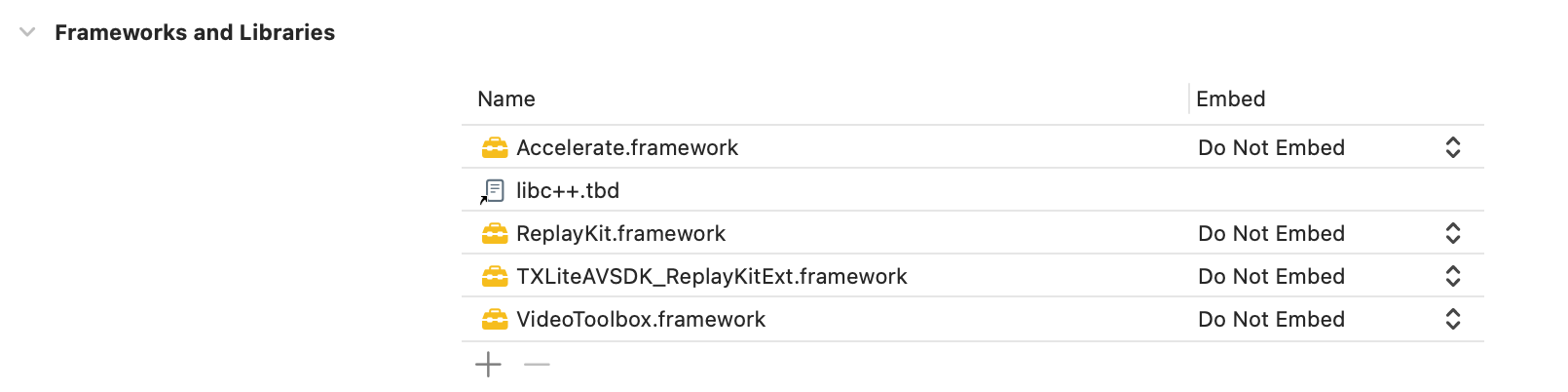
7. Click on the newly created Target, select the General option and add the following libraries to Frameworks and Libraries:
Android:Due to the change of the privacy policy of Android system, if you use screen recording and other functions in Android 10 and above Apps, you need to do it in the Foreground Service, otherwise the system will report an error or the App will be terminated by the system when recording/screen sharing. In our component, this Android Foreground Service will be enabled for you automatically, you just need to click the screen sharing button and agree to the relevant privacy policy to share.
The code for Android Foreground Service can be found in our code examples.
iOS:Cross-app screen sharing on iOS requires the addition of the Extension recording process to work with the main App process for push streaming.The Extension recording process is created by the system when it needs to record a screen and is responsible for receiving screen images captured by the system. Therefore, you need to:
1. create an App Group and configure it in XCode (optional). The purpose of this step is to allow the Extension screen recording process to communicate across processes with the main App process.
2. In your project, create a new Target for Broadcast Upload Extension and integrate TXLiteAVSDK_ReplayKitExt.framework, which is customised for the Extension in the SDK archive. 3. Click the Screen Sharing button to start sharing your screen.
Note:
If you skip Step 1, i.e. don't configure App Group (the interface passes null), the screen sharing can still work, but the stability will be reduced, so although there are more steps, please try to configure the correct App Group to ensure the stability of the screen sharing function. Step 1:
Create an App Group (optional)
Sign in with your account and do the following, note that you need to re-download the corresponding Provisioning Profile after completing the process. 1. Click Certificates, IDs & Profiles. 2.
2. Click the plus sign on the right side of the screen. 3.
3. Select App Groups and click Continue. 4.
4. In the pop-up form, fill in Description and Identifier, where Identifier needs to be passed into the corresponding AppGroup parameter in the interface. Click Continue when you are done.
5. Back on the Identifier page, select App IDs from the top left menu and click on your App ID (the AppIDs for the main App and Extension need to be configured the same way).
6. Select App Groups and click Edit.
7. In the pop-up form, select the App Group you created earlier, click Continue to return to the Edit page, and click Save to save it.
8. Redownload the Provisioning Profile and configure it into XCode.
Step 2:Create Broadcast Upload Extension
1. Click File > New > Target... in the Xcode menu. Select Broadcast Upload Extension. 2.
2. Fill in the relevant information in the pop-up dialogue box, without checking Include UI Extension, click Finish to complete the creation.
4. If you choose to perform Step 1, you need to click + Capability and double click App Groups in the newly added Target, as shown below:
After the operation is completed, a file named Target.entitlements will be generated in the file list.
As shown in the figure below, select the file and click the + sign to fill in the App Group in the above steps.
5. Select the Target of the main App and follow the above steps to do the same for the Target of the main App.
6. In the newly created Target, Xcode will automatically create a file named ‘SampleHandler.swift’ and replace it with the following code. Replace the APPGROUP in the code with the App Group Identifier you created above.
import ReplayKit
import TXLiteAVSDK_ReplayKitExt
let APPGROUP = "group.com.tencent.comm.trtc.demo"
class SampleHandler: RPBroadcastSampleHandler, TXReplayKitExtDelegate {
let recordScreenKey = Notification.Name.init("TRTCRecordScreenKey")
override func broadcastStarted(withSetupInfo setupInfo: [String : NSObject]?) {
TXReplayKitExt.sharedInstance().setup(withAppGroup: APPGROUP, delegate: self)
}
override func broadcastPaused() {
}
override func broadcastResumed() {
}
override func broadcastFinished() {
TXReplayKitExt.sharedInstance() .finishBroadcast()
}
func broadcastFinished(_ broadcast: TXReplayKitExt, reason: TXReplayKitExtReason) {
var tip = ""
switch reason {
case TXReplayKitExtReason.requestedByMain:
tip = "Screensharing has ended"
break
case TXReplayKitExtReason.disconnected:
tip = "Application Disconnect"
break
case TXReplayKitExtReason.versionMismatch:
tip = "Integration error (SDK version number does not match)"
break
default:
break
}
let error = NSError(domain: NSStringFromClass(self.classForCoder), code: 0, userInfo: [NSLocalizedFailureReasonErrorKey:tip])
finishBroadcastWithError(error)
}
override func processSampleBuffer(_ sampleBuffer: CMSampleBuffer, with sampleBufferType: RPSampleBufferType) {
switch sampleBufferType {
case RPSampleBufferType.video:
TXReplayKitExt.sharedInstance() .sendVideoSampleBuffer(sampleBuffer)
break
case RPSampleBufferType.audioApp:
break
case RPSampleBufferType.audioMic:
break
@unknown default:
fatalError("Unknown type of sample buffer")
}
}
}.
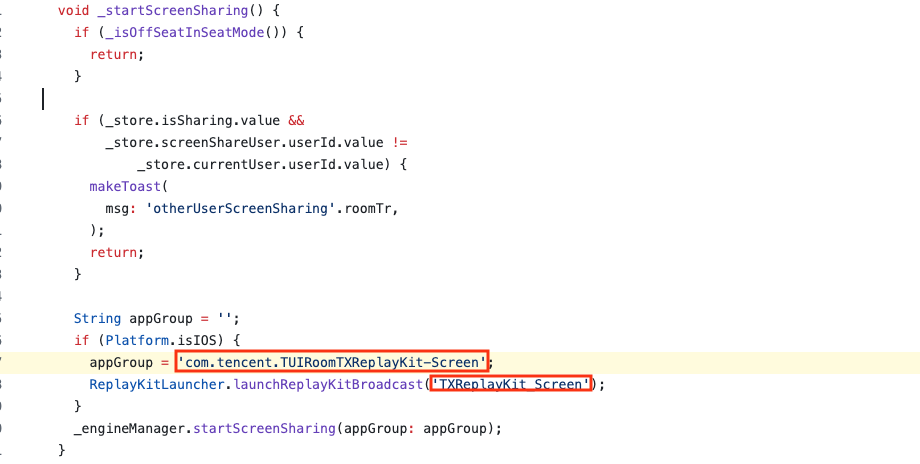
Step 3: Replace our app's App Group and BroadCast Upload Extension name with your App Group and BroadCast Upload Extension name in the component, for the code location please click on the file link.
Step 4:Tap the Screen Share button to start sharing your screen.