Android
Download
Modo Foco
Tamanho da Fonte
This document provides a step-by-step guide to quickly set up and run the TUIRoomKit Webinar Demo. You’ll be able to test core features including webinar room creation, audio/video streaming, screen sharing, member management, and large-scale message interaction. Following these instructions, developers can complete the Demo setup in under 10 minutes and experience a fully-featured webinar room with a complete UI.
What’s the difference between a standard conference and a webinar?
Standard Conference: Designed for small to medium-sized collaborative scenarios where all participants have equal Audio/Video permissions. Features like screen sharing and member management enable full interaction.
Webinar: Built for large-scale live presentations, supporting unlimited audience entry. Audiences can use the Raise Hand feature to apply to become a guest and join the discussion. The system is optimized for high-concurrency messaging in scenarios with tens of thousands of participants, meeting the needs of professional presentations and interactions.
Feature Overview
Host | Guest | Audience |
Host can start high-definition audio/video streaming, share screens, and manage participants. | Guest can enable their microphone for real-time voice discussions and sharing. | Supports unlimited concurrent audience entry, ultra-low latency viewing, and high-frequency chat. Audience can use "Raise Hand" to request guest access. |
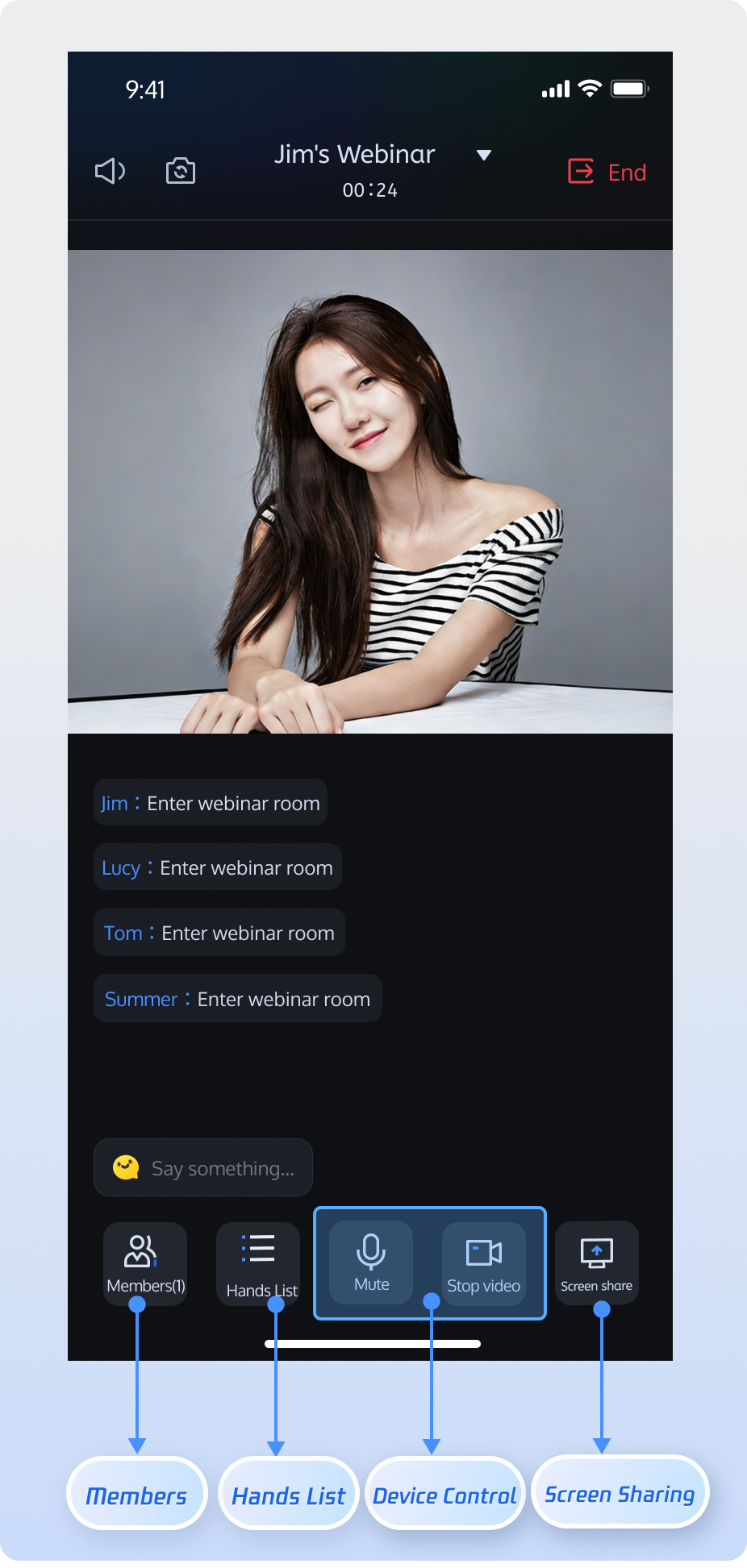 | 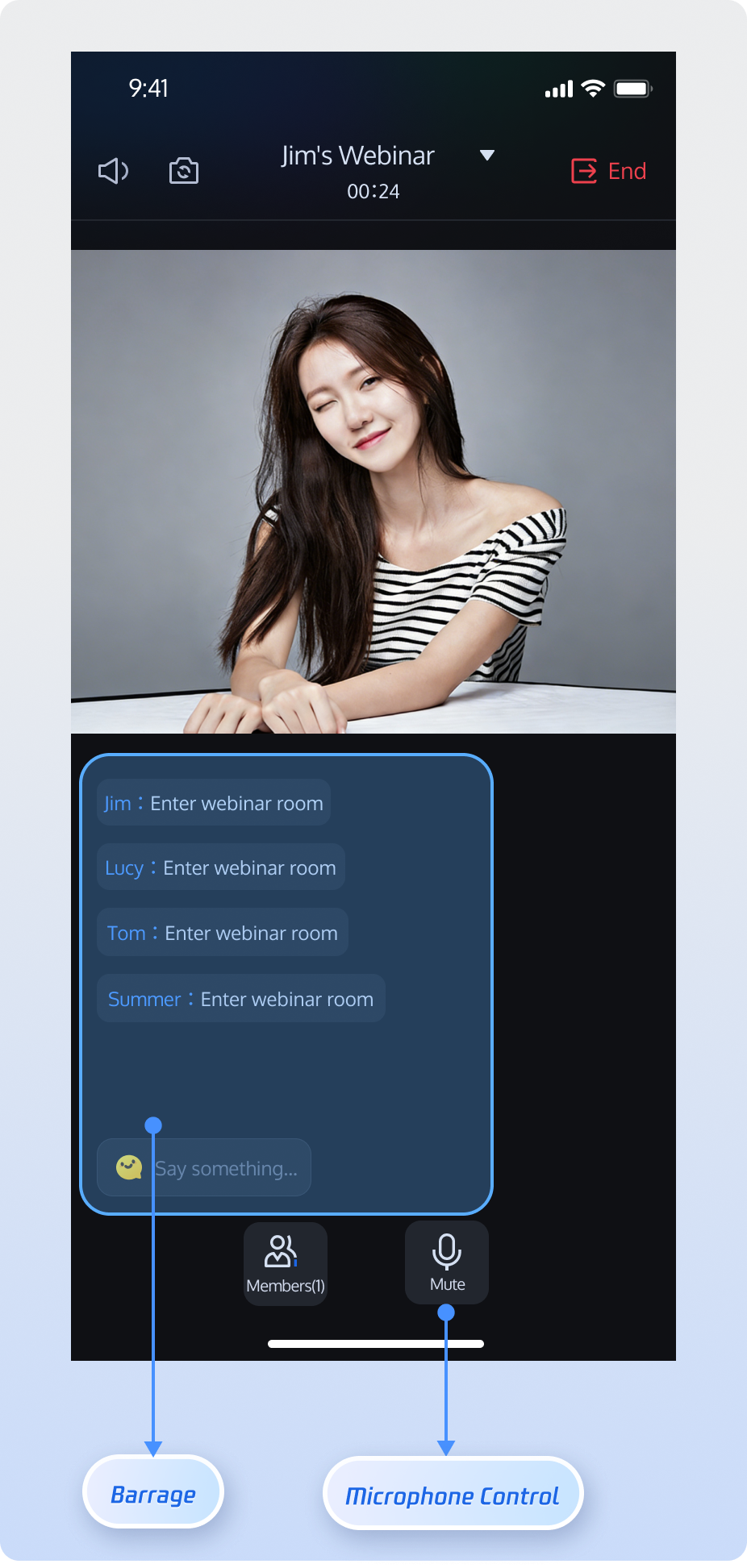 | 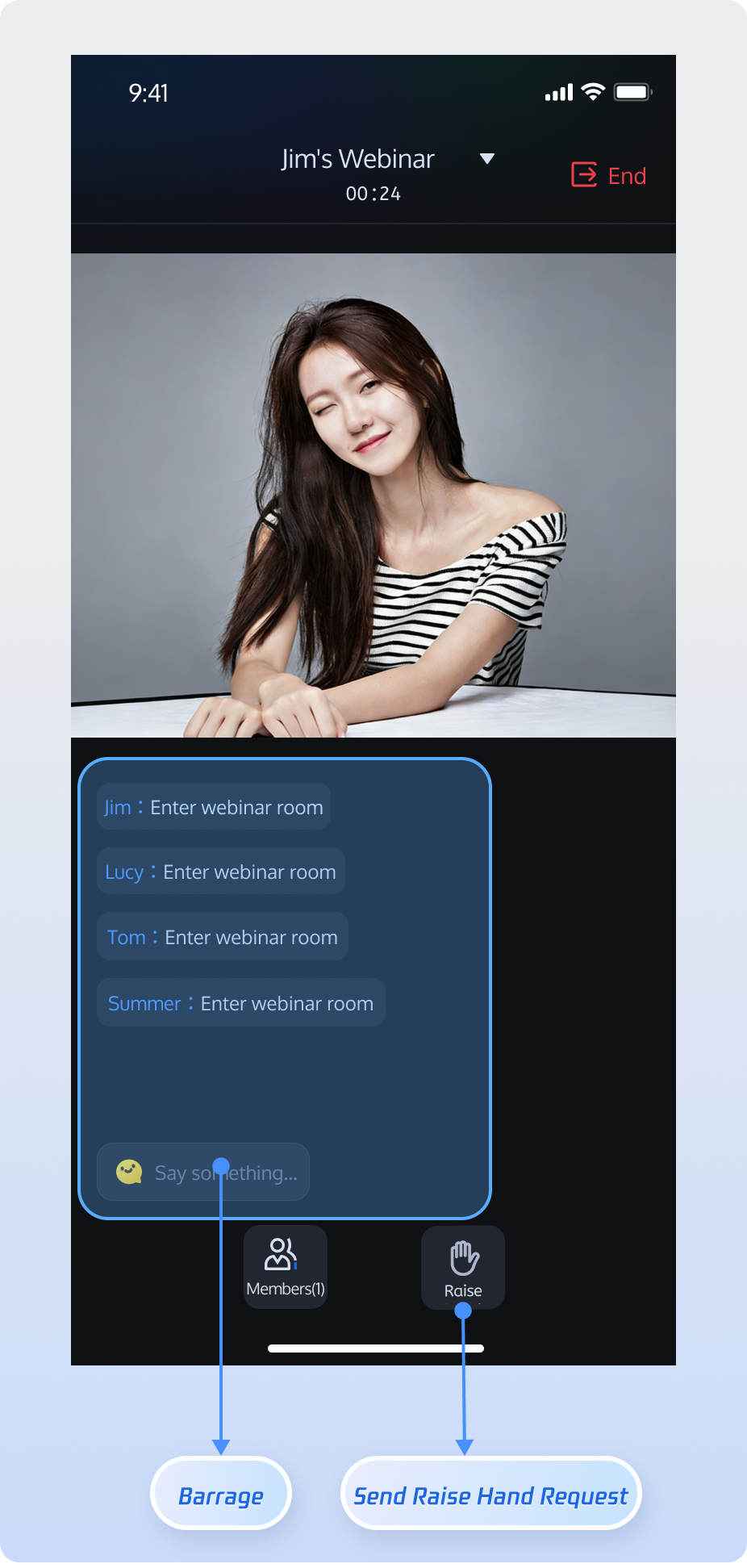 |
Prerequisites
Activate the Service
Refer to Activate the Service to claim the TUILiveKit trial version or activate the official TUILiveKit version. Then, go to the Application Management page to obtain the following information:
SDKAppID: Application identifier, used by TRTC for billing and statistics.
SDKSecretKey: Application SecretKey, used to initialize the configuration file.
Note:
The webinar scenario is built on underlying live streaming capabilities. To use webinar features, you must claim the TUILiveKit trial version or activate the official TUILiveKit version to ensure all related features work properly.
Environment Setup
Android 5.0 (SDK API level 21) or higherGradle 8.0 or higherTwo devices running
Android 5.0 or aboveRequires
JDK version 17, 18, or 19Obtain the Demo
1. Download the source code using one of the following methods:
Run this command in your terminal:
git clone https://github.com/Tencent-RTC/TUIKit_Android
2. Open the project: Launch
Android Studio and open the TUIKit_Android project: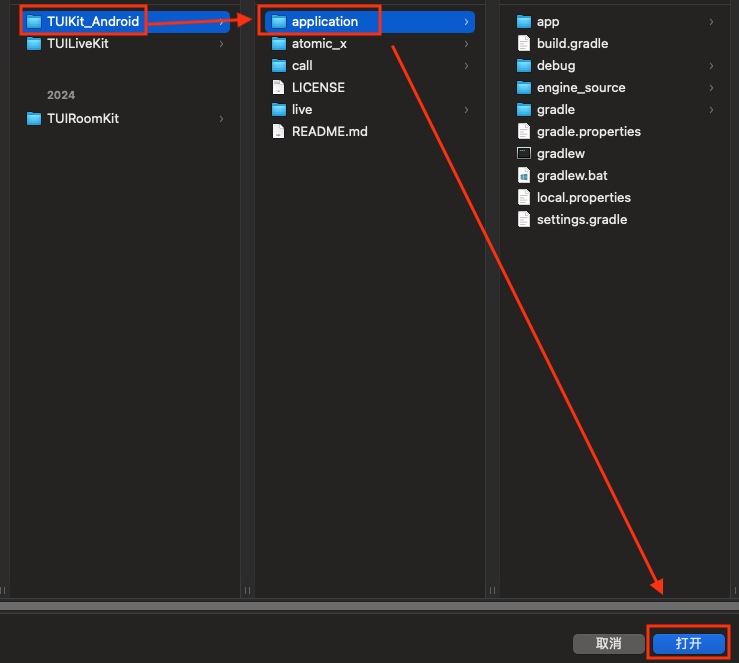
Configure the Demo
Set SDKAppID and SDKSecretKey: Open the
TUIKit_Android/application/debug/src/main/java/com/tencent/qcloud/tuikit/debug/GenerateTestUserSig.java file and enter your SDKAppID and SDKSecretKey: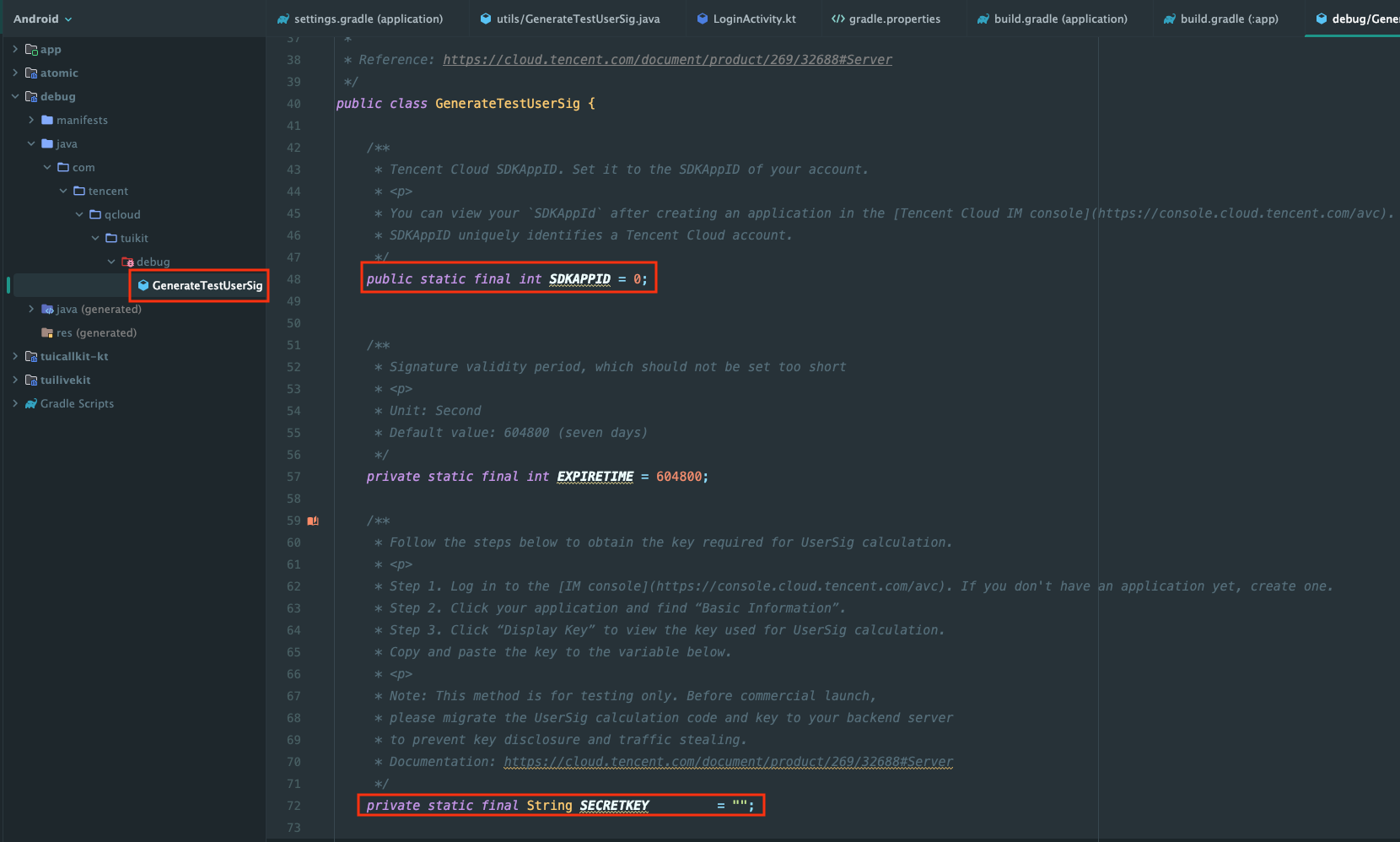
Build and Run the Demo
1. In the top right corner of
Android Studio, select the device you want to run the Demo on: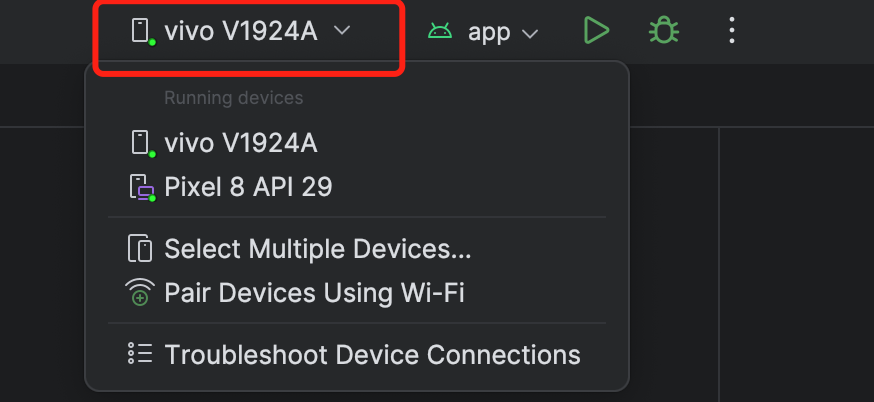
2. Click Run to deploy
TUIKit_Android to your target device.
Note:
For a complete webinar room experience, we recommend running the Demo on two devices and logging in with two different users (for example, one as the host, one as an audience member).
Login and Registration
After launching the demo, enter your User ID to log in. If the User ID has not been registered before, you’ll be taken to the registration page to set your nickname.
Login Page | Registration Page |
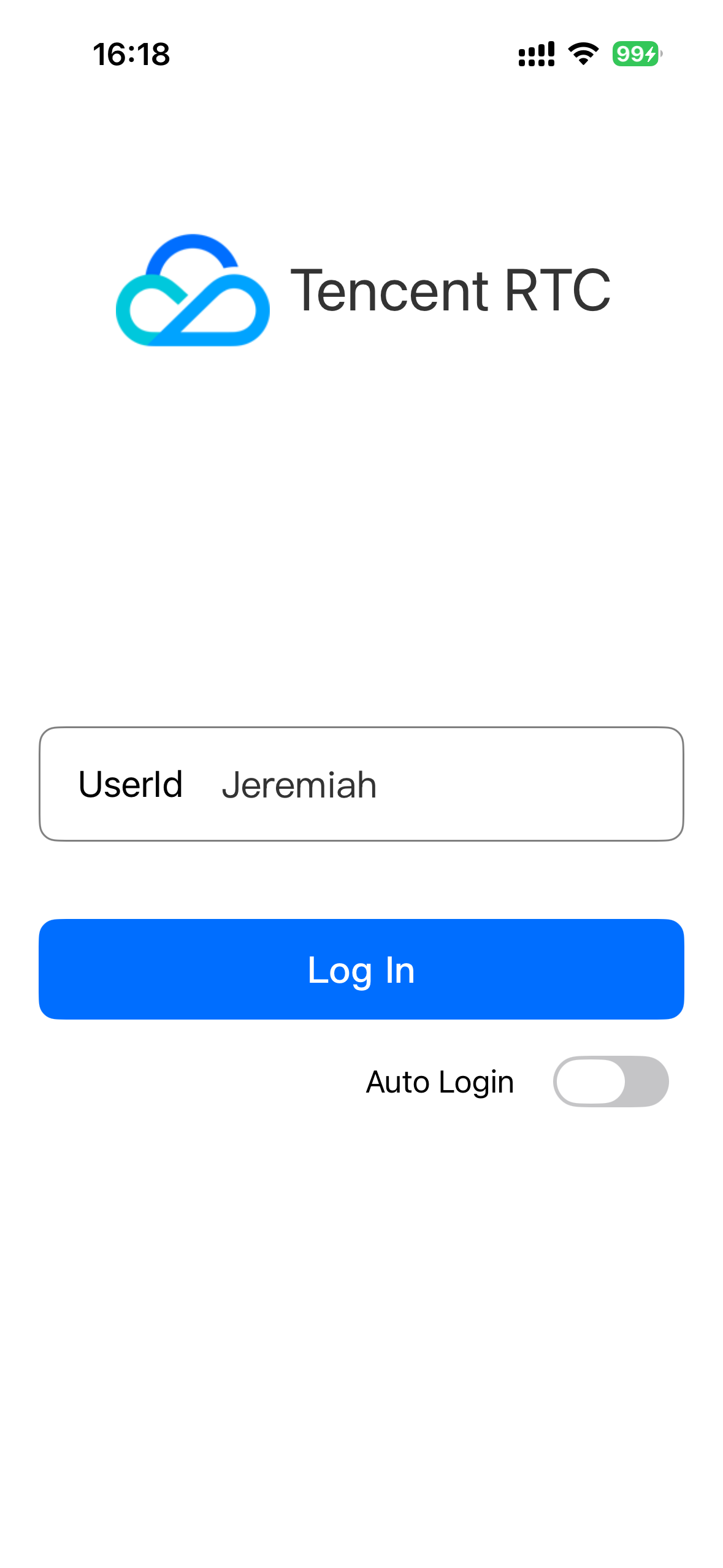 | 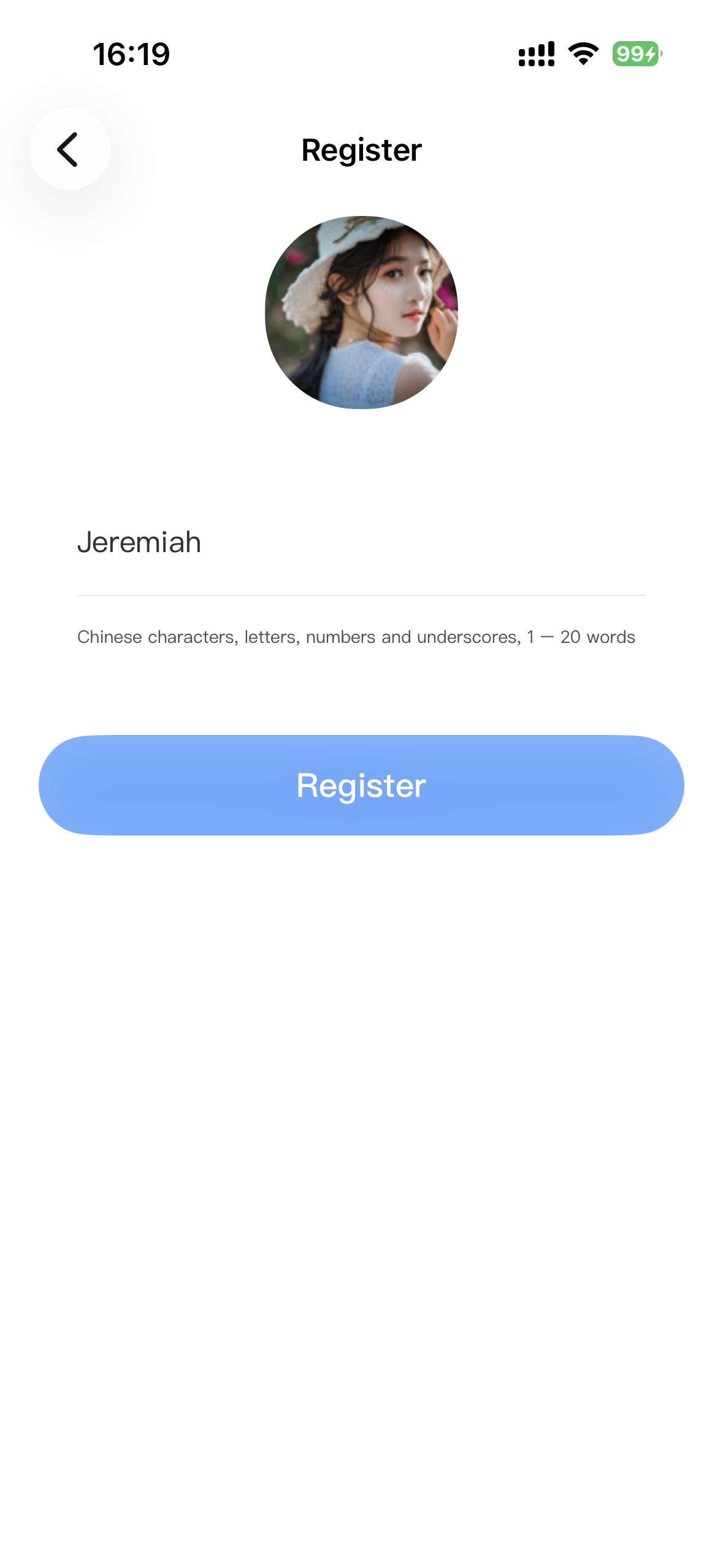 |
Note:
Avoid using simple UserIDs like "1", "123", or "111" to prevent login failures caused by duplicate IDs during multi-user testing. For debugging, use a unique UserID.
Room Features
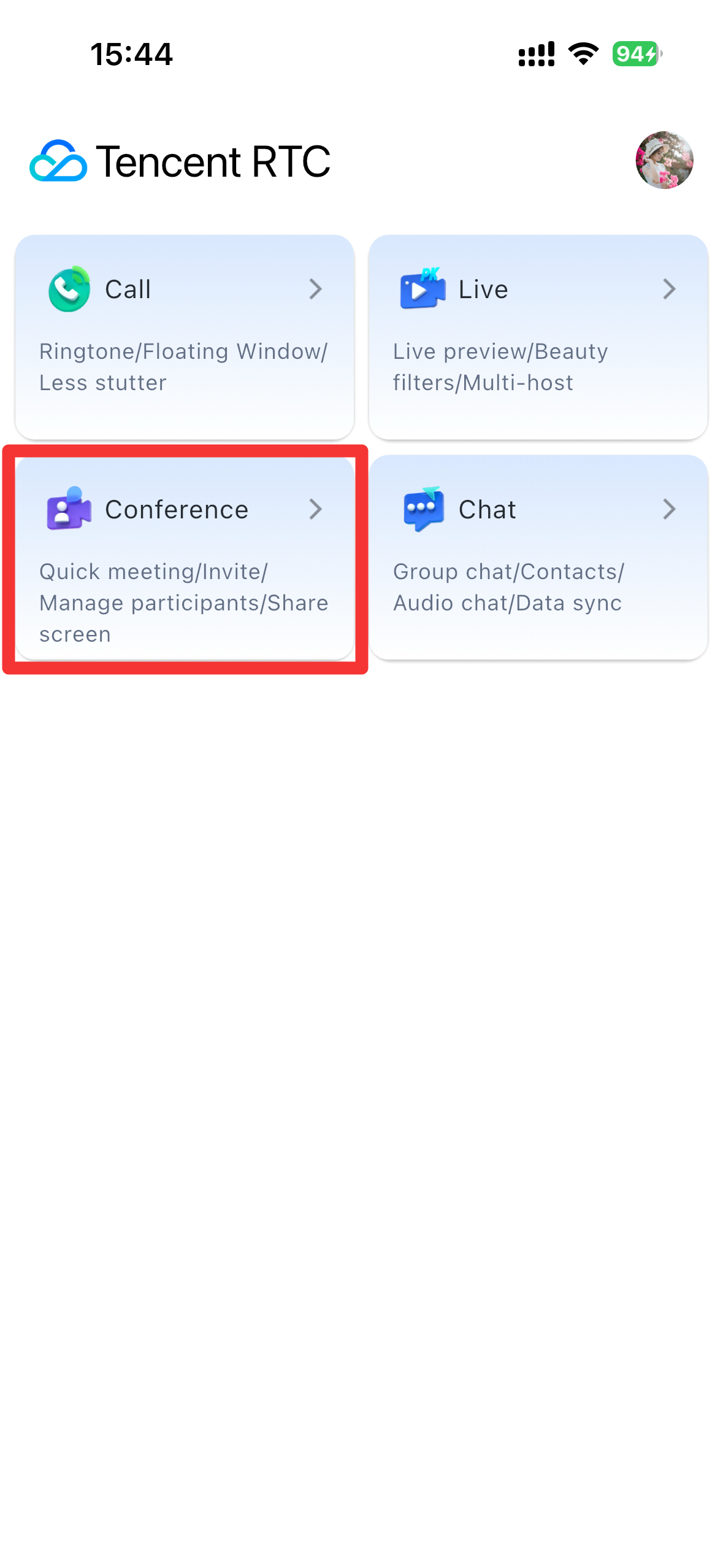
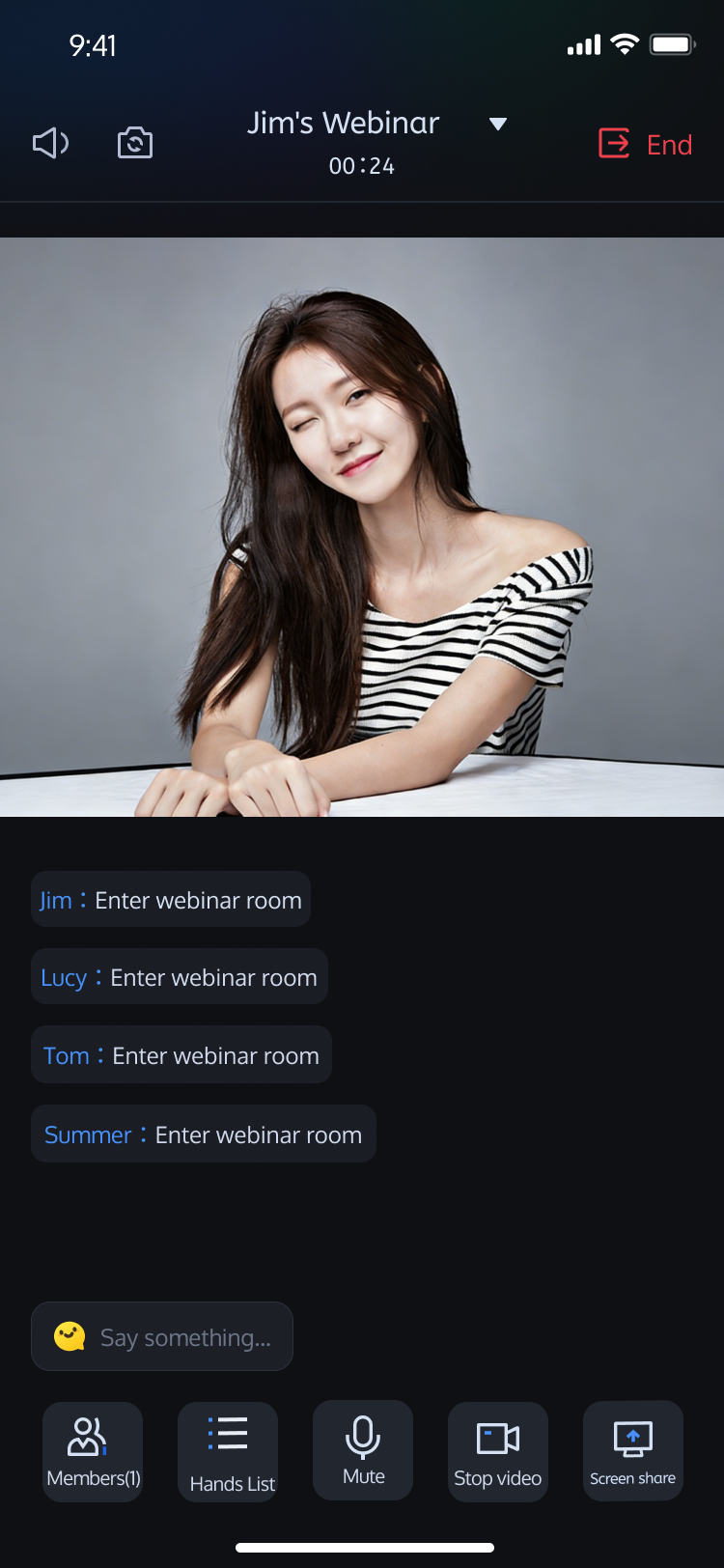
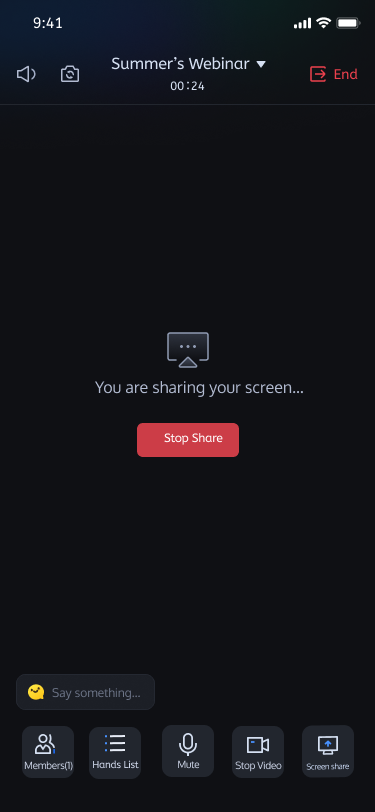
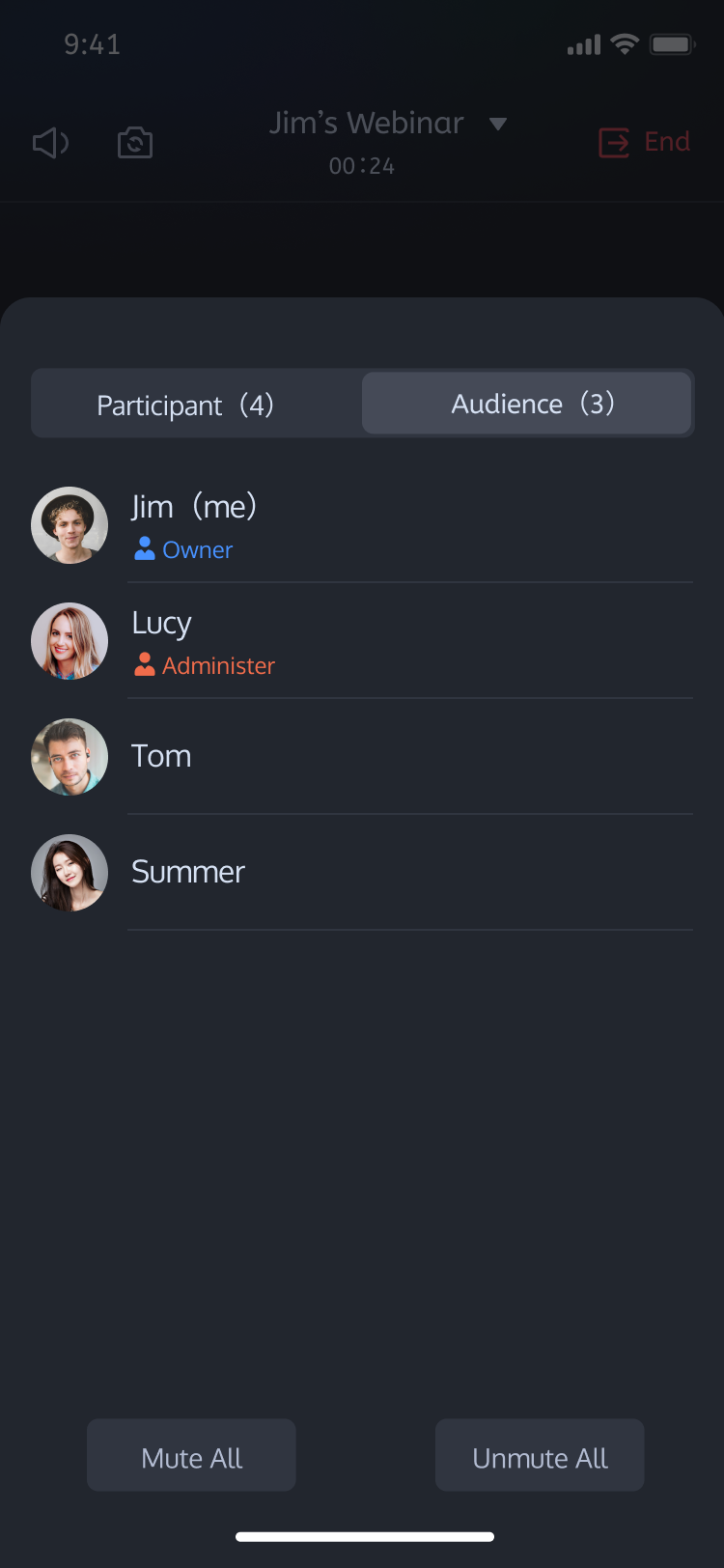
After logging in, enter the conference scenario from the main page. Create or join a room, select the webinar room type, and access the TUIRoomKit demo feature page.
Feature Entry | Room Home | Screen Sharing | Member Management Panel |
 |  |  |  |
Note:
To enable audio/video communication between multiple devices, ensure the SDKAppID entered in the
TUIKit_Android/application/debug/src/main/java/com/tencent/qcloud/tuikit/debug/GenerateTestUserSig.java file matches across all devices.FAQs
Demo prompts signature error or login failure?
Check that the SDKAppID and SDKSecretKey entered in
TUIKit_Android/application/debug/src/main/java/com/tencent/qcloud/tuikit/debug/GenerateTestUserSig.java are correct and match the keys obtained during Activate the Service.Will a Gradle version lower than 8.0 affect Demo operation?
Yes. Using a Gradle version below 8.0 may cause dependency download failures or compilation errors. Please upgrade Gradle in Android Studio to meet the minimum required version.
How to resolve the compilation error: Unknown Kotlin JVM target?
If your local JDK version (such as JDK 21) is too high, Kotlin 1.9 (used in this Demo) does not support compiling to this JVM Target. Set the Gradle JDK in Android Studio to version 17, 18, or 19.
How do I remove call and live streaming module code from the Demo?
The Demo integrates three core TRTC audio/video scenarios: Call (TUICallKit), Live Streaming (TUILiveKit), and Conference (TUIRoomKit). If you only need the conference scenario, streamline the project by following these steps:
1. Remove the
TUILiveKit and TUICallKit dependencies from the settings.gradle file and re-run SyncNow.2. Delete call and live streaming related code from the Demo project.
3. Resolve any compilation errors, then build and run the Demo.
Contact Us
If you have any questions or suggestions during integration or use, contact info_rtc@tencent.com to submit feedback.
Ajuda e Suporte
Esta página foi útil?
Você também pode entrar em contato com a Equipe de vendas ou Enviar um tíquete em caso de ajuda.
comentários