Notification Center
Download
Mode fokus
Ukuran font
The Notification Settings feature is used to configure and manage security event alarm notifications. It allows users to customize the time and scope for receiving notifications, and to manage notification methods and recipients.
Notification Recipient Management
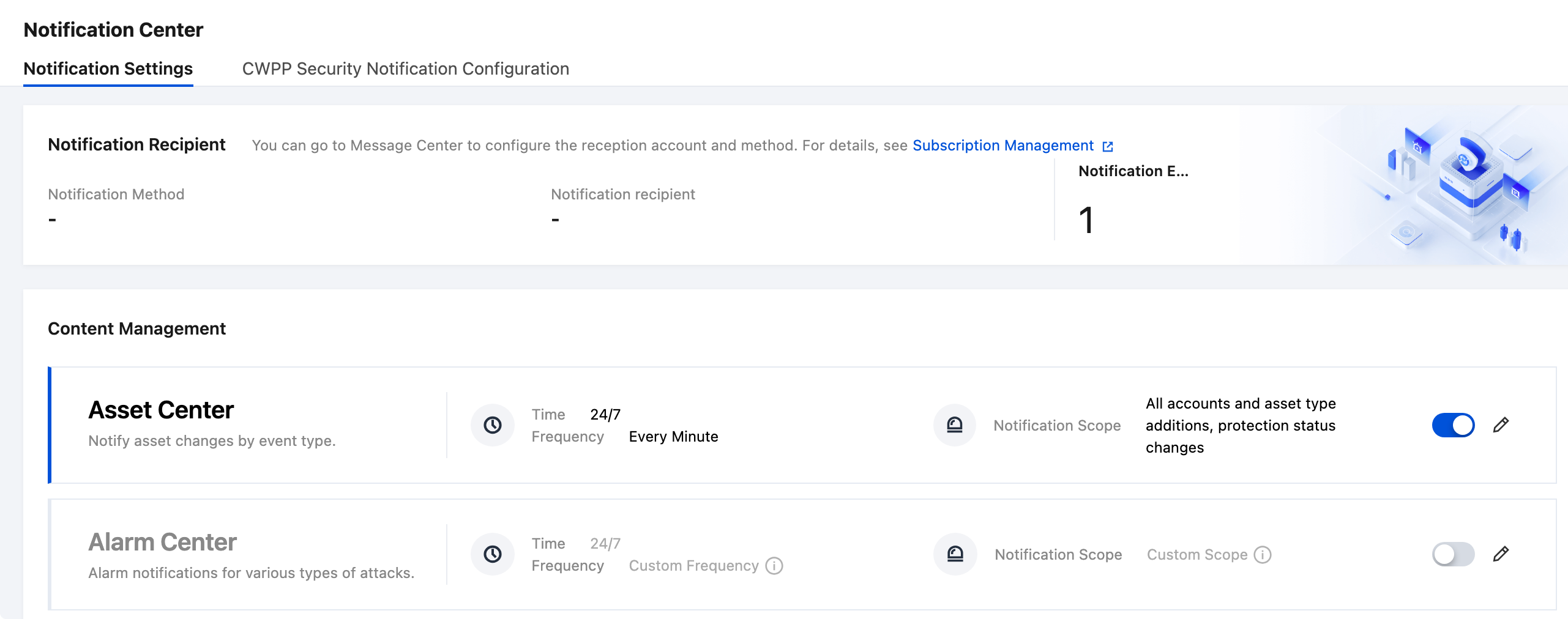
1. Log in to the CSC console. Then, in the left navigation pane, click Notification Center > Notification Settings.
2. On the Notification Settings page, verify whether the notification methods and recipients meet your expectations. If modifications are required, go to the Message Center to configure them.
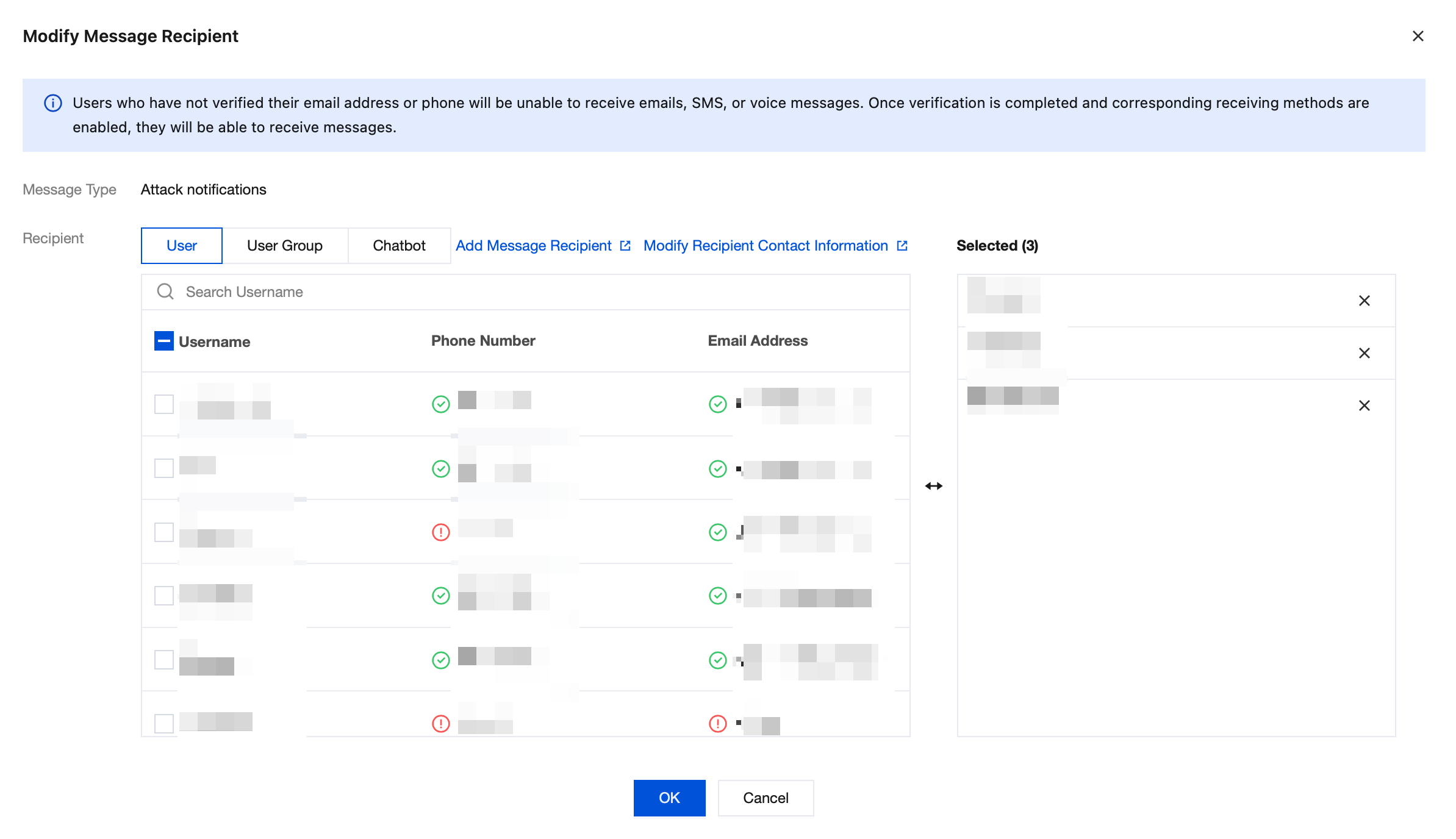
3. On the Message Center > Message Subscription page, choose Edit for Security Event Notifications.
Select the corresponding recipients and confirm that the contact information for the selected notification channels has been configured. CSC supports notifying users and bots.
Notification Content Management
1. Log in to the CSC console. Then, in the left navigation pane, click Notification Center > Notification Settings.
2. On the Notification Settings page, for sections that require notifications, you can click the switch on the right side of the card to enable them with one click.
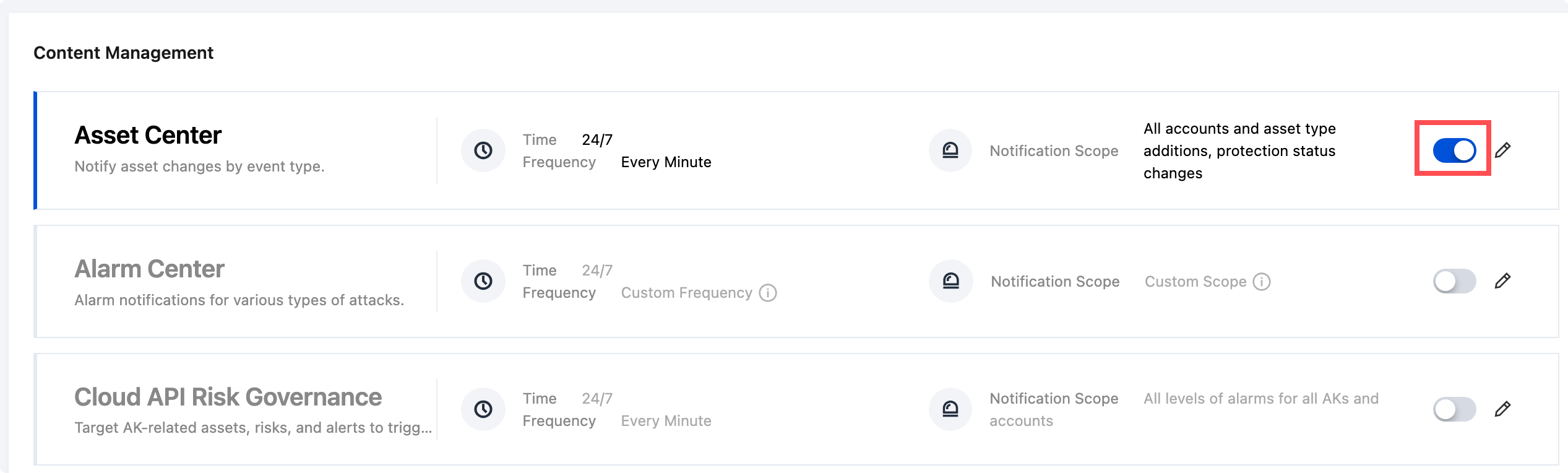
3. After it is enabled, notifications are sent according to the default time, frequency, and scope.
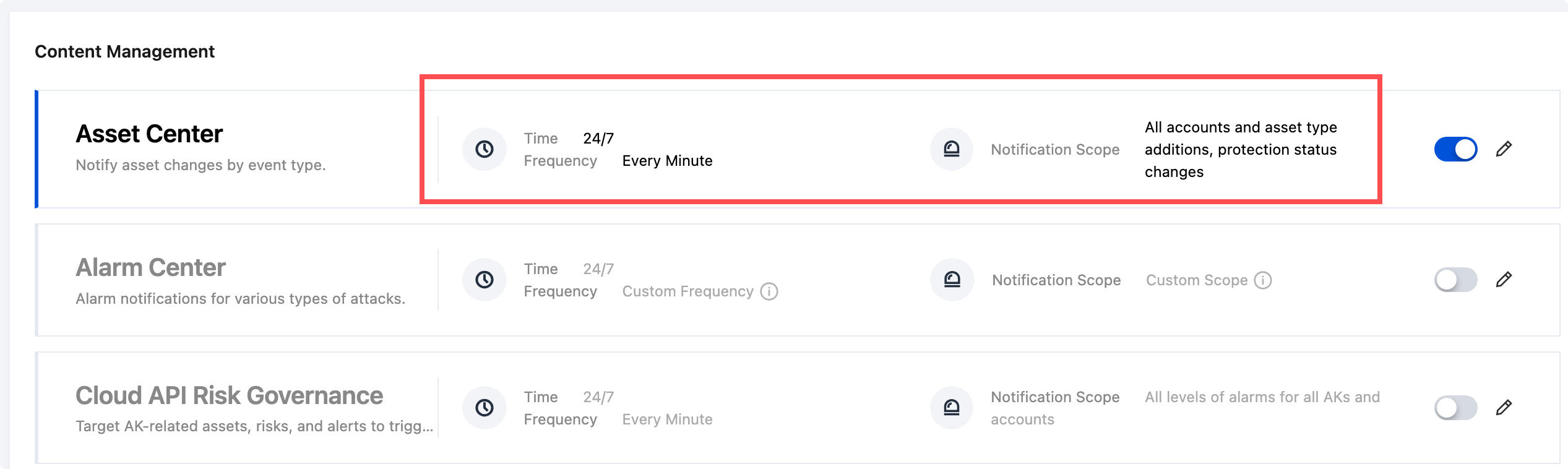
4. If you need to further customize the notification time, frequency, or scope, click Edit on the right side of the card.
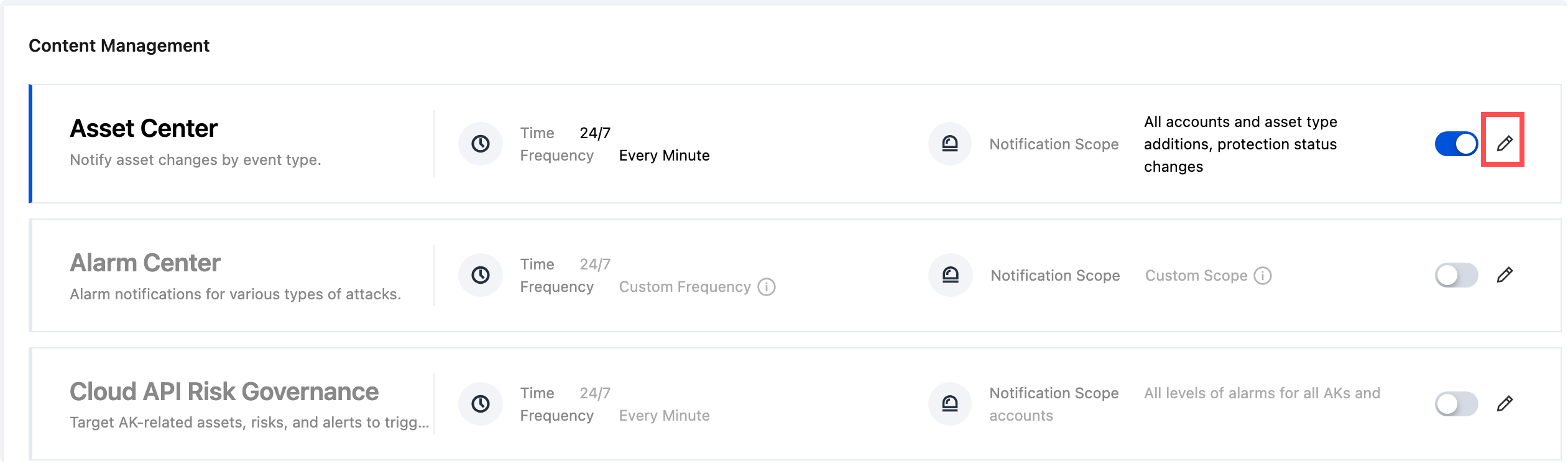
5. On the Edit page, adjust the notification mode, time, and scope according to your actual needs, and then click OK.
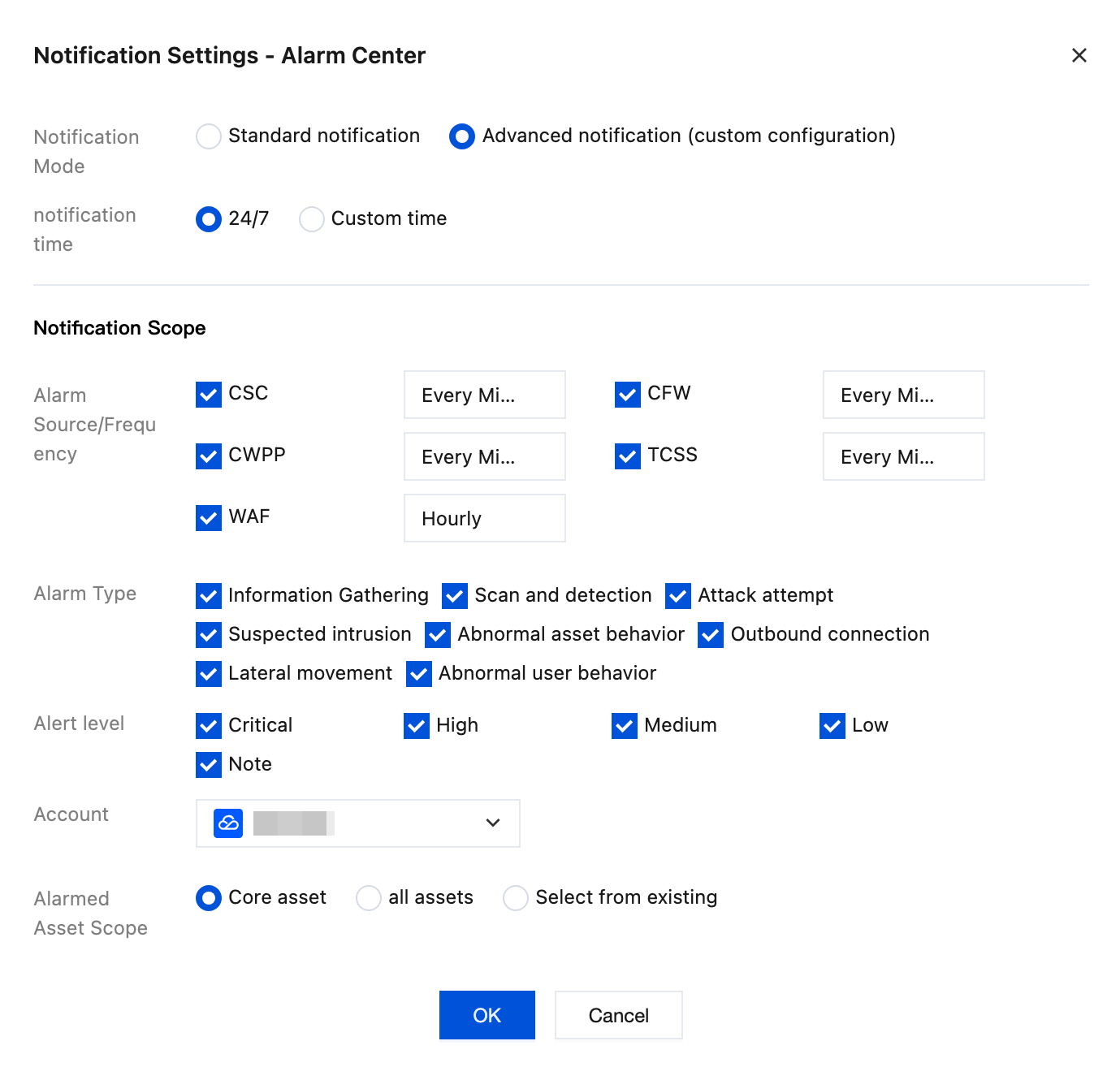
Note:
The current edition of CSC includes some features originally from CWPP, such as vulnerability management, alarm center, host protection, and application protection. Therefore, notifications for these features cannot be enabled through the configurations in the previous sections. They must be enabled via Notification Center > CWPP Notification Configuration. This configuration is consistent with the alarm notification settings in the CWPP console.

Bantuan dan Dukungan
Apakah halaman ini membantu?
Anda juga dapat Menghubungi Penjualan atau Mengirimkan Tiket untuk meminta bantuan.
masukan