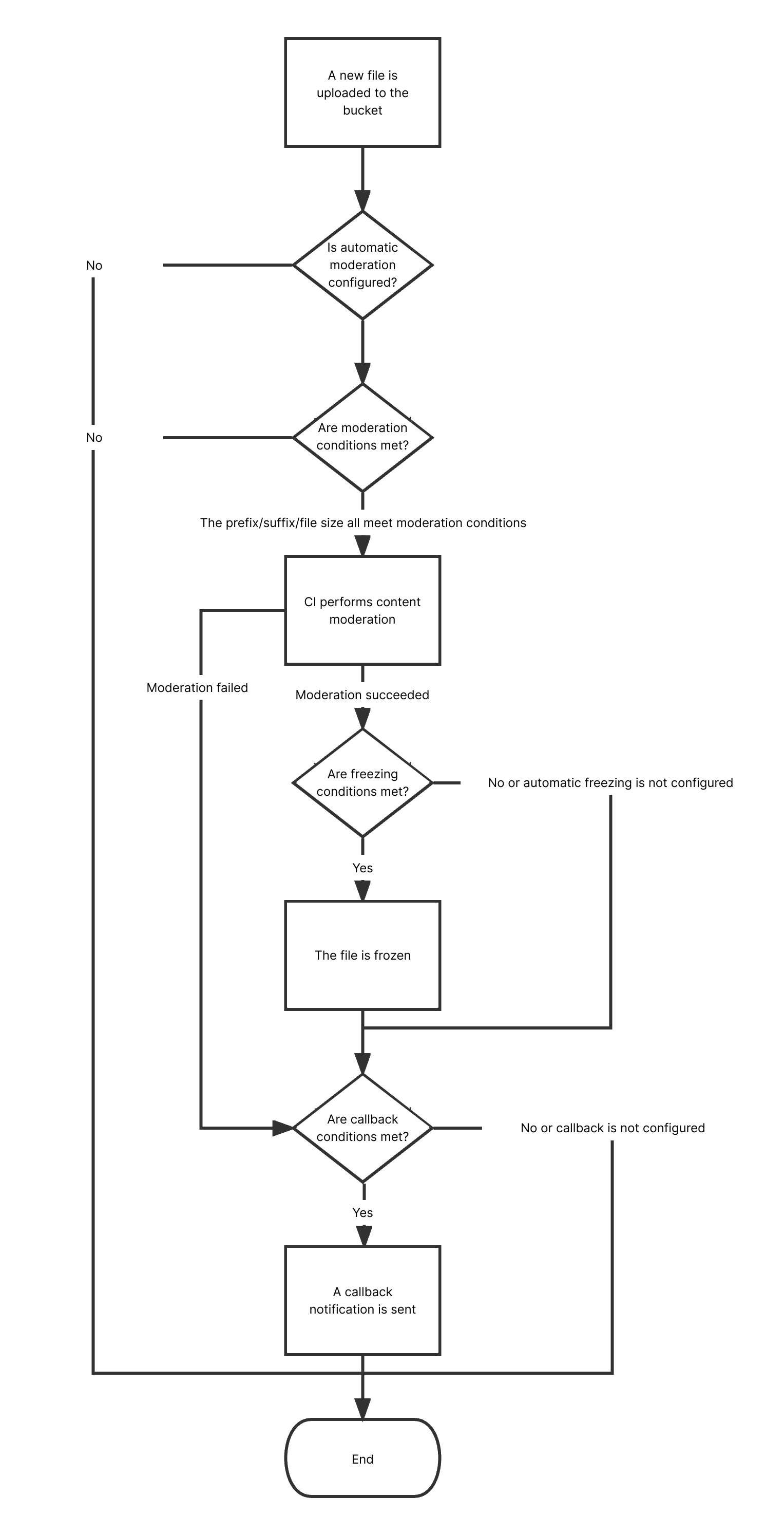
This document describes how to use the document moderation feature in the console to check file content for pornographic, illegal, and advertising information.
After you configure automatic document moderation, new text/documents uploaded to a bucket will be automatically moderated, and the identified non-compliant content can be automatically blocked (by denying public read access to the content).
Note:
The document moderation feature leverages the document conversion capability to convert each page of a document into an image for moderation.
Document moderation is billed by CI.
Currently, document types supported for moderation include:
2. On the Bucket Management page, click the target bucket to enter the bucket details page.
3. On the left sidebar, select Sensitive Content Moderation > Automatic Moderation Configuration and click Document Moderation.
4. Click Add Automatic Document Moderation Configuration and set the following configuration items:
Moderation Scope: Select the scope of documents to be moderated, which can be the entire bucket, a specific directory, or a specific file prefix.
Moderation Suffix: Select one or multiple options for Document Format, including presentation, text, spreadsheet, and PDF.
Moderation Policy: Select a moderation policy. You can create different policies for refined moderation. If no policies have been configured, the default policy will be used. Moderation scene options include Pornographic, Illegal, and Advertisement, and you can select one or multiple options. For more information on how to configure a moderation policy, see Setting Moderation Policy.
Moderation Scene: It displays the scene that you configure in the moderation policy. You can select the target scene as needed.
Restricted File Block: You can enable this service to authorize CI to perform automatic or human moderation and block the identified non-compliant files by denying public read access to them. After enabling this service, you need to select the block type and score range of files to be blocked.
Block Type: You can select a block type and mechanism. Machine moderation and block is selected by default. If you select Manual review freeze, Tencent Cloud security team will review suspiciously sensitive files identified during machine moderation. You can select the file score range for blocking (by specifying an integer between 60 and 100; the greater the score, the more sensitive the file).
Callback: After callback is enabled, you will receive moderation results. You need to select the moderation type and callback content and set the callback URL. For more information, see Document Moderation Callback Content.
5. After completing the configuration, click Save. Files uploaded subsequently will be moderated.
Notes
1. Document moderation adopts a scoring mechanism, with a score between 0 and 100 returned for each output image.
2. Depending on the score range, the moderation result can be a sensitive image, suspiciously sensitive image, or normal image.
The score range of sensitive images is ≥ 91.
The score range of suspiciously sensitive images is 61–90. Such images cannot be accurately identified as sensitive, so human moderation is recommended to ensure their content security.
The score range of normal images is ≤ 60. Such images are determined as normal by the system.