The custom image risk library is designed to help you manage images or keywords that need to be moderated. With risk library customization, you can configure the images or keywords to allow or block them. This can be applied to all moderation scenes.
Image Risk Library
You can use an image risk library to manage images that need to be blocked or allowed, to address unexpected control requirements.
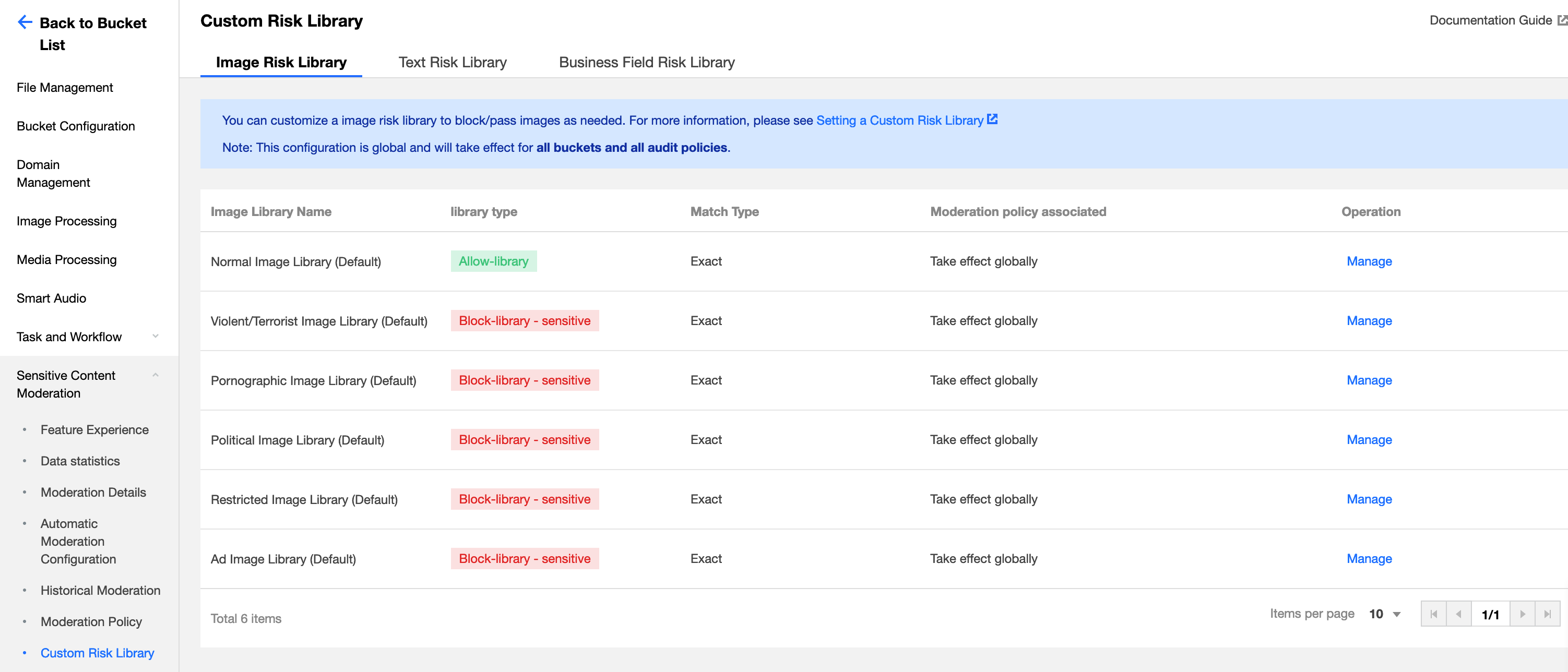
Six preset image risk libraries are available in the system:
Normal image library: The returned moderation result will be normal for images that match those in this library.
Pornographic and illegal image library: The returned moderation result will be the corresponding violation tag for images that match those in the library.
Creating new image risk library is not supported. You can add sample images to the existing default libraries.
Note:
The image risk library is effective by account. After you add sample images to the gallery in any bucket under the same account, these images will automatically take effect in all your buckets and all your moderation policies.
A single image library can contain a maximum of 10,000 sample images.
Some specific images may fail to be added to the image library. In this case, please contact us for assistance.
Text Risk Library
You can use the text risk library to manage text to be blocked or allowed, in order to address sudden control requirements.
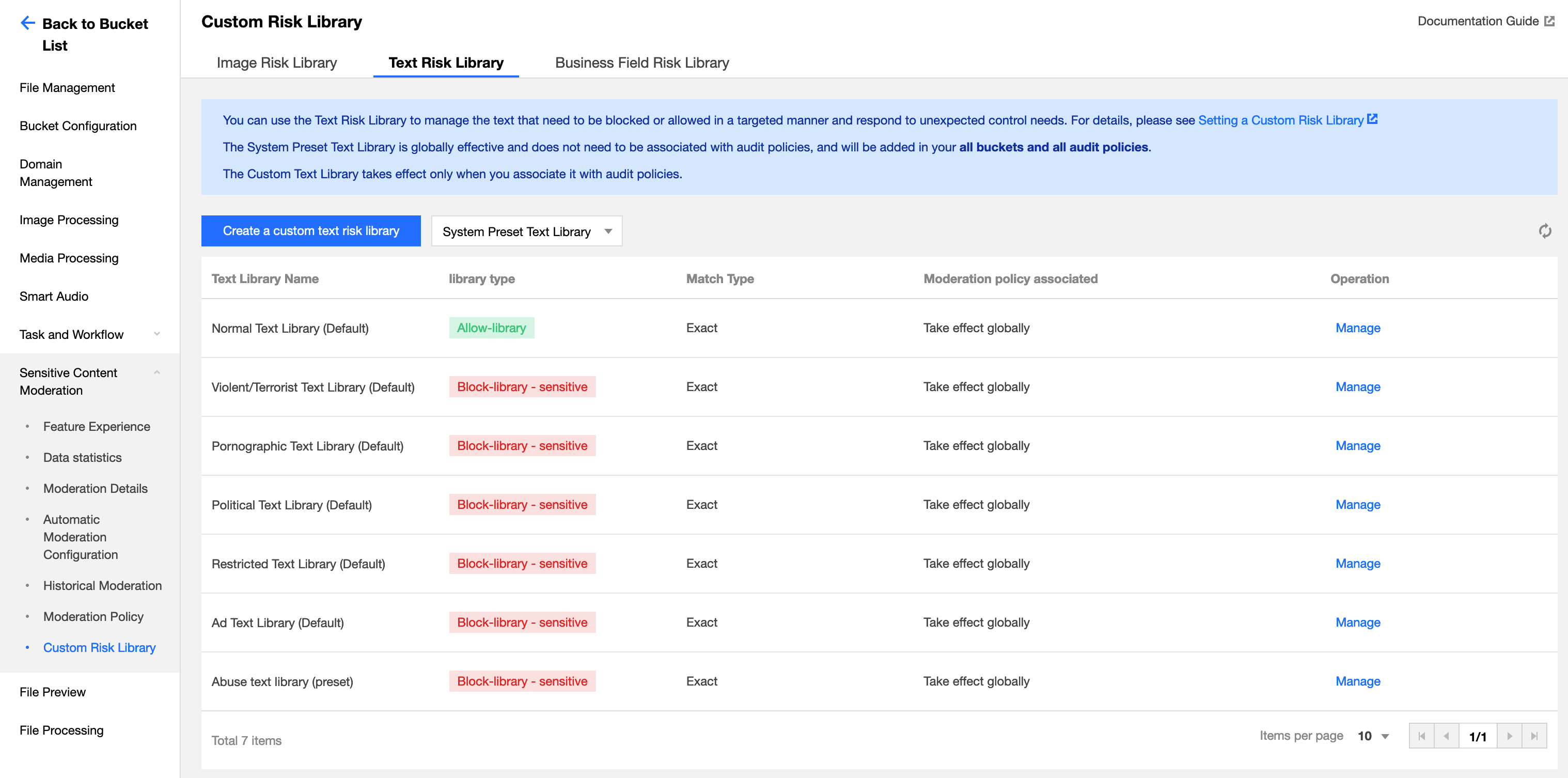
The text risk library contains the following types:
Pre-defined text library: It is a text library with pre-defined policies for you, which includes:
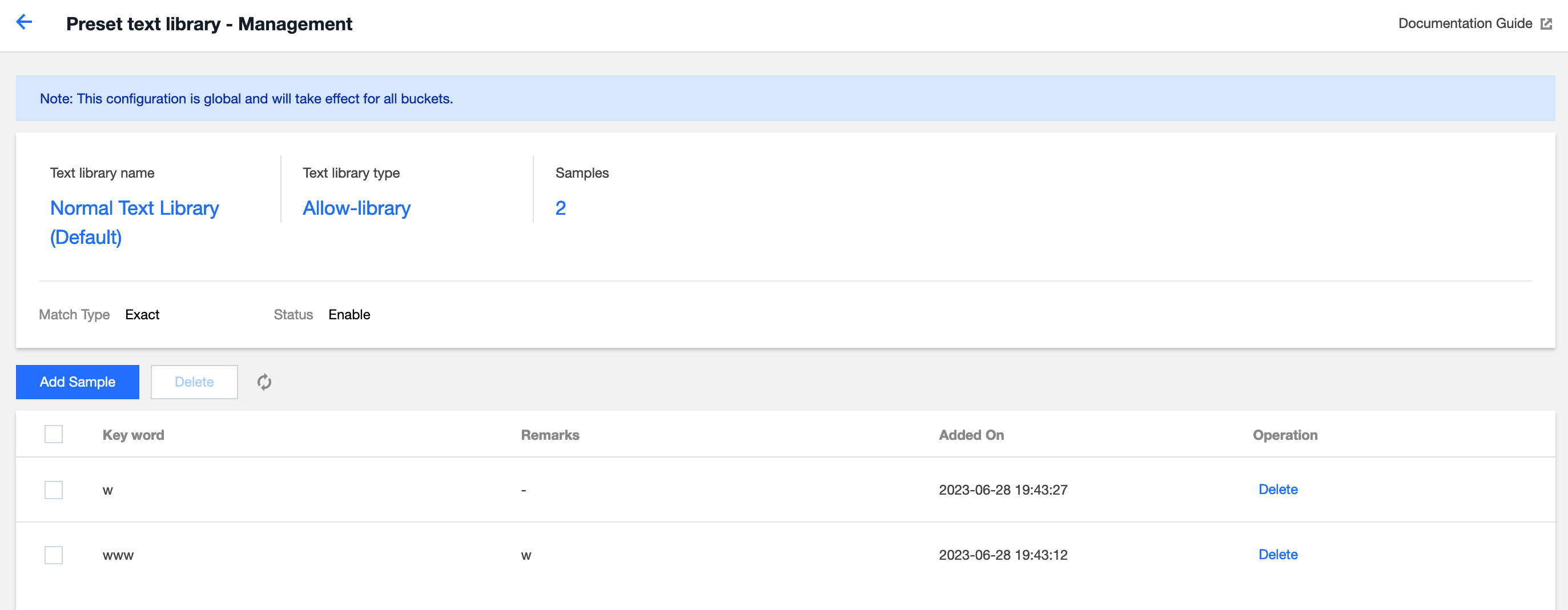
Normal text library: If a keyword in the library is matched, the moderation result will be returned as normal.
Pornographic text library, illegal text library, and other text libraries: If a keyword in the library is matched, the moderation result will be returned as the corresponding violation tag.
Note
The pre-defined text library takes effect by account. After you add sample keywords to any pre-defined text library for the same account, these keywords will automatically take effect in all your storage buckets and all moderation policies.
Up to 10,000 sample keywords can be added to a pre-defined text library.
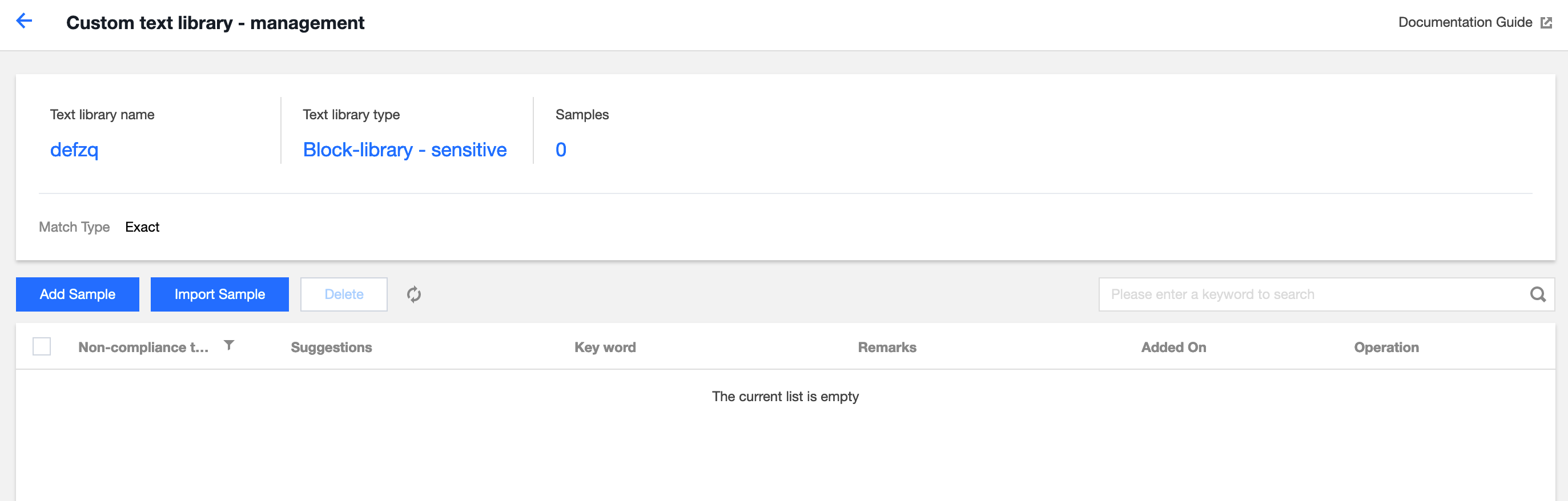
Custom text library: It is the text library you create, where you can add samples of various types of violations. If the text under moderation matches a keyword in the library, it will be marked with the corresponding tag based on the defined library policy.
Note
The custom text library needs to be associated with a moderation policy and only takes effect within the associated moderation policy.
Up to 2,000 sample keywords can be added to a single custom text library.
Directions
1. Log in to the Cloud Infinite console. On the Bucket List page, select the required bucket to open the bucket management page.
2. On the left navigation bar, choose Sensitive Content Moderation > Custom Risk Library.
3. On the Custom Risk Library page, three tabs are displayed: Image Risk Library, Text Risk Library, and Business Field Risk Library. For instructions on operating the Business Field Risk Library, see Setting the Business Field Risk Library.
4. The operations on Image Risk Library and Text Risk Library are as follows:
Image Risk Library
Text Risk Library
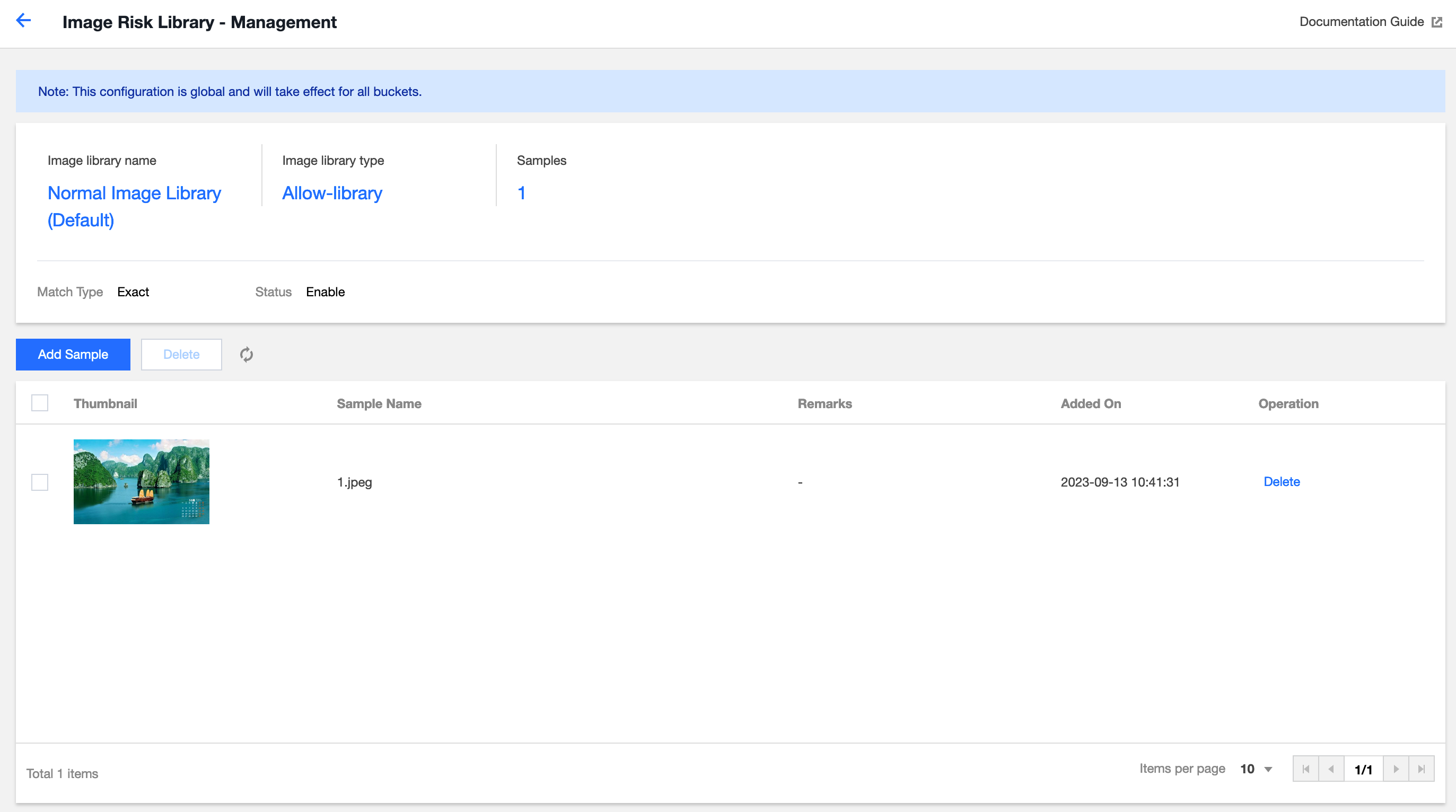
To handle incorrect moderation, you can add image clean samples, to ensure the image moderation results return as normal:
1.Find the normal image library (pre-defined) from the list and click Manage on the right side of the library to access the Image Risk Library page.
2.On the Image Risk Library page, you can perform the following operations:
Viewing the image library policy: The policy for the normal image library is normal.
Viewing samples: Check the number of samples added to the image library.
Adding samples: You can add selected images to the library as samples.
Deleting samples: You can delete sample images from your image library.
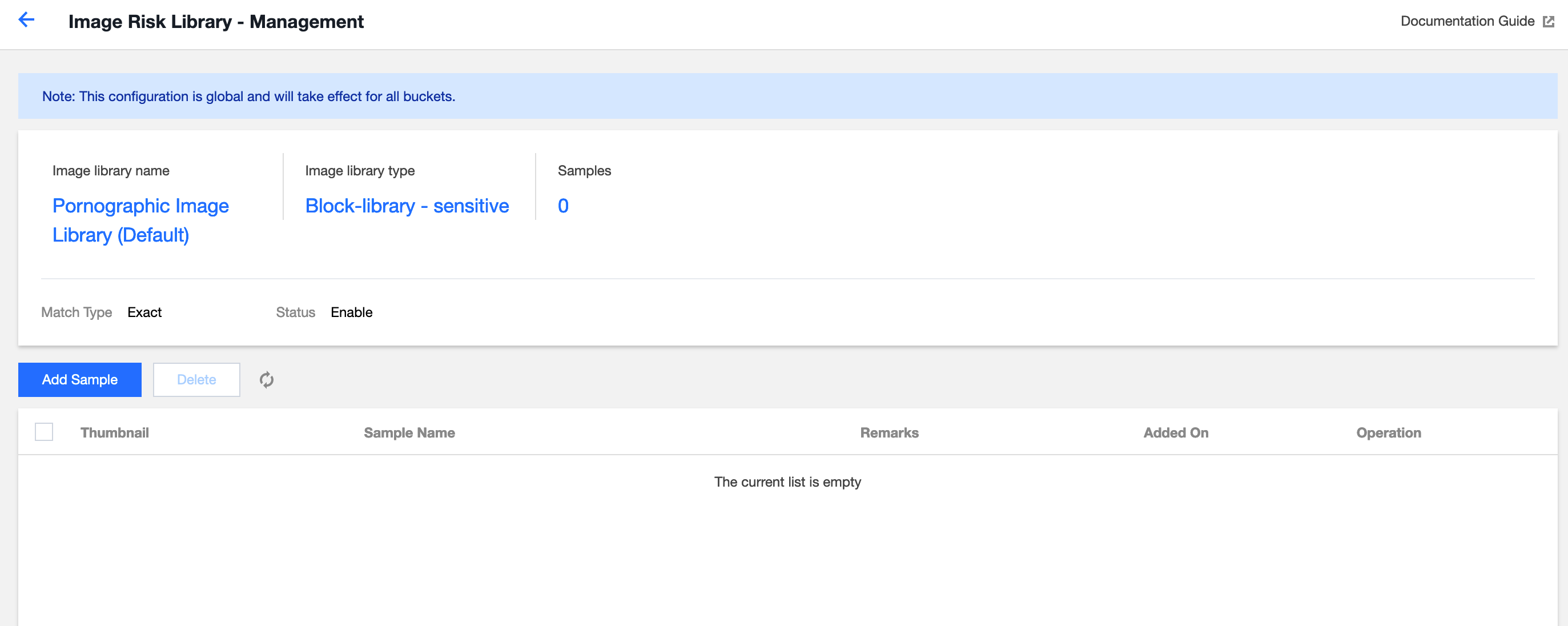
For scenarios of missed moderation, add image block samples so that the image moderation results return as sensitive:
1.In the list, find the image library for with the returned sensitive type is desired. If you add an image to the pornographic image library (pre-defined), the moderation result will be tagged as pornography. Click Manage on the right of the library to open the Image Risk Library page.
2.On the Image Risk Library page, you can perform the following operations:
Viewing the image library policy: The policy for the pornography library is sensitive.
Viewing samples: Check the number of samples added to the image library.
Adding samples: You can add specific images to the library as samples.
Deleting samples: You can delete sample images from your image library.
You can directly add keywords into the pre-defined text library or create a custom text library to add keywords:
Keywords added to the pre-defined text library will take effect for all moderation policies:
1.If you want to add clean sample keywords, find the normal text library (pre-defined) in the list, and then click Manage on the right side of the text library to open the Text Risk Library page.
2.On the Text Risk Library page, you can perform the following operations:
Viewing the text library policy: The policy of the normal text library is normal.
Viewing samples: Check the number of samples added to the text library.
Adding samples: You can add specific keywords into the text library as samples.
Deleting samples: You can delete keywords from the text library.
Creating a custom text library: The custom text library needs to be associated with a moderation policy. In moderation operations, only the text library associated with moderation policies takes effect:
1.Click Create Custom Text Library, and in the window, specify the Text Library Name, and select the Text Library Policy and Match Type:
Text Library Policy: When a keyword sample in the text library is matched, you can choose sensitive or suspected as the returned moderation result.
Match Type: You can choose an exact match or a fuzzy match. For a fuzzy match, variants of the entered keyword can be detected to match similar words. Split words, homographs, homophones, simplified or traditional forms, case differences, and numeral words are supported.
2.After the Custom Text Library has been created, find the newly created library in the list, and click Manage on the right side of the selected library to open the Text Risk Library page.
3.On the Text Risk Library page, you can perform the following operations:
Viewing the text library policy: The custom text library policy can be sensitive or suspected.
Viewing samples: Check the number of samples added to the text library.
Adding samples: You can add specific keywords into the text library as samples.
Deleting samples: You can delete keywords from the text library.
5. After the risk library is configured, if samples from the risk library are encountered while you use the content moderation feature, they will be automatically allowed or blocked according to the risk policy.