Overview
The Tencent Container Registry (TCR) Enterprise Edition supports security scanning of managed container images and can generate scanning reports, expose potential security vulnerabilities in container images, and provide suggestions for fixing them. Container image security is an important part of cloud native application delivery security. Timely security scanning of uploaded container images and blocking application deployment based on the scanning results can effectively reduce the risk of vulnerabilities in the production environment.
The image security scanning feature is a built-in feature of image repositories. You can actively trigger the security scanning of the container image of the specified version after uploading the container image. Also, you can configure automatic scanning at the namespace level, so that newly pushed images in the namespace will be scanned automatically after upload. The current image security scanning service is based on the open-source Clair solution, and the relevant vulnerability information is from the official CVE vulnerability library and synchronized on a regular basis.
Prerequisites
Make sure that the following conditions are met before using the image security scanning feature,:
Directions
Configuring the scanning policy
1. Log in to the TCR console and click Namespace in the left sidebar. 2. On the Namespace page, click the name of the instance for which you want to enable the image security scanning feature to go to the namespace details page.
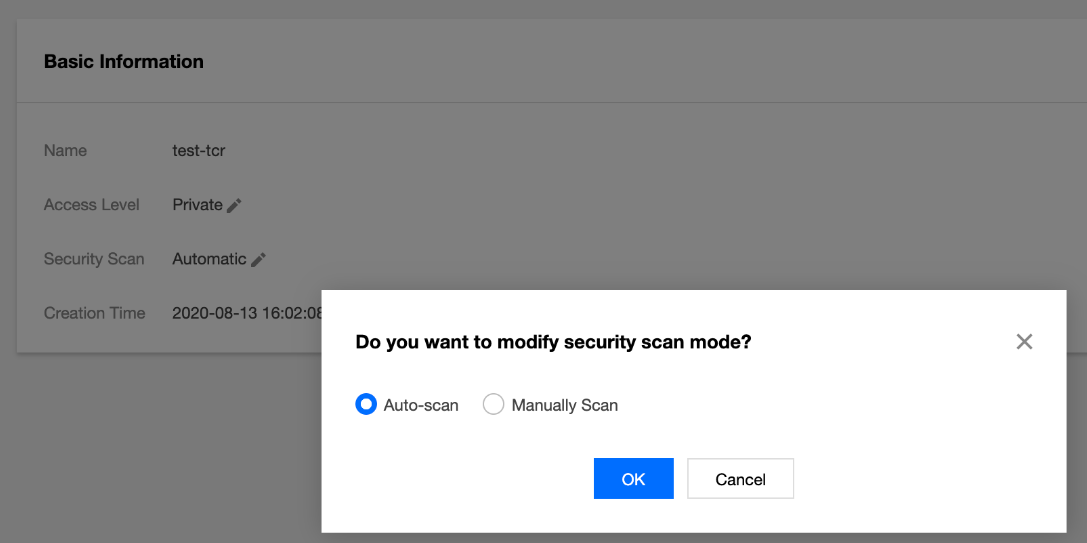
3. On the details page, select Auto-scan for security scanning, as shown in the figure below: Manually triggering scanning
Step 1: Prepare a container image
Step 2: Trigger image scanning
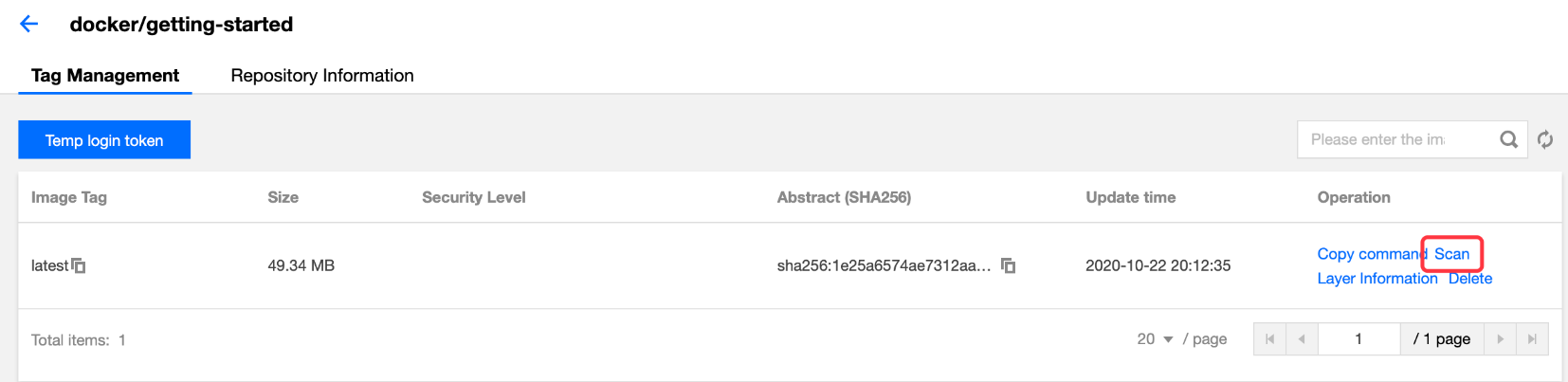
Select a specific image version in the image repository and click Scan to trigger image scanning. At this time, the security level is displayed as Scanning, as shown in the figure below:
Step 3: View the scanning results
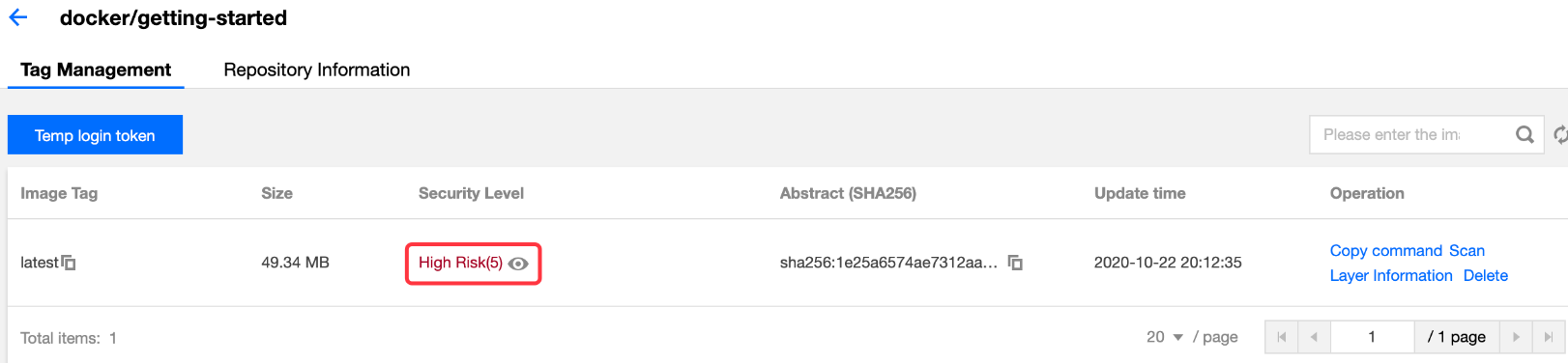
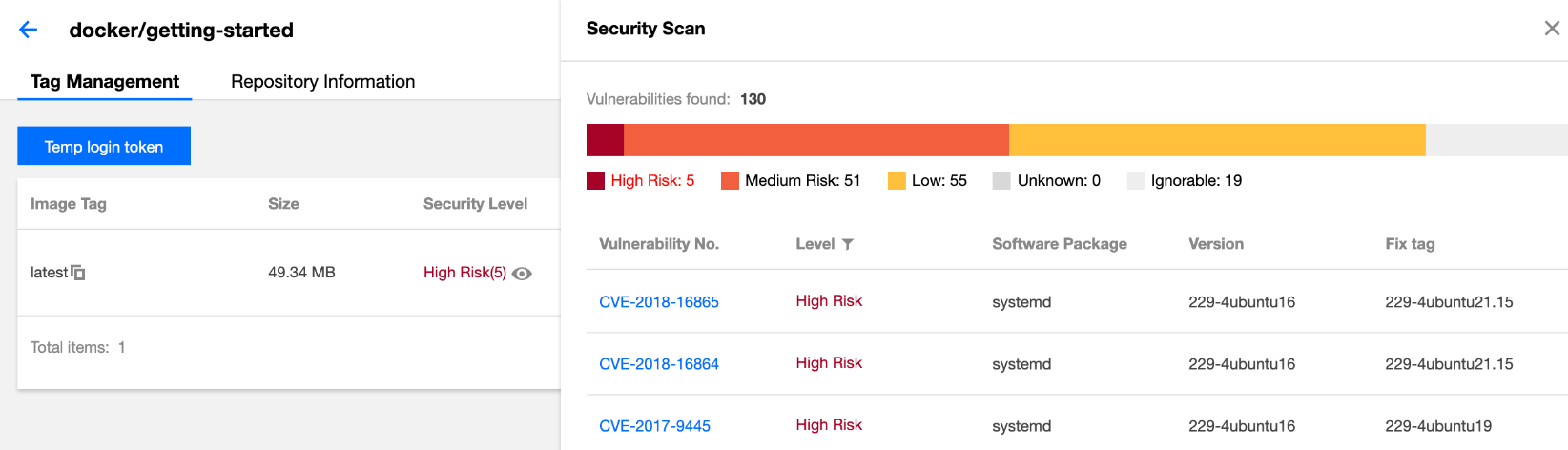
After the security scanning is complete, the highest level and the number of vulnerabilities in the current image are displayed in the security level section. You can view the vulnerability details, as shown in the figure below:
When viewing the details of vulnerabilities, you can click a specific vulnerability ID to redirect to the details of the vulnerability so that you can assess its actual impact on business, as shown in the figure below: Step 4: Re-trigger scanning
As the vulnerability library is updated regularly, you can refer to Step 2: Trigger image scanning to re-trigger the security scanning of the specified image and obtain the latest scanning results.