Using WinSCP on Windows to Transfer Files to Linux Lighthouse
Unduh
Mode fokus
Ukuran font
Terakhir diperbarui: 2022-05-12 12:24:12
Overview
WinSCP is an open-source graphical SFTP client that uses SSH in Windows environment and supports SCP protocol. Its main feature is to copy files securely between the local and remote computers. Unlike uploading codes via FTP, you can directly use your instance account in WinSCP to access the instance without any additional configuration.
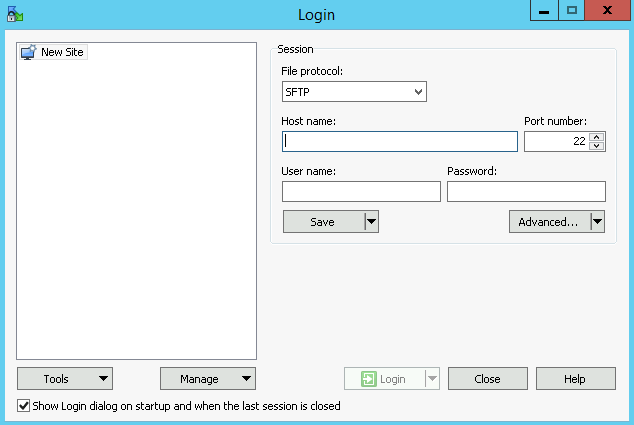
1. Open WinSCP, and the "WinSCP Login" box pops up, as shown below:
2. Configure the following parameters:
Protocol: Either SFTP or SCP.
Hostname: Lighthouse instance public IP, which can be viewed in the Lighthouse console.
Port: 22 by default.
Username: Lighthouse instance system username.
Password: Password of the Lighthouse instance system username.
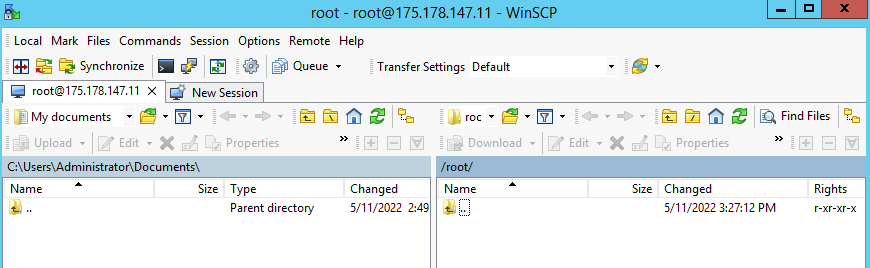
3. Click Login to enter the WinSCP file transfer window as shown below:
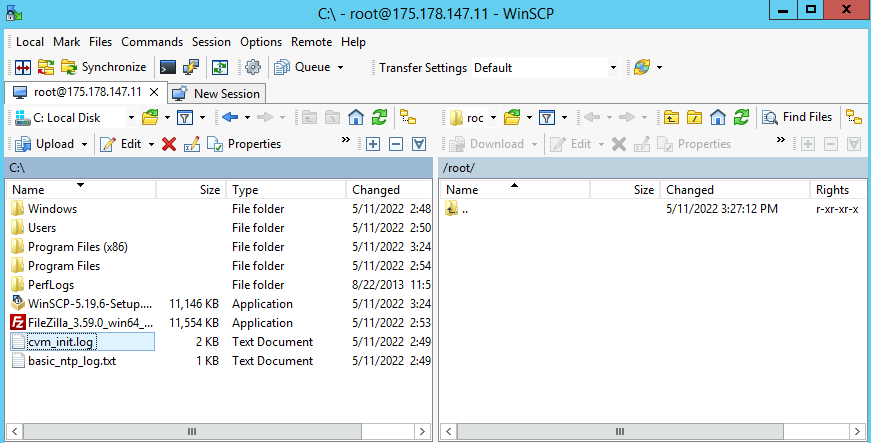
Uploading files
1. In the right pane of the "WinSCP" file transfer interface, select the directory where the files are to be stored on the server, such as "/user".
2. In the left pane, select the directory where the files are stored on the local computer, such as F:\\SSL certificate\\Nginx, and then select the files to be transferred.
3. In the left menu, click Upload as shown below:
4. In the "Upload" box that pops up, confirm the files to be uploaded and the remote directories, and click OK to upload the files from the local computer to the Lighthouse instance.
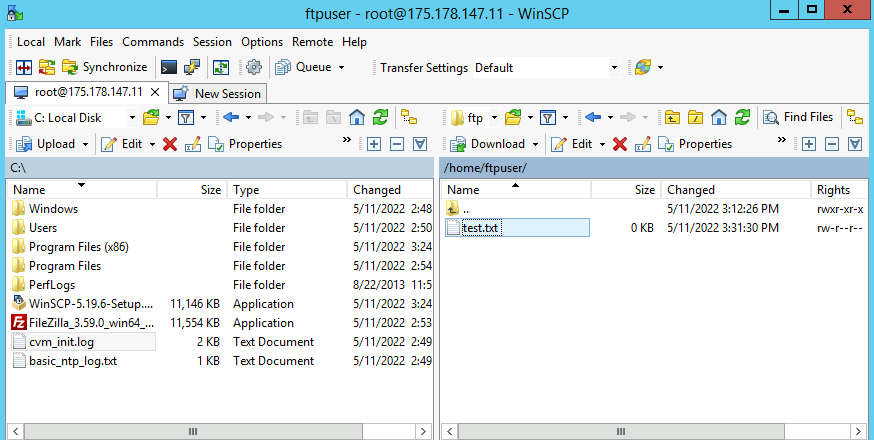
Downloading files
1. In the left pane of the "WinSCP" file transfer page, select the local computer directory to store the downloaded files, such as "F:\\SSL certificate\\Nginx".
2. In the right pane, select the directory where the files locate, such as /user, and then select the file to be transferred.
3. In the right menu, click Download as shown below:
4. In the "Download" box that pops up, confirm the files to be downloaded and the remote directories, and click OK to download the files from the Lighthouse instance to the local computer.