Using FTP on Windows to Transfer Files to Lighthouse
Unduh
Mode fokus
Ukuran font
Terakhir diperbarui: 2022-05-12 12:30:33
Overview
This document describes how to use the FTP service to upload files from a local Windows computer to a Lighthouse instance or download files from a Lighthouse instance to a local file system.
Prerequisites
You have set up the FTP service in the Lighthouse instance.
Directions
Connecting to Lighthouse instance
1. Download and install the open-source FileZilla locally.
Note:
If you use version 3.5.3 of FileZilla to upload files via FTP, the upload may fail. We recommend you download and use versions 3.5.1 or 3.5.2 of FileZilla from its official website.
2. Open FileZilla.
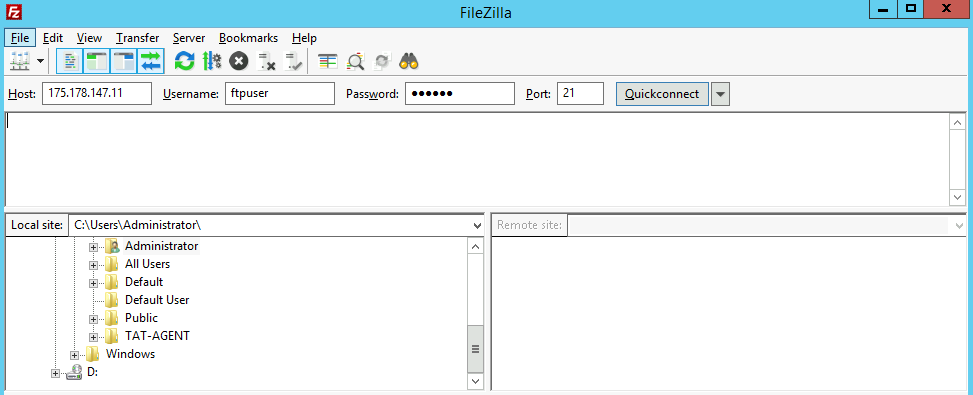
3. In the FileZilla window, enter host, user name, password, and port information, and click Quickconnect, as shown below:
Configuration description:
Host: Lighthouse instance public IP, which can be viewed in the Lighthouse console.
Username: FTP user account configured during FTP service setup. Here, ftpuser1 is taken as an example in the image.
Password: Password of the FTP user account configured during FTP service setup.
Port: FTP listening port, which is 21 by default.
After the connection is successful, you can view the files on the remote Lighthouse instance site.
Uploading files
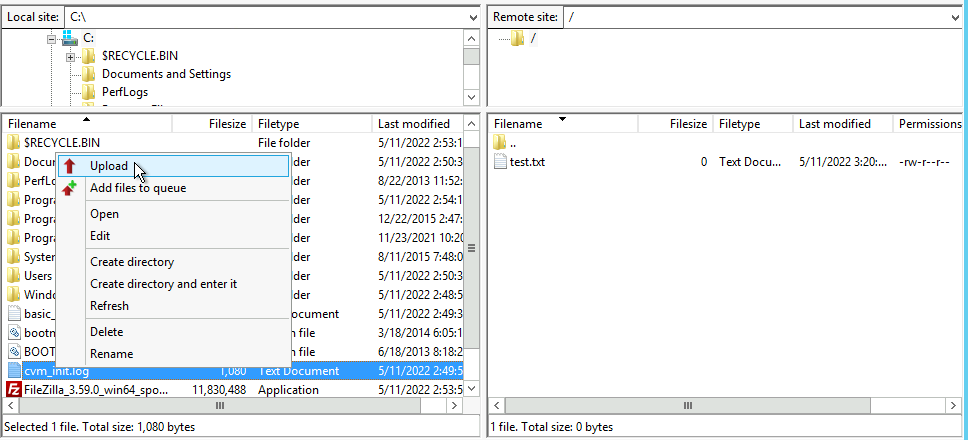
In the lower-left Local site window, right-click the local file to be uploaded and select Upload to upload it to a Linux Lighthouse instance, as shown below:
Note:
The Lighthouse FTP path does not support the automatic decompression or deletion of uploaded compressed tar files.
The remote site path is the default path for uploading files to a Linux Lighthouse instance.
Downloading files
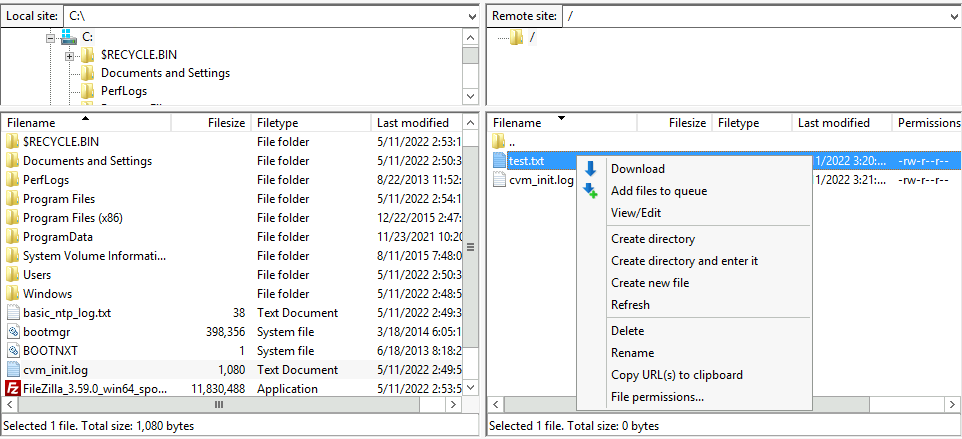
In the lower-right Remote site window, right-click the Lighthouse instance file to be downloaded and choose Download to download it to a local directory as shown below: