Using Remote Desktop on Windows to Transfer Files to Windows Lighthouse
Unduh
Mode fokus
Ukuran font
Terakhir diperbarui: 2022-05-12 12:24:13
Overview
Remote Desktop Connection is commonly used for file upload to a Windows Lighthouse instance. This document describes how to upload files from a Windows computer to a Windows Lighthouse instance by using Remote Desktop Connection or download files from the instance to a local file system.
Prerequisites
You have obtained the Lighthouse instance admin account and password.
The default admin account of a Windows Lighthouse instance is Administrator.
If you forgot the login password, you can reset it.
Directions
Note:
This document uses a Windows 7 computer as an example. The procedure may vary slightly according to the operating system version.
Obtaining public IP
Log in to the Lighthouse console and get the public IP of the target Lighthouse instance on the Instances page.
Uploading files
1. Press Windows + R on the local computer to open the Run window.
2. In the Run pop-up window, enter mstsc, and click OK to open the Remote Desktop Connection dialog box.
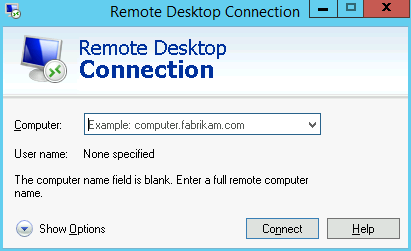
3. In the pop-up dialog box, enter the public IP address of the Lighthouse instance and click Show Options as shown below:
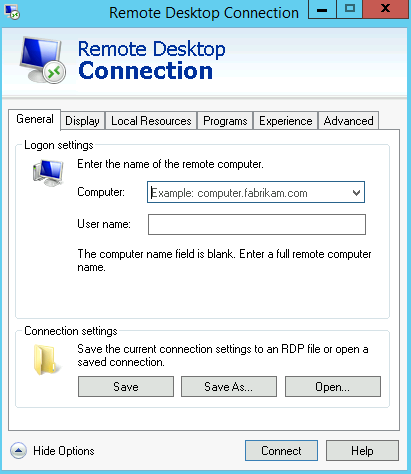
4. On the General tab, enter the Lighthouse instance public IP address and username "Administrator" as shown below:
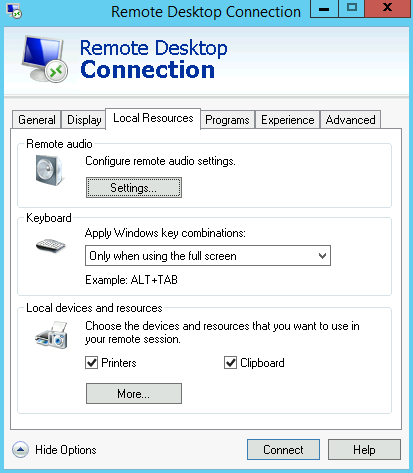
5. Select the Local Resources tab and click More, as shown below:
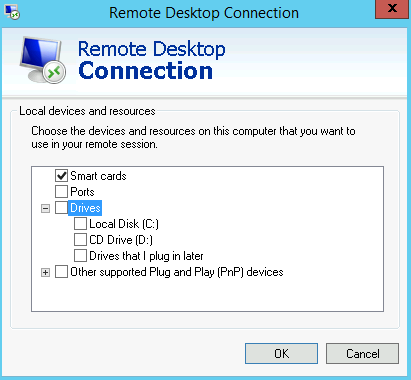
6. In the Local devices and resources pop-up window, select the Drives module, check a local disk that contains files to upload to the Windows Lighthouse instance, and click OK as shown below:
7. After the local configuration is completed, click Connect to log in to Windows Lighthouse instance remotely.
8. Click
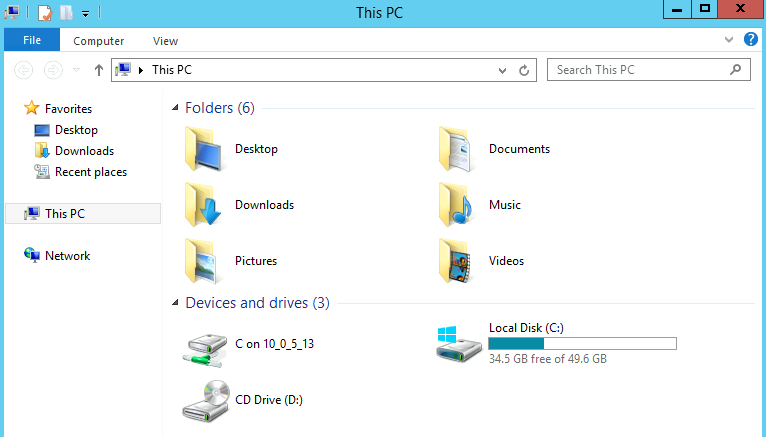
> Computer in the Windows Lighthouse instance, and you can see the local disk mounted as shown below:
9. Double-click to open the attached local disk. Copy desired local files to another drive of the Windows Lighthouse instance.
For example, copy the file A from the local drive E to the C drive of the Windows Lighthouse instance.
Downloading files
To download files from the Windows Lighthouse instance to your computer, you only need to copy desired files from the instance to the attached local disk.