Using FTP on Linux or macOS to Transfer Files to Lighthouse
Unduh
Mode fokus
Ukuran font
Terakhir diperbarui: 2022-05-12 12:24:13
Overview
This document describes how to use the FTP service to upload files from a local Linux or macOS computer to a Lighthouse instance.
Prerequisites
You have set up the FTP service in the Lighthouse instance.
Directions
Obtaining public IP
Log in to the Lighthouse console and get the public IP of the target Lighthouse instance on the Instances page.
Using FTP service on Linux
1. Run the following command to install the FTP service.
Note:
If the FTP service has already been installed on the local Linux computer, skip this step.
yum -y installftp
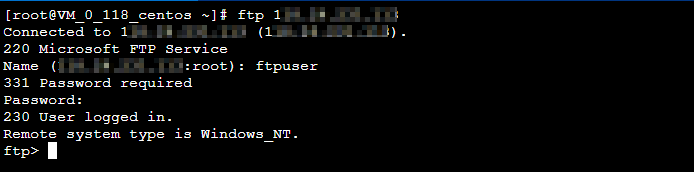
2. Run the following command to connect to the Lighthouse instance and enter the FTP service username and password as prompted.
ftp Lighthouse instance IP address
If the following interface appears, the connection has been established successfully.
Uploading and downloading file
Uploading file
Downloading file
Run the following command to upload a local file to the Lighthouse instance:
put local-file [remote-file]
For example, to upload the local `/home/1.txt` file to the Lighthouse instance, run the following command:
put /home/1.txt 1.txt
Run the following command to download a file from the Lighthouse instance to a local directory.
get [remote-file][local-file]
For example, to download the `A.txt` file from the Lighthouse instance to the local `/home` directory, run the following command.
get A.txt /home/A.txt
Using FTP service on macOS
1. Click
in the bottom-left corner and select Go > Connect to Server on the menu bar in the top-right corner.
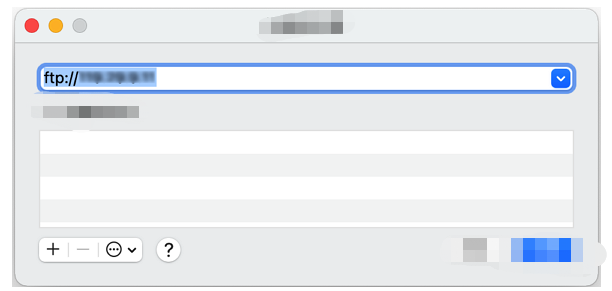
2. In the Connect to Server window, enter ftp://Lighthouse instance IP address and click Connect as shown below:
3. In the pop-up window, select Registered User, enter the FTP service username and password, and click Connect.
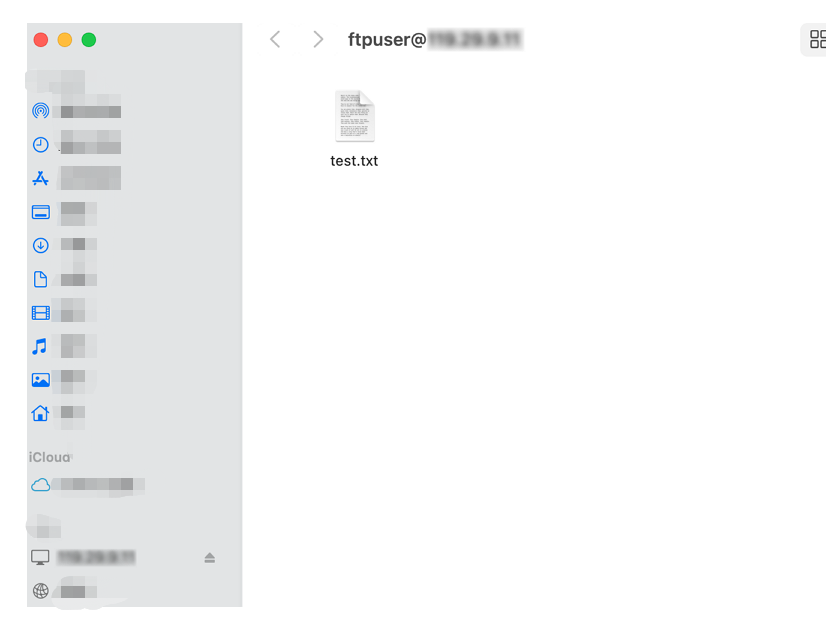
If the following interface appears, the connection has been established successfully.
Uploading and downloading file
You can directly copy files to the FTP window in Finder to upload them.
To download files from the Lighthouse instance to your computer, you only need to copy desired files from the instance to the attached local disk.