Using Remote Desktop on Linux to Transfer Files to Windows Lighthouse
Unduh
Mode fokus
Ukuran font
Terakhir diperbarui: 2022-05-12 12:24:13
Overview
rdesktop is an open source client for Remote Desktop Protocol (RDP) that allows a local computer to connect to a Windows Lighthouse instance. This document describes how to use it to upload files from a Linux computer to a Lighthouse instance with the Windows Server 2012 R2 operating system.
Prerequisites
You have obtained the Lighthouse instance admin account and password.
The default admin account of a Windows Lighthouse instance is Administrator.
If you forgot the login password, you can reset it.
Directions
Obtaining public IP
Log in to the Lighthouse console and get the public IP of the target Lighthouse instance on the Instances page.
Installing rdesktop
1. Open a terminal window and run the following command to download rdesktop. This step uses rdesktop v1.8.3 as an example.
If you want to install the latest version, visit the rdesktop page on GitHub to find it. Then replace the path in the command with that of the latest version.
2. Run the following commands to decompress the installation package and enter the directory.
tar xvzf rdesktop-1.8.3.tar.gz
cd rdesktop-1.8.3
3. Run the following commands to compile and install rdesktop.
./configure
make
makeinstall
4. After the installation is complete, run the following command to check if rdesktop is successfully installed:
rdesktop
Uploading files
1. Run the following command to specify the folder shared to the Lighthouse instance:
For example, run the following command to share the /home folder on your local Linux computer with the specified Lighthouse instance, and rename it as share.
If the operation is successful, the Windows desktop will appear.
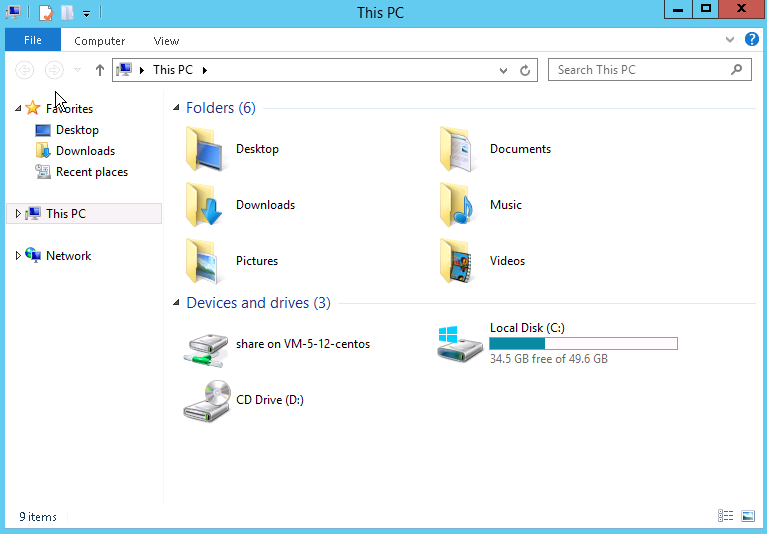
Click
in the lower-left corner and select My Computer to see a list of shared folders as shown below:
2. Double-click a shared folder to open it. Copy desired local files to another drive of the Windows Lighthouse instance.
For example, copy the file A from the share folder to the C drive of the Windows Lighthouse instance.
Downloading files
To download files from the Windows Lighthouse instance to your computer, you only need to copy desired files from the instance to a shared folder.