This document describes how to manually renew cloud data disks or enable auto-renewal for them in the Lighthouse console.
Directions
Manual Renewal
You can choose the following renewal methods according to the cloud disk status:
Pending released instances
Unexpired cloud disks
1. Log in to the Lighthouse console and click Cloud Disk on the left sidebar.
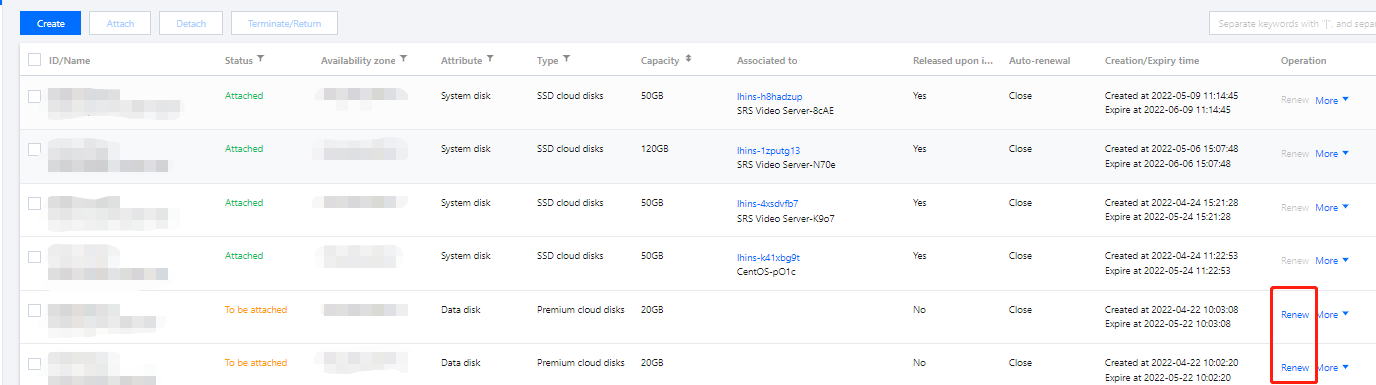
2. Select a region at the top of the "Cloud disk" page, find the target cloud disk, and click Renew under the "Operation" column.
3. In the Renew cloud disk pop-up window, select the renewal period, click OK, and make the payment for the renewal order.
You can renew an unexpired cloud disk in the following methods:
Renew on the cloud disk page
1. Log in to the Lighthouse console and click Cloud Disk on the left sidebar.
. Select a region at the top of the Cloud disk page, find the target cloud disk, and click Renew under the Operation column.
2. In the Renew cloud disk pop-up window, select the renewal period, click OK, and make the payment for the renewal order.
Renew on the instance details page
1. Log in to the Lighthouse console and select the target instance and enter the details page.
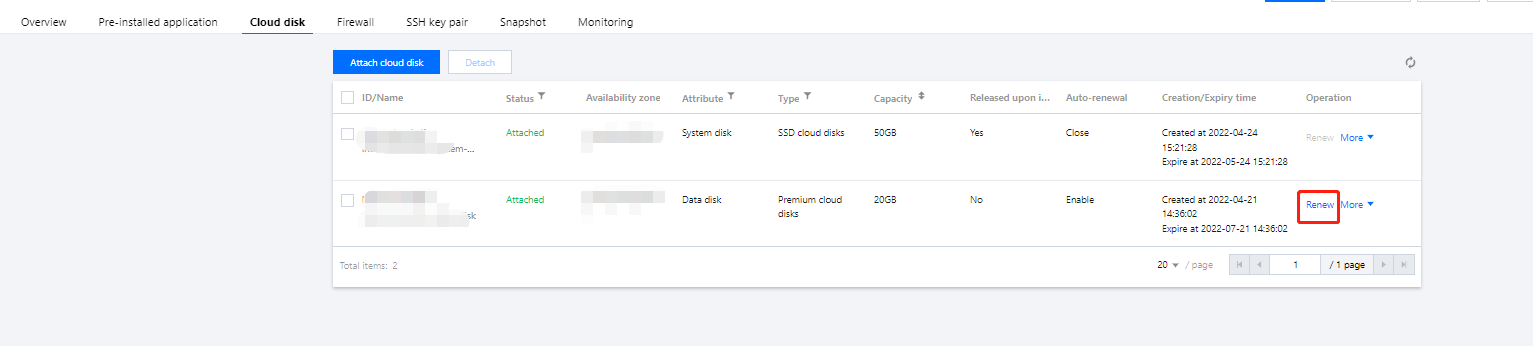
2. Select the Cloud disk tab, find the target cloud disk, and click Renew under the Operation column.
3. In the Renew cloud disk pop-up window, select the renewal period, click OK, and make the payment for the renewal order.
Auto-Renewal
It's recommended that you enable the auto-renewal to prevent the cloud disks from being returned or terminated due to overdue payment. The methods for enabling the auto-renewal are as follows:
Note:
When the auto-renewal is enabled, the cost of the next billing cycle will be deducted from your sufficient account balance upon the expiry date of the cloud disk.
Cloud disk page
Instance details page
1. Log in to the Lighthouse console and click Cloud Disk on the left sidebar.
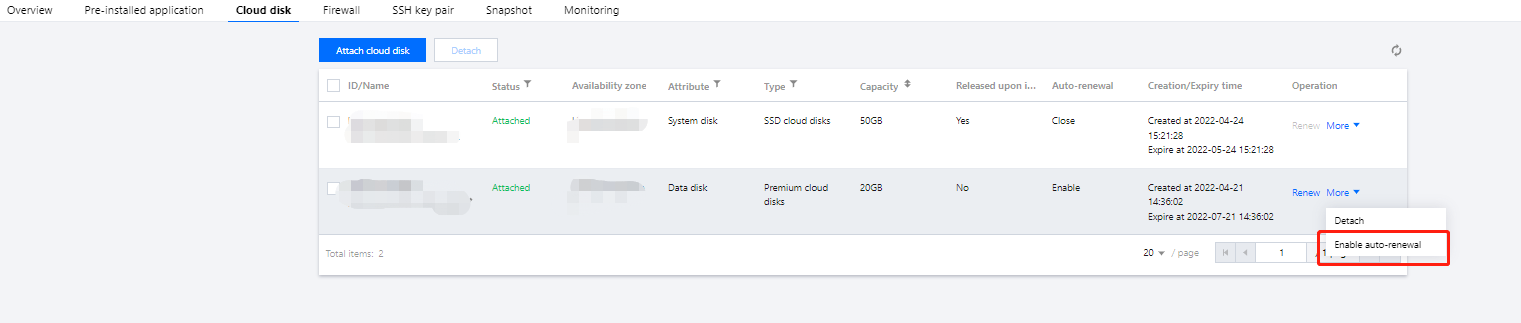
2. Select a region at the top of the Cloud disk page, find the target cloud disk, and click More > Enable auto-renewal under the "Operation" column.
3. Click OK in the pop-up window.
1. Log in to the Lighthouse console and select the target instance and enter the details page.
2. Select the Cloud disk tab, find the target cloud disk, and click More > Enable auto-renewal under the Operation column.