Managing Firewall Templates
Unduh
Mode fokus
Ukuran font
Applicable Scenarios of Firewall Rules for Lighthouse Instances
Tencent Cloud Lighthouse (Lighthouse in short) supports setting firewall rules for multiple instances at the same time by using a firewall template. You can create firewall templates based on actual business needs.
Directions
Creating a Firewall Template
1. Log in to the Lighthouse console and click Firewall Template in the left sidebar.
2. Click Create template, enter a template name in the pop-up window, and set the rules in the template.
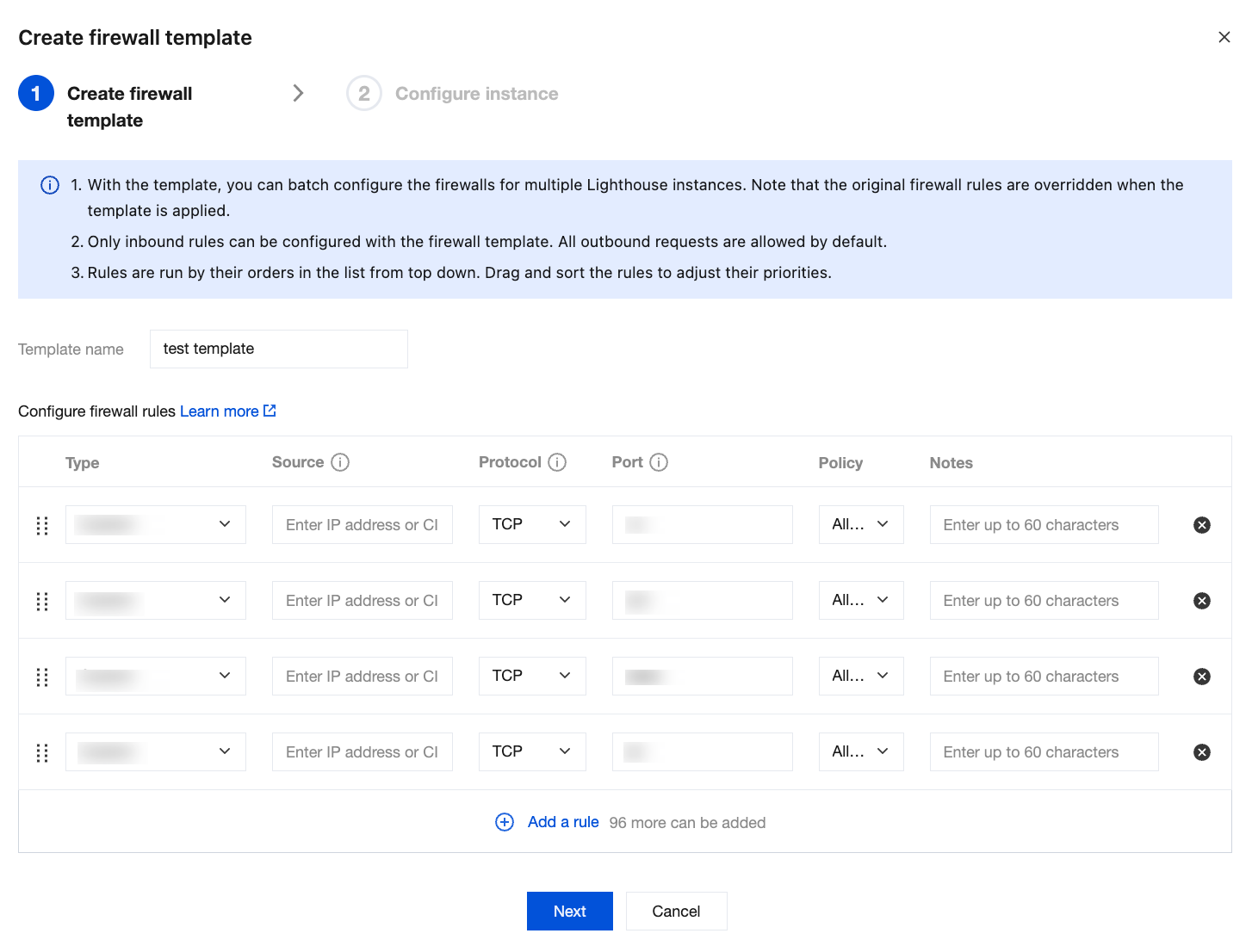
3. Click Next to set the instance firewall.
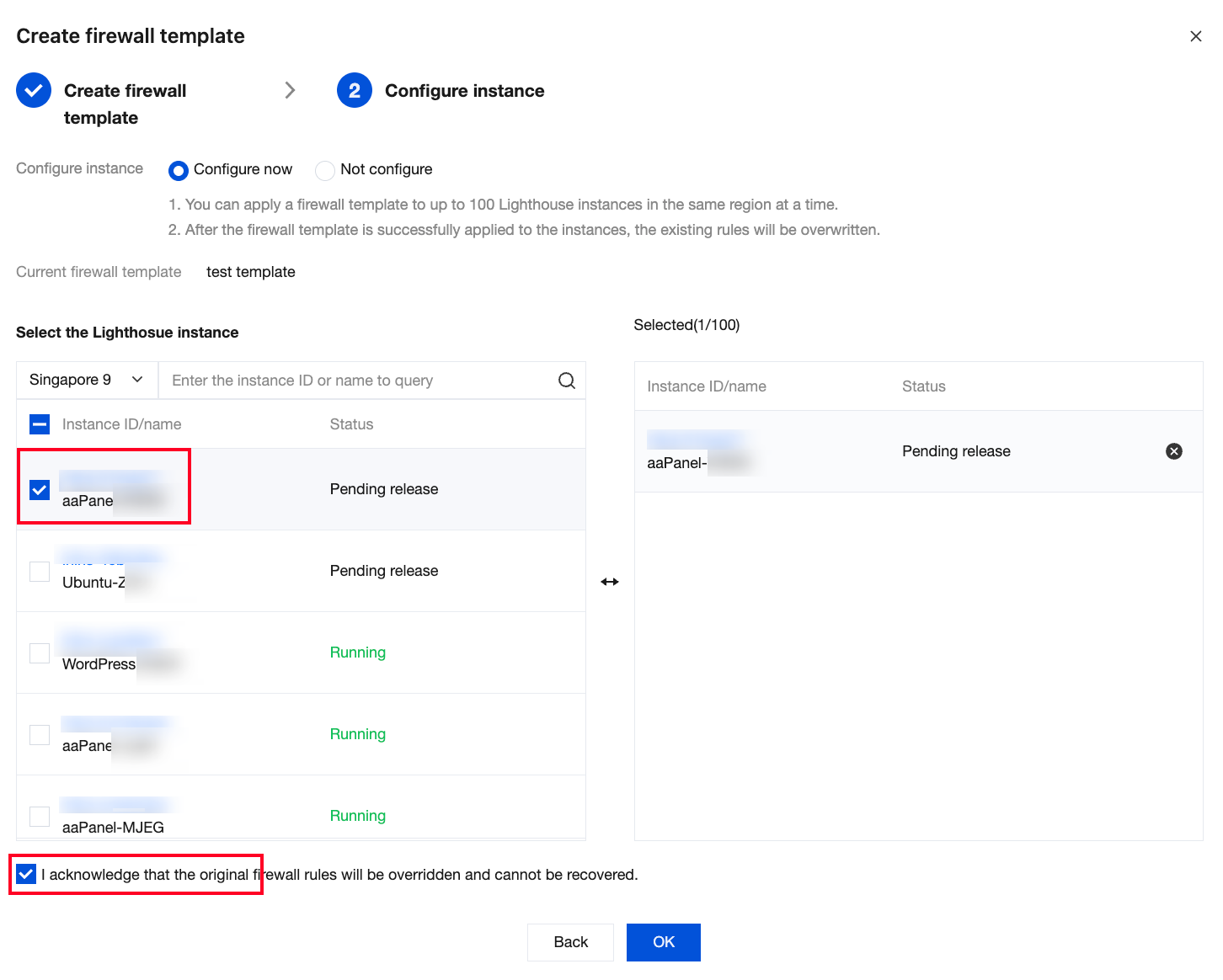
You can use the firewall template to be created to set the instance firewall.
Select one or more instances to apply the created firewall template, and select the option I acknowledge that the original firewall rules will be overridden and cannot be recovered. Then, click OK to complete firewall template creation and associate the template with selected instances.
Note:
The original firewall rules of the instances will be overwritten by the rules in the new template and cannot be restored.
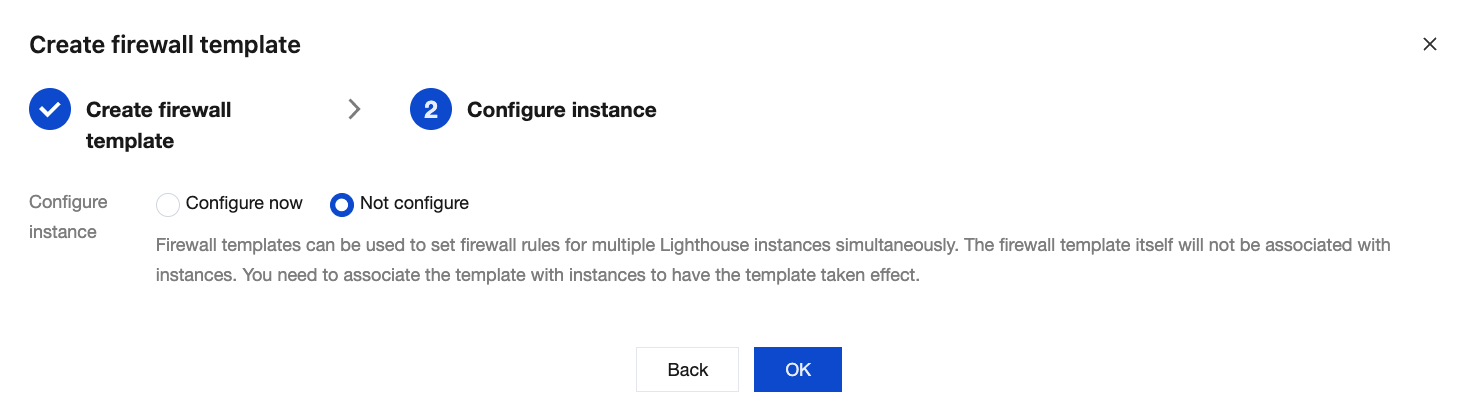
You can also select the Not configure option in the instance firewall settings step.
Click OK to only create the firewall template. This template will not be applied to any instance, and the firewall template itself will not be associated with any instance. If you want to set firewall rules for a Lighthouse instance, you need to set the instance firewall individually. For details, see Managing Instance Firewall.
Deleting a Firewall Template
1. Log in to the Lighthouse console and click Firewall Template in the left sidebar.
2. Click Delete in the Operation column of the target firewall template.

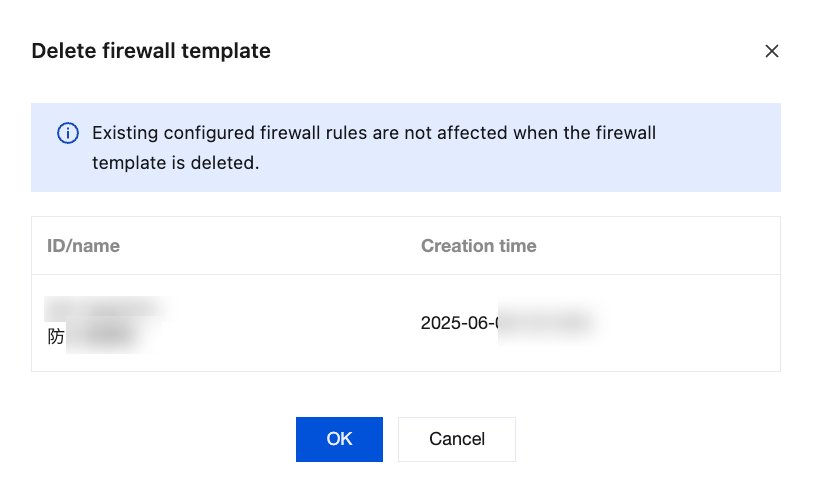
3. In the pop-up window, confirm the information and click OK to complete the deletion.
Note:
If you have set the firewall for an instance by using a firewall template, deleting the firewall template will not affect the firewall rules of the instance.
Viewing Firewall Template Configuration Records
1. Log in to the Lighthouse console and click Firewall Template in the left sidebar.
2. Click the ID of the target firewall template to enter the template details page.
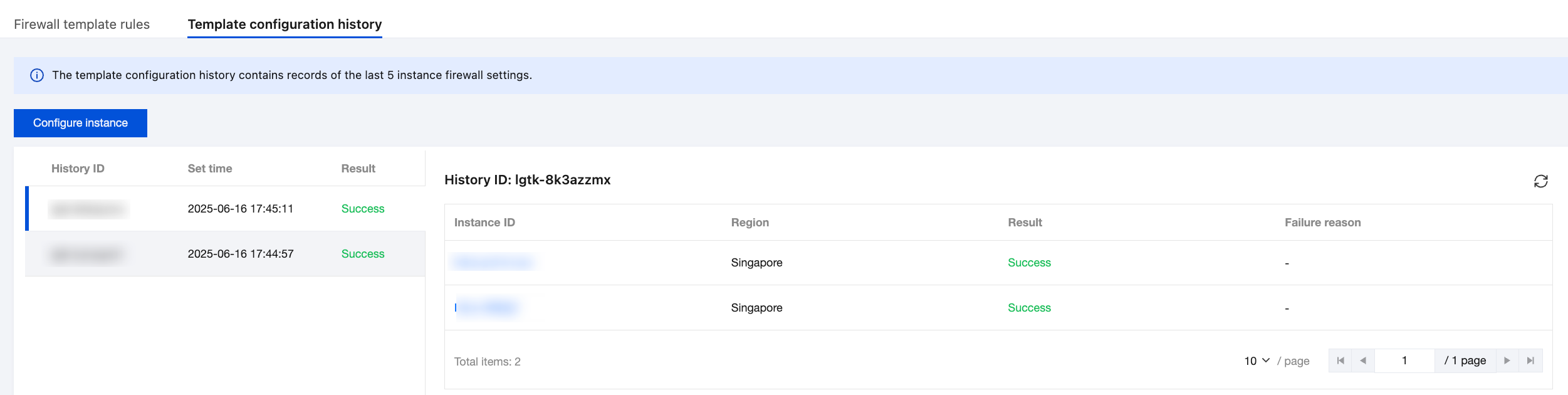
3. Click the Template configuration history tab to view the recent 5 template configuration records.
Bantuan dan Dukungan
Apakah halaman ini membantu?
Anda juga dapat Menghubungi Penjualan atau Mengirimkan Tiket untuk meminta bantuan.
masukan