Managing Firewall Template Rules
Download
Mode fokus
Ukuran font
Applicable Scenario
You can add rules to, modify rules in, or delete rules from a firewall template. You can also apply the rules to Lighthouse instances by using a firewall template.
Prerequisites
A firewall template has been created in the Lighthouse console.
Directions
Adding Rules
1. Log in to the Lighthouse console and click Firewall Template in the left sidebar.
2. Click Manage templates in the operation column of the target template to enter the template rule list page.

3. Click Add Rule and specify firewall rules in the Create Firewall Rule pop-up window.
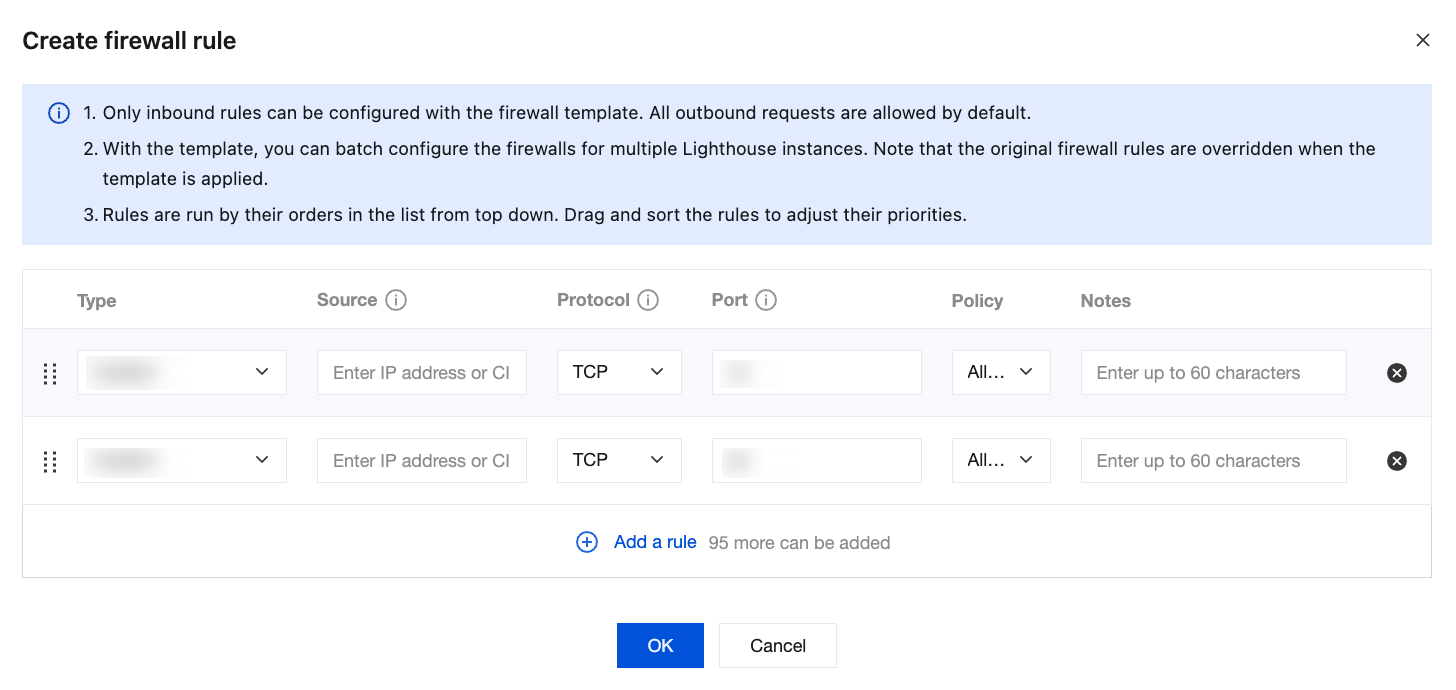
4. Click OK to complete the settings.
Editing Rules
1. Log in to the Lighthouse console and click Firewall Template in the left sidebar.
2. Click Manage templates in the operation column of the target template to enter the template rule list page.

3. In the Operation column of the template rule list, click Edit and adjust the firewall rules in the pop-up window.

4. Click OK to complete the editing.
Deleting Rules
1. Log in to the Lighthouse console and click Firewall Template in the left sidebar.
2. Click Manage templates in the operation column of the target template to enter the template rule list page.

3. Click Delete in the Operation column of the target rule in the template rule list and confirm the deletion in the pop-up window.
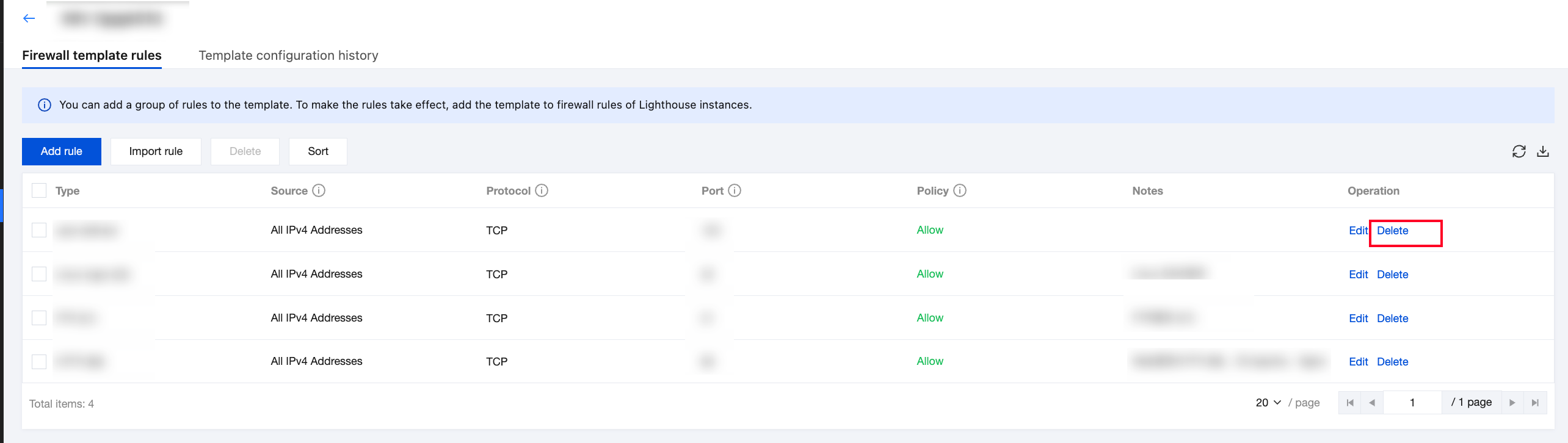
4. Click OK to complete the deletion.
1. Log in to the Lighthouse console and click Firewall Template in the left sidebar.
2. Click Manage templates in the operation column of the target template to enter the template rule list page.

3. Select the rules you want to delete, click Delete, and confirm the deletion in the pop-up window.
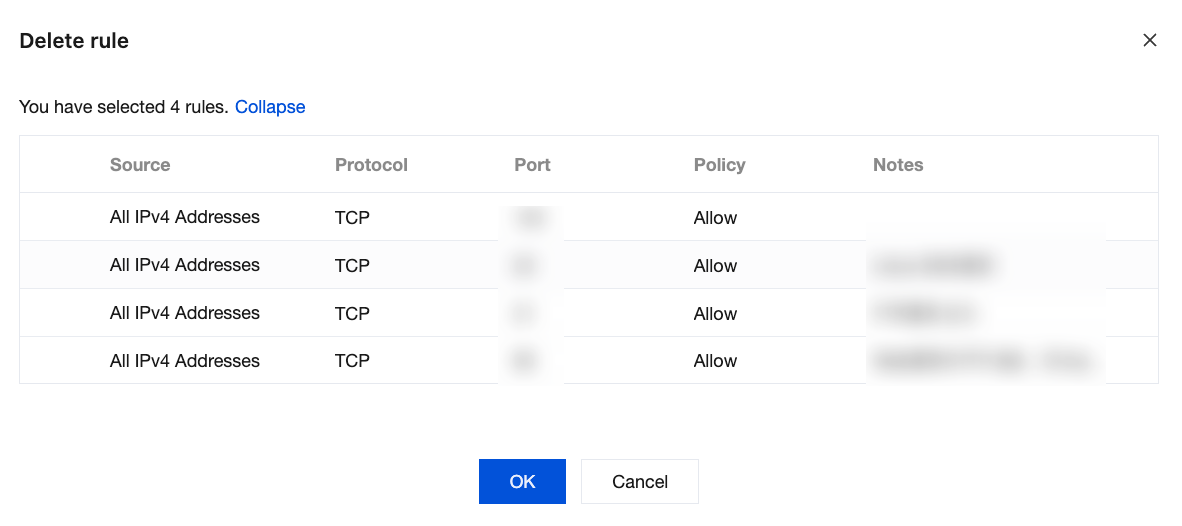
4. Click OK to complete the deletion.
Import Rules
You can specify the rules to be imported in the import template or directly export existing rules.
Note:
The rules in the import template are shown in the figure below. Files in CSV format are supported. You can specify the source, protocol, port, and other information on the rule import template file as prompted in the console.
CIDRBlock | Protocol | Port | Action | FirewallRuleDescription |
0.0.0.0/0 | TCP | 1 | ACCEPT | - |
0.0.0.0/0 | TCP | 2 | ACCEPT | - |
0.0.0.0/0 | TCP | 3 | ACCEPT | - |
0.0.0.0/0 | TCP | 4 | ACCEPT | - |
0.0.0.0/0 | TCP | 5 | ACCEPT | - |
0.0.0.0/0 | TCP | 6 | ACCEPT | - |
1. Log in to the Lighthouse console and click Firewall Template in the left sidebar.
2. Click Manage templates in the operation column of the target template to enter the template rule list page.

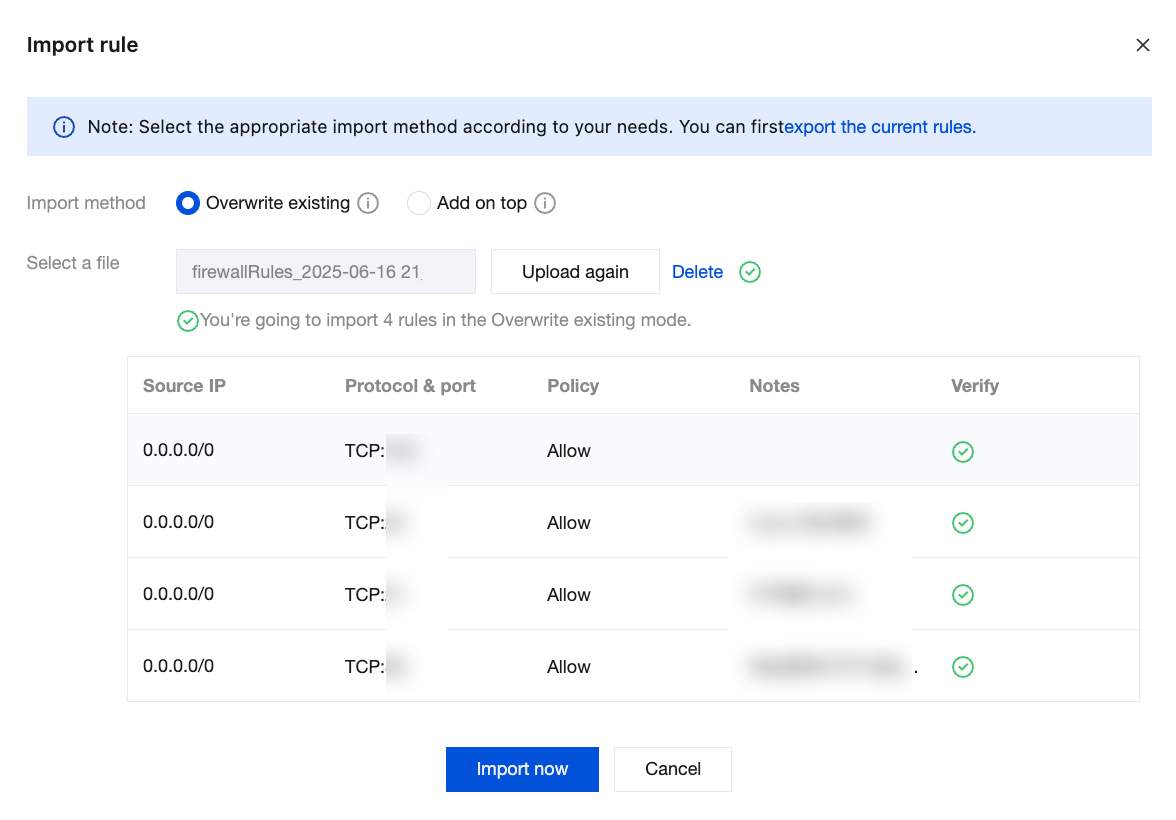
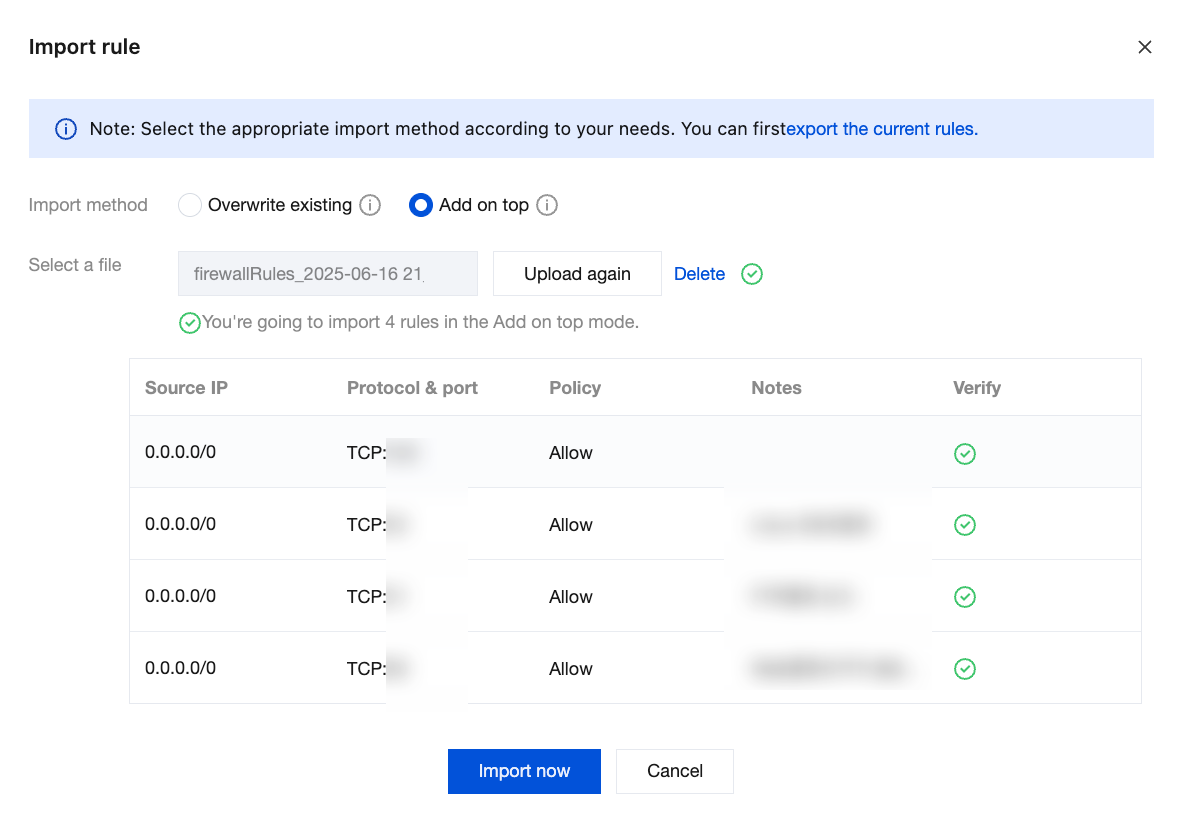
3. Click Import rule and select a method to import rules in the pop-up window.
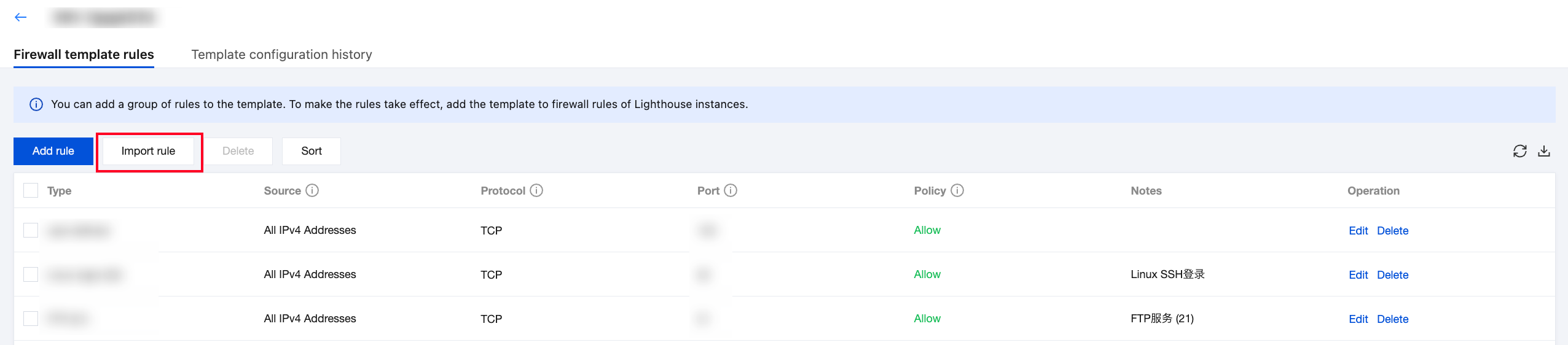
Overwrite with imported rules: The original rules in the firewall template will be overwritten by the imported rules.
1. Select Overwrite existing as the import method.
2. Upload the template file. After the verification is passed, click Import now.
Append imported rules: The rules in the import template file will be appended to the existing rules in the firewall template.
1. Select Add on top as the import method.
2. Upload the template file. After the verification is passed, click Import now.
Bantuan dan Dukungan
Apakah halaman ini membantu?
Anda juga dapat Menghubungi Penjualan atau Mengirimkan Tiket untuk meminta bantuan.
masukan