A topic can publish messages only if it is subscribed to by at least one subscriber. If there are no subscribers, messages in the topic will not be delivered, and message publishing will be meaningless.
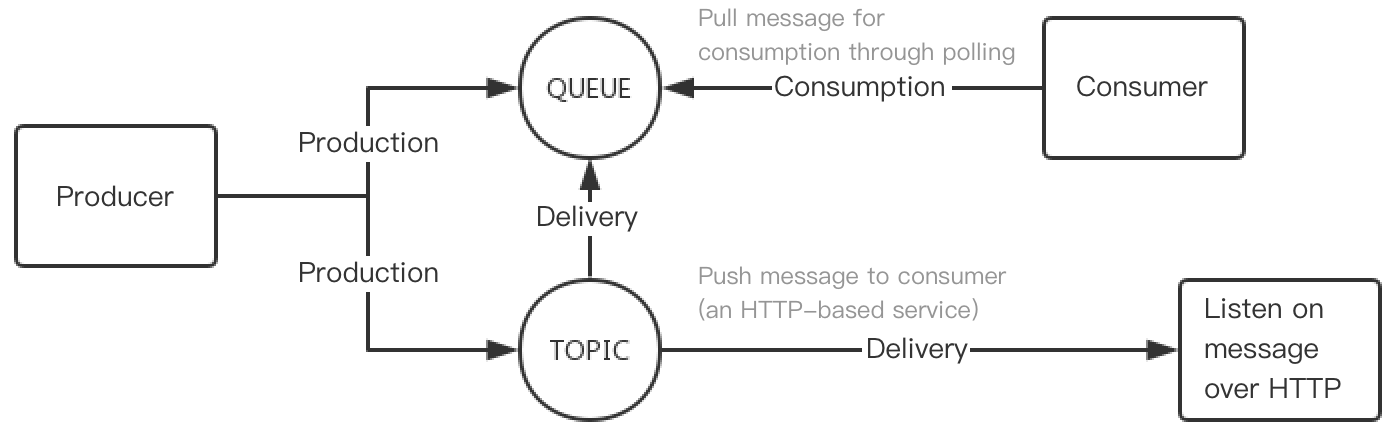
The model where a topic delivers a message to a subscriber is as shown below:
The topic follows the rules below when delivering the message to the subscriber:
The topic will try its best to deliver the message published by the producer to the subscriber.
If the delivery fails after multiple retries, the message will be retained in the topic and wait for the next delivery. If the next delivery still fails, the message will be discarded after the maximum lifecycle (1 day).
This document describes how to manage subscriptions under a topic in TDMQ for CMQ.
2. Select Topic Subscription on the left sidebar, select the region, and click the ID of the target topic to enter the topic details page.
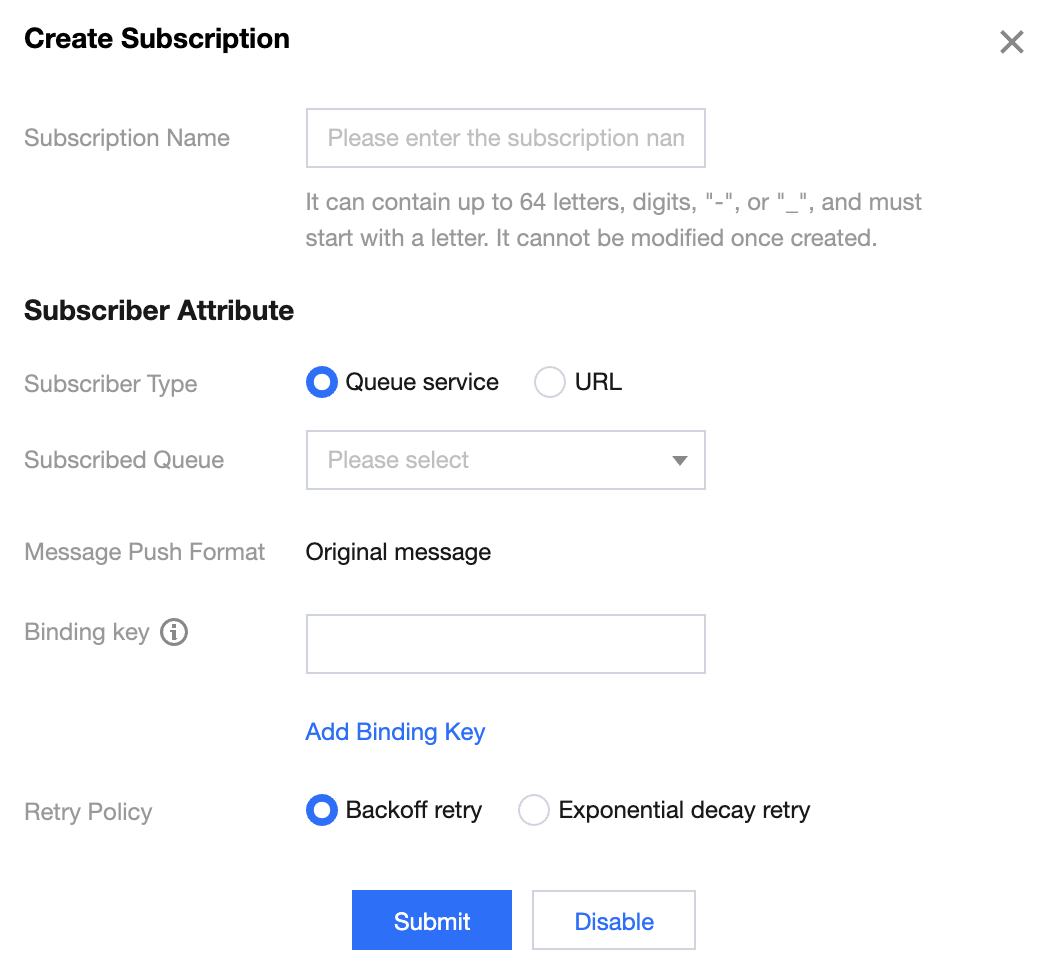
3. Select the Subscriber tab at the top, click Create, and enter the subscriber information.
Subscriber Type
Queue Service: you can select a queue for the subscriber to use it to receive published messages.
URL: the subscriber can also process messages on its own without using a queue.
Subscriber Tag: when adding a subscriber, you can add filter tags (FilterTag), so that the subscriber can receive only messages with the specified tags. Up to 5 tags can be added for one subscriber. As long as a tag matches a topic filter tag, the subscriber can receive messages delivered by the topic. If a message does not have any tag, the subscriber cannot receive it.
Retry Policy: after a message is published by a topic, it will automatically be pushed to the subscription. If the push fails, there are two retry policies:
Backoff retry: an attempt will be retried three times at random intervals between 10 and 20 seconds. After three retries, the message will be discarded for the subscriber and will not be retried again.
Exponential decay retry: an attempt will be retried 176 times at exponentially increasing intervals: 2^0 seconds, 2^1 seconds, ..., 512 seconds, 512 seconds, ..., 512 seconds. The total retry duration is 1 day. This is the default retry policy.
4. Click Submit, and you can see the created subscriber in the subscriber list.
Editing subscriber
On the Subscriber list page, click Edit in the Operation column to modify subscriber attributes.
Note:
You can only modify the subscriber's message filter tag and retry policy.
Deleting subscriber
On the Subscriber list page, click Delete in the Operation column to delete the subscriber.