Feature Positioning
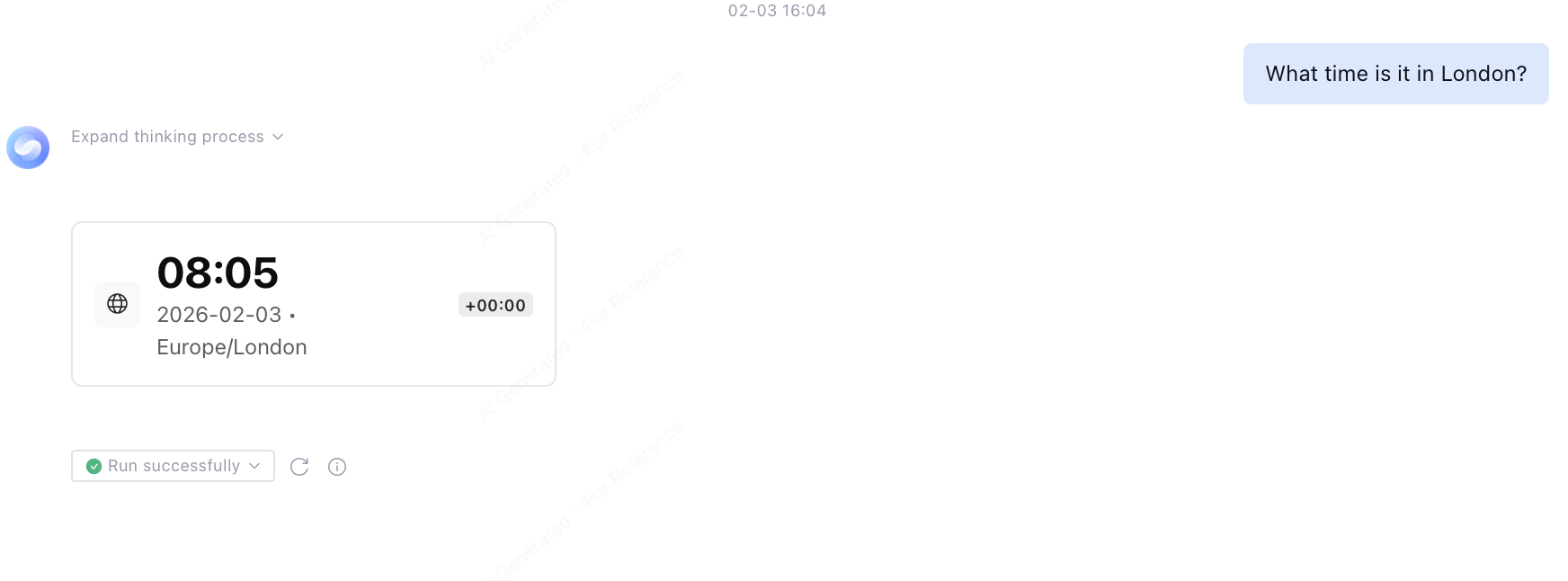
Tool call directly outputs Widget to the dialogue in the form of Widget for the execution result, no need to rewrite or summarize by the large model.
Applicable Scenarios
Tool call directly outputs Widget suitable for the following scenarios:
The tool output result has a clear structure and can be directly used for display.
Agent summarization or rewriting of tool results is not required.
Hope to shorten the response path and reduce unnecessary model invocations and resource consumption.
Not suitable for complex scenarios that require the Agent to understand, perform reasoning, or reassembly of the tool output result.
Used Value
Reduce model involvement: output tool results directly to avoid duplicate summarization.
More controllable results: displayed content comes from tool output.
More efficient response: shorten the execution link and reduce latency and cost.
Note:
After enabling tool call to directly output Widget, the result will be returned and rendered at one time, with no support for streaming output. Therefore, it is not suitable for showing large consecutive text content. Recommend using it for tool output scenarios with clear and stable structure.
Steps
Configure the tool call to directly output Widget for the description of meaning of application images, showing the configuration process and application effect.
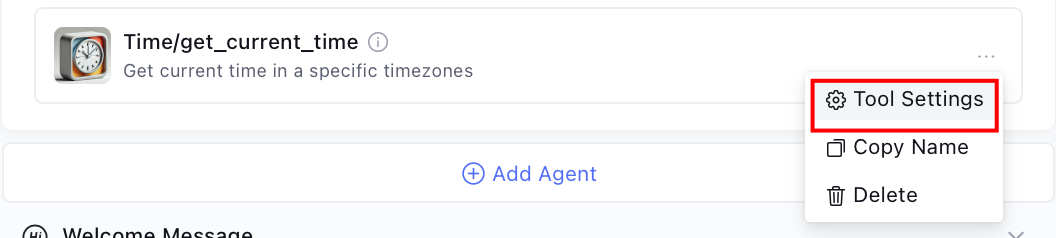
1. Click Tool Settings to go to the Advanced Option page.
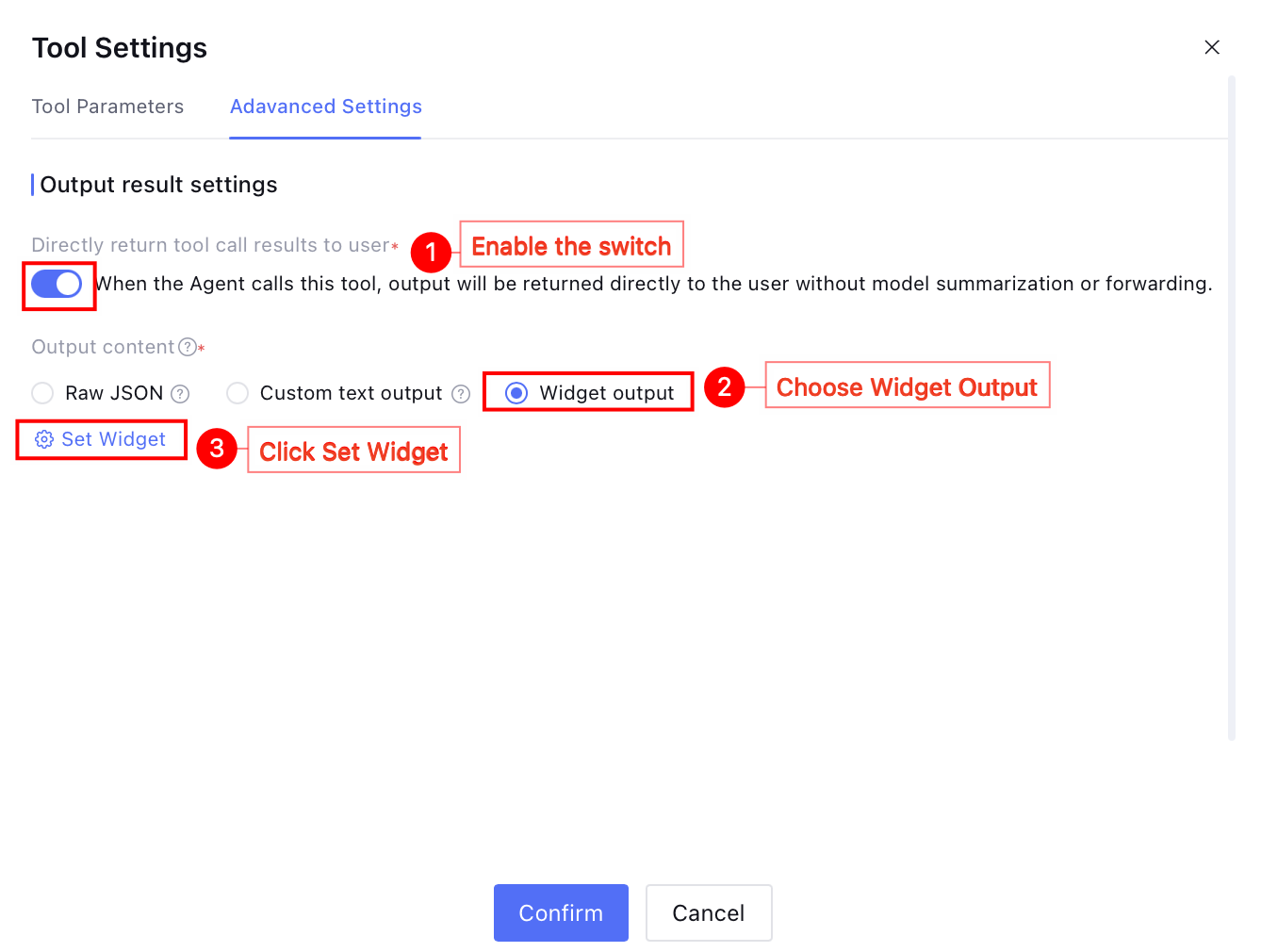
2. Turn on the Result Output Settings switch, select Widget Output from the output content, click Set Widget, and proceed to the configuration page.
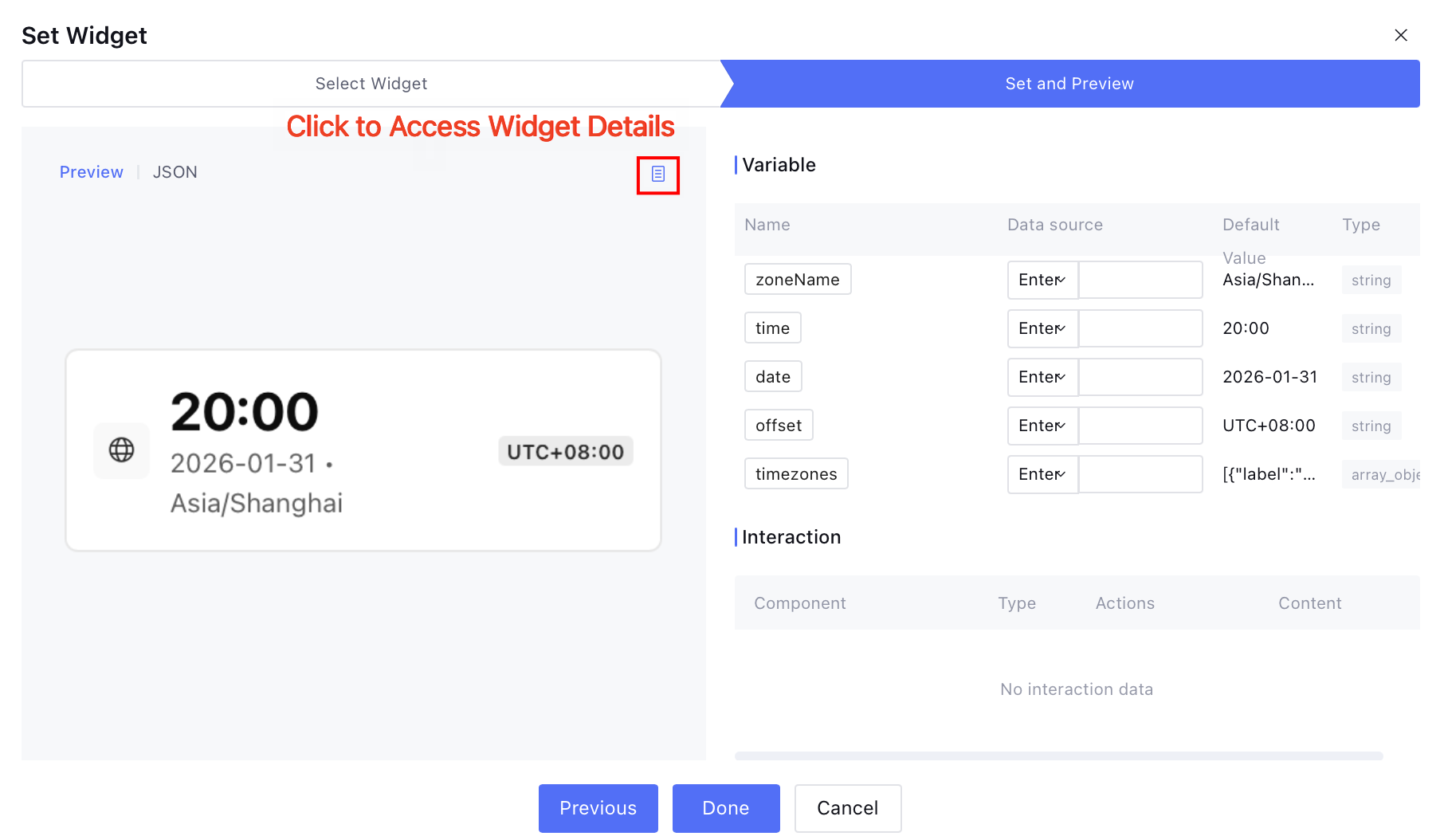
3. Within the scope of Widget development, choose appropriate Widget and click Next to continue configuration. At this point, available options are:
Click to preview the icon and enter the Widget details page to customize.
Note:
If the current Widget is referred by other applications, configuring or modifying it may affect the online display and interaction effect.
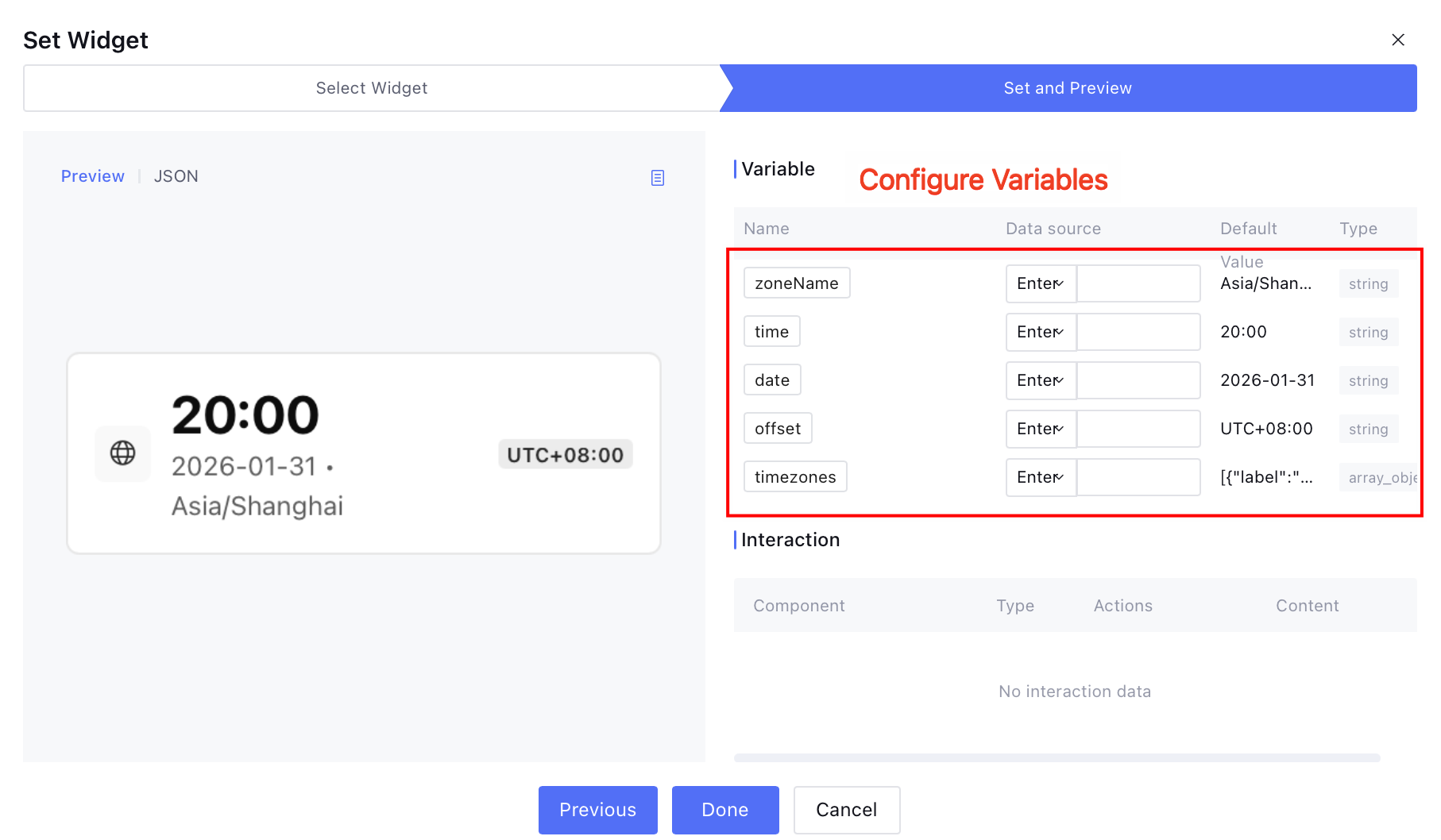
Enter the data source for variables. You can choose to manually enter or refer to them. Support for references includes tool parameter variables and application-level variables. Click Done to directly use the current Widget.
Note:
When configuring tool call to directly output Widget, if the tool output is of Array<object> data type, it is not an optional configuration. Please ensure the data structure of the tool output matches the input variable format required by the Widget, otherwise it may cause rendering failure.
4. After the call is completed, the result will show in the configured Widget format.
Usage scenario of Widget in Multi-Agent Mode:
In Multi-Agent Mode, you can configure Widget in different stages of task execution.
Clarify Widget: Use before tool or Agent execution. When user-submitted input is incomplete or creates ambiguity, guide users through structured interaction to supplement or confirm key information, providing a clear prerequisite for subsequent execution.
Agent Output Widget: Use after Agent reasoning and execution to show the final execution result or conclusion in a structured and visual way for user-friendly understanding and use.
Tool call directly outputs Widget: Use after execution. When the tool has generated clear and directly displayable results, bypass Agent text summary and directly output the tool results to enhance response efficiency and results consistency.