Setting Alarm Policy
Unduh
Mode fokus
Ukuran font
This document describes how to create and manage alarm policies via the console. Monitoring and alerting can be implemented through Tencent Cloud Observability Platform (TCOP). Using TCOP, you can set up monitoring items and notify designated contacts via email, SMS, WeChat, WeCom, or phone calls when the alarm rules for those monitoring items are triggered.
Scenarios
You can create alarms to trigger alerts and send relevant messages when the state of TDSQL Boundless changes. Whether an alarm triggers a notification is determined by comparing the monitored metrics against the specified thresholds at regular intervals. After an alarm is triggered by a state change, you can promptly take preventive or remedial actions. Therefore, properly creating alarms helps you improve the robustness and reliability of TDSQL Boundless. For more information about alarms, see Alarm Configuration in Tencent Cloud Observability Platform (TCOP).
To send an alarm for a specific state of TDSQL Boundless, you must first create an alarm policy. An alarm policy consists of three essential components: name, type, and alarm trigger conditions. Each alarm policy is a collection of alarm trigger conditions. These conditions have an "OR" relationship, meaning an alarm is sent if any single condition is met. Alarms are sent to all users associated with the alarm policy. After receiving an alarm, users can promptly review it and take appropriate actions. Once an alarm policy is created, you can manage it by modifying its name or remarks, updating its trigger conditions, editing its alarm targets, and so on.
Setting a Custom Alarm Policy
1. Log in to the TDSQL Boundless console. In the Instance List, click Instance ID to go to the Instance Details page.
2. Choose the Monitoring and Alarms > Alarms tab. In the upper-right corner of the page, click Configure Alarms to go to the Tencent Cloud Observability Platform (TCOP) console.
3. In TCOP, go to the Alarm Configuration > Alarm Policy page and click Create Policy > Custom Alarm Policy.
4. On the Create Alarm Policy page, configure the following parameters and click Complete.
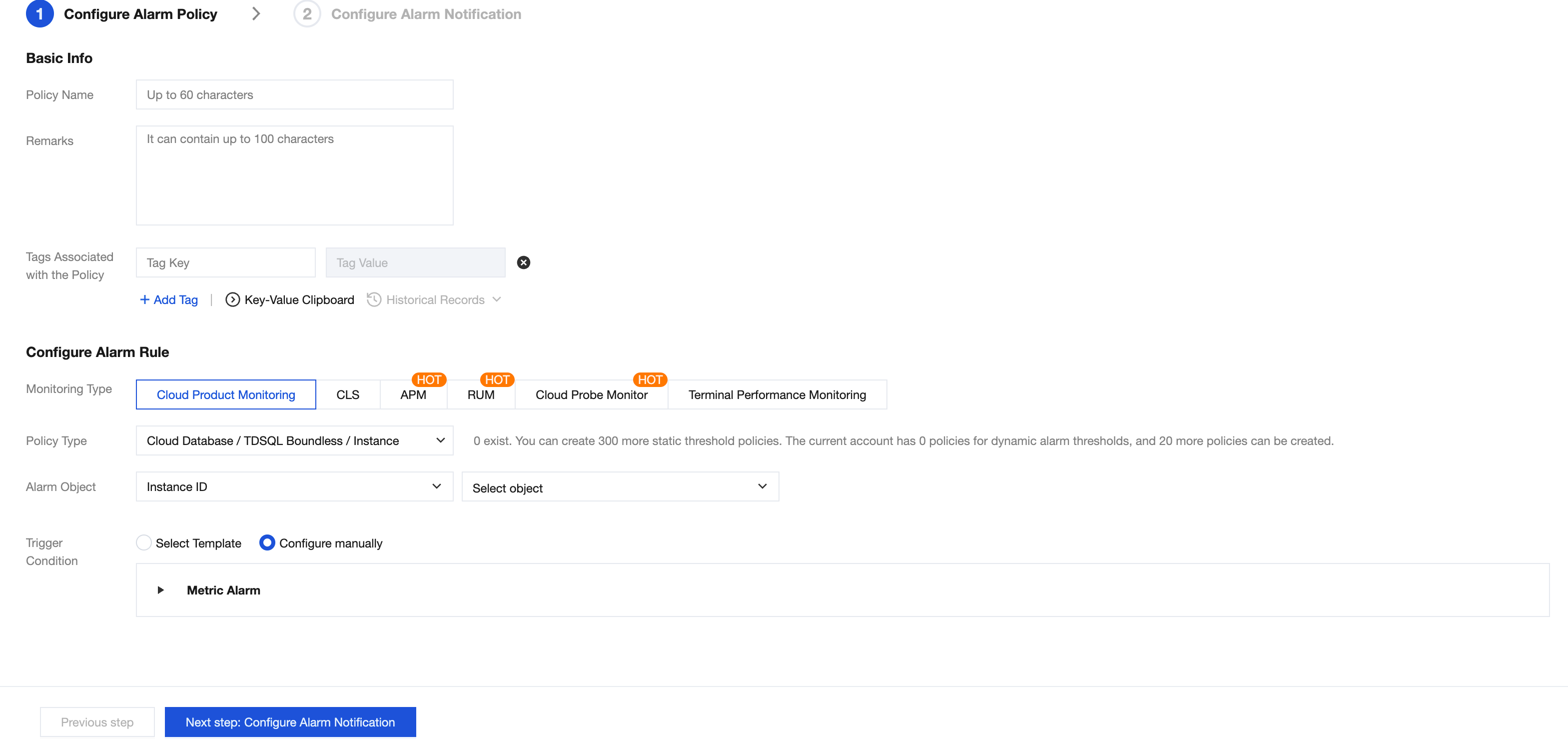
Configuration Type | Parameter | Description |
Basic Info | Policy Name | Enter a policy name. Up to 60 characters can be entered. |
| Remarks | Add remarks for this policy. Up to 100 characters can be entered. |
Configure Alarm Rule | Monitoring Type | Select Cloud Product Monitoring. |
| Policy Type | Choose Cloud Database > TDSQL Boundless. |
| Alarm Object | Locate the instance to be associated by selecting the region where the object resides or searching for the instance ID of the object, or select all instances. |
| Trigger Condition | An alarm trigger condition is a semantically meaningful condition composed of a metric, a comparison operator, a threshold, a data point statistical granularity, and a duration of N consecutive data points. You can customize the alarm trigger condition by configuring the alarm metric, data point statistical granularity, threshold, alarm level, and alarm frequency according to your business needs. Alternatively, you can directly use trigger condition templates and preset trigger conditions. For details, see Configure Alarm Trigger Conditions. |
Configure Alarm Notification | Configure Alarm Notification | System preset notification templates and user-defined notification templates are supported. Each alarm policy can be bound to a maximum of 3 notification templates. For details, see Notification Template. |
Managing Custom Alarm Policies
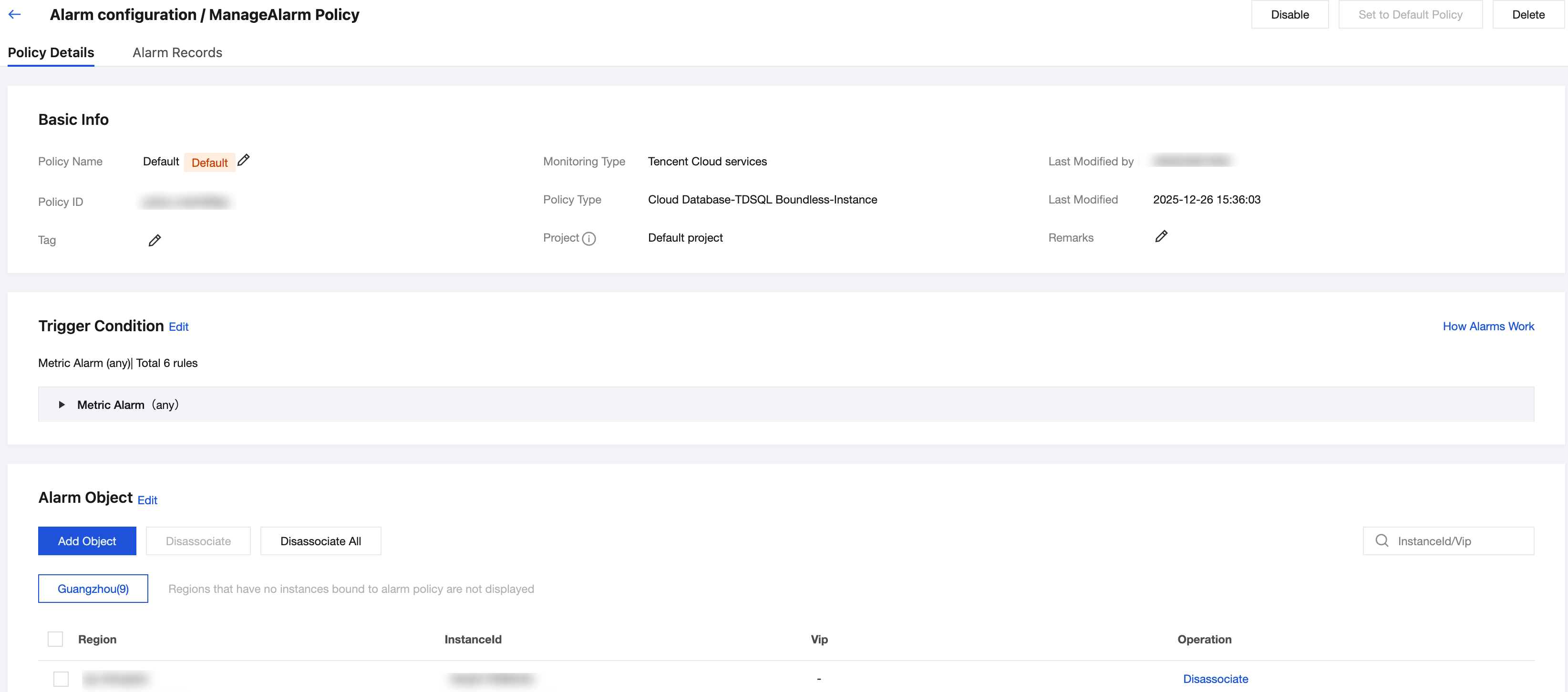
1. On the Alarm Policy List page, click the name of the target alarm policy to go to the Manage Alarm Policy page.
2. On the Policy Details tab, select the items you need to modify and reconfigure them as required, such as updating the policy name, remarks, trigger conditions, or removing/adding alarm targets.
Bantuan dan Dukungan
Apakah halaman ini membantu?
Anda juga dapat Menghubungi Penjualan atau Mengirimkan Tiket untuk meminta bantuan.
masukan