A project is the core unit for organizing and managing cloud resources. Different applications or services within the same project can share resources and work collaboratively. In contrast, resources and applications across different projects are isolated from each other, ensuring no mutual interference. Each project is unique and serves as the foundation for resource ownership and permission control. Assigning an appropriate project to a database instance helps achieve the following management objectives:
Resource Classification and Organizational Governance
You can assign database instances to appropriate projects based on their business purpose (such as "production environment" or "test environment") or business line affiliation. This enables systematic resource classification and maintains a clear and organized infrastructure.
Unified Ops and Global Control
By managing instances uniformly at the project level, you can monitor the usage and operational status of overall resources at any time, thereby enhancing Ops visibility and management efficiency.
Usage Instructions
Note:
Updating the project affiliation of a database does not incur any additional charges.
The assignment and movement of database instances between projects do not affect the services externally provided by the instances.
2. In the left sidebar, expand the MongoDB dropdown list and select either Replica Set Instance or Shard Instance. The operations for replica set instances and sharded instances are similar.
3. Select a region at the top of the instance list.
4. Locate the target instance in the instance list.
5. Click the target instance ID to go to the Instance Details page.
6. In the Basic Info section, click Switch to Another Project.
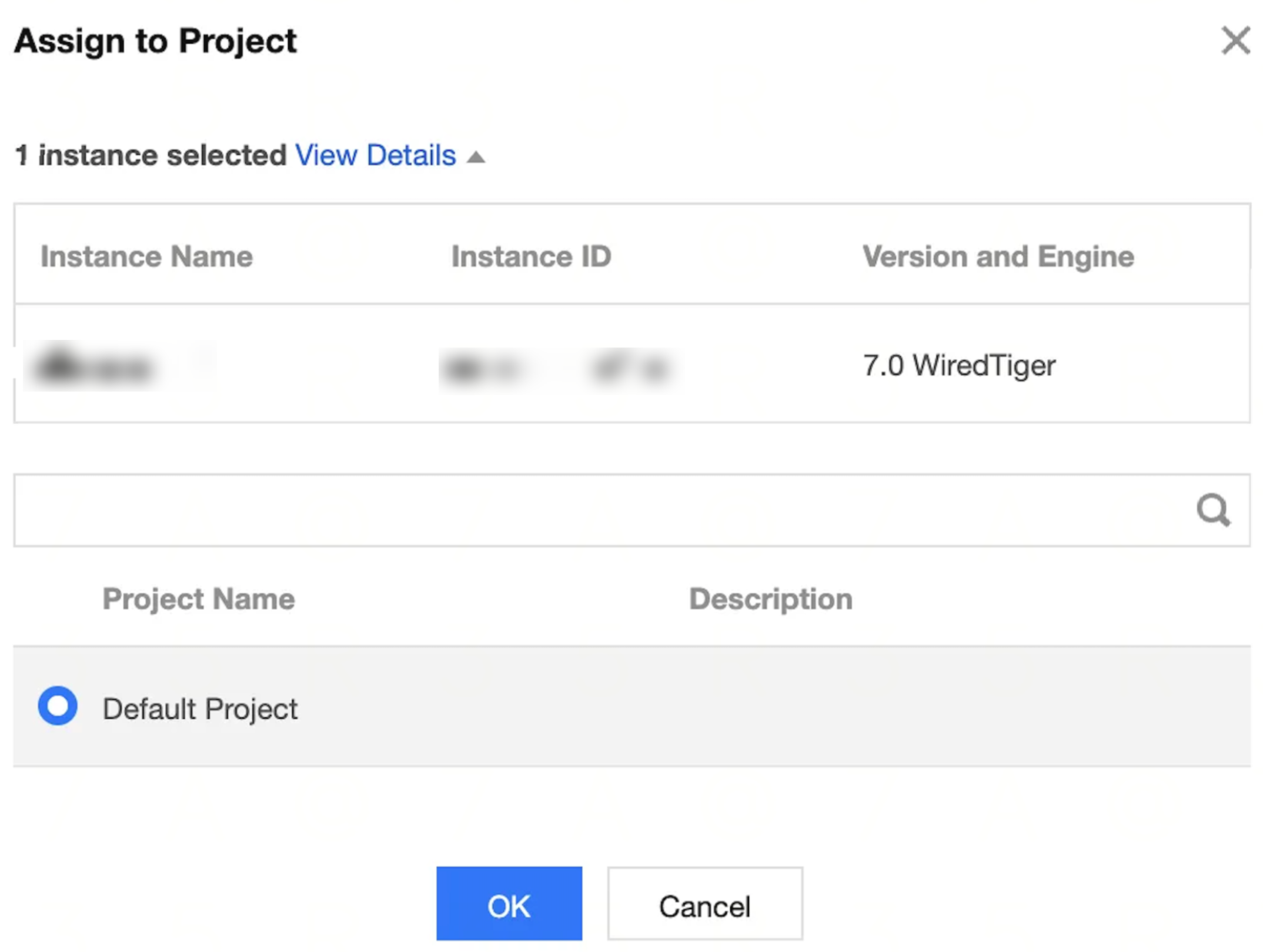
7. On the Assign to Project page, select the project to which you want to reassign the instance.
8. Click OK. The
will be displayed to the right of Instance Status in the Basic Information section.
9. Wait for the instance project transfer to complete. You can then see the reassigned project to the right of Project.
In the instance list, you can filter associated instances based on the instance's Project to understand the operational status of all instances within the project.