The log collection feature is a cluster log collection tool provided by Tencent Kubernetes Engine (TKE), which allows you to send logs in specific paths of cluster services or nodes to Tencent Cloud Log Service (CLS) and TDMQ for CKafka (CKafka). This feature applies to users who need to store and analyze service logs within Kubernetes clusters.
You need to manually enable log collection for each cluster, and configure the collection rules. After log collection is enabled for a cluster, the log collection agent runs as a DaemonSet in the cluster, collects logs from the collection source based on the collection source, CLS log topic, and log parsing method configured by users in the log collection rules, and sends the collected log to the consumer. You can enable log collection for a cluster according to the section Operation Steps.
Prerequisites
Before enabling log collection, ensure that there are sufficient resources on the cluster nodes.
0.11 to 1.1 CPU cores are required. You can increase the CPU resources on your own as needed.
24 to 560 MB memory is required. You can increase the memory resources on your own as needed.
The maximum size of a log is 512 KB. A log greater than 512 KB will be truncated.
To use the log collection feature, ensure that nodes in the Kubernetes cluster can access the log consumer. Additionally, the log collection feature is available only for clusters of Kubernetes 1.10 and later.
Basic Concepts
Log Collection Agent
The agent that TKE uses to collect logs is Loglistener, which runs within the cluster as a DaemonSet.
Log Rules
Users can use log rules to specify the log collection source, log topic, and log parsing method, and configure the filter.
The log collection agent monitors changes in log collection rules. Such changes take effect within 10 seconds.
Multiple log collection rules do not lead to creation of multiple DaemonSets, but too many log collection rules will increase the resources occupied by the log collection agent.
Log Source
It includes the specified container standard output, files in containers, and node files.
When collecting container standard output logs, users can select TKE logs in all containers or specified workloads and specified Pod labels as the log collection source.
When collecting container file path logs, users can specify container file path logs in workloads or Pod labels as the log collection source.
When collecting node file path logs, users can set node file path logs as the log collection source.
Consumer
Users can select a CLS log set or log topic as the consumer.
Extraction Mode
The log collection agent allows you to send the collected logs to the specified log topic in the format of single-line text, multi-line text, single-line full regex, multi-line full regex, JSON, separator-based text, or combined parsing.
Filter
After enabling the filter, you can collect logs based on user-specified collection rules. "key" supports exact matching, and filtering rules support regex matching. For example, only collect logs containing ErrorCode = 404.
Operation Steps
Enabling Log Collection
1. Log in to the TKE console, and select Feature Management in the left sidebar.
2. At the top of the Ops Management page, select a region, and click Set on the right side of the target cluster, as shown in the figure below.
3. On the Configure features page, click Edit on the right side of Log collection.
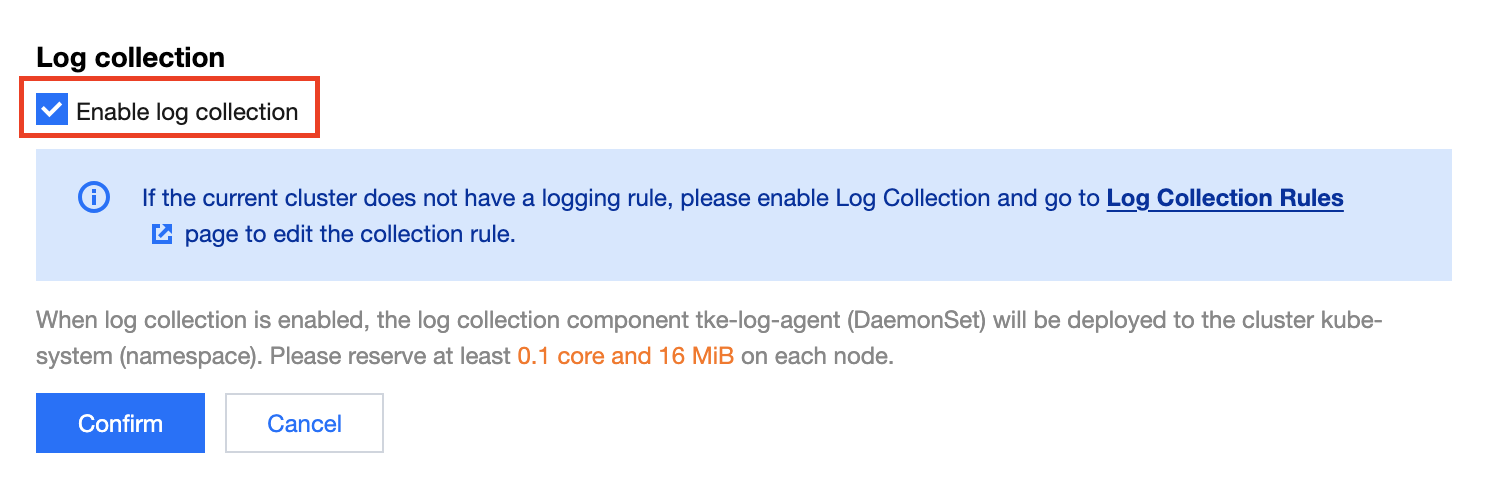
4. Select Enable log collection, and click Confirm, as shown in the figure below.
5. After enabling, you can view the log collection status on the Ops Management page, as shown in the figure below.
Disabling Log Collection
1. Log in to the TKE console, and select Feature Management in the left sidebar.
2. At the top of the Ops Management page, select a region, and click Set on the right side of the cluster for which log collection needs to be disabled, as shown in the figure below.
3. On the Configure features page, click Edit on the right side of Log collection.
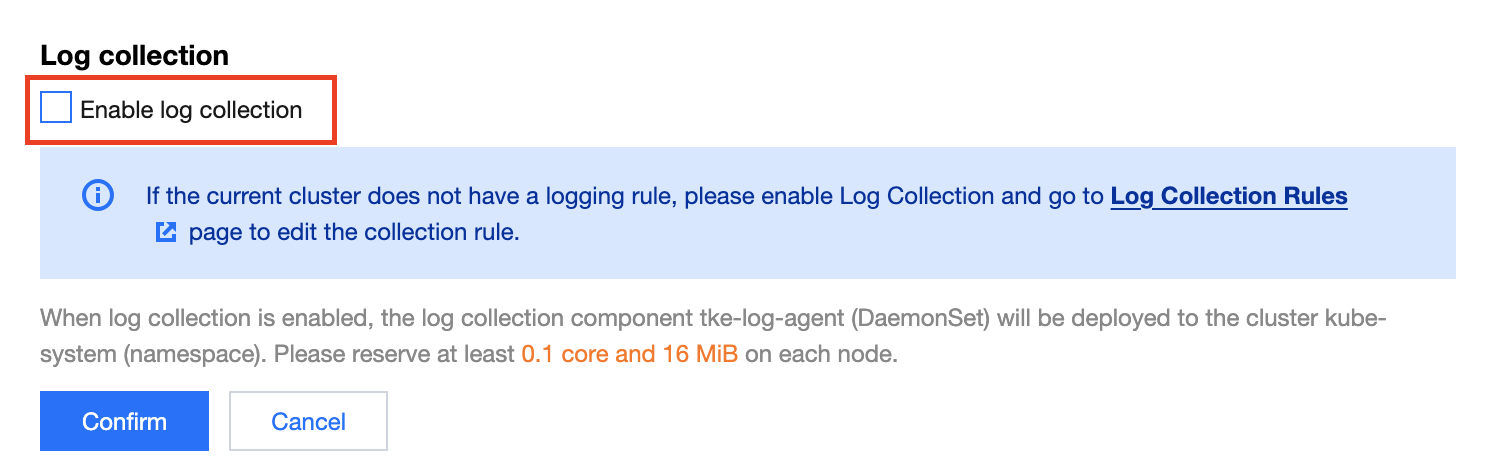
4. Unselect Enable log collection, and click Confirm, as shown in the figure below.