Check Details
The source and target databases need to be normally connected, and if not, the error message "Failed to connect to the source database" will be displayed.
Causes
The network or server where the source database resides has a security group or firewall configured.
The source IP addresses are blocked in the source database.
The network port is closed.
The database account or password is incorrect.
Check method
A security group is similar to a firewall. It is a group of network security settings for databases in the cloud.
Check as follows based on the actual conditions:
Check whether the server where the source database resides is configured with firewall policies.
Windows: open Control Panel and find the Windows Defender Firewall and check whether firewall policies are configured.
Linux: run the iptables -L command to check whether the server is configured with firewall policies.
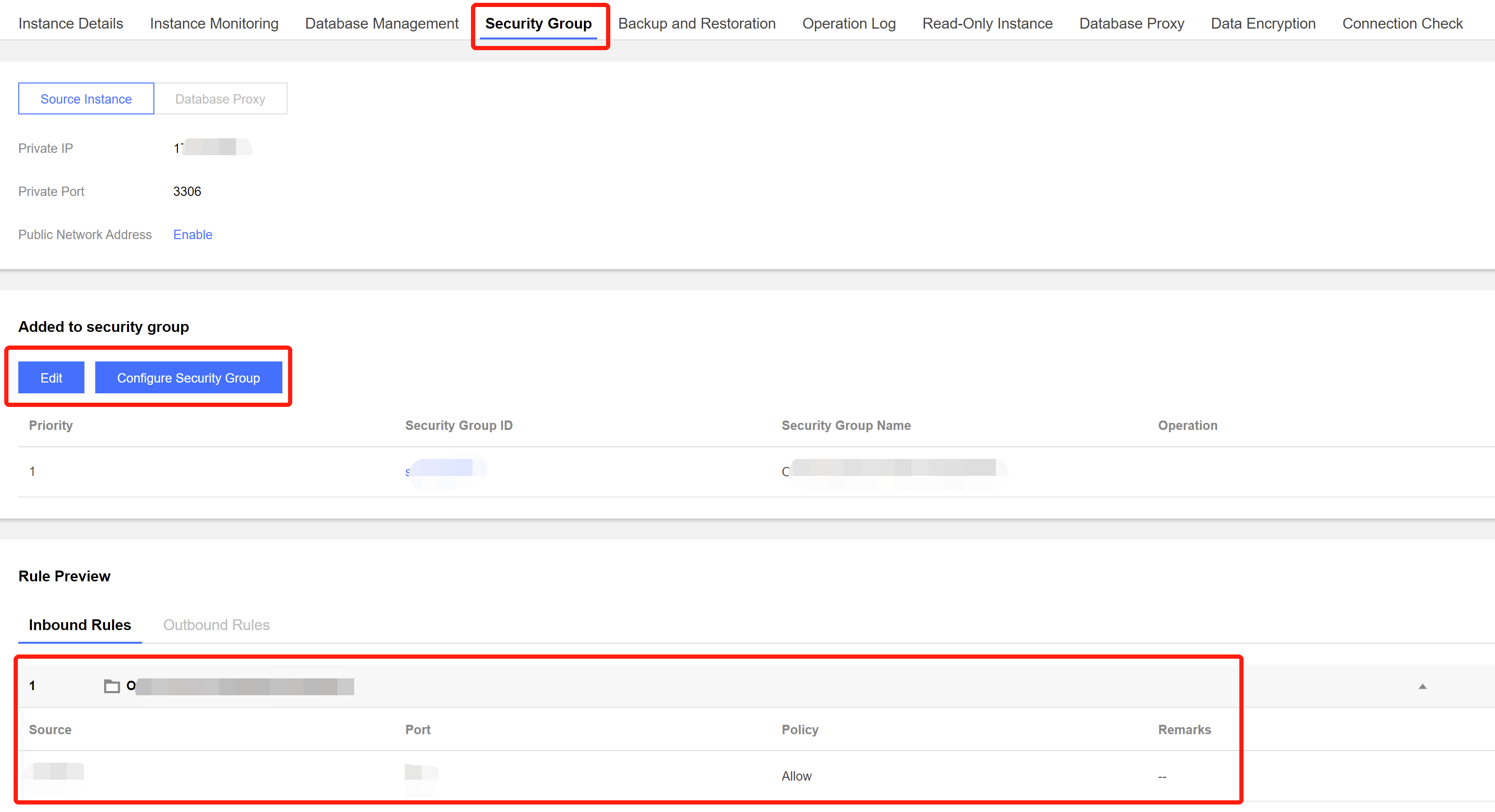
Check whether DTS IP range is blocked in the security group of the database.
1.1 Log in to the corresponding database and click an instance ID in the instance list to enter the instance management page. 1.2 On the instance management page, select the Security Group tab and check whether there are policies blocking the SNAT IP range of DTS.
Fix
Fix it as follows based on the actual conditions:
The firewall is enabled on the server:
1.1 Disable the server firewall, log in to DTS, and run the verification task again.
Note:
This method is applicable to both Windows and Linux.
1.2 Set the DTS IP range policy to Allow.
The SNAT IP range of DTS is blocked in the security group:
1.1 Click the corresponding security group ID on the Security Group tab.
2. Set the DTS IP range policy to Allow.
Source IP Addresses Blocked in Source Database
Check method
MySQL
On the server where the source database is deployed, use the database account and password entered in the data migration task to connect to the source database. If the database can be normally connected, the source IP address may be blocked in the source database.
For self-built database, you need to check the bind-address configuration in the database. If it is not 0.0.0.0, the IP is blocked.
If the source database is MySQL, you can use the MySQL client to connect to it, run the following SQL statement, and check whether the list of authorized IP addresses contains the SNAT IP addresses of DTS in the output result.
When granting database permissions to users, the authorized IPs must include the SNAT IPs; otherwise, they may be blocked; for example:
root@10.0.0.0/8 // Authorize users to access through `10.0.0.0/8`, and other IPs will be blocked (incorrect configuration)
root@% // Authorize users to access all IPs, which should include the SNAT IPs (correct configuration)
You can verify as follows:
select host,user,authentication_string,password_expired,account_locked from
mysql.user WHERE user='[\\$Username]'; // `[\\$Username]` is the database account entered in the data migration task
SQL Server
Check whether there is an endpoint or trigger that blocks the access source IP address in the source database.
PostgreSQL
If the source database is another database in the cloud, check whether the secure access policies in the source database have restrictions. Check as follows according to the specific cloud vendor:
If the source database is a self-built PostgreSQL database, enter the data directory in the $PGDATA directory, find the pg_hba.conf file, and check whether the file contains a deny policy or only allows access from certain IP addresses over the network.
local replication all trust
host replication all 127.x.x.1/32 trust
host replication all ::1/128 trust
host all all 0.0.0.0/0 md5
host all all 172.x.x.0/20 md5
MongoDB
For self-built database, you need to check the bind-address configuration in the database. If it is not 0.0.0.0, the IP is blocked.
Fix
1. If the source database is MySQL, run the following SQL statement in it to authorize the user configured in the data migration task.
mysql> grant all privileges on . to '[\\$UserName]'@'%'; // `[\\$Username]` is the database account entered in the data migration task
mysql> flush privileges;
2. For a self-built database, if the bind-address configuration is incorrect, modify it as instructed below.
2.1. Add the following content to the /etc/my.cnf file:
Note:
The default path of the my.cnf configuration file is /etc/my.cnf, subject to the actual conditions.
2.2. Restart the database.
2.3. Check whether the configuration takes effect.
3. Run the verification task again.
SQL Server
Disable the firewall or trigger.
PostgreSQL
1. Add an access policy allowing the DTS IP range to the pg_hba.conf file or temporarily open all IP ranges in the access policy during migration. For example, add the following line to the pg_hba.conf file:
host all all 0.0.0.0/0 md5
2. After the modification is completed, you can restart the database to make the configuration take effect:
pg_ctl -D $PGDATA restart
3. Run the verification task again.
MongoDB
Configure bind-address as instructed in MySQL. Closed Network Port
Check method
Below are the default ports for common databases. You need to check whether they are opened, and if not, open them based on the actual conditions:
MySQL: 3306
SQL Server: 1433
PostgreSQL: 5432
MongoDB: 27017
Redis: 6379
Fix
Open the corresponding database port.
If the source database is SQL Server, you need to open the file sharing service port 445 at the same time.
Incorrect Database Account or Password
Check method
Log in to the source database to check whether the account and password are correct.
Fix
Modify the data migration task in the DTS console, enter the correct database account and password, and run the verification task again.