Creating Cluster
Download
フォーカスモード
フォントサイズ
Overview
This document describes how to create a TcaplusDB cluster in the console.
Note:
For the consultation or purchase of TencentDB for TcaplusDB, please submit a ticket to contact the Tencent Cloud team.
Prerequisites
Directions
1. Log in to the TencentDB for TcaplusDB console, select Cluster List on the left sidebar, and click Create Cluster.
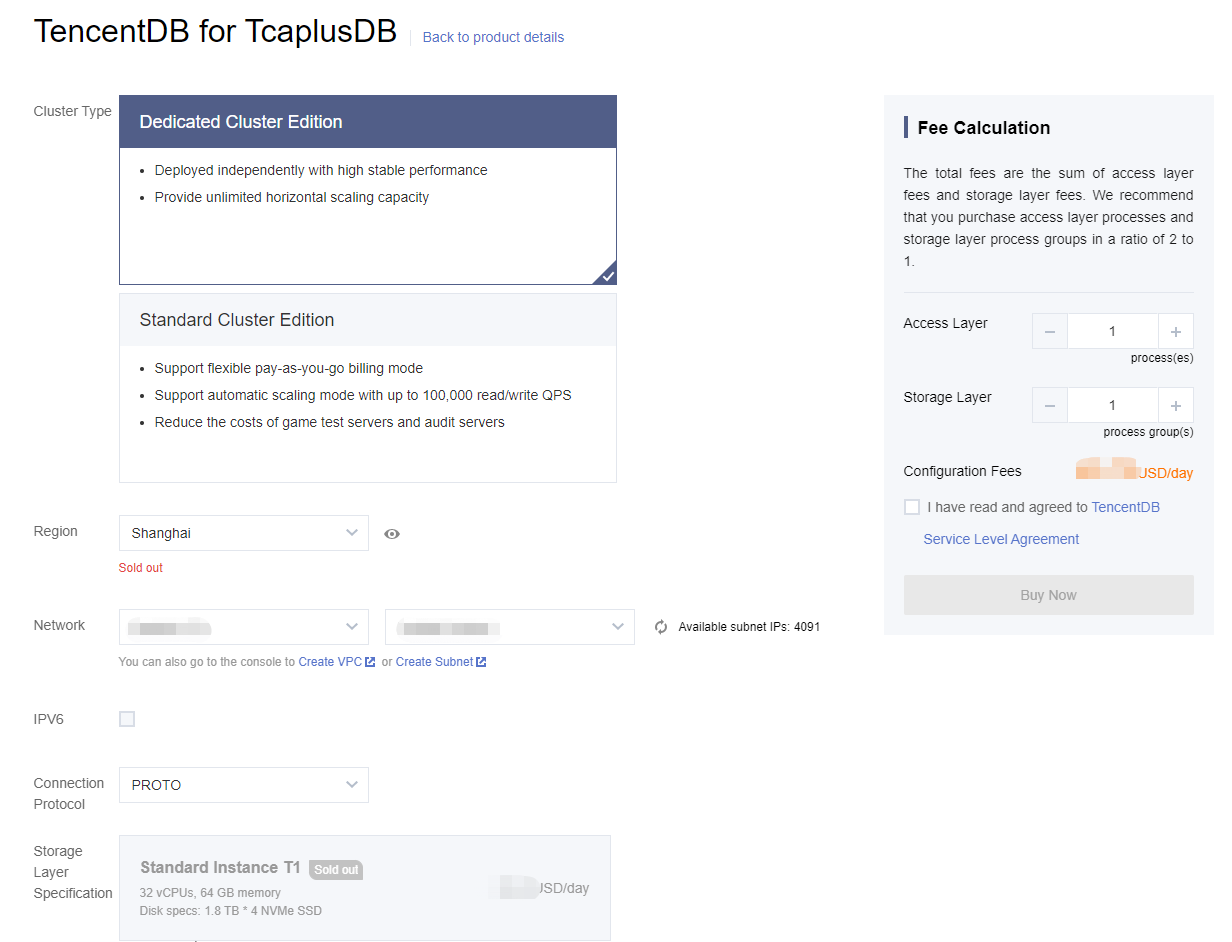
2. On the displayed purchase page, specify the following configurations, and click Buy Now.
Network: select a VPC and a subnet. You can select one VPC and one subnet only when creating a cluster, which cannot be modified once created.
Connection Protocol: select a connection protocol (data description protocol).
Cluster Name: set the cluster name, which must be unique under the account and can contain 1–32 characters. You can rename the cluster at any time.
Access Password: set the cluster access password, which must meet the following requirements:
8–64 characters in length. The password of 12 or more characters is recommended.
Cannot start with a slash (/).
At least contain three types:
Lowercase letters (a-z)
Uppercase letters (A-Z)
Digits (0-9)
Special symbols
\\~!@#$%^&*_-+=\\|(){}[]:;'<>,.?/.Table Group Name and Table Group ID: create a default table group for the cluster and name it. The table group ID can be automatically generated or customized.
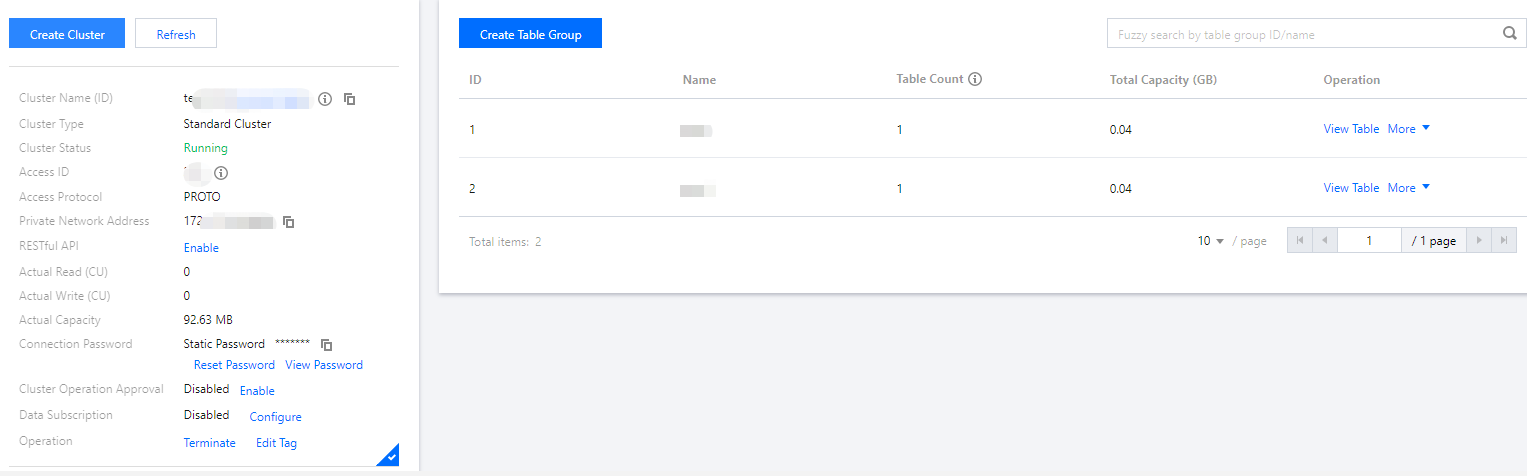
3. Go back to the cluster list to view the created cluster and table group. Each cluster will be assigned a unique cluster ID.
フィードバック