When you deploy the Hive component, Hive metadata can be stored in two ways: the first option is the default cluster, where metadata is stored in a separately purchased MetaDB within the cluster; the second option is to associate an external Hive Metastore, where you can choose to link to EMR-MetaDB or a self-built MySQL database, with metadata stored in the associated database, which will not be destroyed when the cluster is terminated.
The default cluster automatically purchases a separate MetaDB CloudDB instance as the metadata storage unit, storing metadata together with other components. This MetaDB CloudDB will be terminated along with the cluster. To retain metadata, you need to manually save it in the CloudDB beforehand.
Note
1. Hive metadata is stored together with the metadata of Druid, Superset, Hue, Ranger, Oozie, and Presto components.
2. The cluster requires a separate purchase of a MetaDB as a metadata storage unit.
3. The MetaDB is terminated along with the cluster, meaning that the metadata is also terminated with the cluster.
Associating EMR-MetaDB to Share Hive Metadata
When you create a cluster, the system will pull an available MetaDB from the cloud to store the metadata for the new cluster’s Hive component. This eliminates the need for a separate MetaDB purchase, reducing costs. Moreover, Hive metadata will not be terminated along with the current cluster.
Note
1. The available MetaDB instance ID should be one of the MetaDBs existing under the same account within EMR clusters.
2. When you select one or more of the following components such as Hue, Ranger, Oozie, Druid, and Superset, the system will automatically purchase a MetaDB for storing metadata of components other than Hive.
3. To terminate an associated EMR-MetaDB, you need to do so via CloudDB. Once it is terminated, the Hive Metastore cannot be recovered.
4. Ensure that the network of the associated EMR-MetaDB is in the same network environment as that of the created cluster.
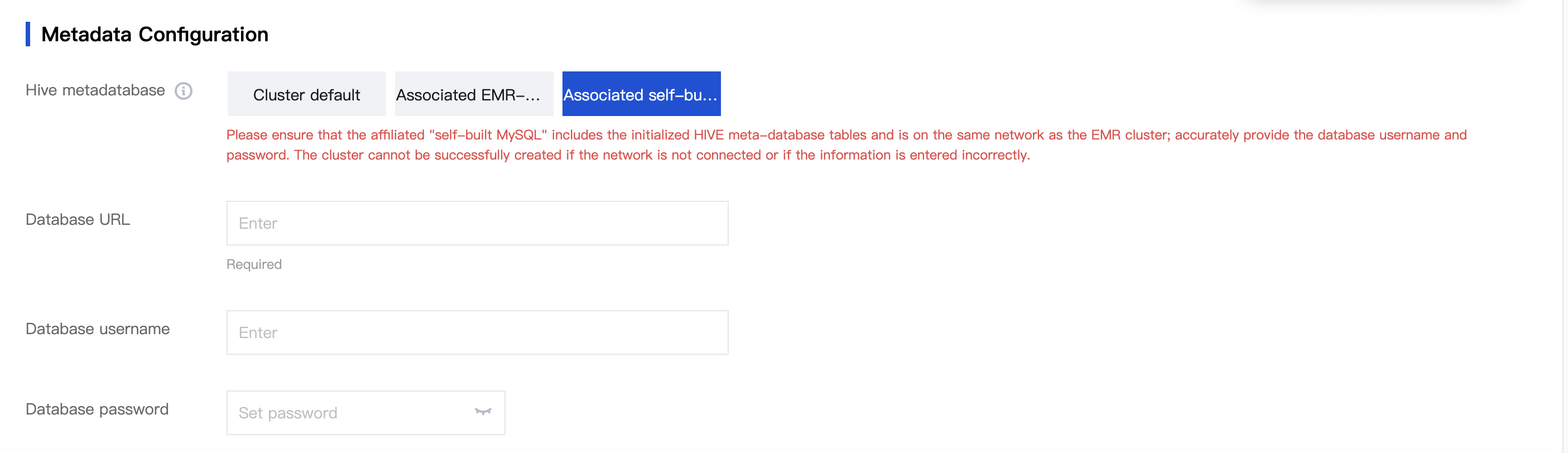
1. After a cluster is created and a Hive component is selected, click Next and choose the associated EMR-MetaDB:
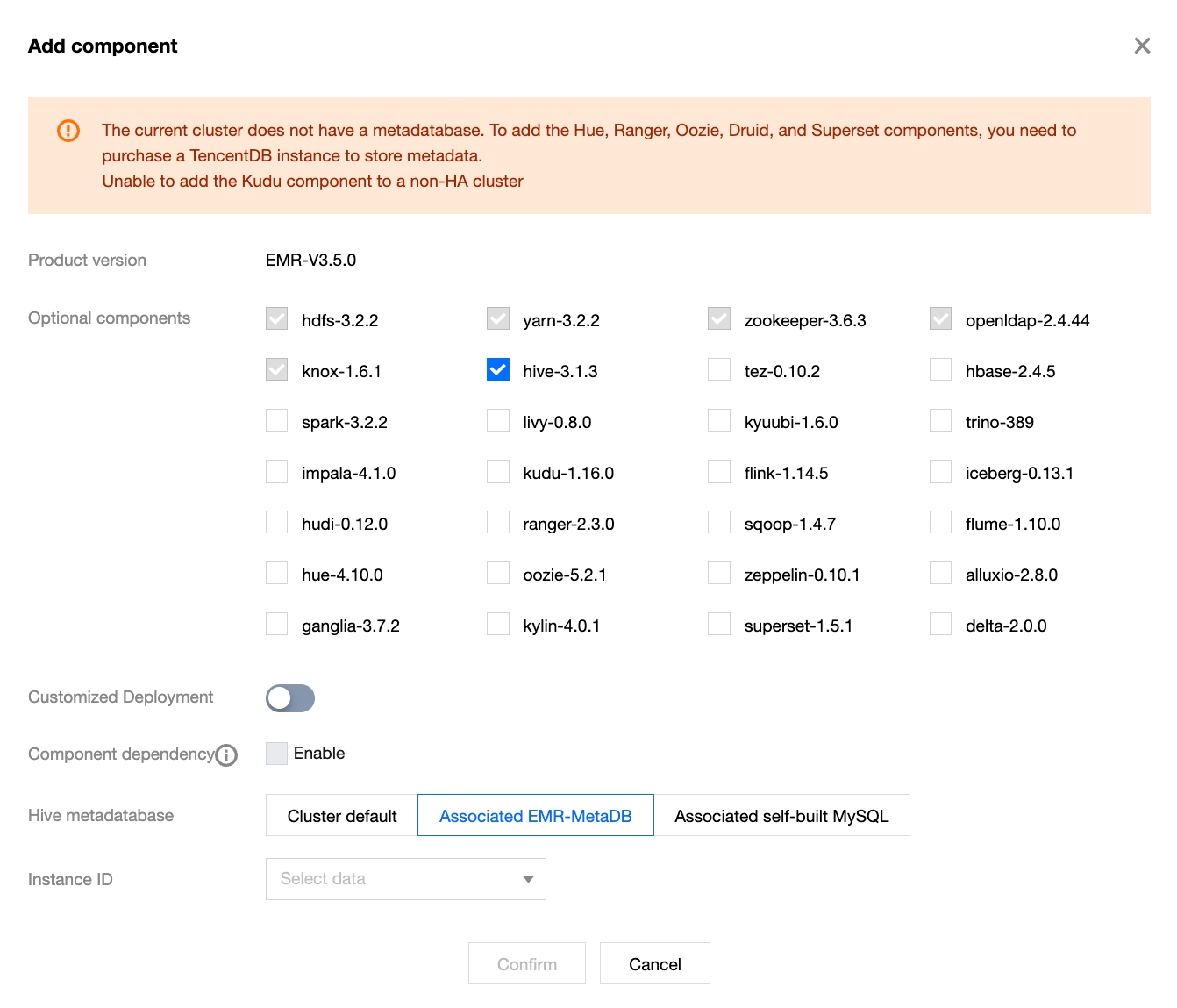
2. For clusters without the Hive component installed, when the Hive component is added, select the associated EMR-MetaDB:
Associating Self-Built MySQL to Share Hive Metadata
Associating a self-built local MySQL database as Hive metadata storage also avoids the need to purchase a separate MetaDB for storing Hive metadata, thus saving costs. You should accurately enter the local address starting with jdbc:mysql://, the database name, and the database login password, and ensure the network is connected with the current cluster.
Note
1. Ensure that the self-built database and the EMR cluster are in the same network.
2. Enter the correct database username and password.
3. When you select one or more components such as Hue, Ranger, Oozie, Druid, or Superset, the system will automatically purchase a MetaDB for storing metadata, excluding Hive.
4. Ensure that the Hive metadata version in the custom database is greater than or equal to the Hive version in the new cluster.
5. Ensure that the self-built MySQL contains an initialized Hive Metastore and table.
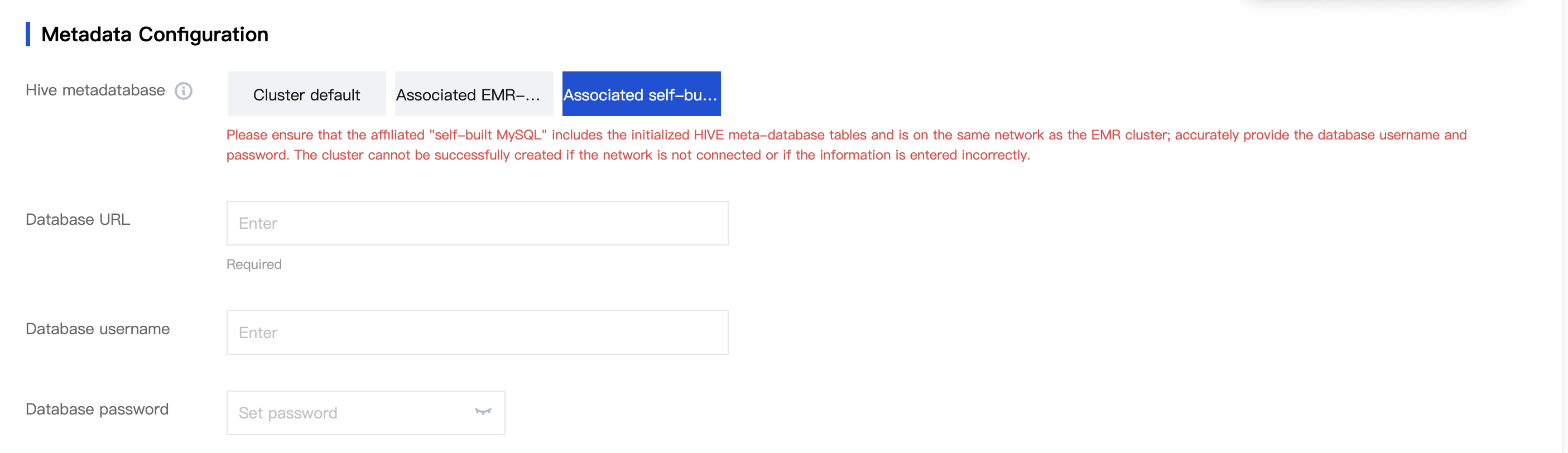
1. After a cluster is created and a Hive component is selected, click Next and link the self-built MySQL database:
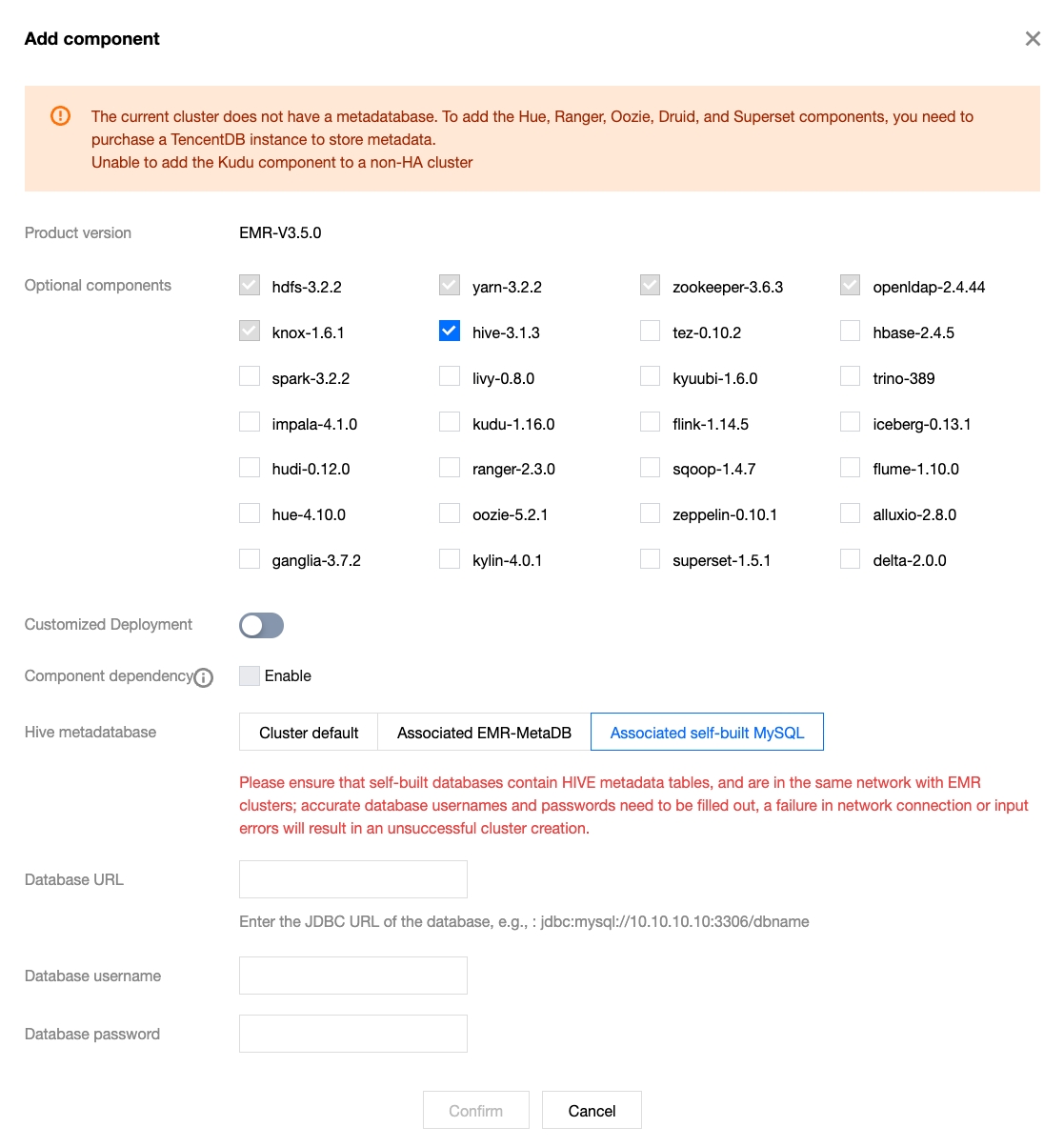
2. For clusters without the Hive component installed, when the Hive component is added, link the self-built MySQL database:
Fixing Issues with HIVE Linking Self-Built Metadata
Selecting a self-built MySQL without HIVE metadata during the creation of an EMR cluster can result in HIVE process issues.
Issue Reproduction
Solutions
For Hive metadata without data, follow the directions below:
Description
Replace ${ip}, ${port}, and ${database} with the actual values used by the user.
1. Stop HiveServer2 (hs2) and metastore for Hive in the console.
2. Modify the hive-site.xml to proto-hive-site.xml for the Hive component and issue it accordingly.Configuration item: javax.jdo.option.ConnectionURL