Handling Guidelines for Signature Expiration in VooV Meeting Client Running Windows 7 – Revision
Affected by some Microsoft support services, users of Windows 7 and Windows 7 SP1 systems (systems of later versions are not affected) may experience signature verification failures, resulting in failures to upgrade VooV Meeting. Two solutions are provided for users to choose from, and following the instructions will enable you to upgrade VooV Meeting normally.
Solution 1: Manually Updating to the Latest Client Version
1. VooV Meeting update
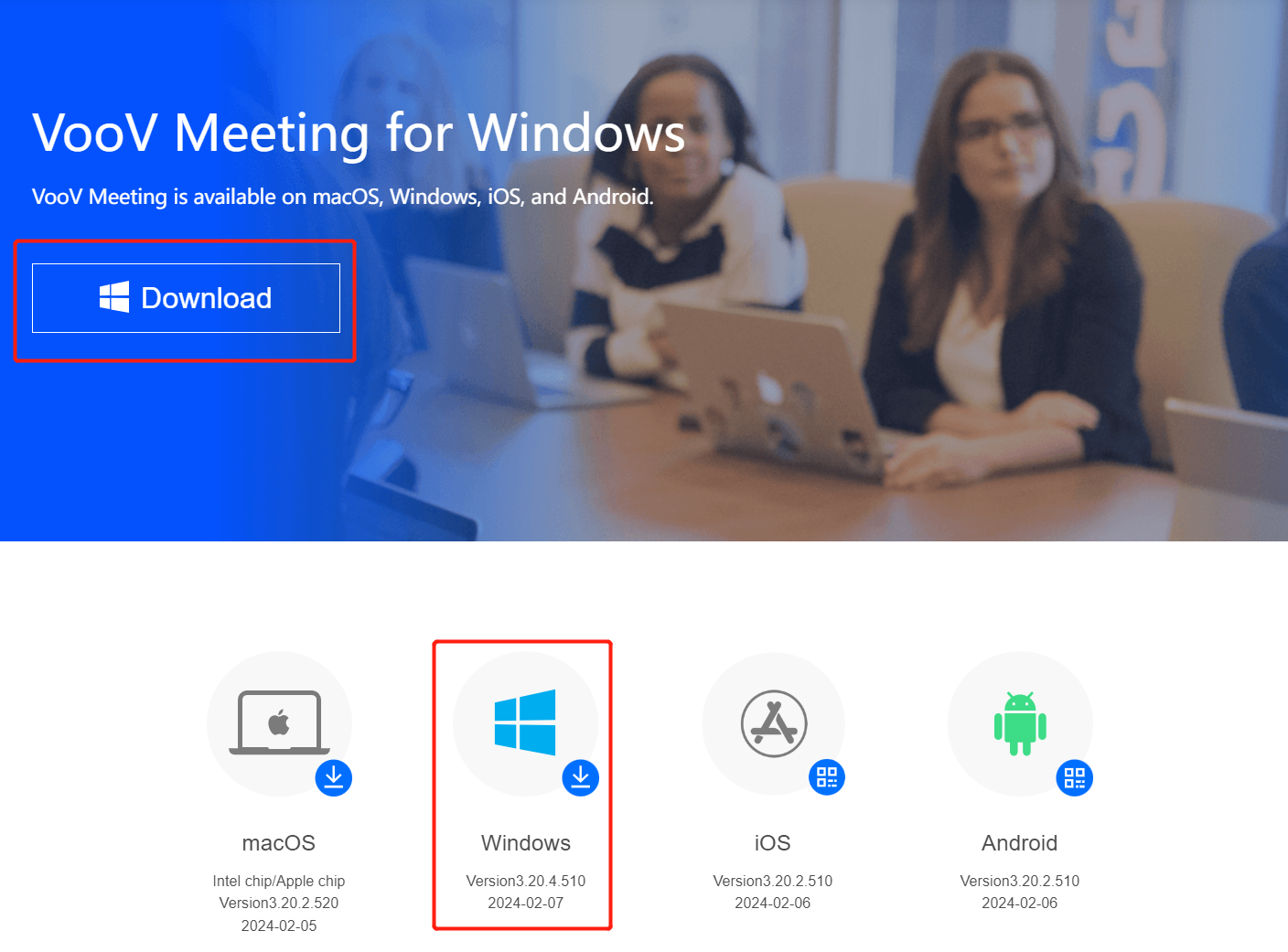
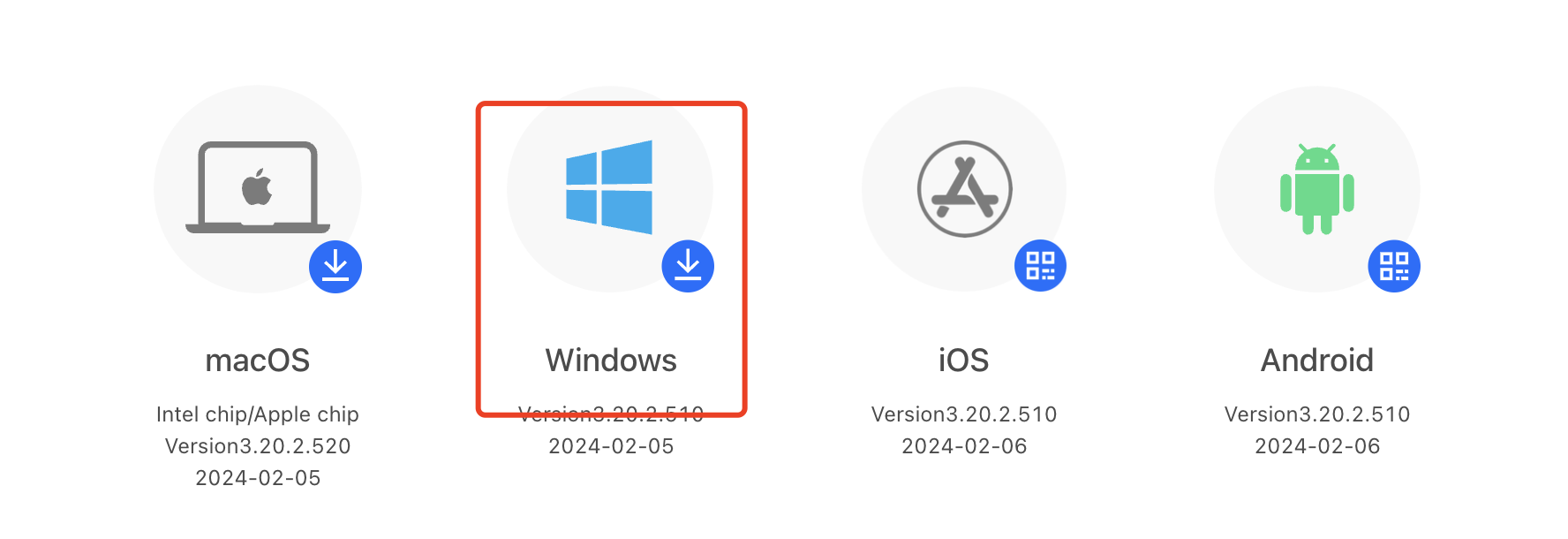
Open the download page on the VooV Meeting official website: Download Center-Tencent Meeting, and click Windows to download and install the latest version.
2. VooV version update:
Open the download page on the VooV official website: VooV Meeting for Windows, and click Windows to download and install the latest version.
Solution 2: Installing Windows 7 SP1 System Signature Patches
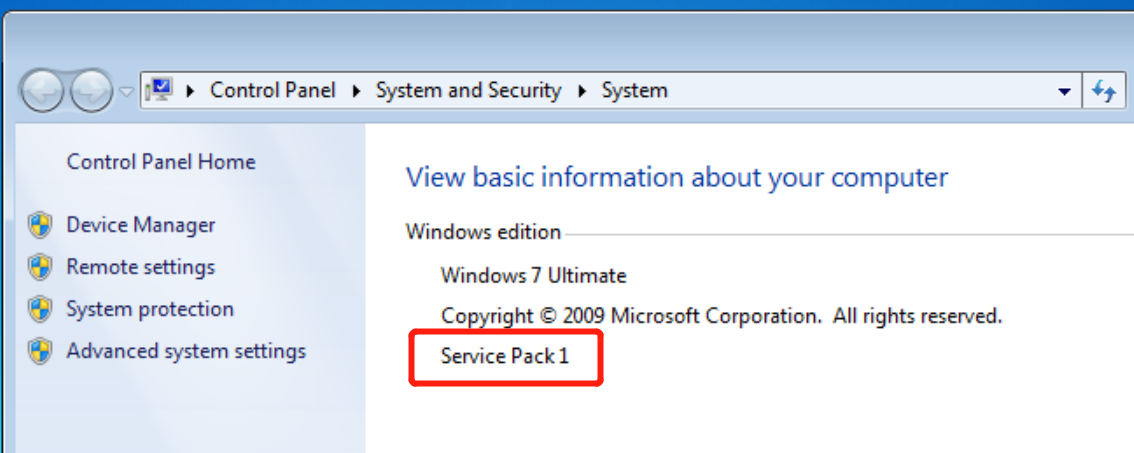
1. Checking whether your Windows version is SP1
Click Start, right-click Computer, and choose Properties from the shortcut menu. If Service Pack1 is displayed in Windows Version, it is an SP1 system.
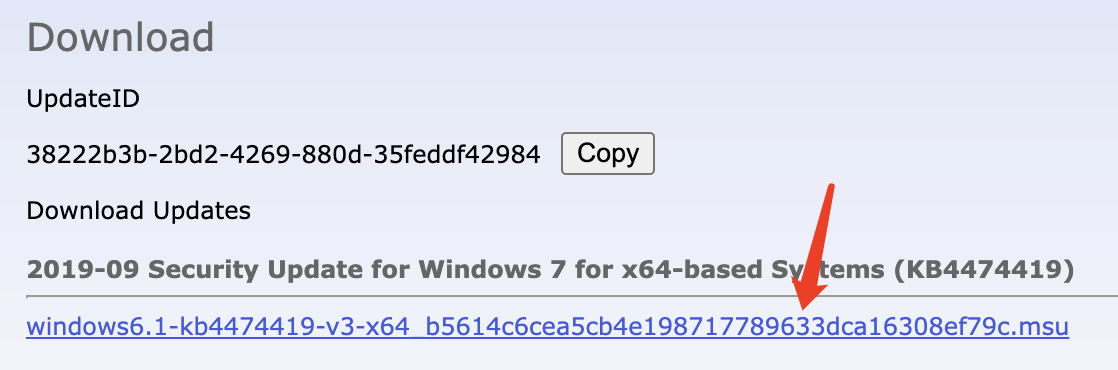
2. Choose the appropriate patch (x64 or x86) based on the system type. Click Download to open the download details page.
3. On the download details page, click the file link (as shown in the following figure) to download the .msu installation file. Double-click the file to install the patch.
3. For non-Windows 7 SP1 system users
This patch is applicable only to the Windows 7 SP1 version. It cannot be installed on non-SP versions. It is recommended that you choose solution 1 to manually update the client to the latest VooV Meeting client version or upgrade your Windows system to a later version.
Note
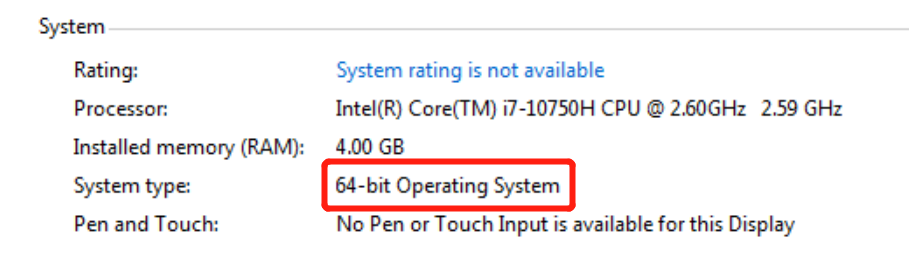
How to check whether your system is 32-bit or 64-bit?
To know whether your computer is running a 32-bit (x86) or 64-bit (x64) Windows 7 system, click Start, right-click Computer, and choose Properties from the shortcut menu. The Windows 7 version will be displayed next to System type.