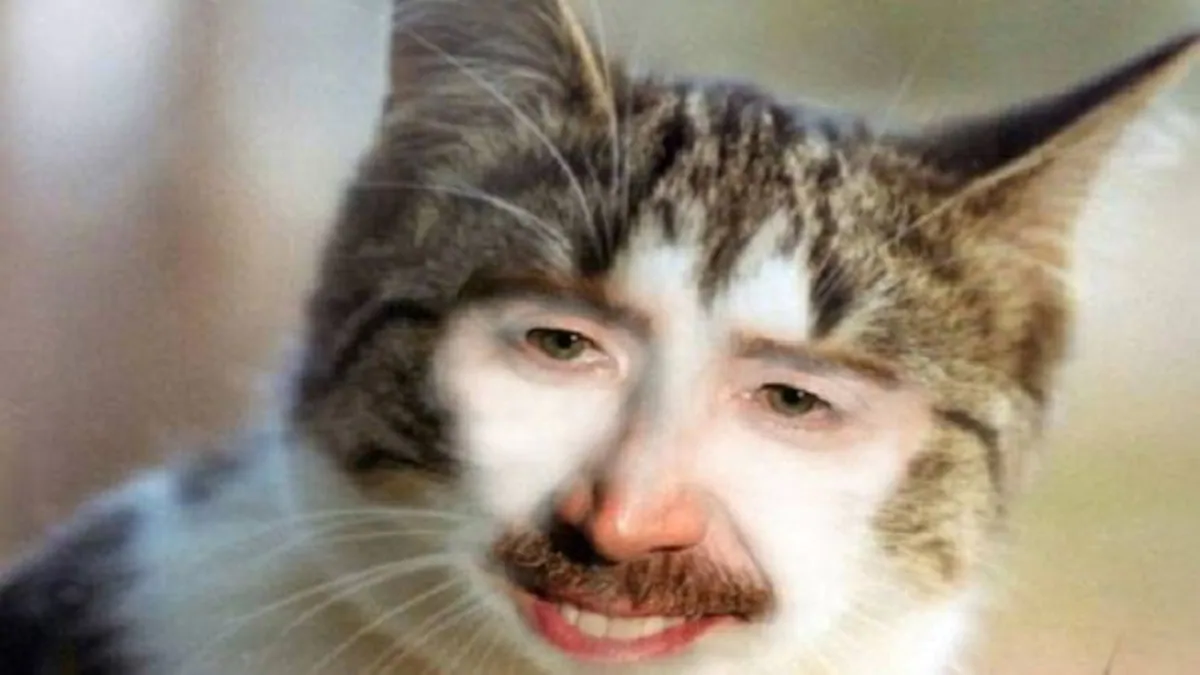
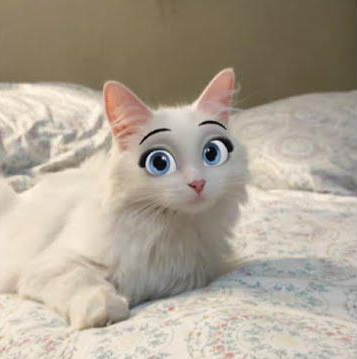
To meet the needs of more gameplay, Tencent Effect can add stickers that recognize and follow cat faces.
Component Application
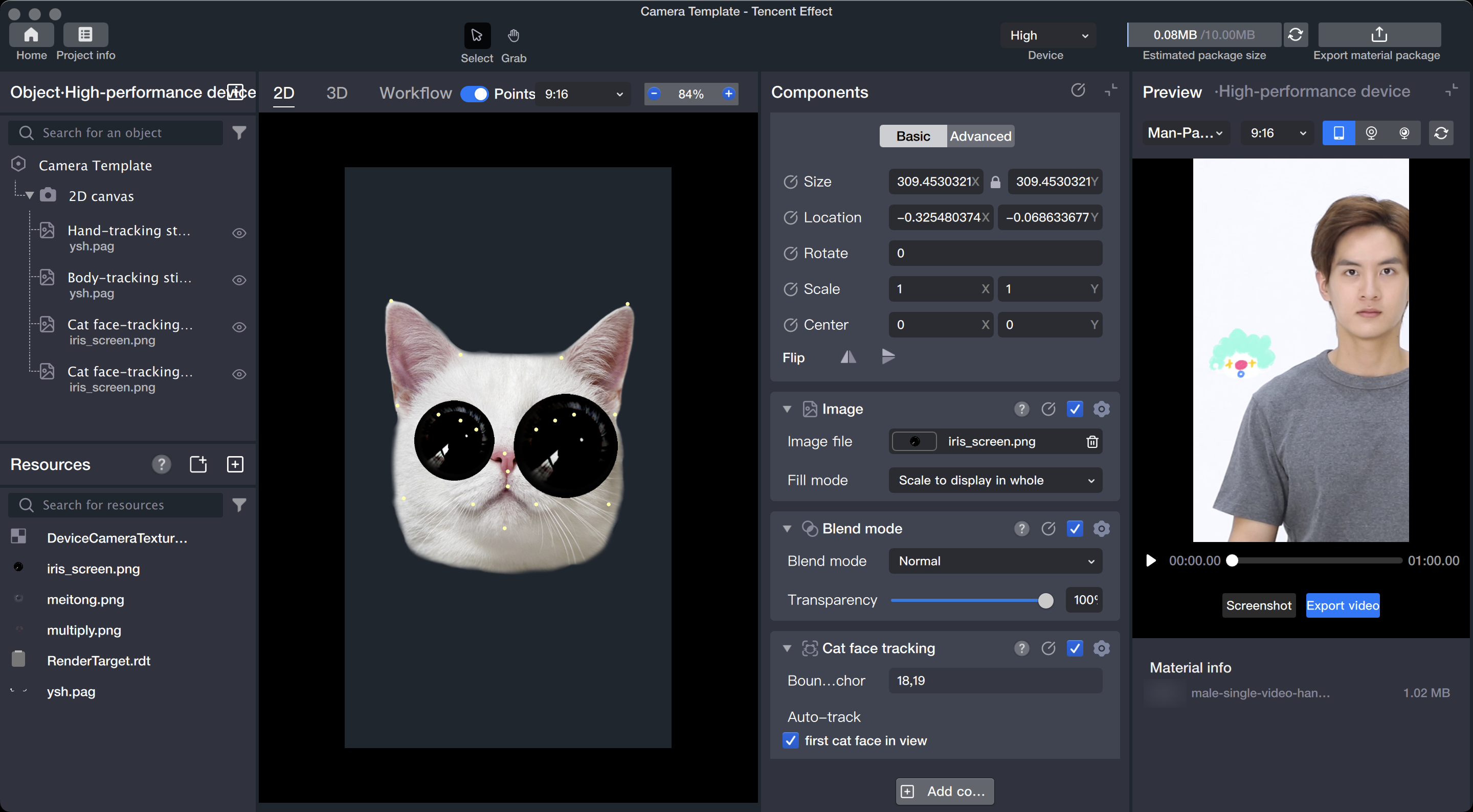
In the cat face tracking sticker, it is possible to implement a creepy gameplay by adding the cat owner's facial features to the cat face, or to add Disney eyes to the cat.
Basic Usage Method
Step One: Import the sticker file
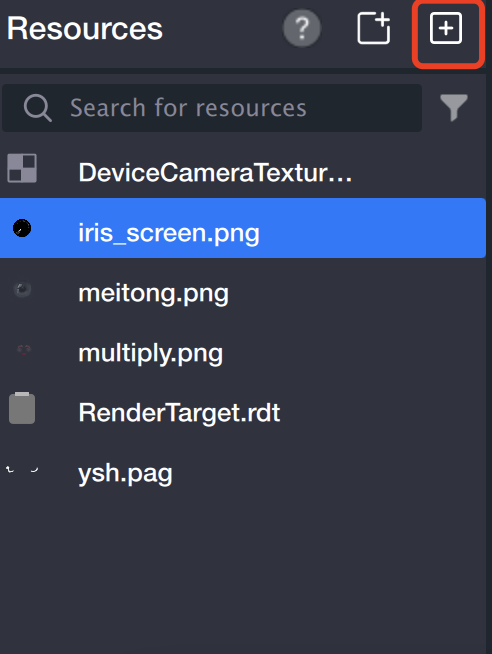
Drag the sticker file directly to the resource panel, or click the file input icon in the upper right corner of the resource panel, call up the local computer folder, and confirm after selecting.
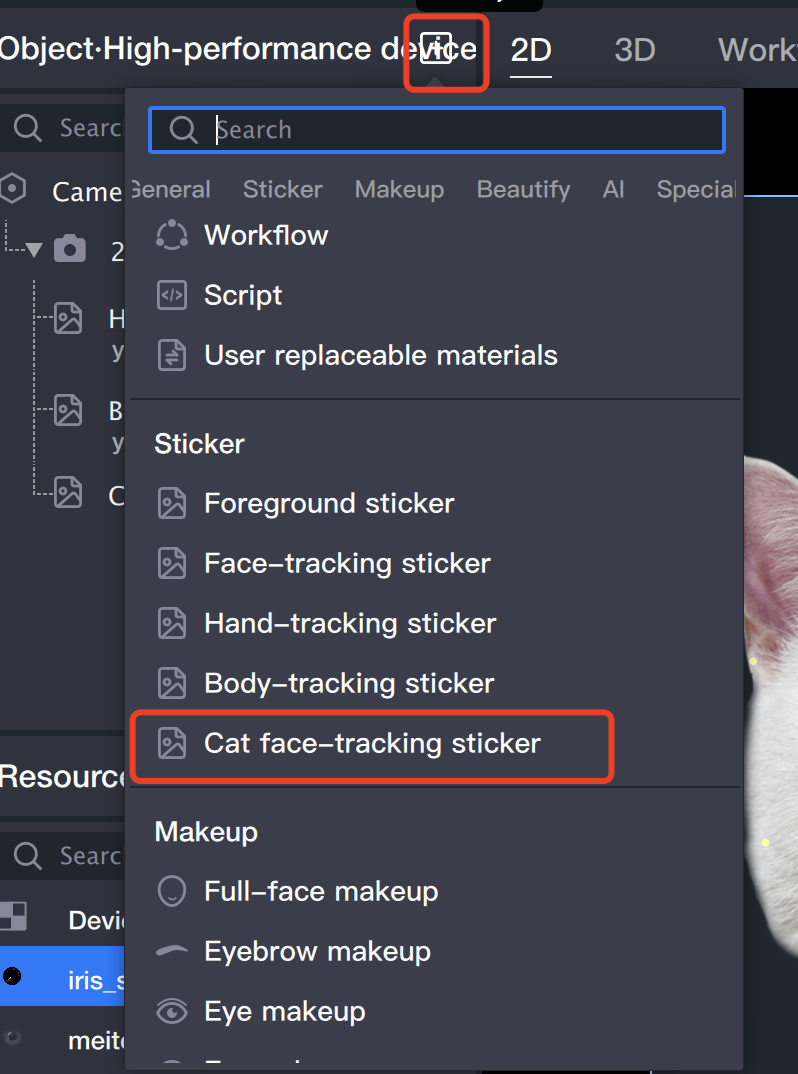
Step Two: Create Follow Object
Panel > Add > Cat Face Follow Sticker
Step Three: Import Sticker File
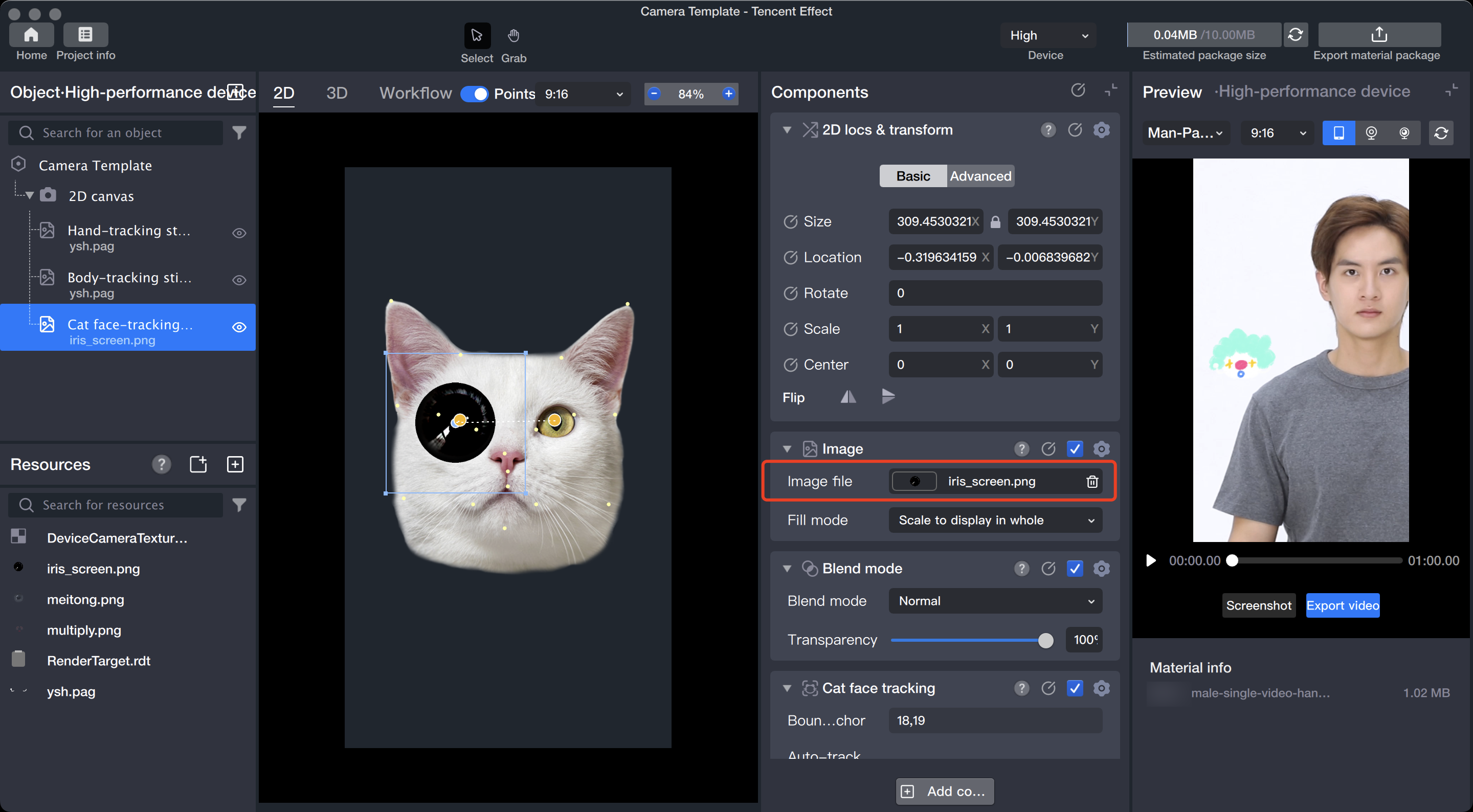
Select the body follow object in the left object panel, find the Sticker File in the component panel on the right, and click its file input box.
The resource panel will open, select the file and confirm, the file will be added to the cat face.
Step Four: Adjust Material
The cat face follow sticker supports binding two points by default, and binds two points by default. You can merge the binding points into one or split them into two by dragging the binding points. The bound points represent the points that the shooting object moves to when moving. The points can be adjusted by dragging the yellow selected point in the panel or by adjusting the component panel.
The sticker position can be adjusted through the Position and Transformation in the component panel, or by dragging in the scene panel to change the position, direction, and size. It should be noted that you need to select this object or the parent object in the object panel.