CAR lets you upload your own applications. You can package your application as a ZIP/RAR/7z file and upload it from your local system or through a URL to deploy it as a cloud application.
CAR supports three application types: cloud 3D, cloud XR, and cloud APK.
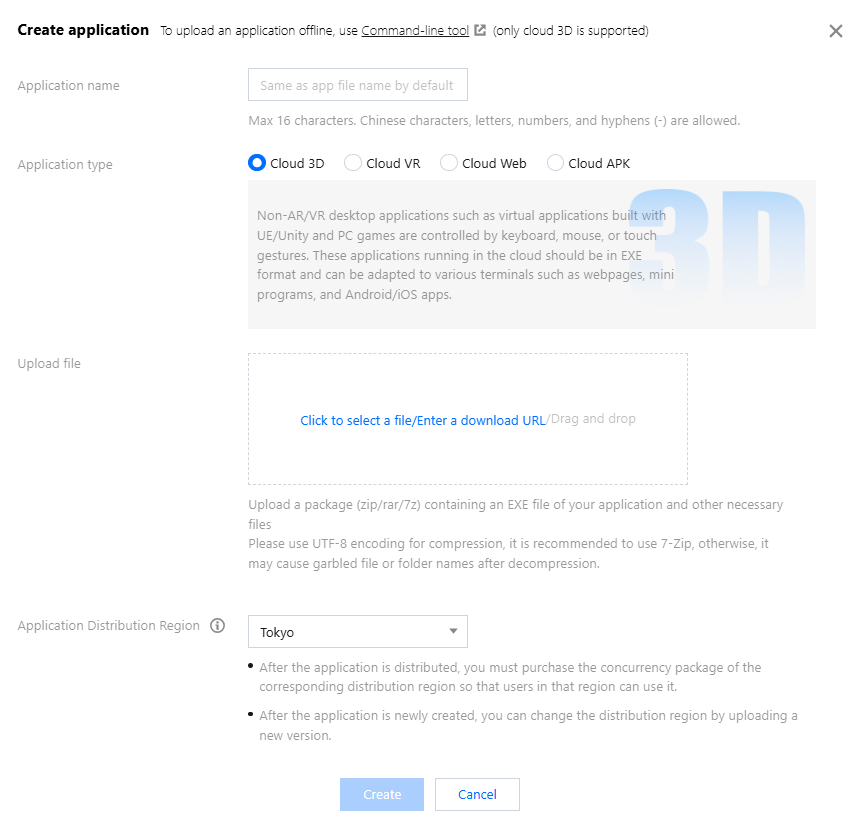
Cloud 3D: For general 3D applications (non-AR/VR). These applications are generally controlled using keyboard and mouse, such as virtual event applications and PC games.
Cloud VR : For VR applications.
Cloud APK (whitelist activation): For APK applications.
Note:
Cloud APK is whitelist activation. For more information, please contact your Tencent Cloud sales rep.
Uploading a cloud 3D application (.exe)
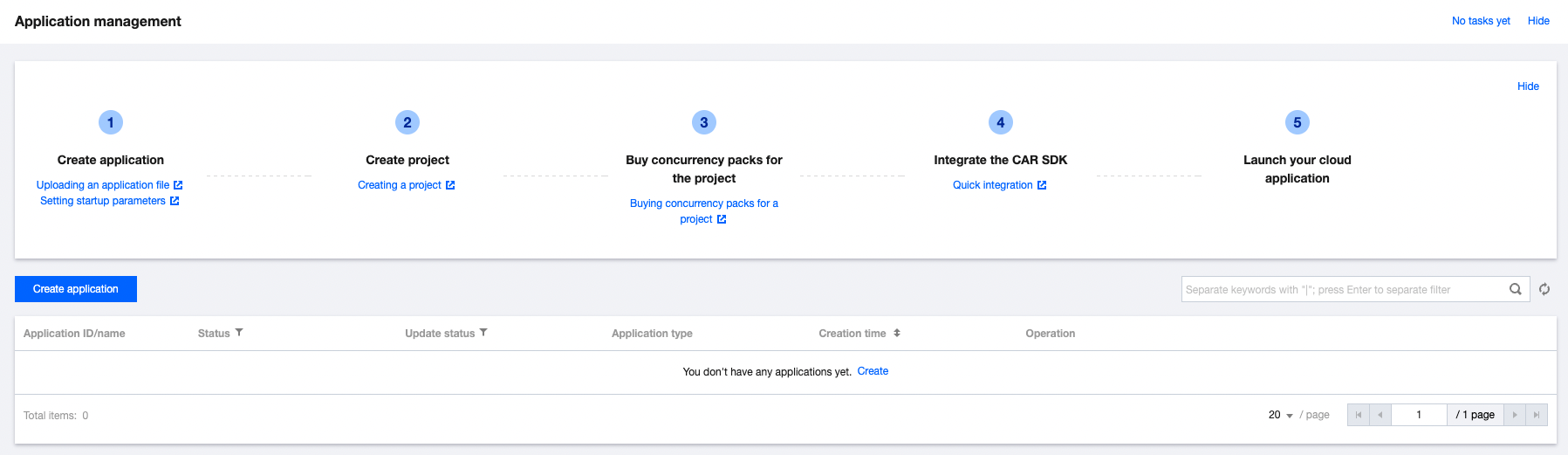
1. Package the application as a ZIP, RAR, or 7z file. Go to the Applications page in the CAR console, upload the application file, and wait for the application to be created.
We recommend you use UTF-8 encoding for compression (7-Zip is recommended); otherwise, it may lead to garbled characters or other issues with the files or folder names after decompression.
2. In the Create application pop-up window, select an application type. You can select a file, drag a file, or enter a URL to upload a file.
Note:
The download URL must be a URL that can be accessed and trigger download directly. Download URLs of cloud disks or other URLs requiring verification are not supported.
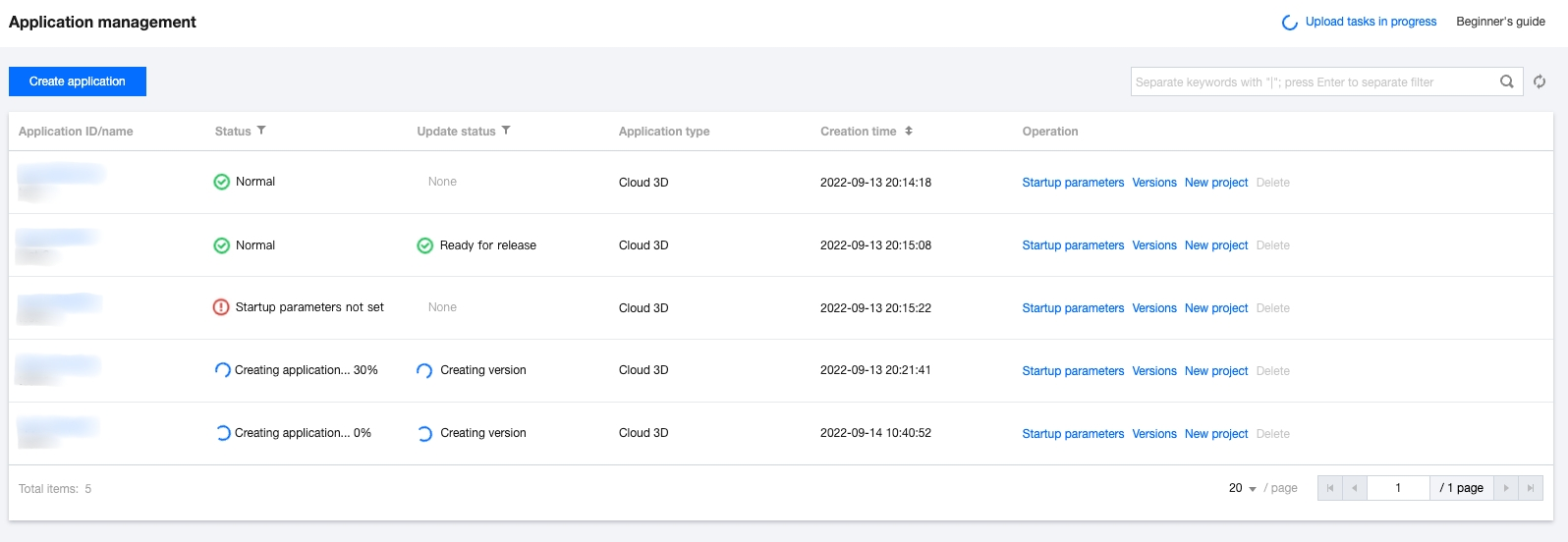
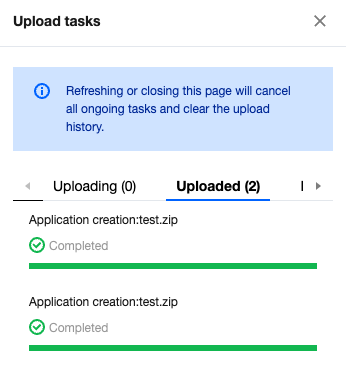
4. You can view the application upload progress for a selected or dragged file by clicking Upload tasks in the top-right corner. An application uploaded through a URL will be downloaded on the backend. You can directly view the application creation progress in the upload task list on the Applications page.
Cloud VR and cloud APK applications
CAR also supports high-precision content in various forms such as VR and AR as well as interaction with VR glasses, mobile phones, tablets, PC, holographic devices, and other devices. This allows for scenarios such as cloud VR-based multi-person co-training, online large-scale VR entertainment, VR live streaming, and cloud VR exhibitions.
In addition to EXE applications, CAR also supports running APK applications in the cloud so as to enable playing download-free mobile games in advertising, webpages, and other scenarios or to reduce the application file size.
Note:
Cloud APK is whitelist activation. For more information, please contact your Tencent Cloud sales rep.