In CAR, you can configure your own startup parameters for your applications. A newly created cloud application can run normally in the CAR environment only after you configure its startup parameters.
Directions
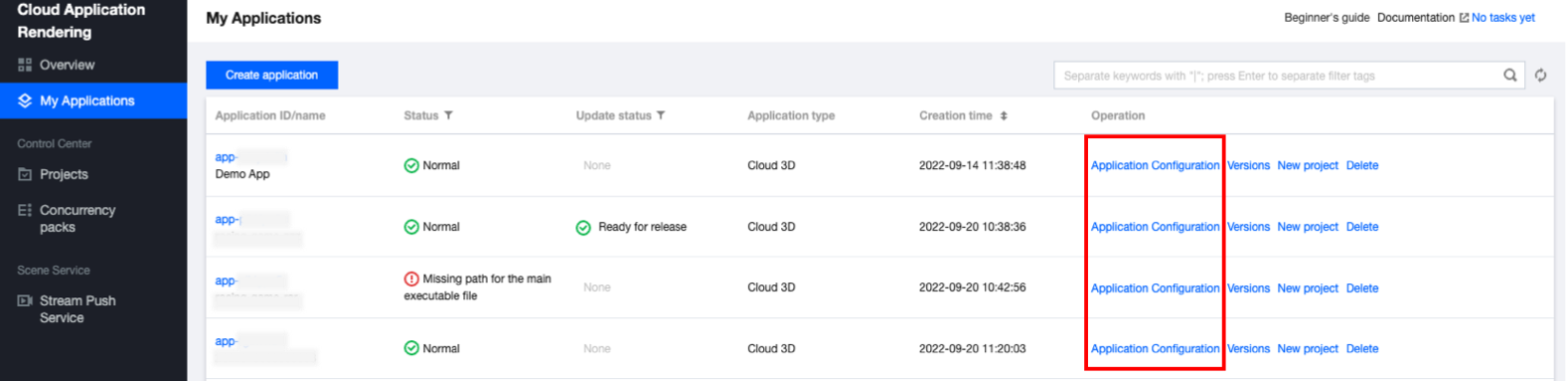
2. Click My Applications on the left sidebar, and click Application Configuration of the target application.
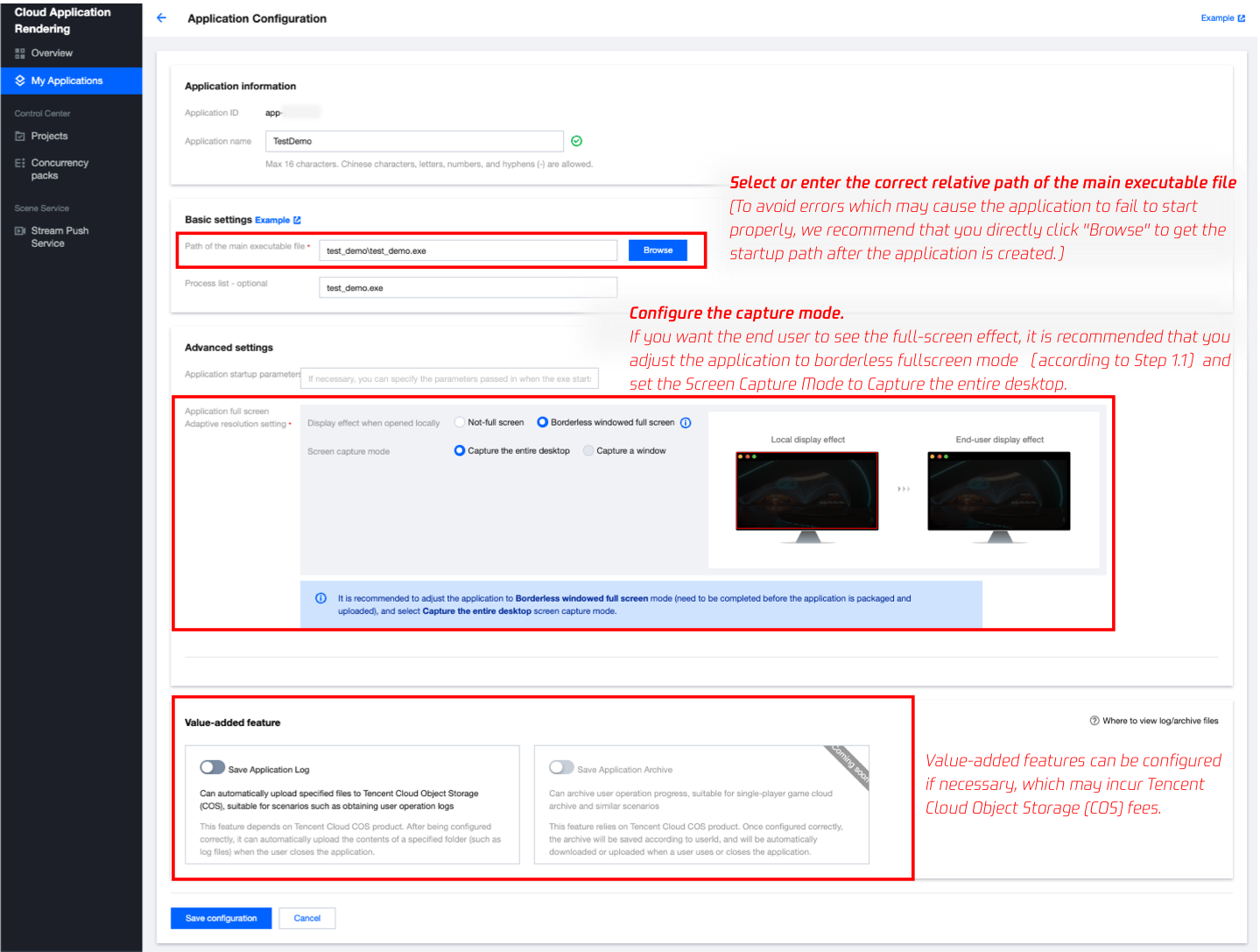
3. Complete the required information:
Basic settings
Path of the main executable file
The path of the main executable file of the application is the full relative path of the exe file that launches the application. If your application has been created, you can simply click Browse to select and obtain the right path. Do not select the path of processes that are not required to start the application, such as UnityCrashHandler64.exe.
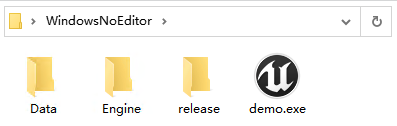
For example, for the following application package:
The path should be configured as WindowsNoEditor\\demo.exe
Process list (optional)
We recommend you completely enter all processes to be run by the application, such as demo.exe|Win64-Shipping.exe. This way, when a user exits, we will ensure that all filled processes are closed, thereby ensuring stability for the next user who enters. You can run the application on your local PC and open Windows Task Manager to check which processes are required.
Advanced settings
Application fullscreen and adaptive resolution setting
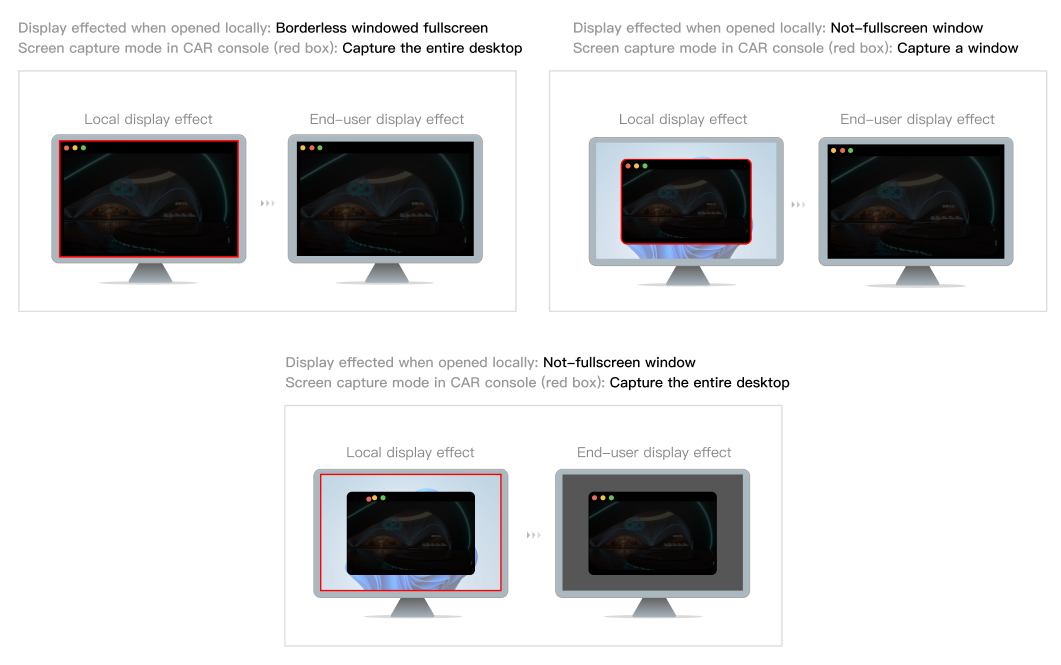
CAR provides the adaptive resolution feature which can make the application display full-screen, adapt to the resolution of end-user devices, and have no black borders on the screen. [Recommend] If you have set the application to a borderless windowed fullscreen mode that can adapt the desktop resolution (have to be done before being uploaded to CAR) according to the User Guides, you can set the Screen Capture Mode to Capture the entire desktop. If your application only has a not-fullscreen window mode and cannot be adjusted to borderless fullscreen mode, you can use theCapture a window mode. You need to fill in the correct Window title and Class name according to the instructions. If the window title isn't customized during development, the window title for `Demo.exe` will be `Demo`. If your application is built by Unreal Engine, enter `UnrealWindow` for the Class name. Application startup parameters (optional)
Some applications require command-line (cmd) parameters to be passed in when used locally to achieve effects such as language switching and resolution adjustment. For this, you can fill in the application startup parameters.
Note:
It is recommended to establish communication between the client and cloud applications through a Data Channel, so that the cloud application can obtain the necessary information from the client. Value-added features (optional)
CAR will automatically clean, reset, and reload the concurrency instance and the cloud application after a user disconnects to ensure data security and stability. Therefore, without configuring value-added features, the user operation logs and usage progress files of cloud applications will not be saved.
If you need to obtain the log files of a cloud application, you can configure the Save Application Log feature