Manual workflows are typically used in scenarios where task cycle scheduling is not required and trigger execution is done manually through the product or API when needed.
Operation Steps
Create a Manual Workflow
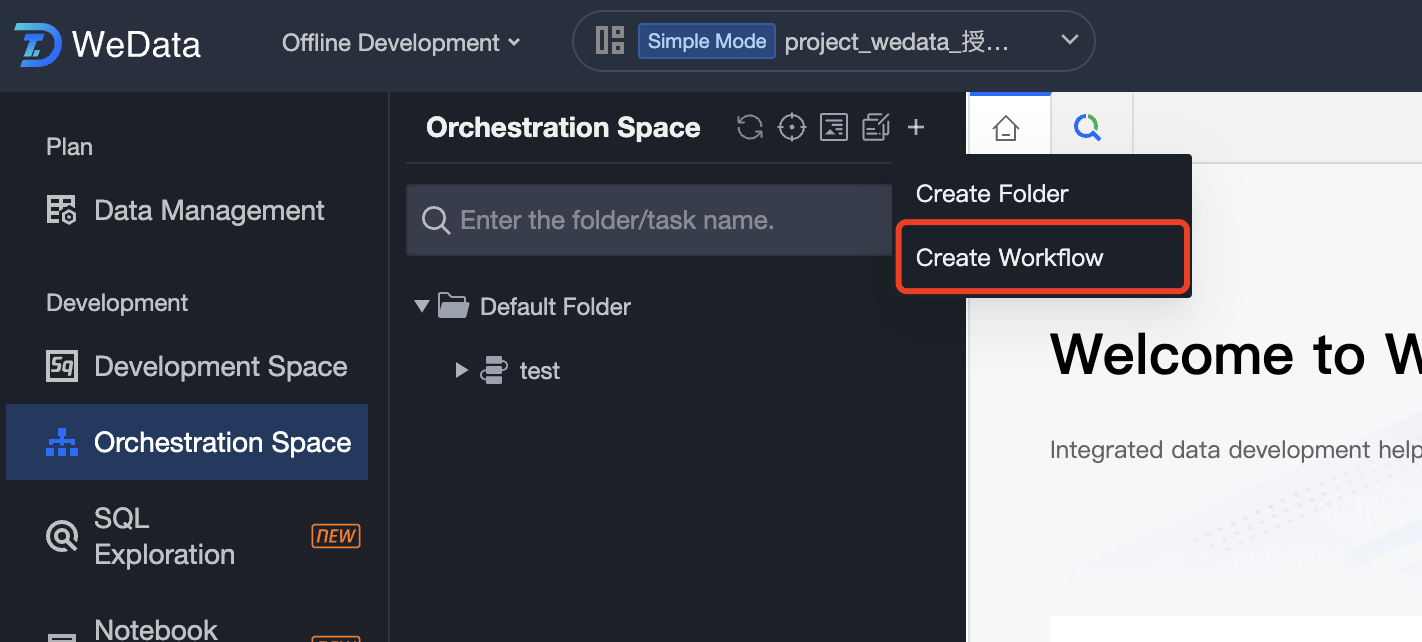
1. Enter the orchestration space, click the + button at the top and select Create Workflow or choose Create Workflow in the folder operations.
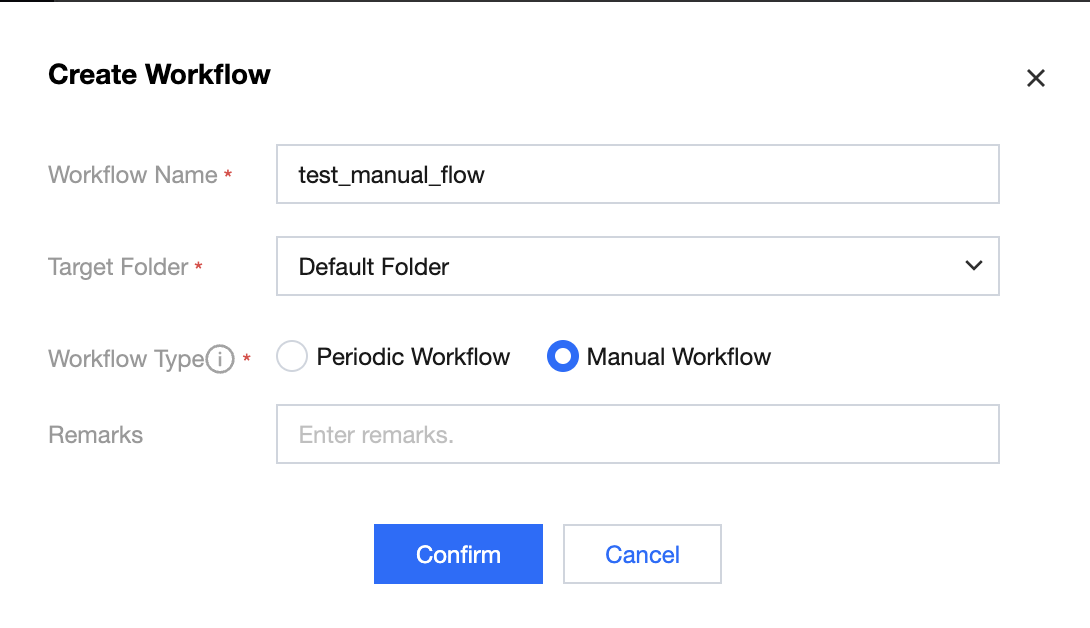
2. When creating a new workflow, you can choose the workflow type. Workflow types are divided into Periodic Workflow and Manual Workflow.
Periodic Workflow: Instances are generated periodically according to the scheduling configuration.
Manual Workflow: Instances are generated only when manually triggered, not executed periodically.
Design a Manual Workflow
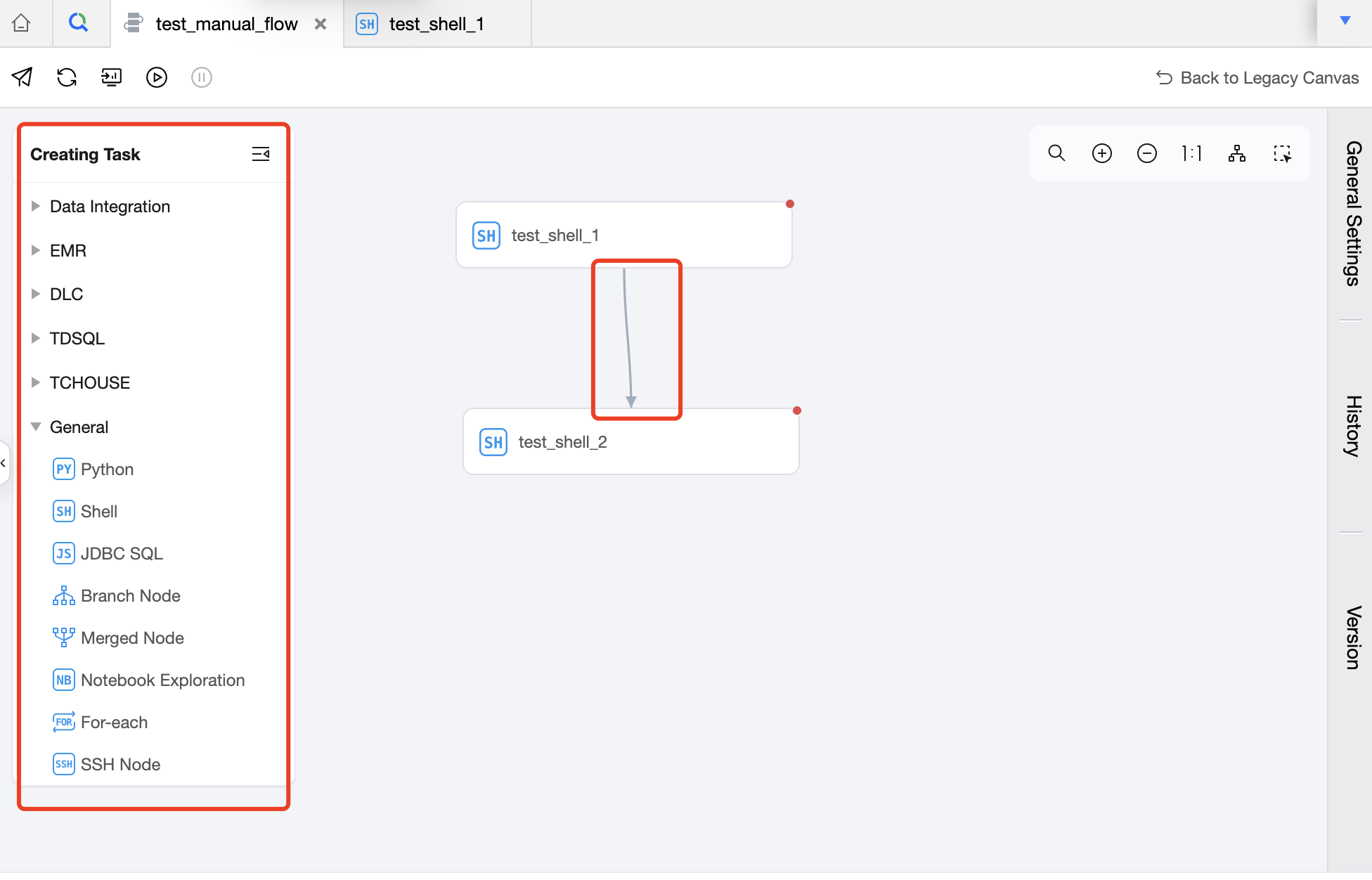
1. You can click the task type under Create New Task on the left side of the workflow to create a new task.
2. After completing task creation, you can connect tasks in the workflow canvas to establish upstream and downstream dependencies.
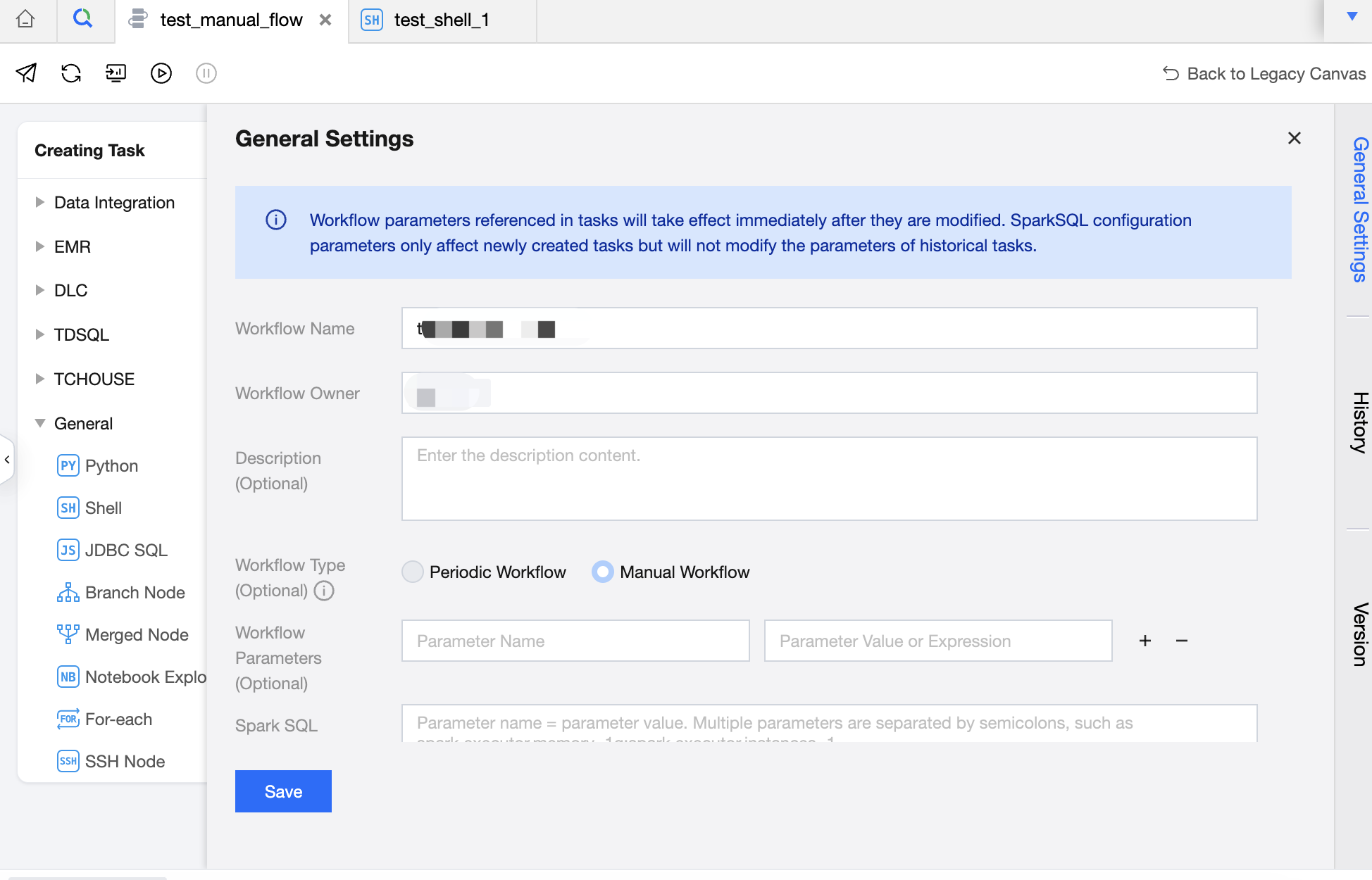
3. Click General Settings on the right to set the workflow name, workflow owner, description, workflow type (once created, the type cannot be modified), workflow parameters, and Spark SQL configuration parameters for the manual workflow.
Note:
Tasks under manual workflows do not have periodic scheduling logic, and manual workflows do not require scheduling information.
Manual workflows also support viewing history and version information.
Configure Task Node
Tasks under manual workflows do not require scheduling information, and other configurations are the same as tasks under periodic workflows.
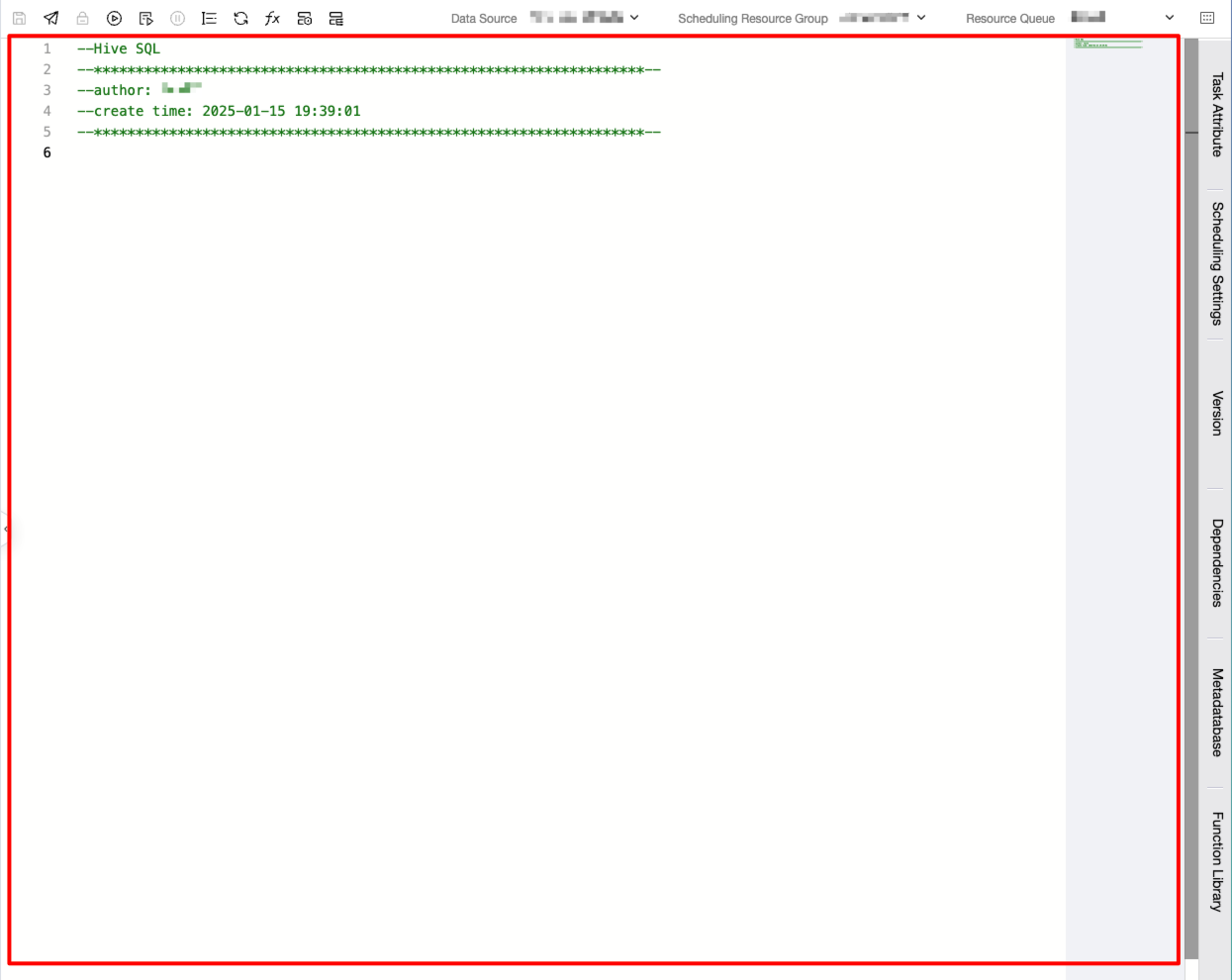
Code editing area
Configurable task script, as shown below:
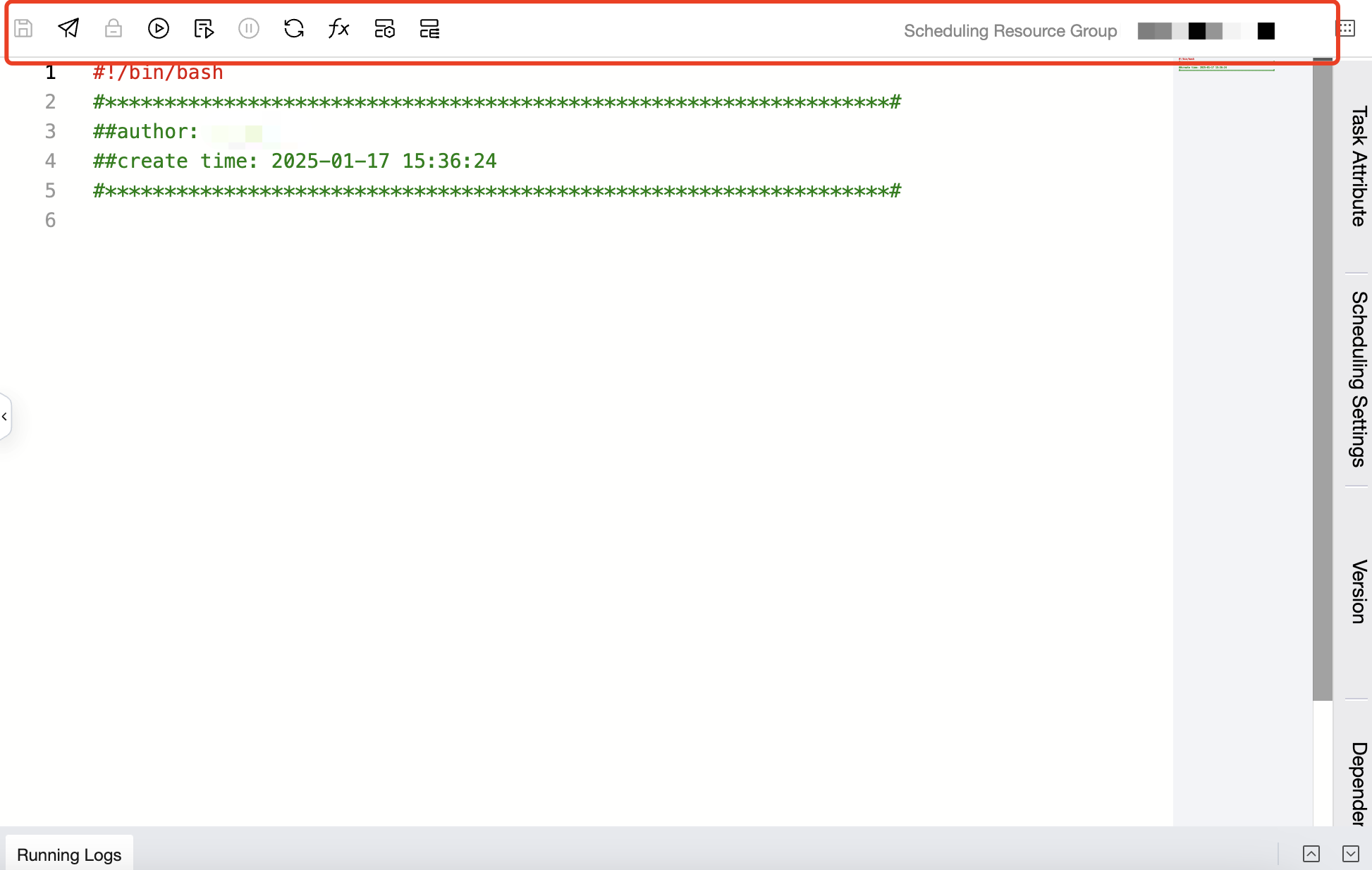
Top operation bar
You can Save, submit, lock grabbing, test-run, advanced run, stop running, format, refresh, view project parameters, task operations (jump to manual workflow list), instance Ops (jump to manual workflow operation records).
Configure information such as instances/clusters, data sources, and scheduling resource groups.
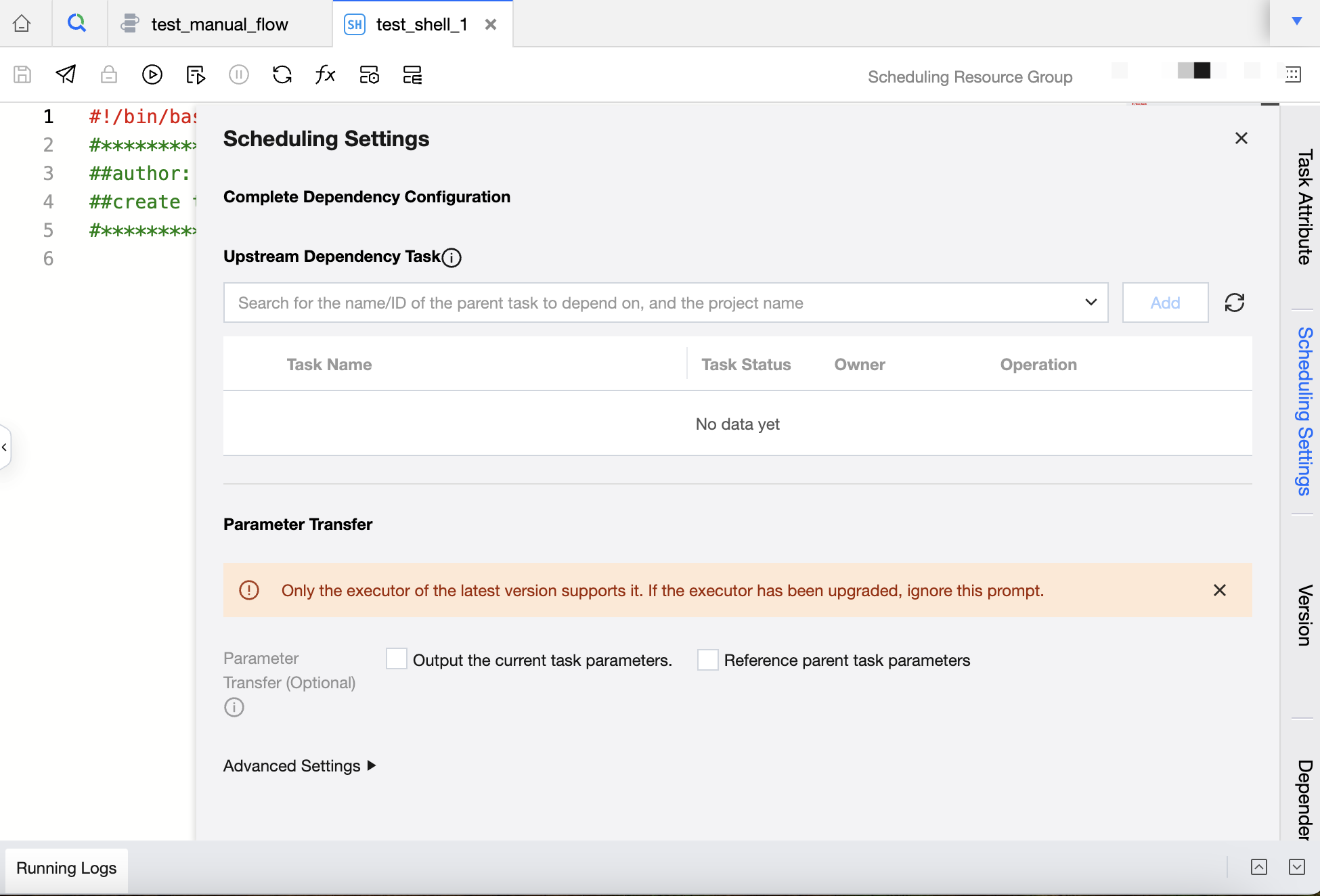
Scheduling configuration of the right drawer
Support configuring dependencies, parameter passing, advanced settings (Task Scheduling Priority, failure retry configuration, timeout handling policy). Tasks under manual workflows can establish dependencies, but dependencies cannot be configured between different manual workflows or between manual and periodic workflows. Upstream dependencies of tasks under manual workflows can only select tasks within the same workflow.
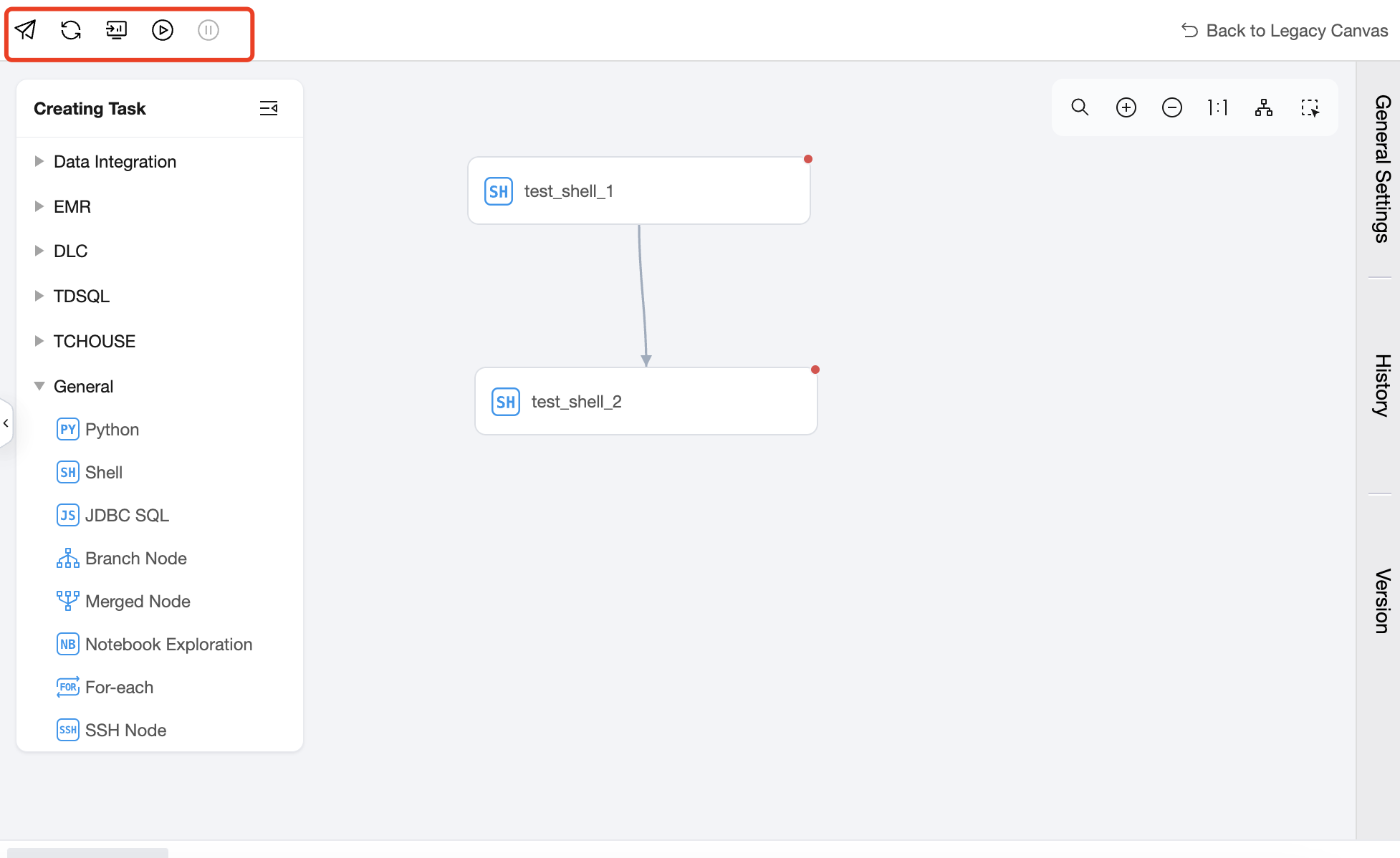
Submitting Workflow/Task
1. After the workflow and task configuration is completed, you can test-run the workflow. Click the Workflow Test button above to test-run tasks in the workflow.
2. After the workflow test is passed, you can submit the workflow to scheduling from the operations above the workflow. Manually submitted workflows can be manually triggered for task execution in the Ops center.