During quality monitoring task operation, exceptions may occur due to network, resource and other issues, such as link interruption or execution timeout.
You can configure alarms for quality tasks with this feature. When anomalies occur in a quality task, the system will send notifications as soon as possible.
Configure Task Alarm
When an exception occurs during the operation of a quality task, such as link interruption or execution timeout, an alarm is sent to the responsible person, making it easy to identify issues and handle them promptly.
Note:
During the task running process, the status may include the following scenarios:
Task execution failed
Task executed successfully
Runtime timeout
Task completion timeout
Task wait scheduling timeout
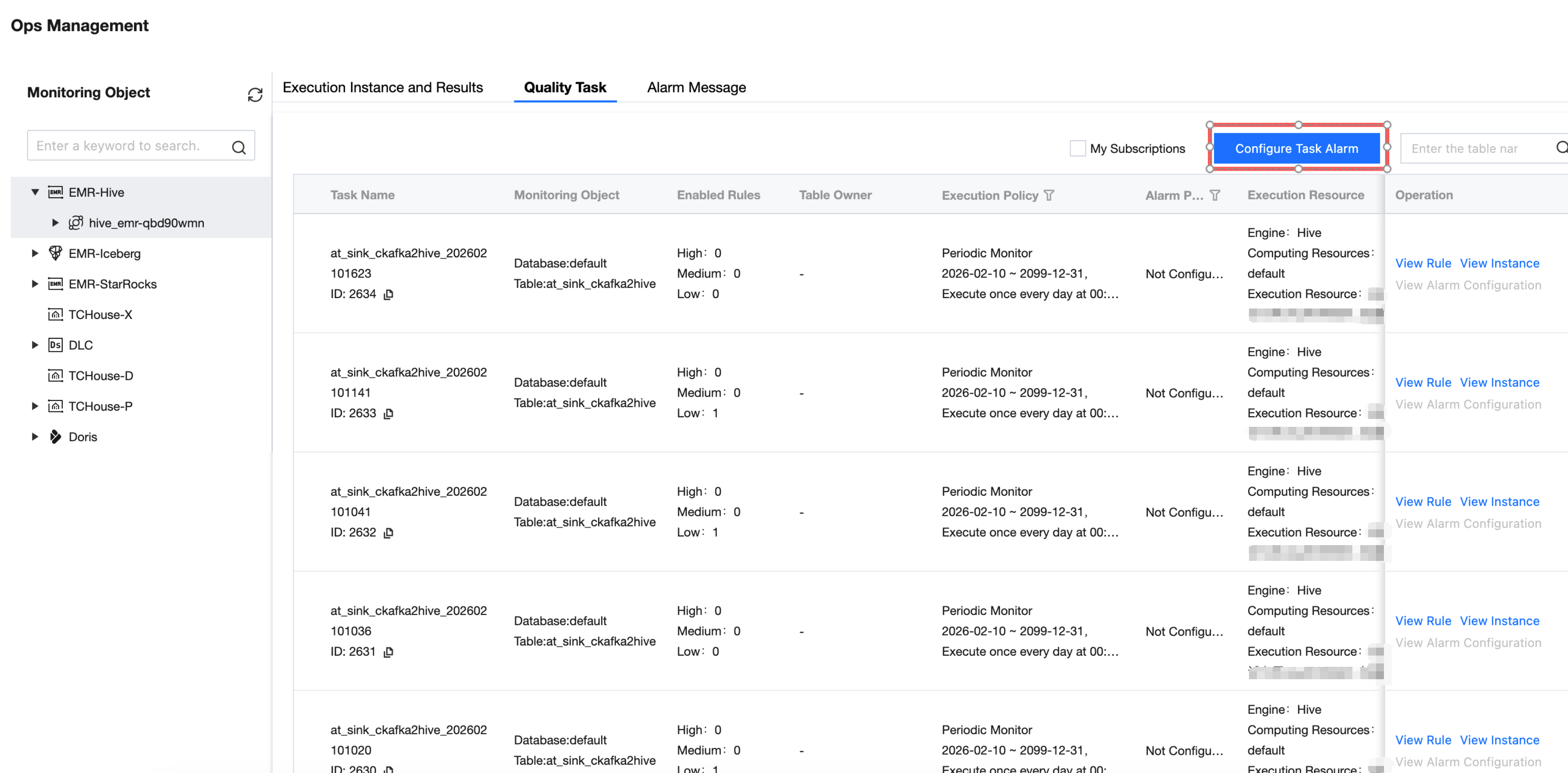
Step 1: Enter the Quality Task List
Go to Ops Management > Quality Task Interface, click Configure Task Alarm, and enter the New Alarm Page.
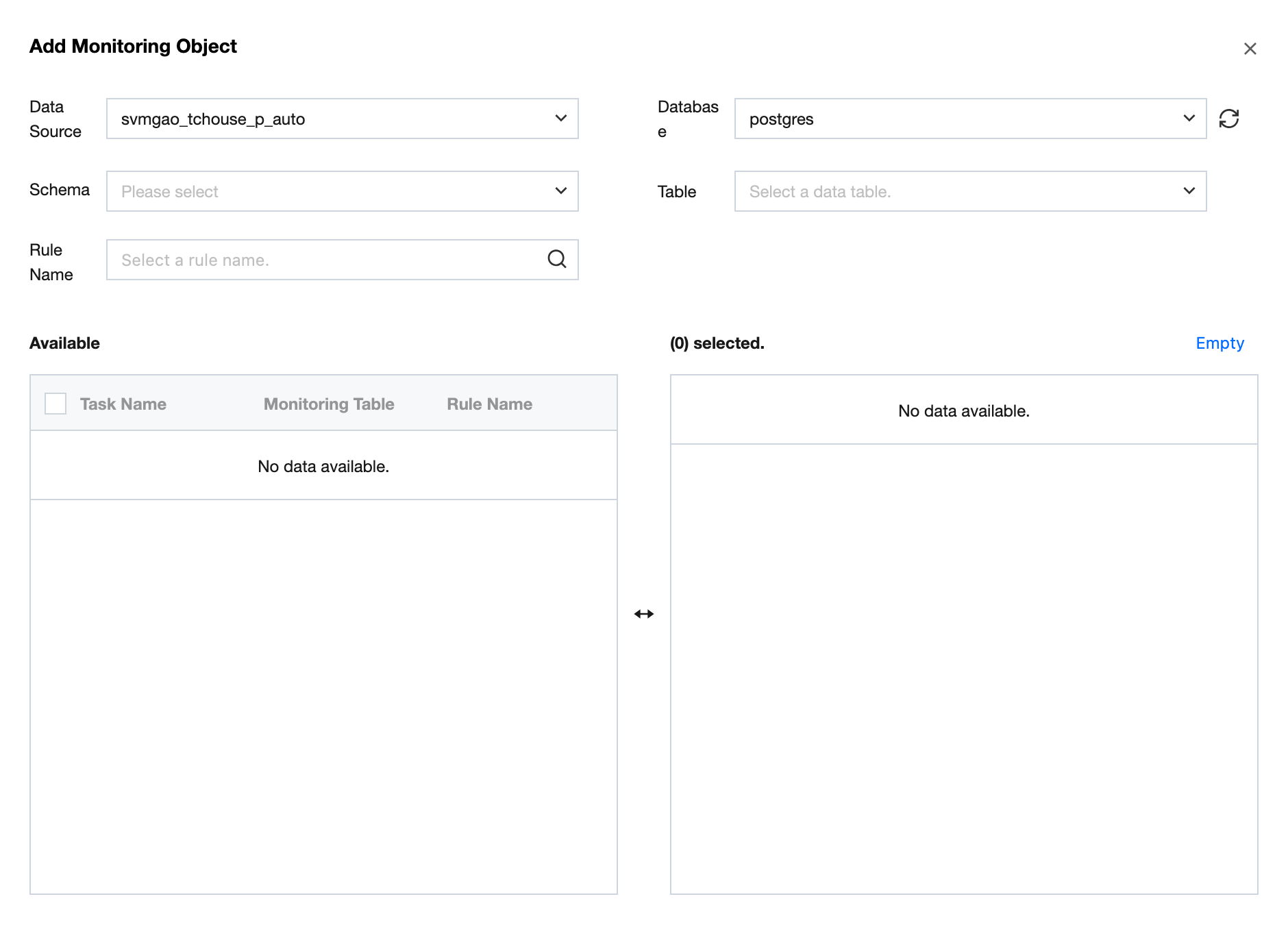
Step 2: Add Monitoring Object
Select a monitoring task as the monitored object. Check the tasks you need to monitor and click Confirm.
Note:
You can select multiple monitoring tasks at once.
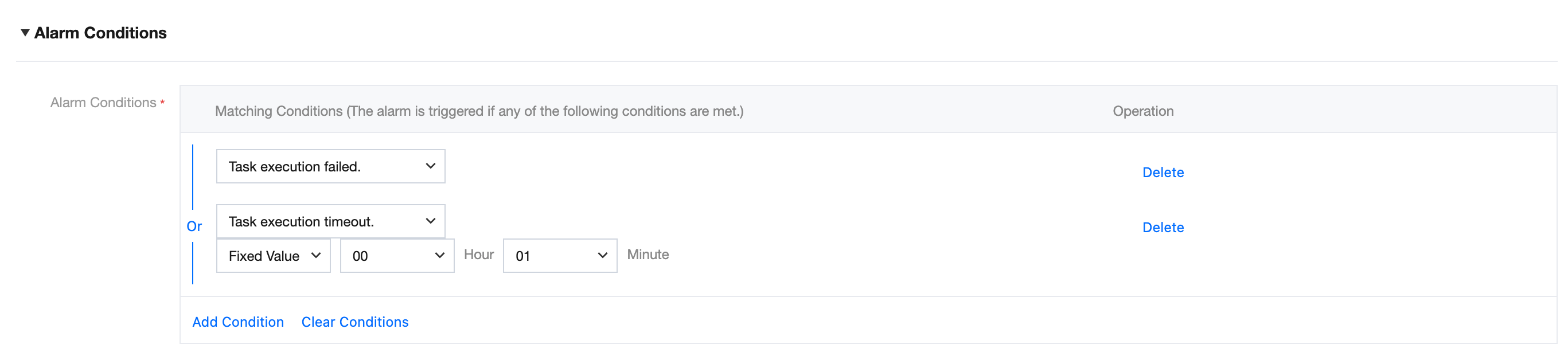
Step 3: Set Alarm Conditions
Customizable alarm conditions: task execution failure, task running time timeout, task completion time timeout, task wait scheduling timeout.
Note:
Task running time and task wait scheduling time both trigger an alarm when the duration exceeds the threshold.
Task completion timeout, trigger an alarm when the task completion time point exceeds the threshold.
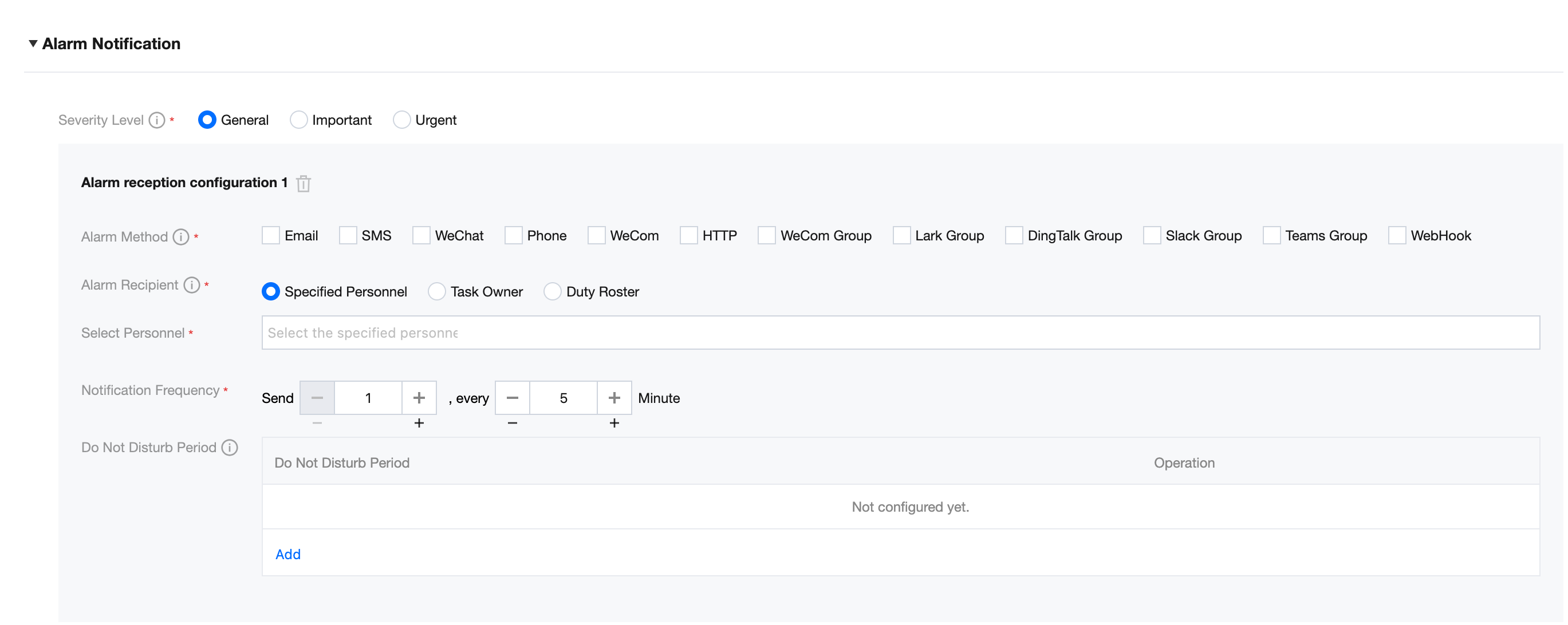
Step 4: Set Alarm Notification
You can set the alarm level, method, recipient, frequency and do not disturb period here. Click "Add Alarm Reception Configuration" to set multiple groups of alarm notifications.
Step 5: Complete
After all content is set, click the Done button to submit the information.
Step 6: Alarm On-Off
1. Go to Ops Management > Quality Task interface, in the quality task list, click View Alarm to view Rule details and Alert Information in the action bar.
2. At the same time, you can check the status of Alarm On-Off and also enable and disable the Alarm On-Off button with one-click.