Accessing TCHouse-D via JDBC over the Public Network
Download
フォーカスモード
フォントサイズ
最終更新日: 2025-02-25 11:29:14
Access to TCHouse-D is only supported over the private network by default. If you need to access TCHouse-D via the public network, you can enable public network connectivity through Cloud Load Balancer. Below, we will introduce the configuration method.
Creating Public Network CLB
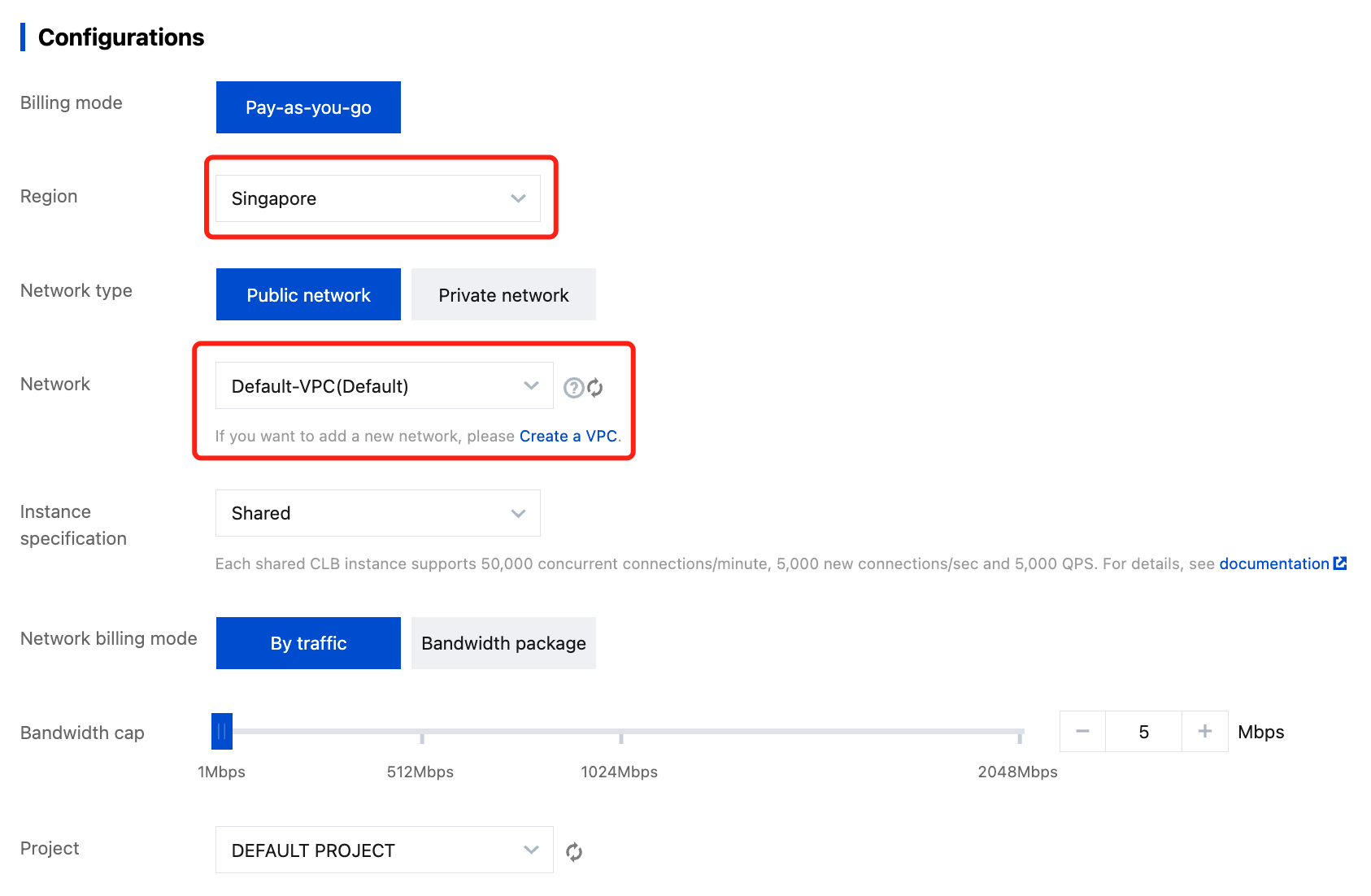
You can go to the CLB official website, and click Buy Now to enter the CLB purchasing process.
1. Choose the region where your TCHouse-D cluster is located.
2. Select Public Network.
3. Choose the VPC where your TCHouse-D cluster is located.
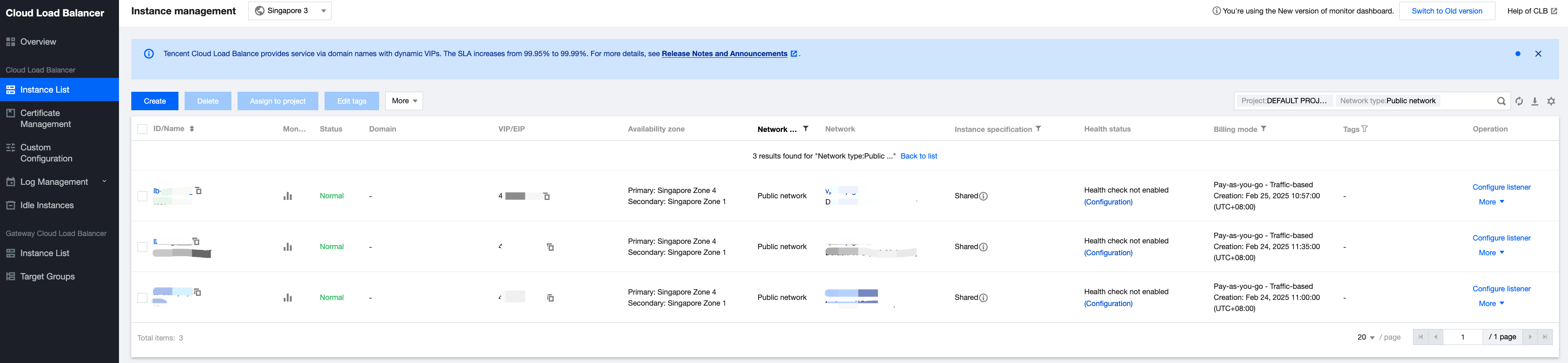
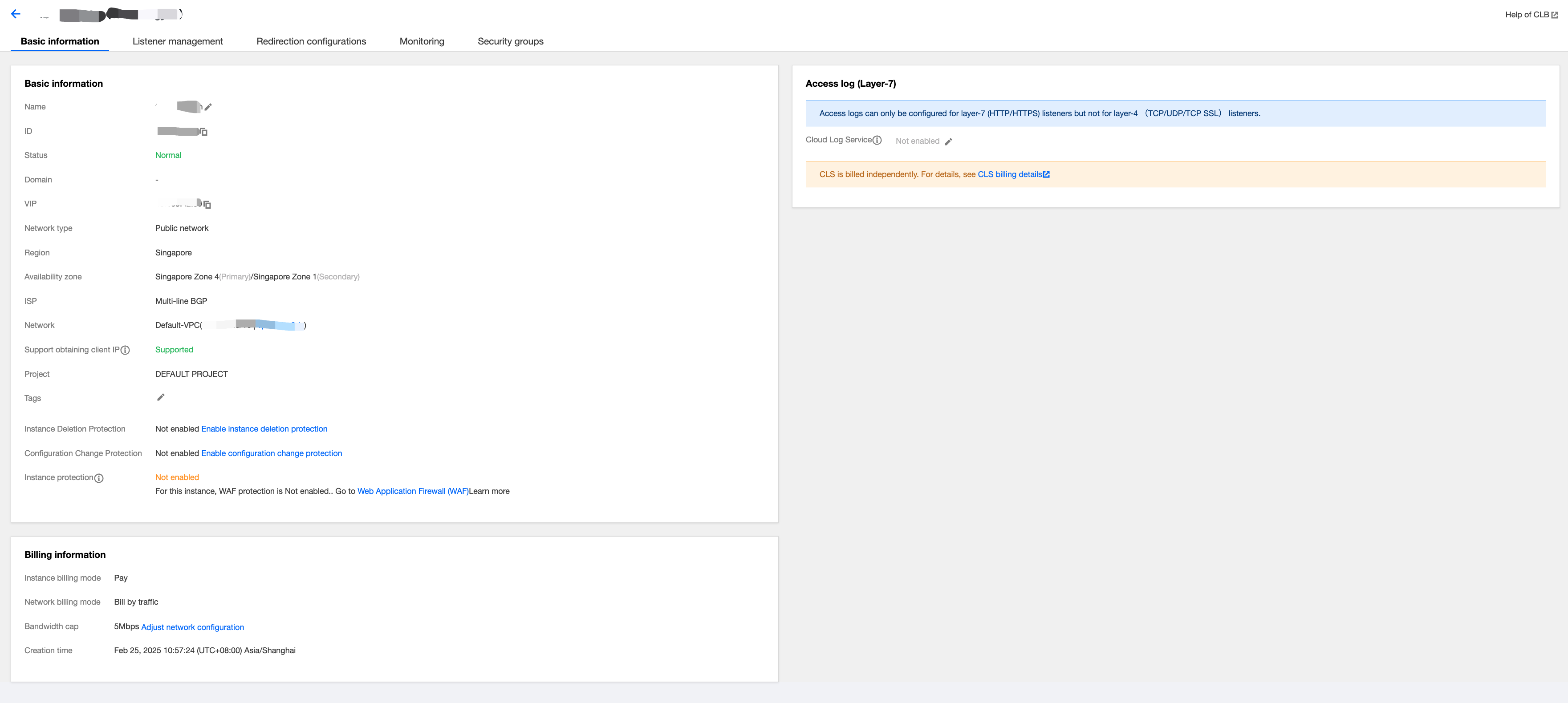
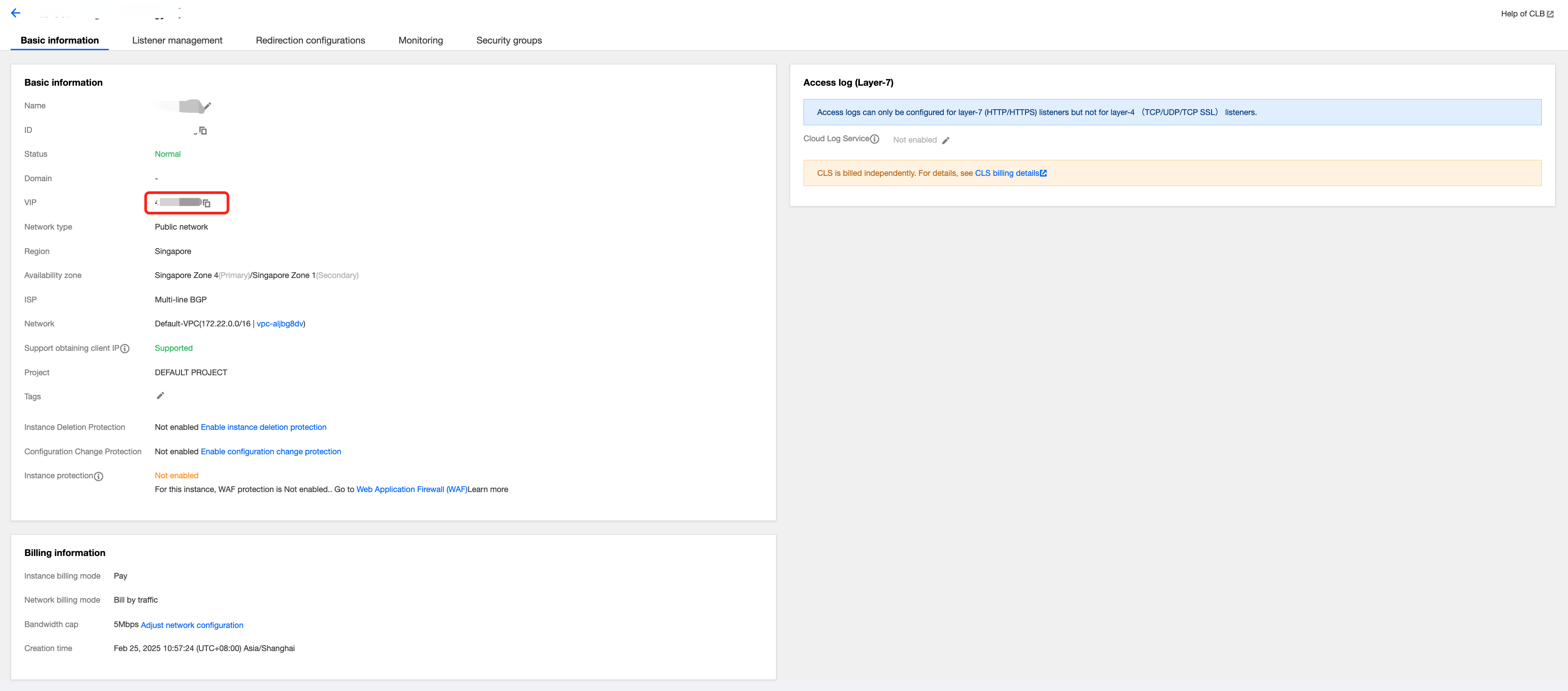
Click the instance ID in the instance list to view instance details.
Creating Listeners
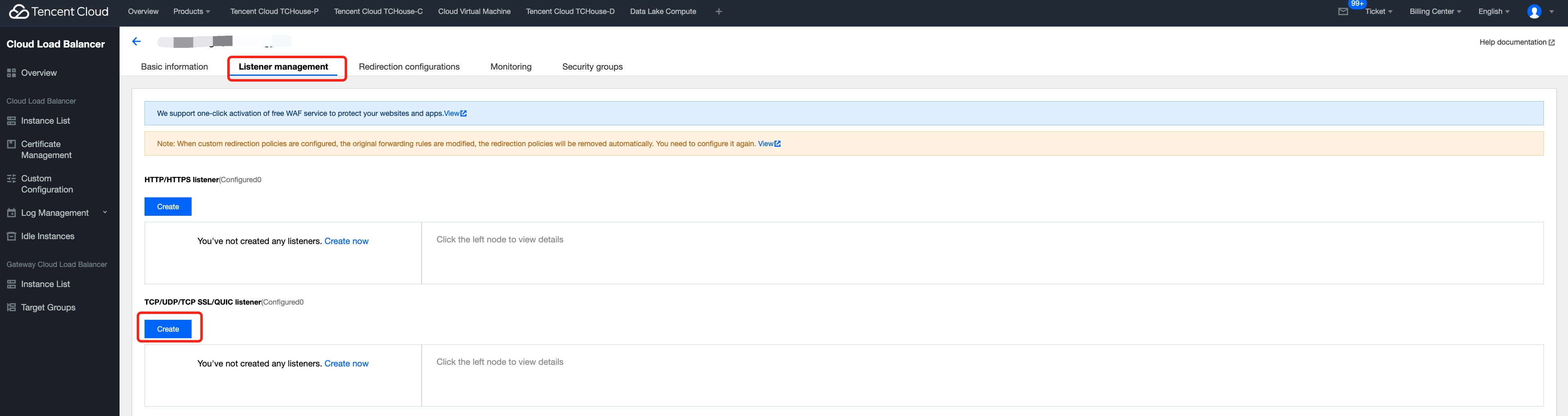
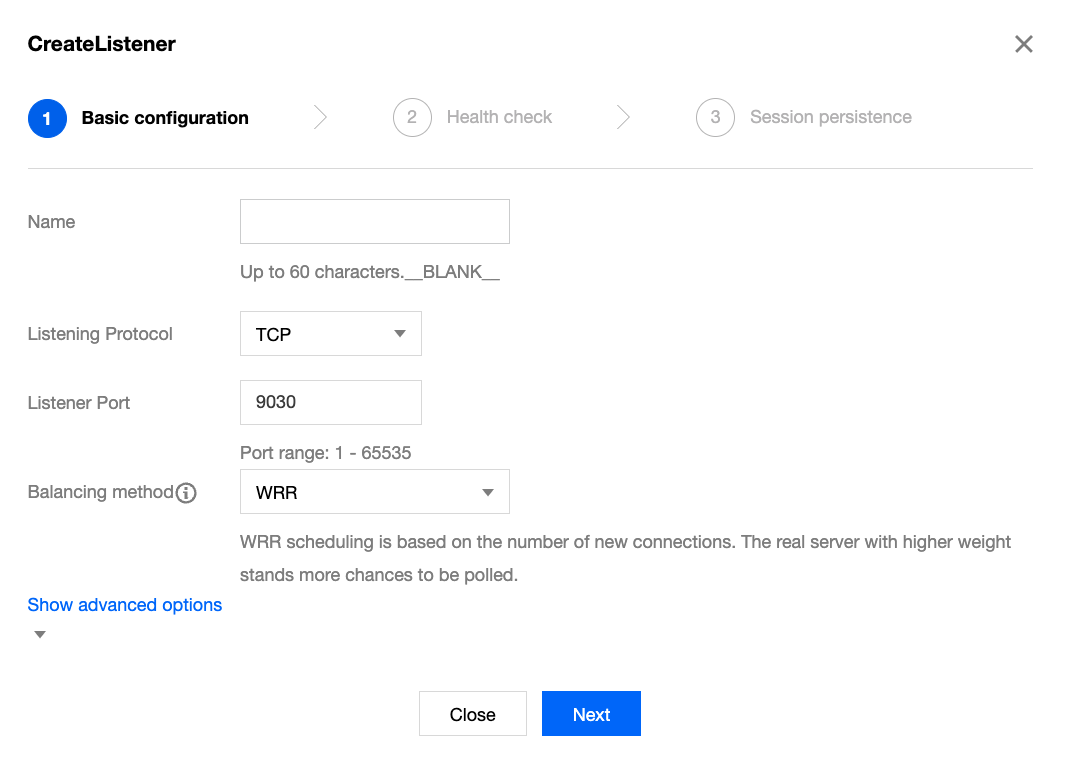
1. Click Instance List > Operations > Configure Listener or go to the Listener Management page from the instance details, and click Create in the TCP/UDP/TCP SSL/QUIC Listener module.
2. Fill in the basic configuration for the listener:
The selection of listener protocol and port is as follows:
When adding the FE node of the TCHouse-D cluster to the public network, select TCP: 9030.
When adding the BE node of the TCHouse-D cluster to the public network, select TCP: 8040.
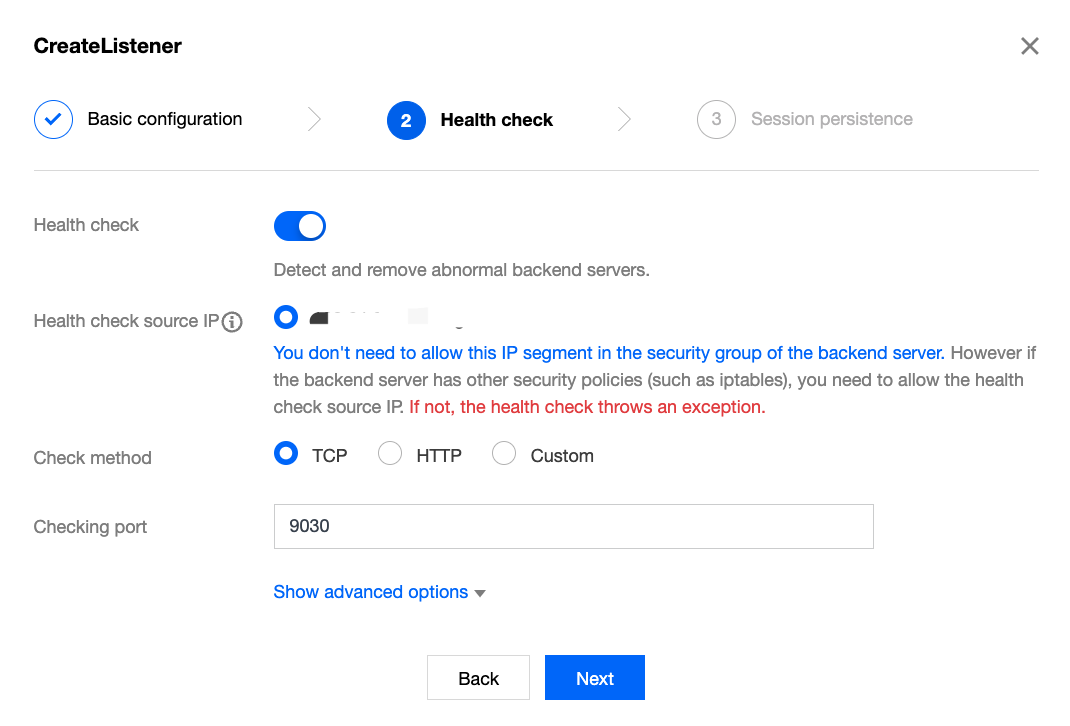
3. Set health checks.
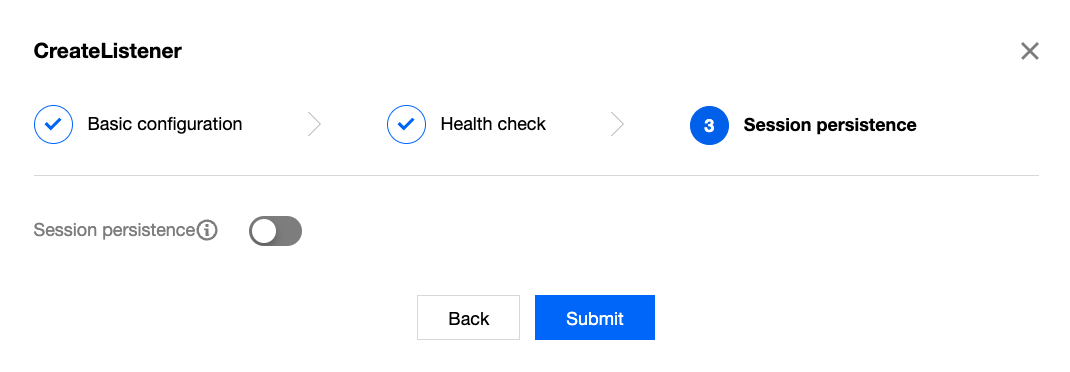
4. Click Submit to complete the listener creation.
Binding Backend Services
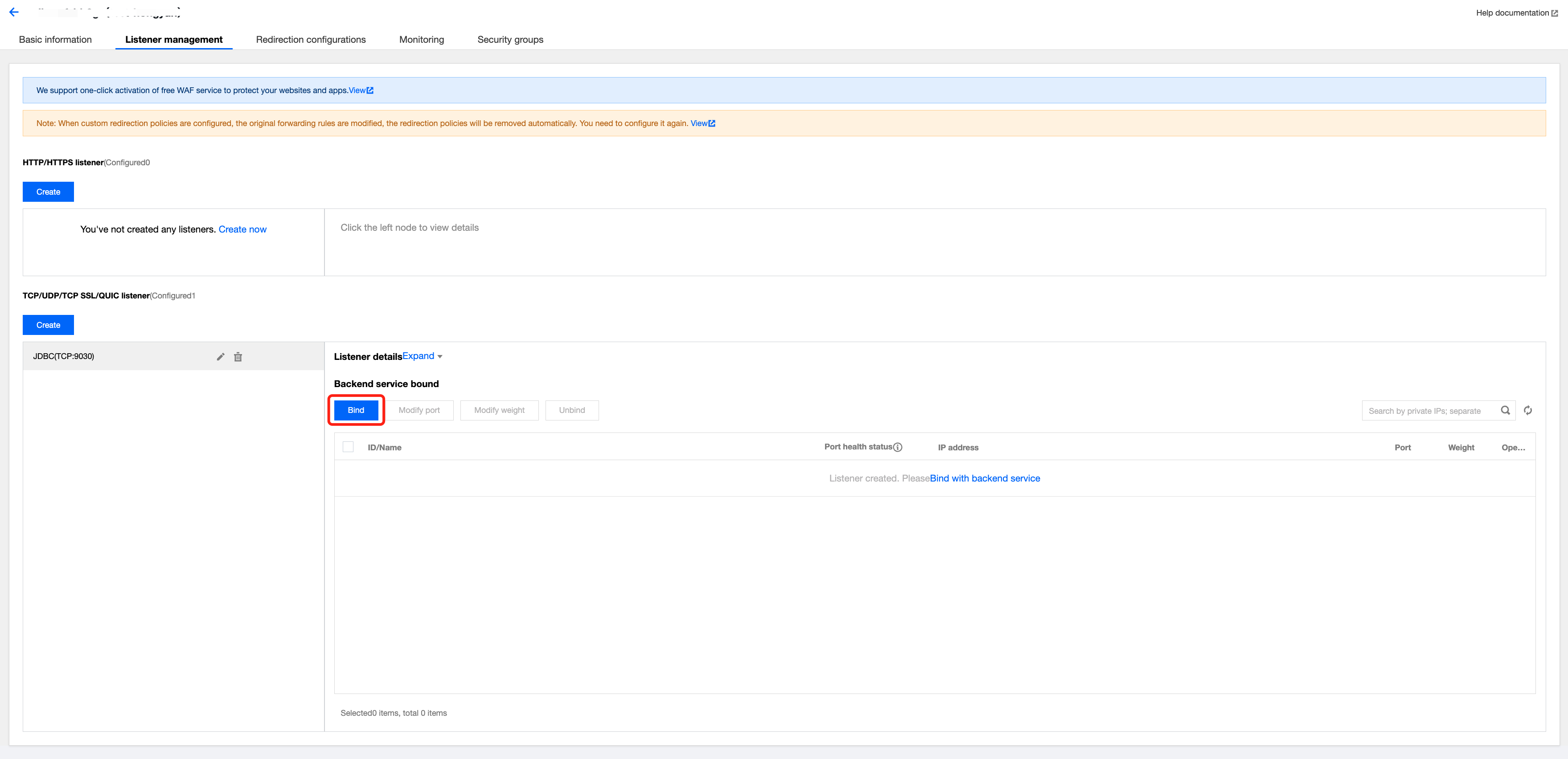
1. Click the created listener, and on the page that pops up on the right, click Bind.
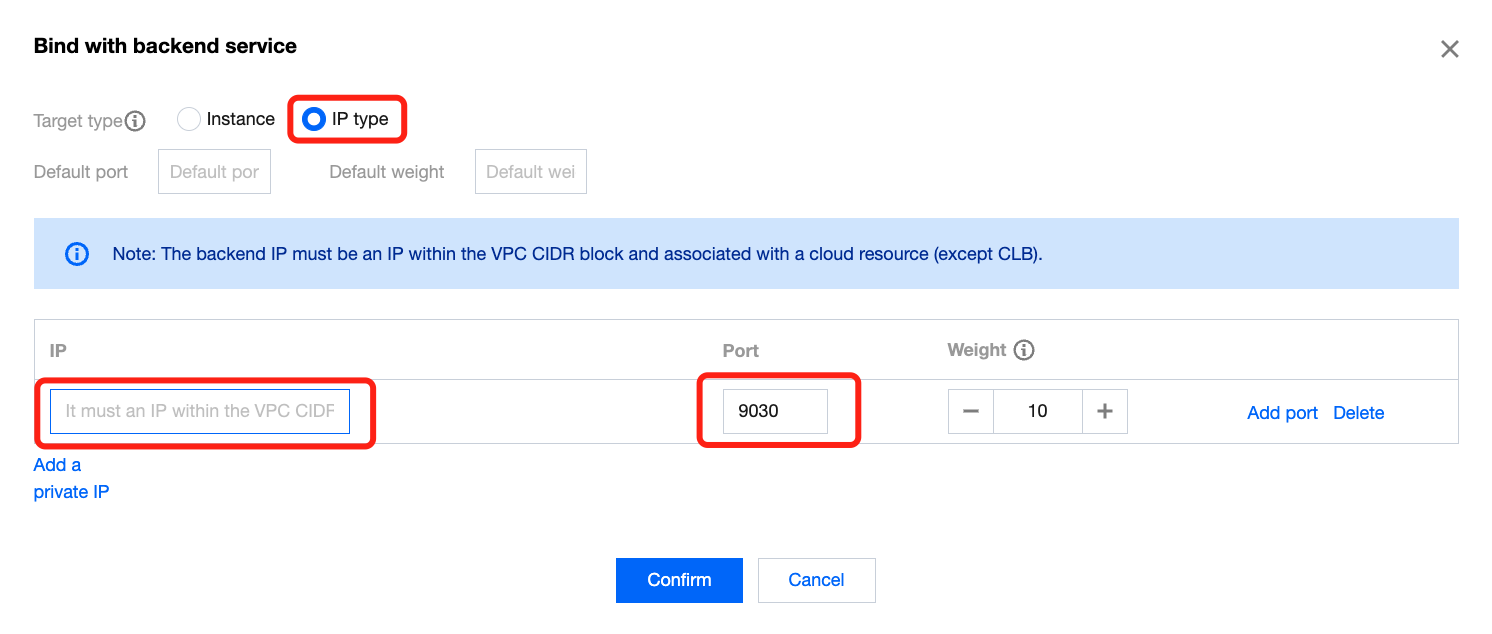
2. Bind backend services.
Target Type: Select IP Type.
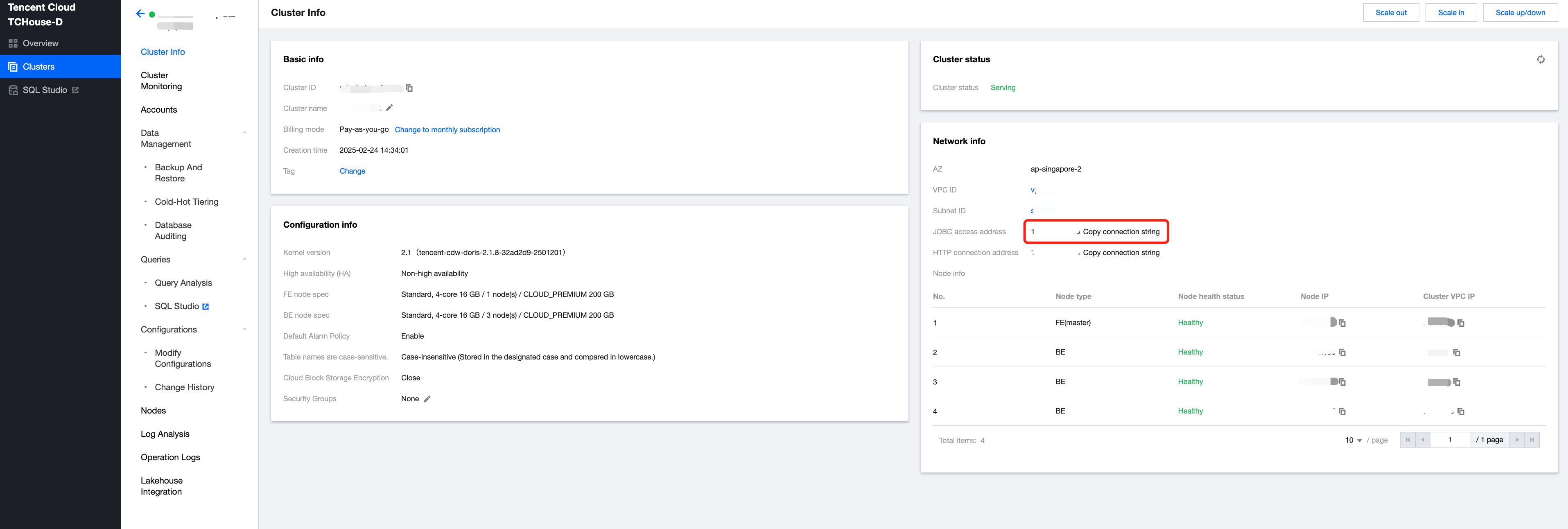
IP: Fill in the IP address from the JDBC connection address of the TCHouse-D cluster. This IP address can be obtained from the TCHouse-D Cluster Details page, which is the same IP address used in the JDBC connection address (see the figure below).
Port: For the FE public network, enter 9030; for the BE public network, enter 8040. Then click OK.
Note:
The IP address for the TCHouse-D cluster's JDBC connection can be obtained from the Details page of the Doris cluster, as shown in the figure below:
3. After completing the backend service binding, you can access the TCHouse-D cluster via the CLB's VIP over the public network.