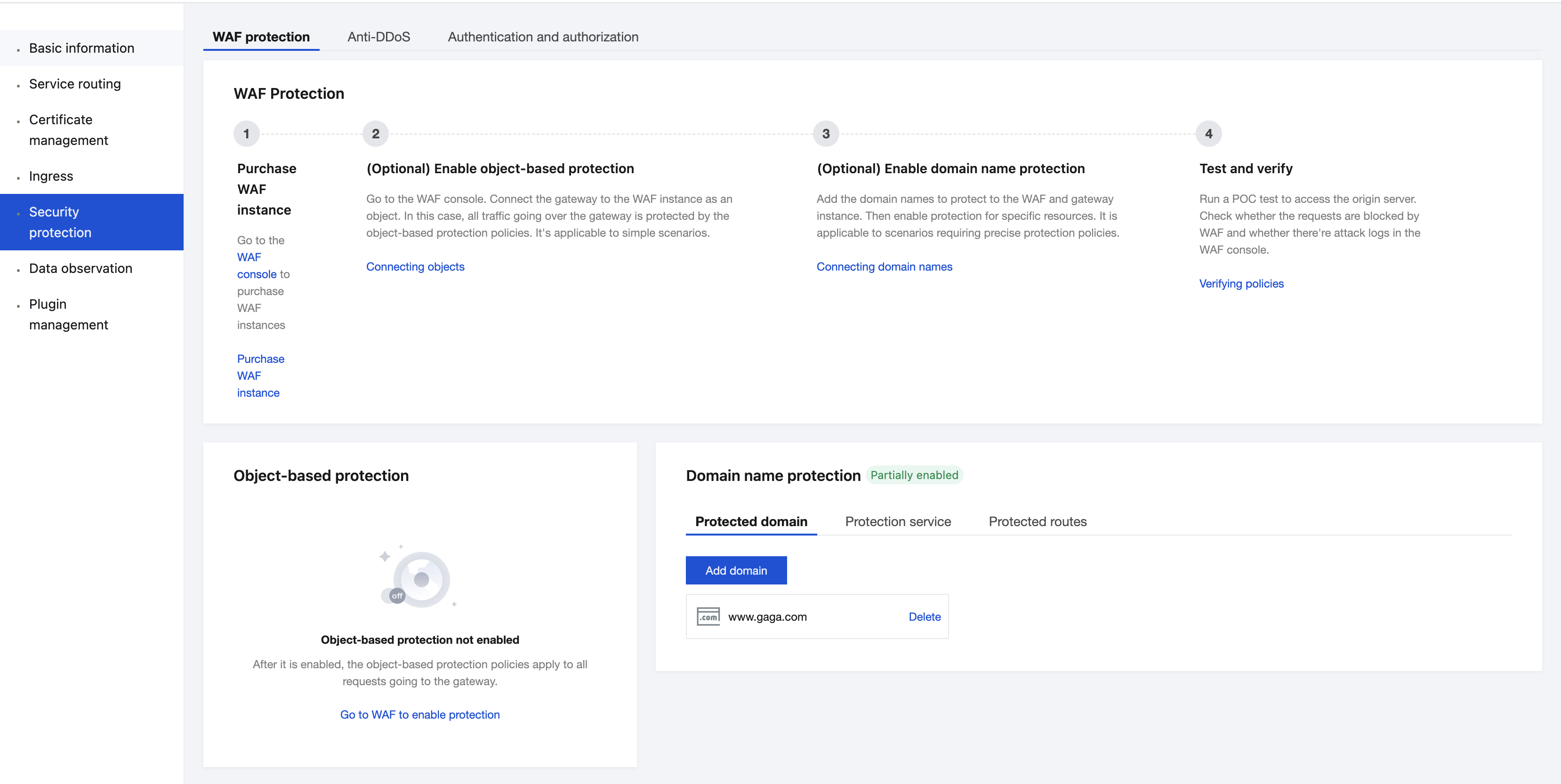
This document describes how to integrate Cloud Native Gateway with WAF by adding domain names and binding them to gateway resources, such as services and routes, to inspect and block traffic passing through Cloud Native APIs.
Domain name protection provides service-level and route-level protection, which apply to protection of different granularities. You can configure service-level and route-level protection based on business features and API usage of the gateway to reduce costs and ensure API security. The following table describes the differences between service-level protection and route-level protection.
Protection Type
Protection Description
Status Conversion
Service-level protection
Requests to all routes under a service are protected using the default protection rules of WAF. If you need to enable WAF protection for a specific service, use service-level protection.
It is disabled by default.
When it is enabled for all routes under a service, the status is automatically changed to All enabled.
When it is disabled for some routes under a service, the status is automatically changed to Partially enabled.
Route-level protection
Only requests to a route are sent to the WAF protection engine with the default rule. If you need to enable WAF protection for a specific route, use route-level protection.
It is disabled by default.
When service-level protection is enabled, the status is automatically changed to All enabled.
2. In the left sidebar, choose Cloud Native Gateway > Plugin Management, and then select a gateway instance at the top of the page.
3. Select the System Plugins tab, and check whether the plugins are upgraded to the latest versions. If not, click Install Latest Version in the Operation column.
Operation Steps
Step 1: Configuring WAF
1. Log in to the WAF console, choose Asset Center > Connection Management > Domain Name Access in the left sidebar.
2. On the Domain Name Access page, click Add Domain, specify related parameters, and click OK.
Parameter
Description
Instance
Select CLB-based WAF.
Domain name
Enter the domain name to be protected.
Traffic Source
Select Cloud Native Gateway.
Agent
Select Yes. WAF obtains the customer's real IP address as the source address through the XFF field. If this option is selected, the source IP address may be forged.
Region
Select the region to be protected.
3. Click Confirm to return to the Domain Name Access page. On this page, you can view information such as the protected domain name, gateway instance ID, and name.
Step 2: Adding WAF-protected Domain Names
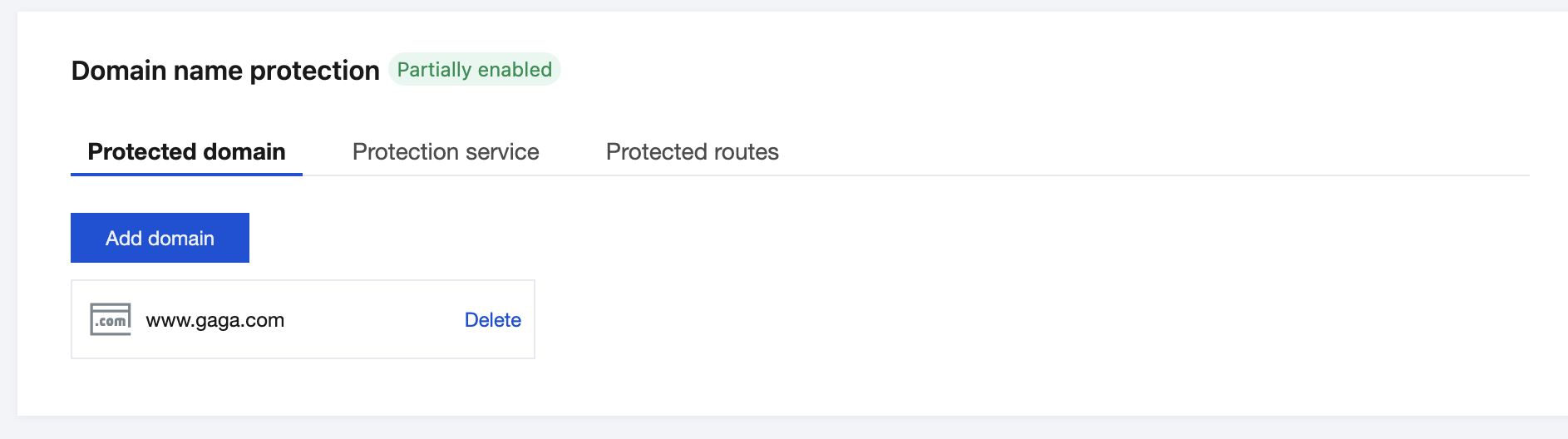
1. Log in to the Cloud Native Gateway console, choose Security Protection > WAF Protection in the left sidebar, click Add Domain on the Protected Domain Names Tab, and then select or enter the domain name that has been connected to WAF in Step 1. You can select a domain name associated with a certificate already added in Certificate Management, or manually enter a domain name to add it.
2. Click Confirm to confirm that the WAF-protected domain name is added.
Note:
Ensure that the WAF-protected domain name is connected to WAF. Otherwise, requests from the domain name cannot be sent for review.
Step 3: Enabling Resource Protection
Cloud Native Gateway provides protection at both service and route granularity levels.
Enabling Service-Level Protection
1. Go to the Protected Service tab. All services under the instance are displayed by default.
2. Select the service that needs to connect to WAF, click Enable Protection, and click OK in the displayed dialog box to enable WAF protection for the service.
Note:
After service-level protection is enabled, it takes effect for the service and all routes under it.
If WAF protection is disabled for some routes under a service, the service protection status and instance protection status are all changed to Partially enabled.
Enabling Route-Level Protection
1. Go to the Protected Route tab. All routes under the instance are displayed by default.
2. Select the route that needs to connect to WAF, click Enable Protection, and click OK in the displayed dialog box to enable WAF protection for the route.
Disabling Service-Level Protection
1. Go to the Protected Service tab. All services under the instance are displayed by default.
2. Select the service that needs to disable WAF access, click Disable Protection, and click OK in the displayed dialog box to disable WAF protection for the service.
Note:
After service-level protection is disabled, it takes effect for the service and all routes under it.
Disabling Route-Level Protection
1. Go to the Protected Route tab. All routes under the instance are displayed by default.
2. Select the route that needs to disable WAF access, click Disable Protection, and click OK in the displayed dialog box to disable WAF protection for the route.
Step 4: Testing and Verifying the Protection Status
2. Check that the domain name protection status is Partially enabled or All enabled.
3. Enter http://<gateway domain name or IP address>/?test=alert(123) in the address box of the browser to visit the gateway. The browser displays the blocking page, indicating that WAF protection is normal.