Linkage Tracking
With the general adoption of the microservices architecture, a complete business logic calling request may involve several, dozens of, or even one hundred service APIs. Backend services form a complex distributed network. In this scenario, how to quickly locate the root cause in the event of an exception becomes a key challenge for troubleshooting in distributed scenarios.
The cloud-native gateway supports the link tracing feature. Users can query specific calling processes using criteria such as specific services, status codes, and response times, which include the time required and the operational status of the calling process. Based on this information, users can analyze the time consumption and exceptions at each step of the distributed link calling process, for example:
Time-consuming services
Unreasonable call logic (For example, if a service is called multiple times in one request, it is recommended that APIs be called in batches.)
Enabling Linkage Tracking
1. Log in to the Tencent Service Framework (TSF) console.
2. In the left sidebar, choose Cloud Native Gateway > Data Observation, and then select a gateway instance at the top of the page.
3. Click the Linkage Tracking tab, then click Enable Now in the middle of the page to enable linkage tracking.
Protocol: Four protocols are supported, including OpenTelemetry (recommended), SkyWalking, Zipkin, and Jaeger. The gateway uses the linkage tracking protocol specified by the client in the received request by default. If the client does not specify the protocol, the protocol specified in the console is used.
APM Business System: When an Application Performance Management (APM) business system is selected, the gateway uses it for linkage reporting.
Sampling Rate: The value range is 0 to 100. 0 indicates that collection is not performed, and 100 indicates that all requests are collected. The default value is 10. A high sampling rate may affect performance.
Note:
To display the complete call linkage, ensure that the downstream services of the gateway use the same APM business system for reporting. For the application reporting method, see Application Reporting Guide.
Linkage tracking is provided by Application Performance Management. For specific billing items, see Billing Overview.
Querying Call Chain Details
After linkage tracking is enabled, you can view the call chain and details of the gateway instance on the linkage tracking page.
1. On the Call Chain Query page, set the query conditions and click Query.
Time Range: Specific and custom time ranges are supported. Specific time ranges include last 5 minutes, last 15 minutes, last 30 minutes, last 1 hour, last 3 hours, last 12 hours, and last 1 day.
Response Time: Set the response time range.
Trace ID (optional): trace ID.
Service: Select the service to be queried from the dropdown list, or enter keywords to search.
Status Code (optional): status code.
Health Status (optional):
Normal: The call is normal assessed based on the response time and error rate.
Slow call: The call takes more than 2,000 ms to execute.
Abnormal: A non-200 HTTP status code is returned for the call.
Business Tag: tag used by the gateway for linkage tracking.
2. Click the call chain ID or View Details in the Operation column to view detailed information about the call chain, including detailed call information and consumed time in each phase.
Viewing the Service Dependency Topology Diagram
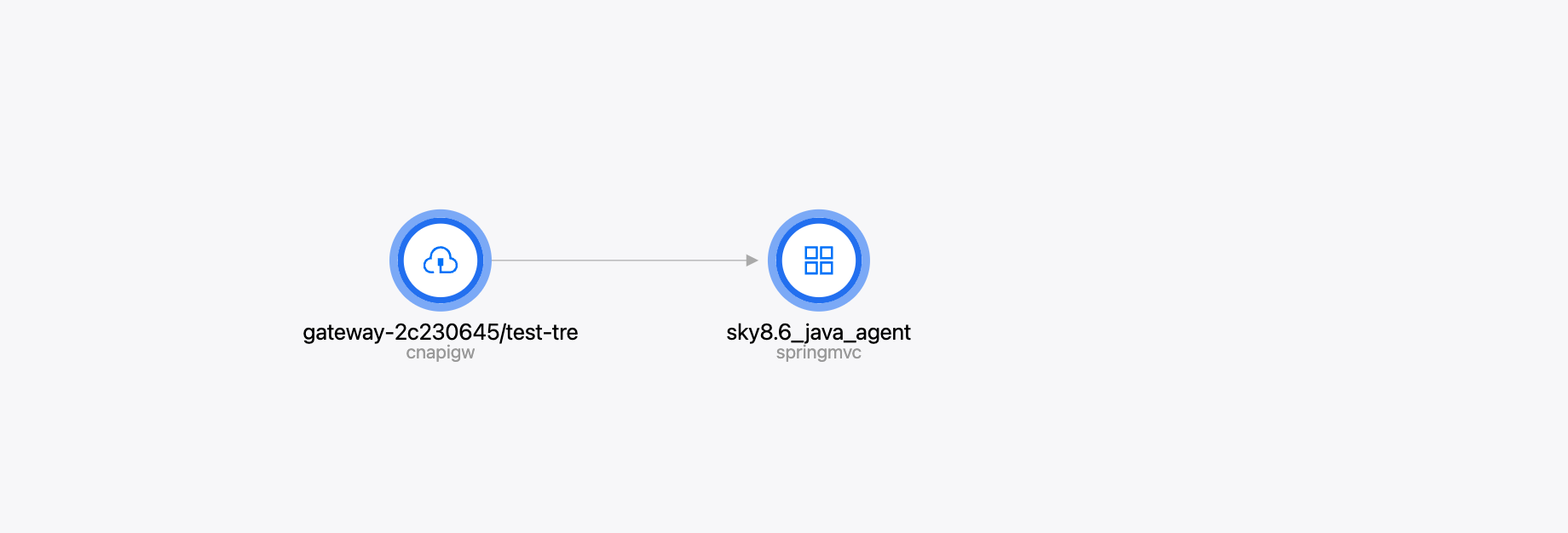
After linkage tracking is enabled, you can view the service dependency topology diagram on the Basic Information page of the service. Based on the service dependency topology diagram, you can intuitively understand the upstream and downstream components of the service and their calling relationships, thereby finding the application bottleneck faster.
1. In the left sidebar, select Service & Route, select a gateway instance at the top of the page, and click the Service tab.
2. Click the target service name to go to the service details page, and set the time range in the Dependency Topology module to view the service calling information.
フィードバック