During data consistency check, DTS compares the table data between the source and target databases and outputs the comparison result and inconsistency details for you to determine the business cutover time. A data consistency check task is independent of the normal business in the source database or other DTS tasks.
Data consistency check tasks can be triggered automatically or created manually.
Automatic triggering: During migration task configuration, if Full check is selected for Data Consistency Check, a data consistency check task will be triggered automatically when the migration task enters the incremental sync step.
Manual creation: When the DTS task enters the incremental sync step, you can manually create one or multiple data consistency check tasks.
Triggering a data consistency check task automatically
On the Set migration options and select migration objects page of a data migration task, select Full check for Data Consistency Check. In this way, a data consistency check task will be triggered automatically when the migration task enters the incremental sync step.
Note:
In this case, the full data and all the database information will be checked by default. If you need to filter check objects, create a data consistency check task manually.
2. On the Data Migration page, select the target migration task and click More > Create Data Consistency Check Task in the Operation column.
3. Click Create Data Consistency Check Task.
Note:
A data consistency check task can be created only when the corresponding DTS task is in the incremental sync step. If the button is grayed out, the DTS task status does not meet the requirement; for example, the task has not entered the incremental sync step, has failed, or is terminated.
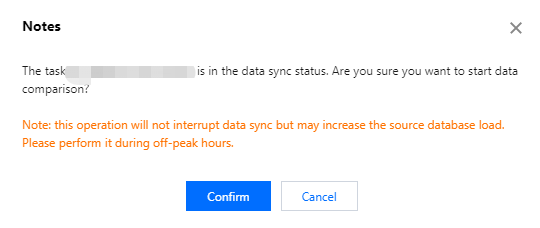
4. In the pop-up window, click Confirm.
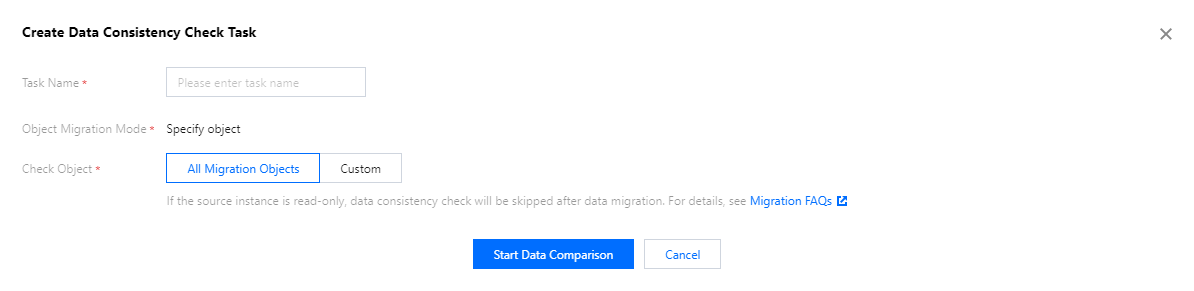
5. After configuring the data consistency check parameters, click Start Data Comparison.
Check Object: Select All Migration Objects or Custom.
Database Information: Select Index, Shard key (if both the source and target databases are sharded clusters), or Database and table for check.
Data Check: The Row count check option compares the number of data rows in the source and target databases. The Content check option compares the data content of the source and target databases.
Sampling: In scenarios with a high data volume, extracting all the data for check may increase the load of the source database. If you select Content check, you can set an appropriate percentage based on your business conditions to extract a certain proportion of data for comparison.
Viewing the data consistency check result
1. On the migration task homepage, view whether the check result is Consistent or Inconsistent in the Last Check Result column. Click View More to enter the Verification Details page.
2. Click View to view the check result.
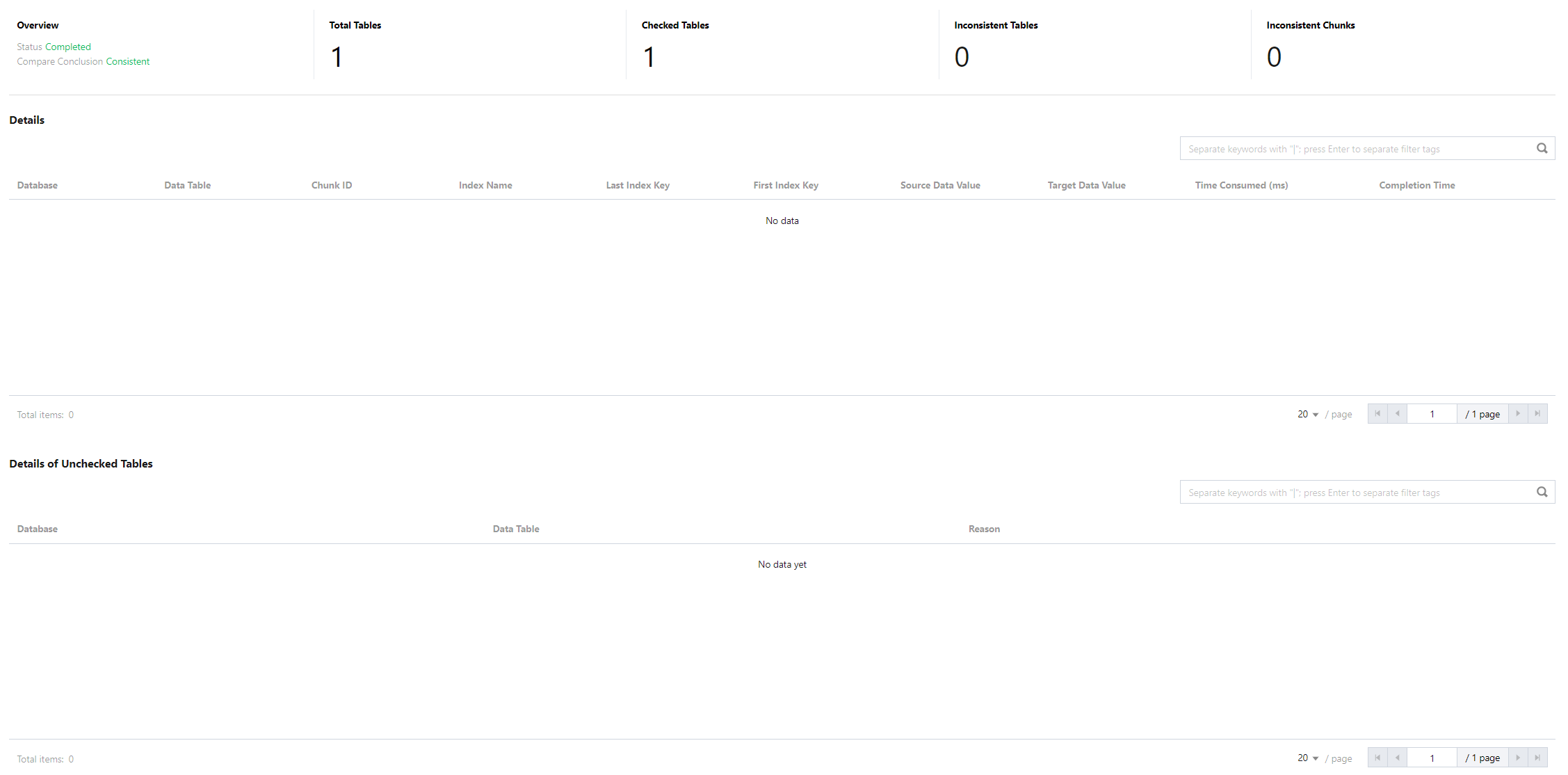
If the data is consistent, the result will be like:
Inconsistency check result:
Note:
For inconsistent data, you need to manually confirm the corresponding data content of the source and target databases as prompted. For more details, please refer to Common Consistency Check Issues.