For more information on task template, please see "Task Template" in Glossary. You can create a task template in the BatchCompute Console in the following steps:
1. Log in to the BatchCompute Console. If you haven't activated the BatchCompute service, activate it as prompted on the BatchCompute Console page.
2. Select Task Template on the left sidebar and select the target region at the top of the page.
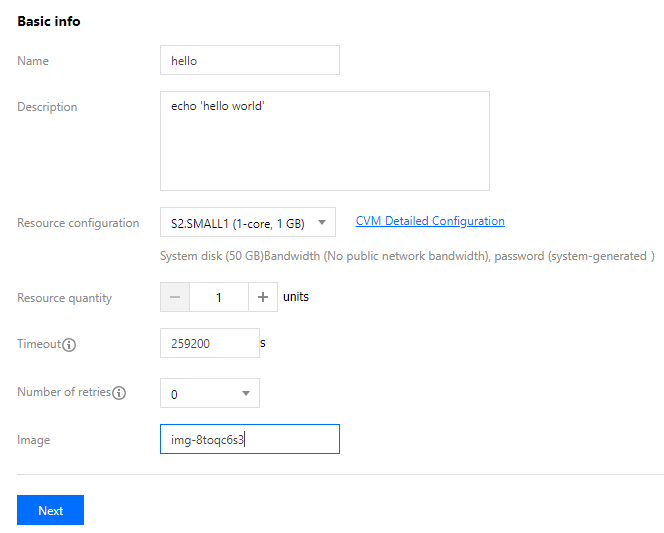
3. Click Create to enter the "Create Task Template" page and create a template as shown below:
Main parameters include:
Compute Environment Type:
Existing Compute Environment: you can select an existing compute environment.
Automatic Compute Environment: you don't need to pre-create a fixed compute environment. After a job is submitted, a CVM instance will be created automatically to run the task and terminated automatically after task completion.
**Resource Configuration**: you can click **Detailed CVM Configuration** for further customization. For more information, please see [CVM Product Documentation](https://www.tencentcloud.com/document/product/213).
Number of Resources: this determines the number of resources for concurrent task execution. For more information, please see "Task Instance" in Glossary.
Image: for more information, please see "Image" in Glossary.
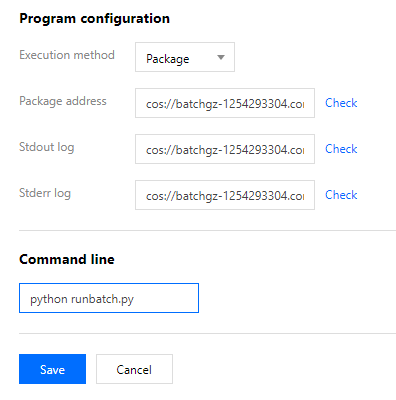
4. Click Next to set the program configuration information as shown below:
Execution Method: if "Package" is selected, "Package Address" is required, which is stored in COS.
Package Address/Stdout Log/Stderr Log: they should be in a fixed format. For more information, please see How to Enter COS and CFS Paths.
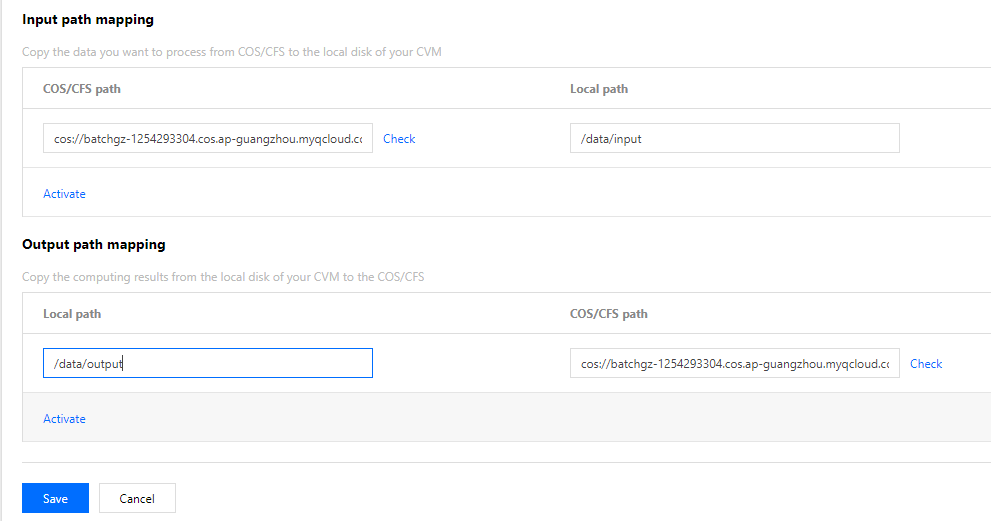
5. Click Next to set the storage mapping as shown below:
Input path mapping: for Linux, COS and CFS are supported; for Windows, CFS is supported. For the format requirements of COS and CFS paths, please see How to Enter COS and CFS Paths. In addition, please note that the format of local paths vary by operating system.
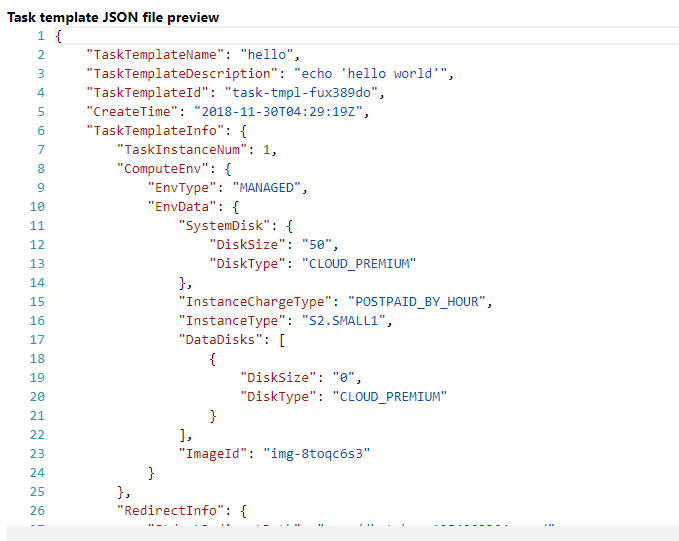
6. Click Next. After confirming that the task template JSON file is correct, click Save to complete task template creation.
Deleting Task Template
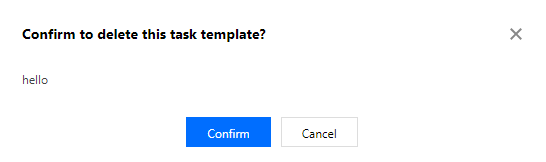
If you no longer need to use a task template, you can delete it on the Task Template list page.
Modifying Task Template
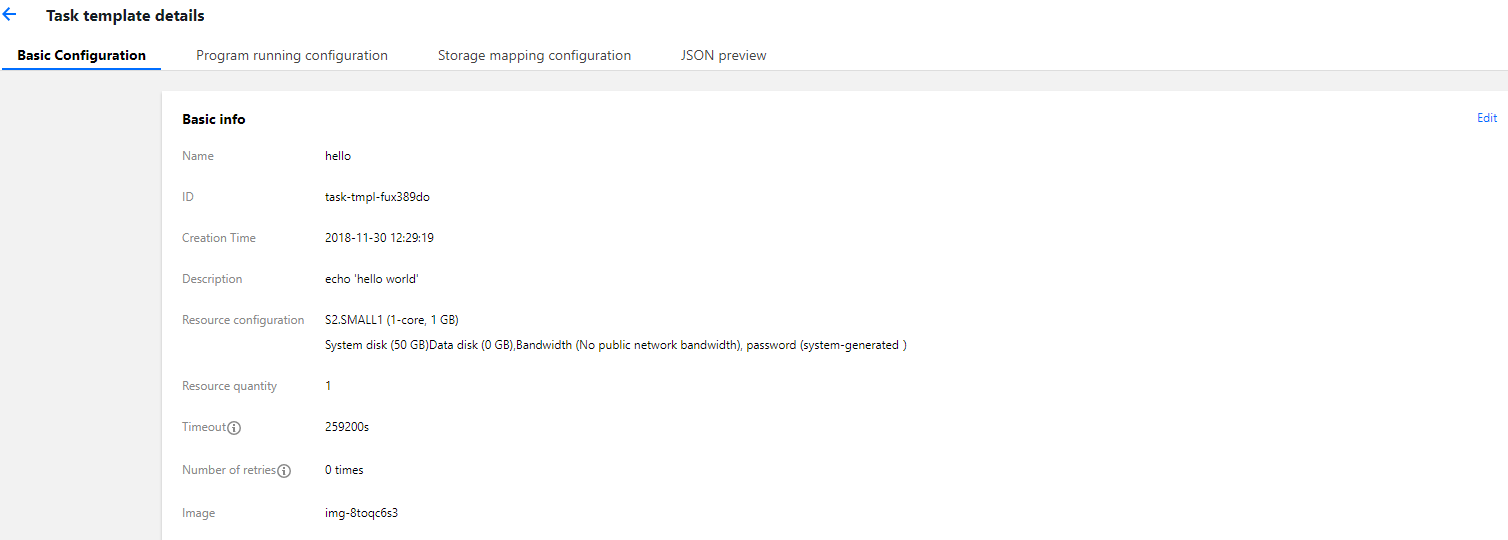
If you need to edit an existing task template, you can click the task template ID on the Task Template list page to enter the task template configuration page and edit the configuration items as shown below: