tencent cloud

Tencent Real-Time Communication

お知らせ・リリースノート
製品アップデート情報
Tencent Cloudオーディオビデオ端末SDKの再生アップグレードおよび承認チェック追加に関するお知らせ
TRTCアプリケーションのサブスクリプションパッケージサービスのリリースに関する説明について
製品の説明
製品概要
基礎概念
製品の機能
製品の強み
ユースケース
性能データ
購入ガイド
Billing Overview
無料時間の説明
Monthly subscription
Pay-as-you-go
TRTC Overdue and Suspension Policy
課金に関するよくあるご質問
Refund Instructions
初心者ガイド
Demo体験
Call
コンポーネントの説明(TUICallKit)
Activate the Service
Run Demo
クイック導入
オフライン通知
Conversational Chat
クラウドレコーディング(TUICallKit)
AI Noise Reduction
インターフェースのカスタマイズ
Calls integration to Chat
Additional Features
No UI Integration
Server APIs
Client APIs
Solution
ErrorCode
公開ログ
よくある質問
ライブ配信
Billing of Video Live Component
Overview
Activating the Service (TUILiveKit)
Demo のクイックスタート
No UI Integration
UI Customization
Live Broadcast Monitoring
Video Live Streaming
Voice Chat Room
Advanced Features
Client APIs
Server APIs
Error Codes
Release Notes
FAQs
RTC Engine
Activate Service
SDKのダウンロード
APIコードサンプル
Usage Guidelines
クライアント側 API
高度な機能
RTC RESTFUL API
History
Introduction
API Category
Room Management APIs
Stream mixing and relay APIs
On-cloud recording APIs
Data Monitoring APIs
Pull stream Relay Related interface
Web Record APIs
AI Service APIs
Cloud Slicing APIs
Cloud Moderation APIs
Making API Requests
Call Quality Monitoring APIs
Usage Statistics APIs
Data Types
Appendix
Error Codes
コンソールガイド
アプリケーション管理
使用統計
監視ダッシュボード
開発支援
Solution
Real-Time Chorus
よくあるご質問
課金関連問題
機能関連
UserSig関連
ファイアウォールの制限の対応関連
インストールパッケージの圧縮に関するご質問
AndriodおよびiOS関連
Web端末関連
Flutter関連
Electron関連
TRTCCalling Web関連
オーディオビデオ品質関連
その他のご質問
旧バージョンのドキュメント
TUIRoom(Web)の統合
TUIRoom (Android)の統合
TUIRoom (iOS)の統合
TUIRoom (Flutter)の統合
TUIRoom (Electron)の統合
TUIRoom APIのクエリー
クラウドレコーディングと再生の実現(旧)
Protocols and Policies
セキュリティコンプライアンス認証
セキュリティホワイトペーパー
情報セキュリティの説明
Service Level Agreement
Apple Privacy Policy: PrivacyInfo.xcprivacy
TRTC ポリシー
プライバシーポリシー
データ処理とセキュリティ契約
用語集

Audience Listening (Flutter)

PDF
フォーカスモード
フォントサイズ
最終更新日: 2026-01-15 22:07:51
TUILiveKit Voice Chat Room provides a comprehensive, ready-to-use interface for pure audio live streaming scenarios. It allows you to quickly implement essential features such as audience listening and mic interaction, eliminating the need to manage complex UI or seat management logic yourself.

Feature Overview

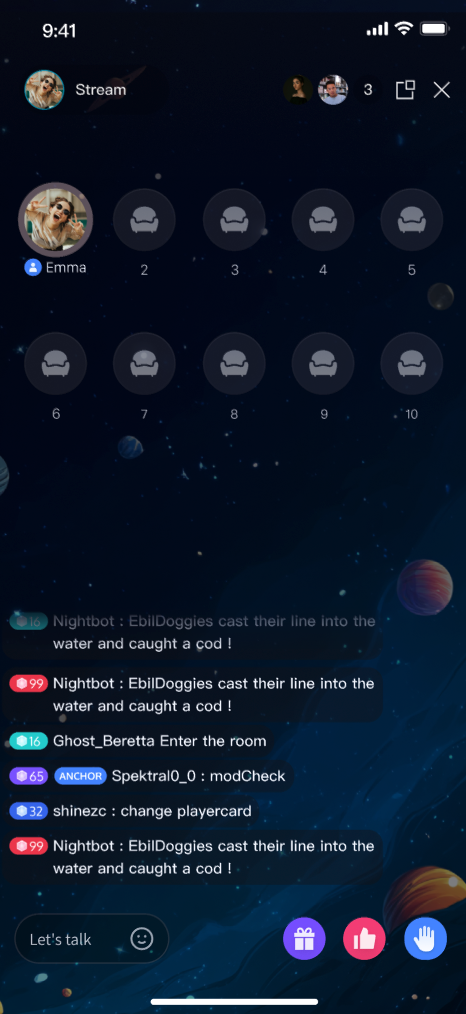
Listen to Live Streams: Hear the host’s real-time audio stream with clarity and low latency.
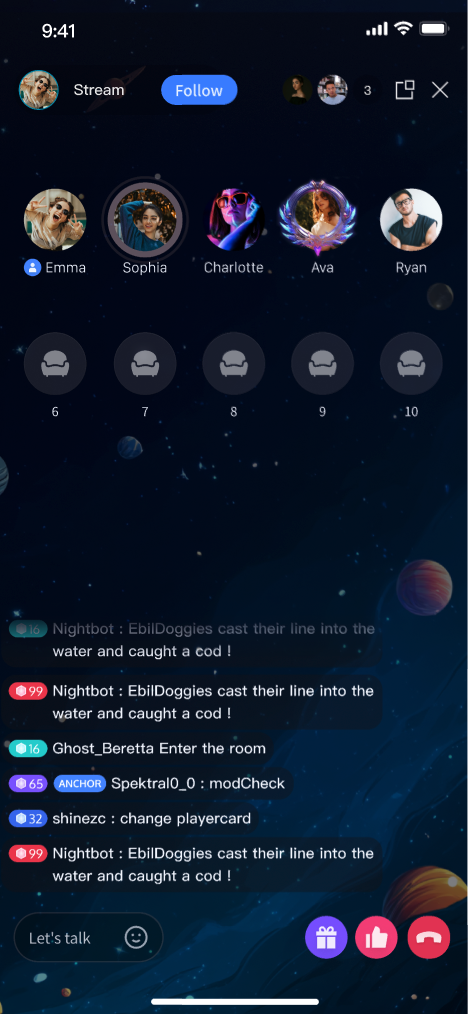
Co-guest: Request to join the mic and interact with the host via audio.
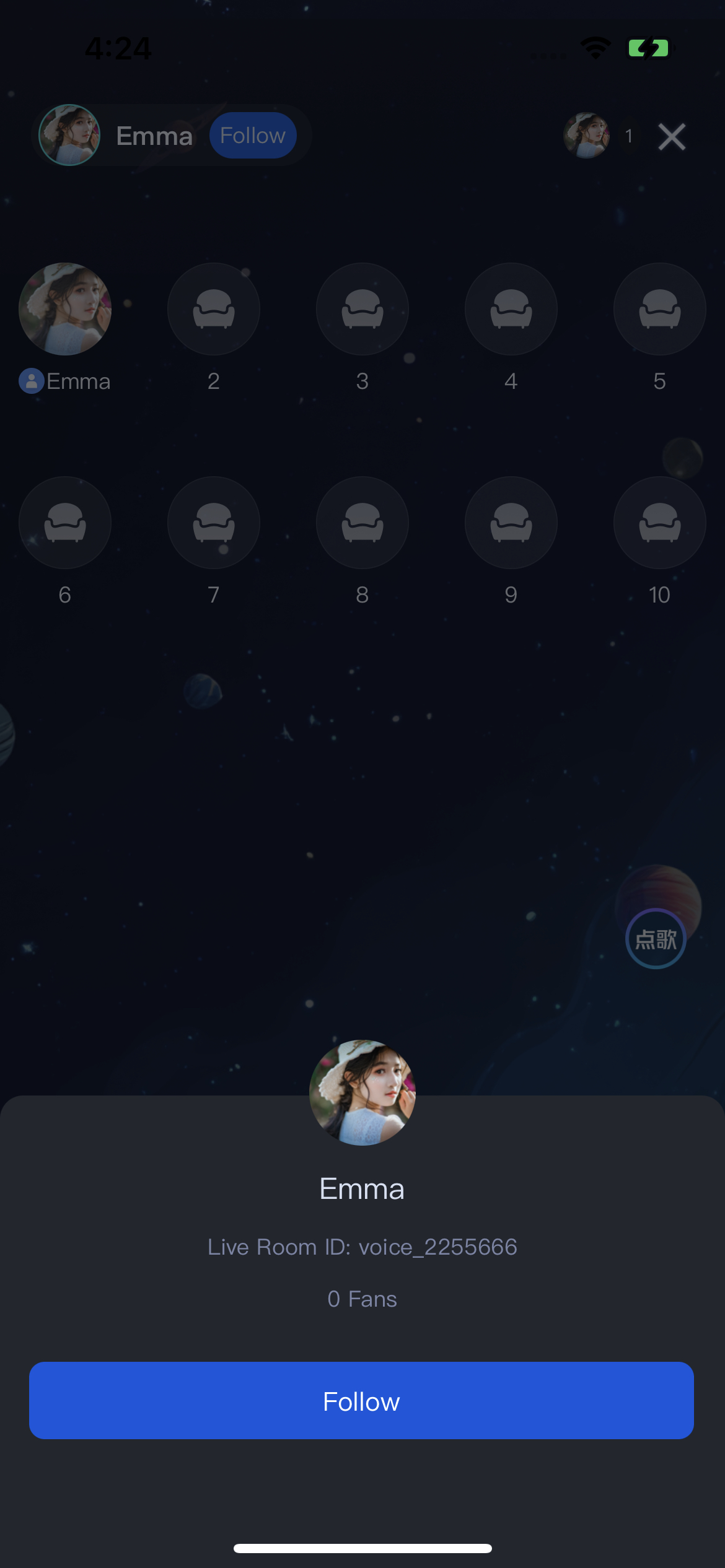
Live Information: View room announcements and see the list of online audience members.
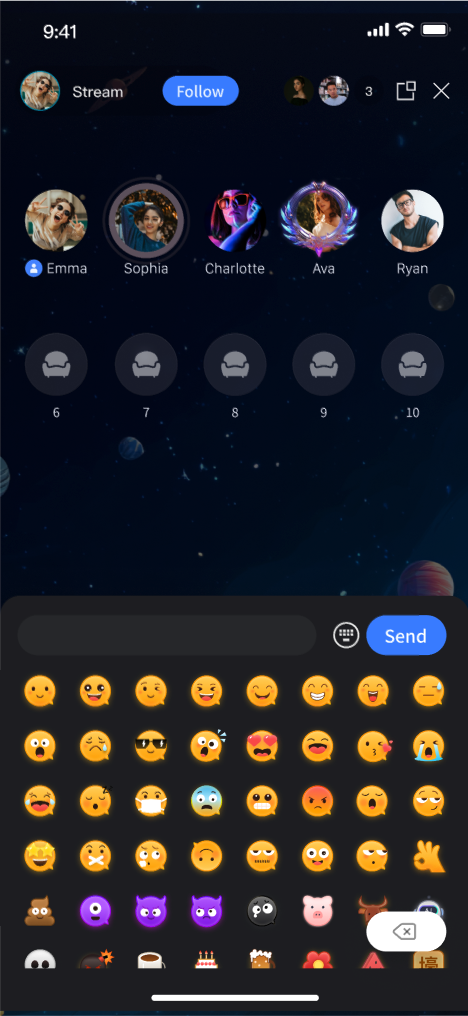
Live Interaction: Engage with features such as bullet comments, gifts, and likes.
Listen to Live Streams
Co-guest
Live Information
Live Interaction


Quick Integration

Step 1: Integrate the Component

Follow the Preparations guide to integrate TUILiveKit into your project.

Step 2: Add Audience Viewing Page

TUIVoiceRoomWidget provides a complete audience-side UI and business logic for voice room scenarios. This widget does not support floating window mode. If you require floating window, see Adding Floating Window (Audience Page).
To launch the audience viewing page or embed it in your widget tree, set up the entry point for calling TUIVoiceRoomWidget according to your business logic and use one of the following approaches:
Direct Navigation
Integrate Into Widget Tree
import 'package:tencent_live_uikit/tencent_live_uikit.dart';

// Navigate to the audience viewing page
Navigator.push(context, MaterialPageRoute(
builder: (BuildContext context) {
final roomId = "test_voice_room_id";
return TUIVoiceRoomWidget(roomId: roomId, behavior: RoomBehavior.join);
}));
// --- Select one of the following ways to integrate based on your Widget tree structure ---

// [Option one] As the only child Widget (single subtree)
// Suitable for containers such as Container, Padding that usually only contain one child Widget
Container(
child: TUIVoiceRoomWidget(roomId: roomId, behavior: RoomBehavior.join) // Integrate audience viewing here
)

// [Option two] As one of multiple child Widgets (multi-subtree)
// Suitable for layouts such as Column, Row, Stack that can contain multiple child Widgets
Stack(
children: [
YourOtherWidget(), // Your other child Widget
TUIVoiceRoomWidget(roomId: roomId, behavior: RoomBehavior.join), // Integrate audience viewing here
YourOtherWidget(), // Your other child Widget
])
After integration, calling this code will open the audience page and start streaming, as shown in the Listen to Live Streams image in the Feature Overview.

TUIVoiceRoomWidget Parameters

Parameter Name
Type
Description
roomId
String
Globally unique live streaming room ID.
behavior
RoomBehavior
Enter Room behavior:
autoCreate: Automatically create a live streaming room and enter room.
prepareCreate: Enter the pre-live preview page first, then create and enter the live room after the user clicks Start Live.
join: Audience enters the room.
params
RoomParams
Host live stream parameters. See next section. This parameter is not required when the audience enters the room (behavior is join).
RoomParams parameters:
Parameter Name
Type
Description
maxSeatCount
int
Maximum number of seats in the live room.
seatMode
TUISeatMode
Audience seat mode:
applyToTake: Audience must apply and be approved by the host to take a seat.
freeToTake: Audience can take a seat freely without host approval.

Step 3: (Optional) Add Floating Window

TUIVoiceRoomOverlay provides a viewing page with floating window support. During live stream playback, you can switch to in-app floating window mode. TUIVoiceRoomOverlay is built on Flutter’s official Overlay API. To integrate:

1. Add a Secondary Navigator

See Floating Window Configuration for instructions on adding a secondary navigator. This navigator hosts the live stream page, keeping it separate from the main navigation stack and enabling floating window functionality.

2. Navigate to the Floating Window

At the entry point for audience room access (based on your business logic), use the following code to open the viewing page:
import 'package:tencent_live_uikit/tencent_live_uikit.dart';

// Navigate to the viewing page
Navigator.push(context, MaterialPageRoute(
builder: (BuildContext context) {
final roomId = "test_voice_room_id";
return TUIVoiceRoomOverlay(roomId: roomId, behavior: RoomBehavior.join);
}));
Note:
1. TUIVoiceRoomOverlay cannot be embedded as a child widget in containers (such as Container, Stack, etc.); it must be opened as a standalone page. Since it uses Overlay internally, LiveKit needs full control of the Overlay page to switch floating window modes.
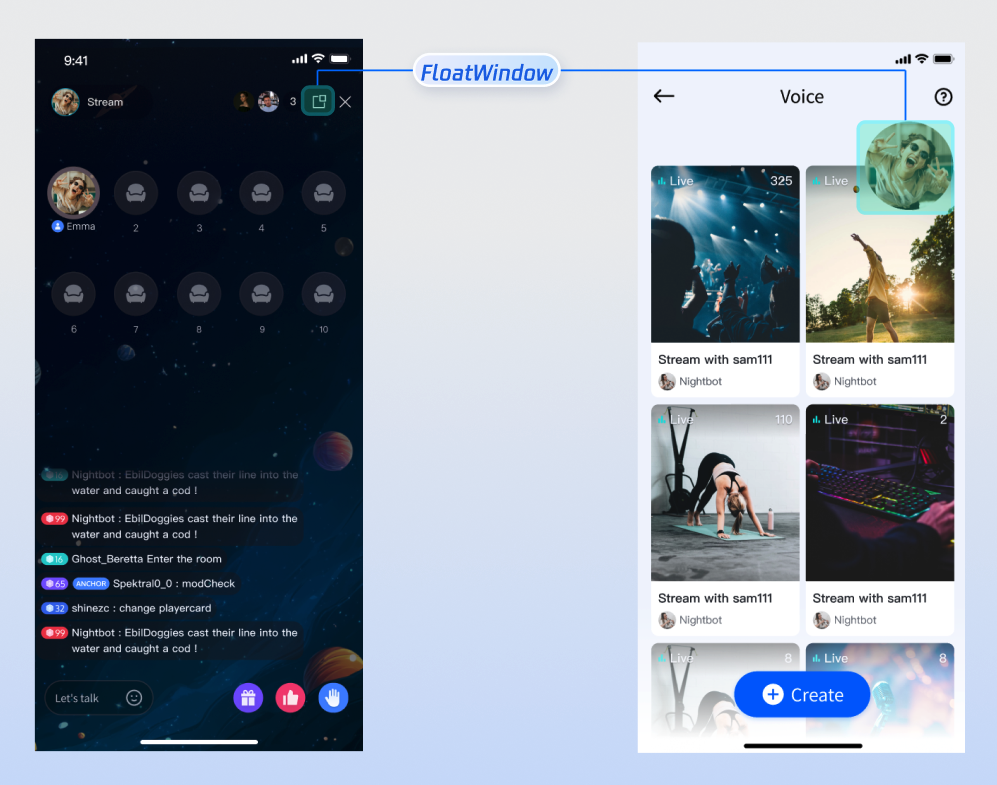
2. Floating window mode is only supported inside the app for voice room scenarios.

Floating Window Mode Effect

Tap the floating window button at the top right of the viewing page to enter floating window mode, as shown below:


Custom UI Layout

TUILiveKit supports flexible customization of the host setup and live pages, allowing you to adjust the layout and hide/show functional modules based on your business requirements.

Text Customization (ARB)

TUILiveKit uses ARB files and the Flutter standard internationalization (i18n) solution to manage the UI text display. You can directly edit the ARB files in the livekit/lib/common/language/i10n/ directory to modify the text:
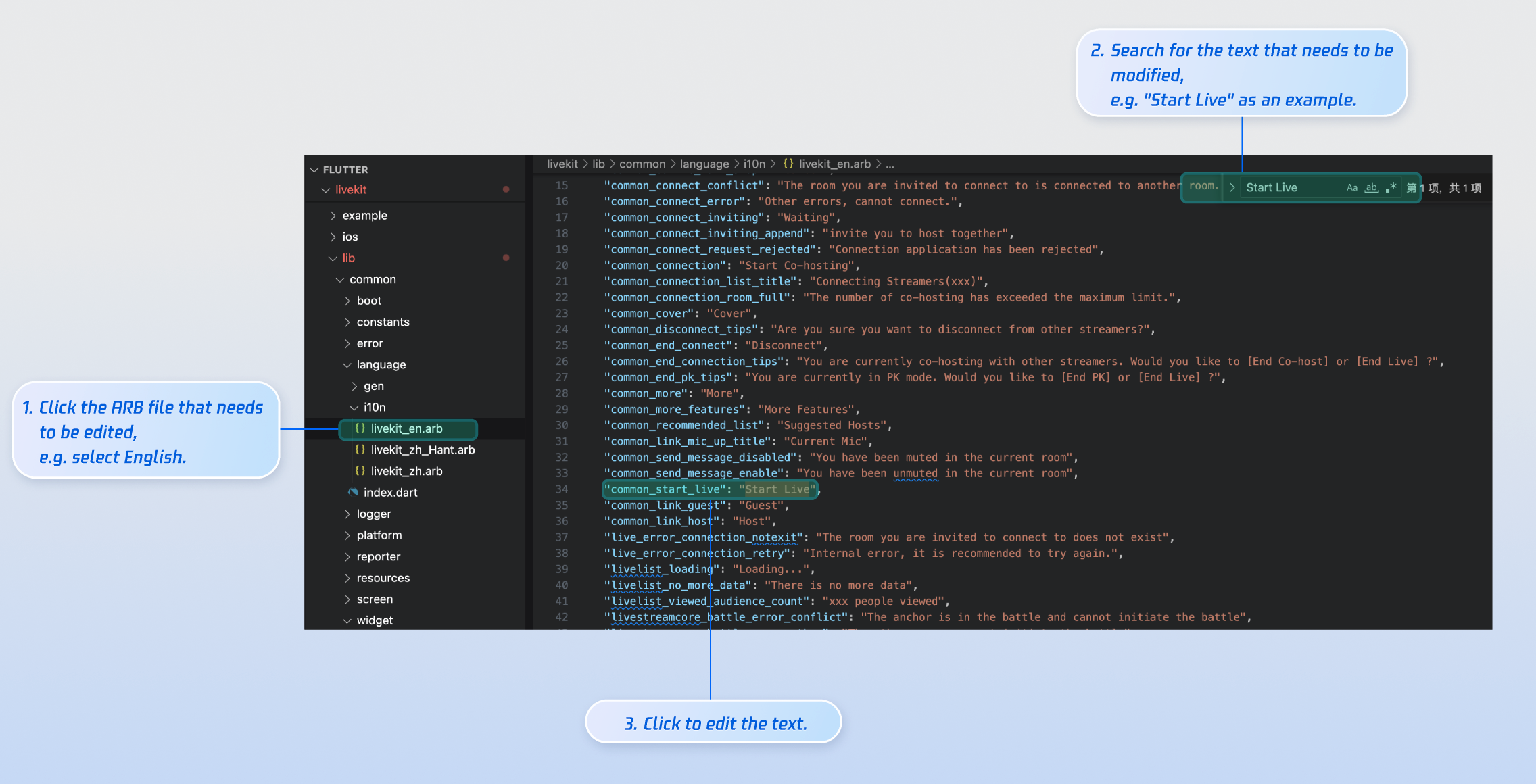
livekit_en.arb: English Text.
livekit_zh.arb: Simplified Chinese Text.
livekit_zh_Hant.arb: Traditional Chinese Text.
After editing, run flutter gen-l10n in your terminal to regenerate localization code. The generated files will be updated in livekit/lib/common/language/gen/.

Icon Customization

TUILiveKit’s UI image assets are stored in the livekit/assets/images/ directory. To update icons, simply replace the PNG files in this folder.
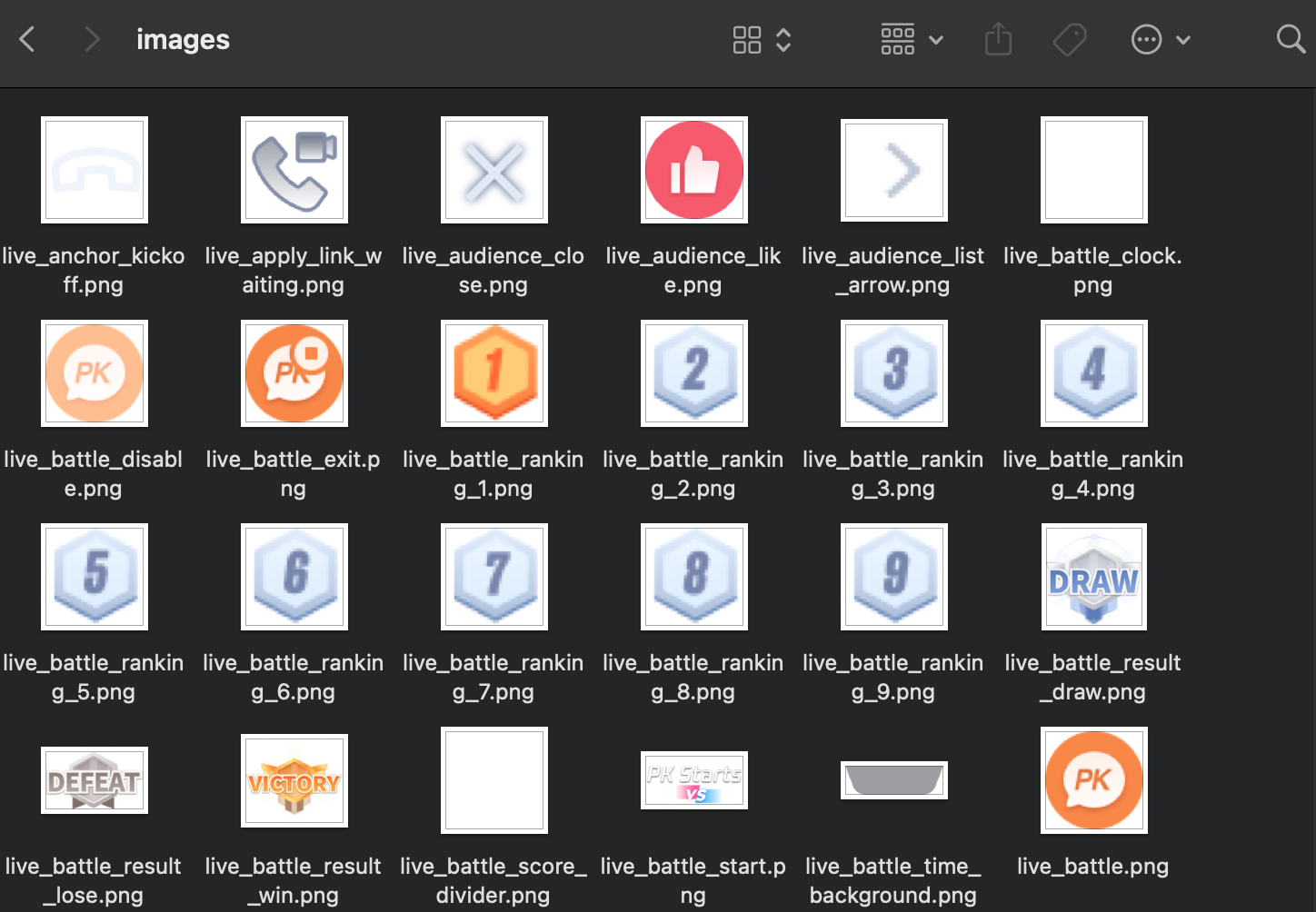
Rebuild and run the application, and you will see the updated icon.

Next Steps

You have successfully integrated Audience Viewing feature. Next, you can add features like Host Live Streaming, Live Stream List, and Gift System. See the table below for details:
Feature
Description
Integration Guide
Host Streaming
Complete host live streaming workflow, including pre-live preparation and interactive features after going live.
Live Stream List
Display the live room list UI and features, including room list and room information display.
Gift System
Support custom gift asset configuration, billing system integration, and gift-sending in PK scenarios.

FAQs

Why can’t other audience members see live comments sent by an audience member?

There are 3 reasons you can refer to:
Check the network connection to ensure the audience member’s device is online.
The audience member has been muted by the host and cannot send live comments.
The live comments contain blocked keywords. Confirm that the comment complies with room rules.

Why do pop-up windows not appear or get covered?

When using TUIVoiceRoomOverlay, pop-up components (such as BottomSheet, Dialog, etc.) may not appear or may be hidden behind the Overlay.
Reason: The live stream page Overlay is rendered on the secondaryNavigator. Pop-ups using the secondaryNavigator context will be hidden behind the Overlay because, on the same Navigator, the Overlay layer is above regular pages. By using the rootNavigator, pop-ups will display correctly above the Overlay.
Solution: Ensure that pop-up contexts use the rootNavigator (recommended: Global.appContext()).


ヘルプとサポート

この記事はお役に立ちましたか?

フィードバック