製品アップデート情報
Tencent Cloudオーディオビデオ端末SDKの再生アップグレードおよび承認チェック追加に関するお知らせ
TRTCアプリケーションのサブスクリプションパッケージサービスのリリースに関する説明について
TUILiveKit. Use this guide to quickly integrate our pre-built live list page into your project, or to deeply customize the page’s style, layout, and features to fit your requirements.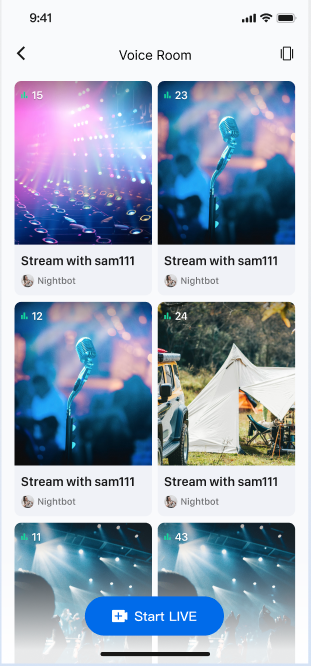
import android.content.Contextimport android.os.Bundleimport androidx.appcompat.app.AppCompatActivityimport com.trtc.uikit.livekit.features.livelist.LiveListViewimport com.trtc.uikit.livekit.features.livelist.Styleclass YourActivity : AppCompatActivity() {override fun onCreate(savedInstanceState: Bundle?) {super.onCreate(savedInstanceState)// 1. Create and initialize the waterfall viewval view = createLiveListView(this)// 2. Add the LiveListView to your Activity or FragmentsetContentView(view)}fun createLiveListView(context: Context): LiveListView {val liveListView = LiveListView(context)// Initialize with a double-column waterfall layoutliveListView.init(this, Style.DOUBLE_COLUMN)return liveListView}}
OnItemClickListener callback. Implement OnItemClickListener on the live list view to handle user clicks, and navigate to the audience watch page within onItemClick. For details on implementing the audience watch page, see Audience Watching.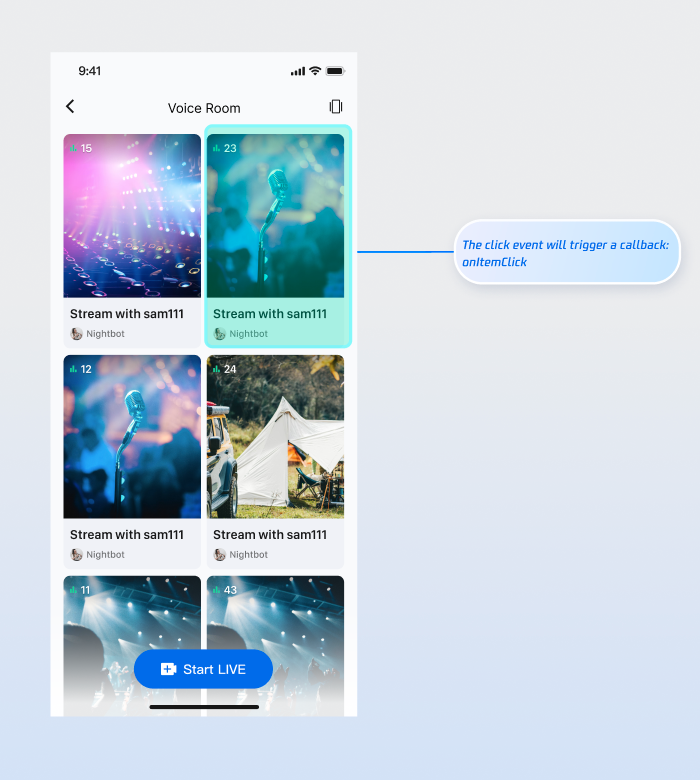
fun createLiveListView(context: Context): LiveListView {val liveListView = LiveListView(context)// Initialize with a double-column waterfall layoutliveListView.init(this, Style.DOUBLE_COLUMN)liveListView.setOnItemClickListener { view, liveInfo ->// Navigate to the audience watch page when a list item is clickedval intent = Intent(context, YourAudienceActivity::class.java)intent.putExtra("liveId", liveInfo.roomId)context.startActivity(intent)}return liveListView}
TUILiveKit provides flexible APIs for customizing the live list waterfall component. You can customize the data source and the appearance of list items to fit your business needs.LiveListDataSource interface to supply your own data instead of using the default component data.// 1. Import dependenciesimport com.trtc.uikit.livekit.features.livelist.LiveListDataSource;// 2. Implement LiveListDataSource to provide a custom data sourceval dataSource = object : LiveListDataSource {override fun fetchLiveList(param: FetchLiveListParam, callback: LiveListCallback) {// Connect to your backend and return data in the required formatval liveInfoList = mutableListOf<TUILiveListManager.LiveInfo>()val liveInfo = TUILiveListManager.LiveInfo().apply {roomInfo = TUIRoomDefine.RoomInfo().apply {roomId = "live_123456"name = "live_123456"}}liveInfoList.add(liveInfo)val cursor = "aabbccdd"callback.onSuccess(cursor, liveInfoList)}}// 3. Pass the custom dataSource during initializationliveListView.init(this, Style.DOUBLE_COLUMN, dataSource = dataSource)
LiveListViewAdapter interface.// 1. Import dependenciesimport com.trtc.uikit.livekit.features.livelist.LiveListViewAdapter;// 2. Implement LiveListViewAdapter to customize widgetsval liveListViewAdapter = object : LiveListViewAdapter {override fun createLiveInfoView(liveInfo: TUILiveListManager.LiveInfo): View {// Create your custom widget viewval widgetView = YourView(context)widgetView.init(liveInfo)return widgetView}override fun updateLiveInfoView(view: View, liveInfo: TUILiveListManager.LiveInfo) {// Update the widget view with new dataval widgetView = view as YourViewwidgetView.updateLiveInfoView(liveInfo)}}// 3. Pass the custom liveListViewAdapter during initializationliveListView.init(this, Style.DOUBLE_COLUMN, adapter = liveListViewAdapter)
Feature | Description | Integration Guide |
Host Live Streaming | Implements the complete process for a host to start a voice chat room live, including pre-live setup and in-session interactions. | |
Audience Viewing | Enables audience participation after joining the host’s voice chat room, including joining the mic, sending and receiving bullet comments, and more. |
LiveListDataSource interface. Pay special attention to the following:fetchLiveList method is being called.callback.onSuccess or callback.onFailure after fetching data, regardless of the result.フィードバック