Overview
This document introduces how to create, view, and delete permission configuration.
Directions
Creating Permission Configuration
2. In the left sidebar, click CAM Synchronization > Configuring Permission.
3. On the Configuring Permission page, click Create Permission Configuration.
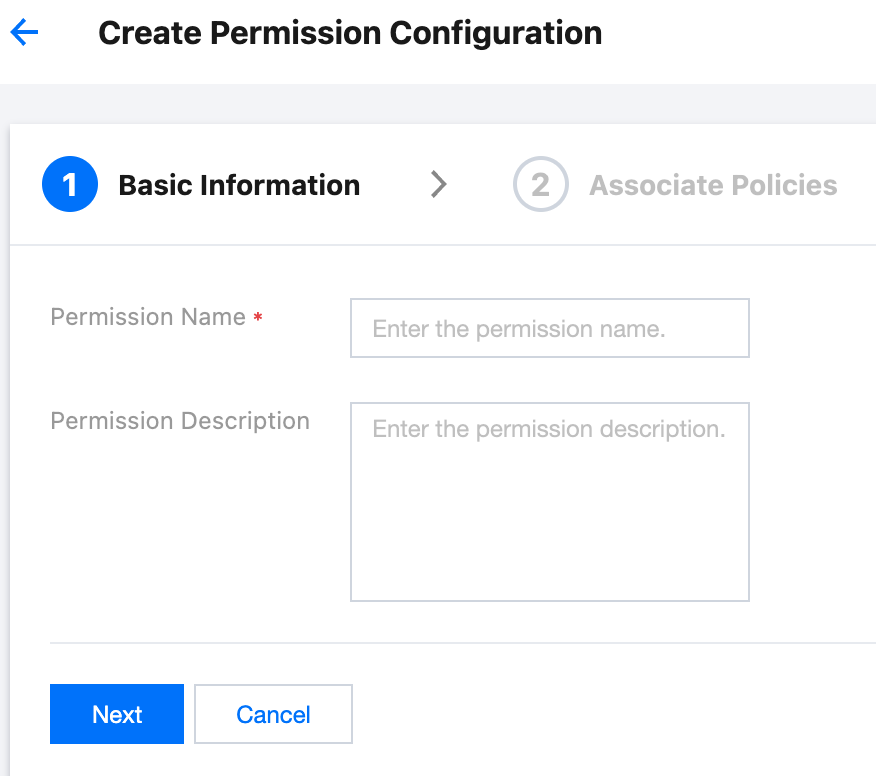
4. On the Create Permission Configuration panel, configure the following basic information, and then click Next.
Permission Name: required parameter. It must be unique within the space.
Permission Description: optional parameter. It describes permission configuration.
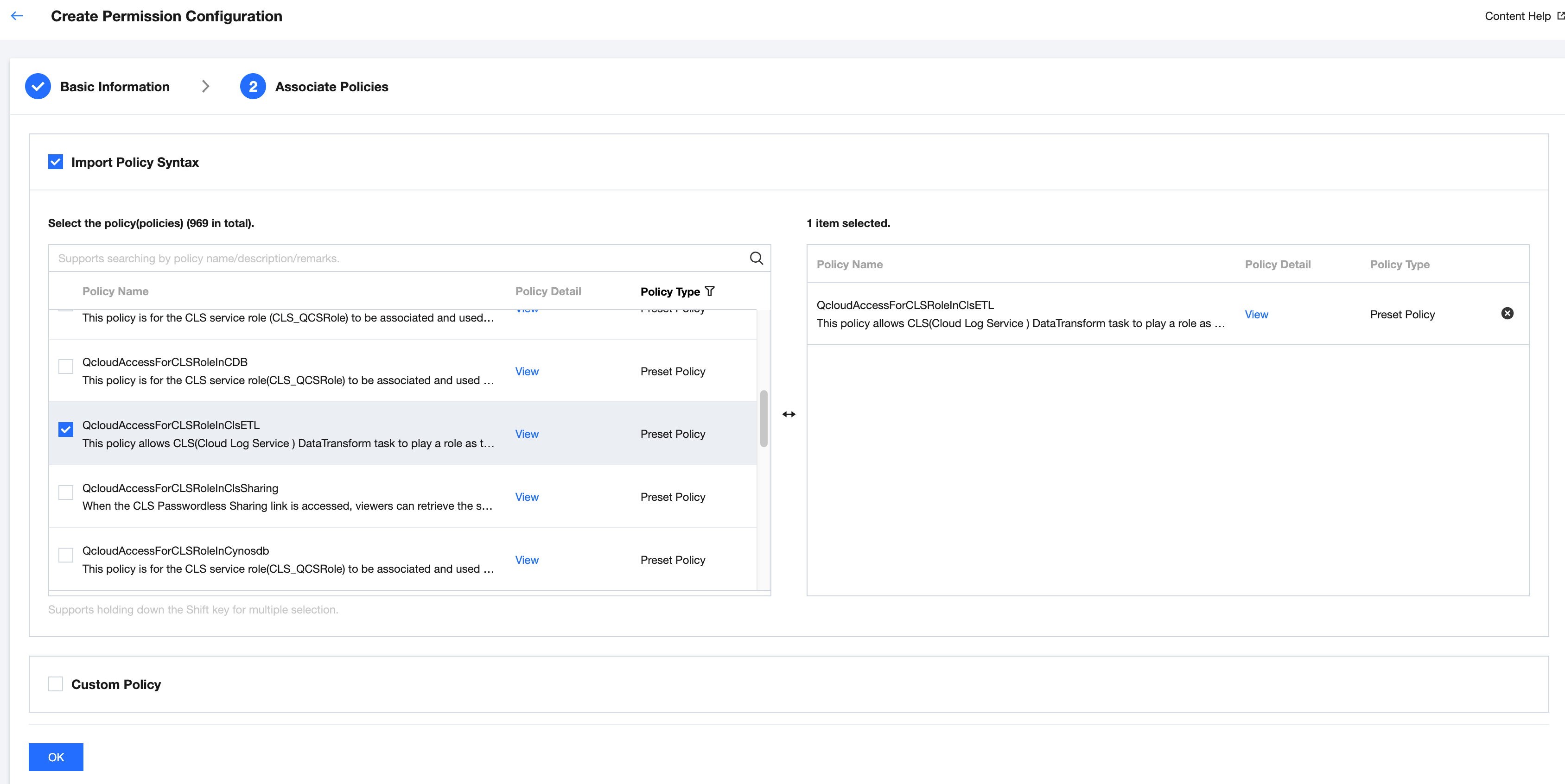
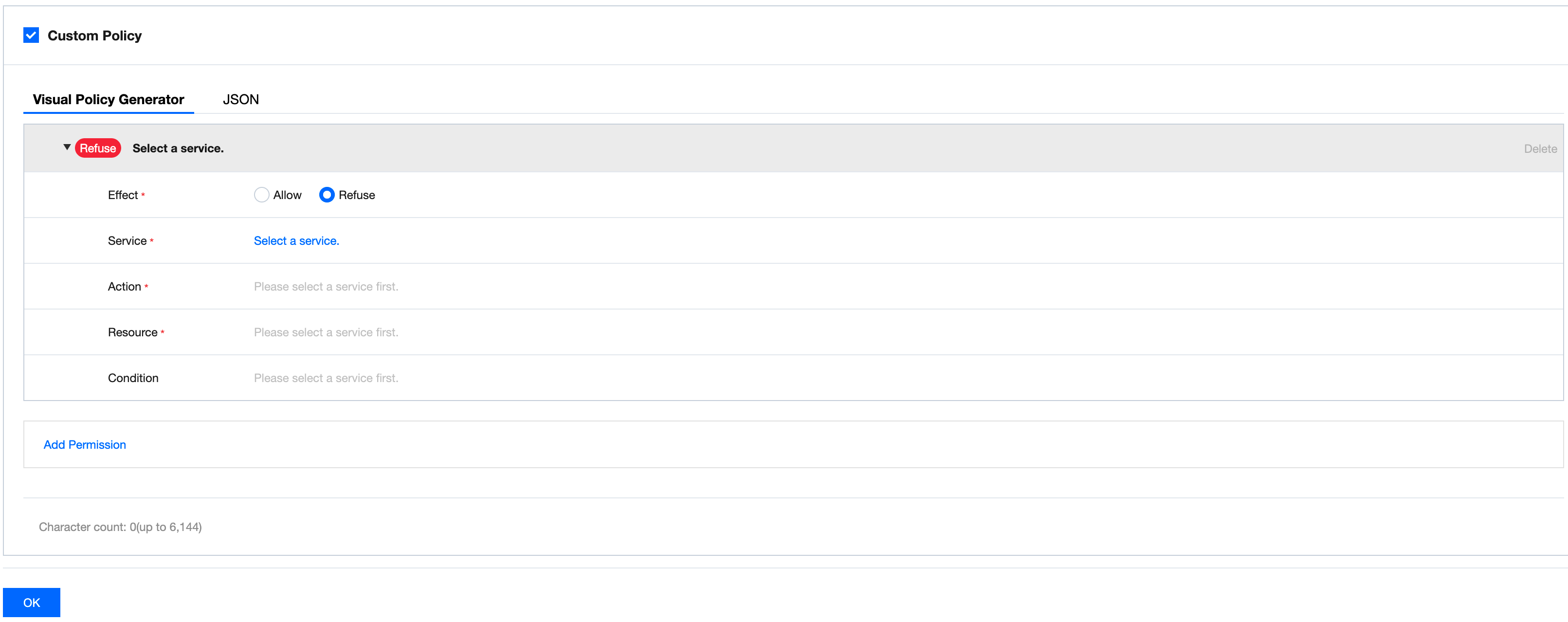
5. To configure associated policies, you can choose to Import Policy Syntax or Custom Policy.
Importing policy syntax
Add a custom policy. Custom policies reuse CAM's policy syntax. For syntax logic, see Syntax Structure. You can create custom policies using the visual policy generator. For configuration methods, see Creating Custom Policy. 6. Click OK.
Viewing Permission Configuration
2. In the left sidebar, click CAM Synchronization > Configuring Permission.
3. On the Configuring Permission page, click the target permission configuration name.
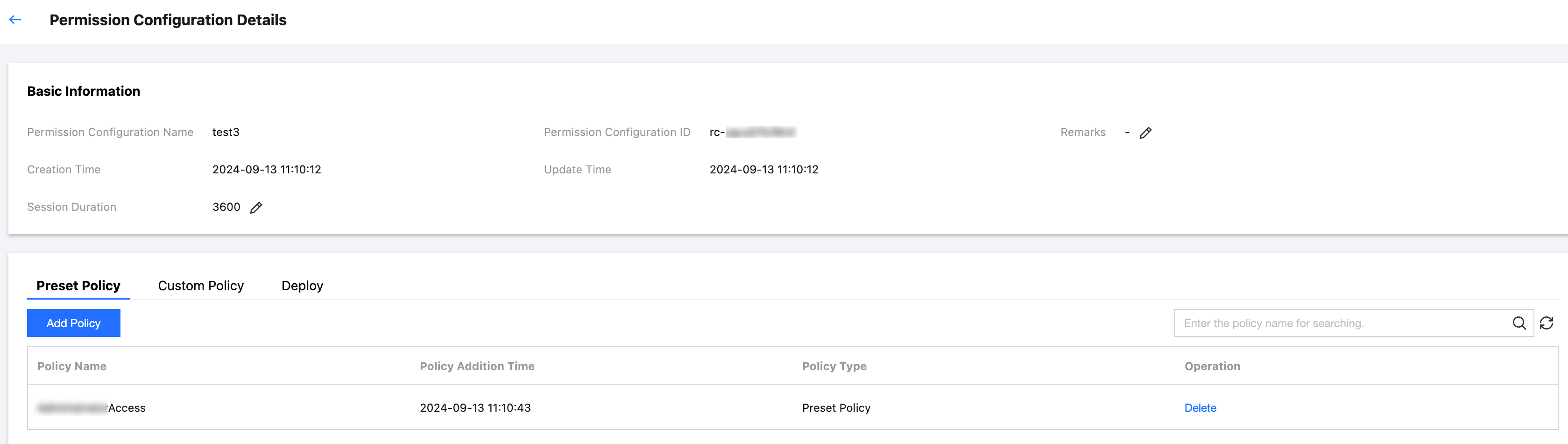
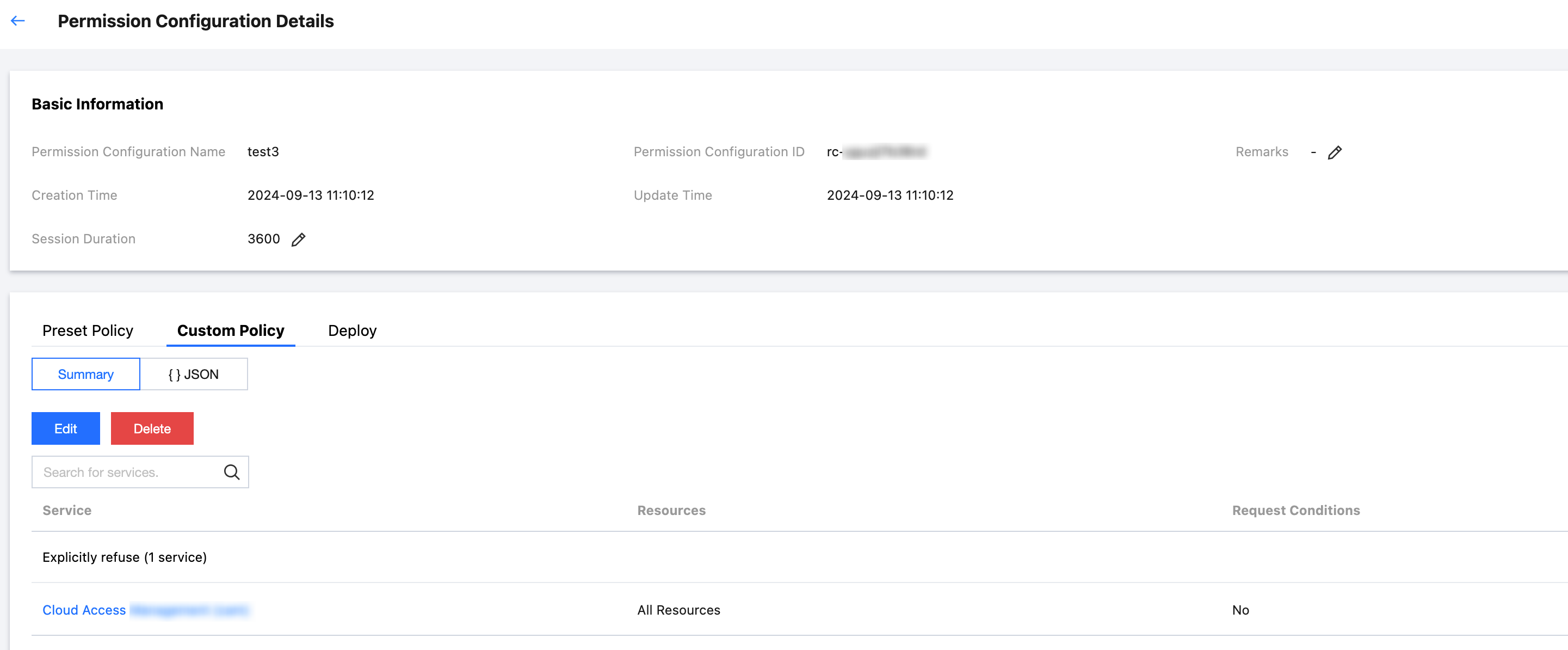
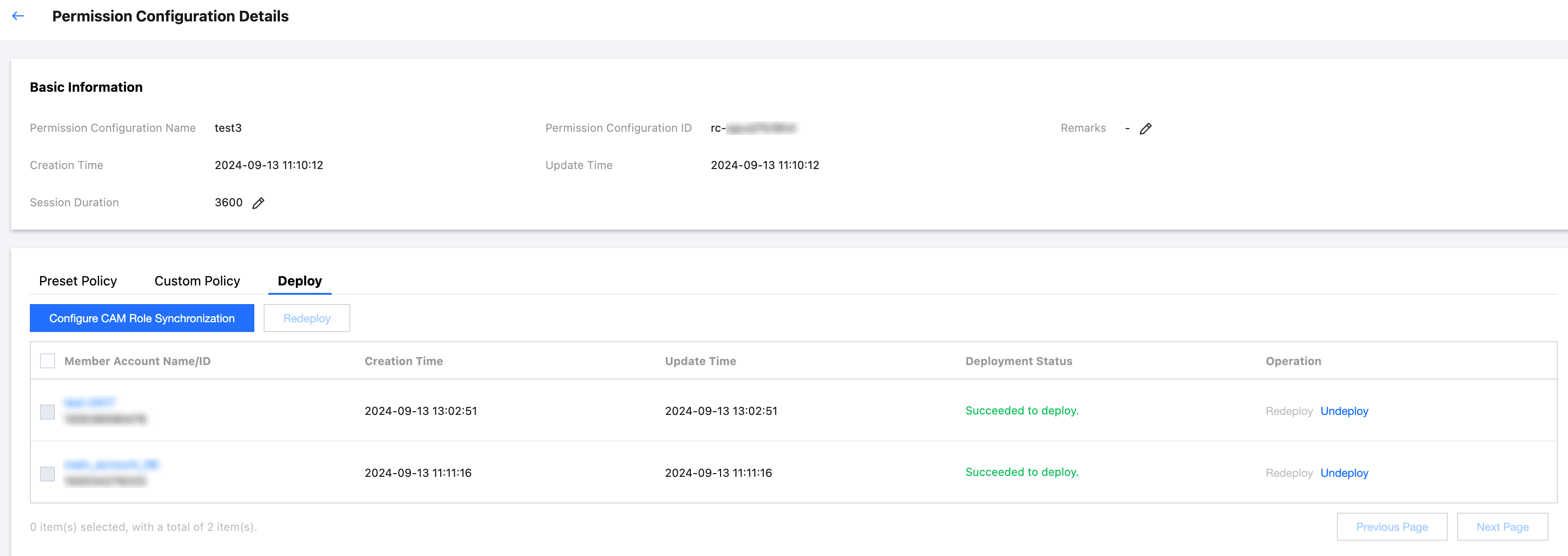
4. View the Basic Information of the permission configuration.
5. Click the Preset Policy tab to view preset policies for the permission configuration.
6. Click the Custom Policy tab to view custom policies for the permission configuration.
7. Click the Deploy tab to view member accounts that have been deployed under the permission configuration.
Deleting Permission Configuration
Prerequisites
Before deleting permission configuration, ensure that the following policies have been dissociated from the permission configuration:
Preset Policy: You need to delete preset policies for the permission configuration.
Custom Policy: You need to delete custom policies for the permission configuration.
Deployment: You need to undeploy the permission configuration in the member account.
Directions
2. In the left sidebar, click CAM Synchronization > Configuring Permission.
3. On the Configuring Permission page, click the Operation column of the target permission configuration and then click Delete.
4. In the Delete Permission Configuration dialog box, click OK.