This document introduces how to manage custom policies, including operations to add, modify, and delete custom policies. The maximum length for the content of a custom policy is 6,144 characters.
Note:
After a custom policy is added, modified or deleted, After adding, modifying, or deleting a custom policy, if the permission configuration has already been deployed to a member account, you need to redeploy the permission configuration for it to take effect in the member account. For specific operations, see Redeploy Permission Configuration. Adding Custom Policies
2. In the left sidebar, click CAM Synchronization > Configuring Permission.
3. On the Configuring Permission page, click the target permission configuration name.
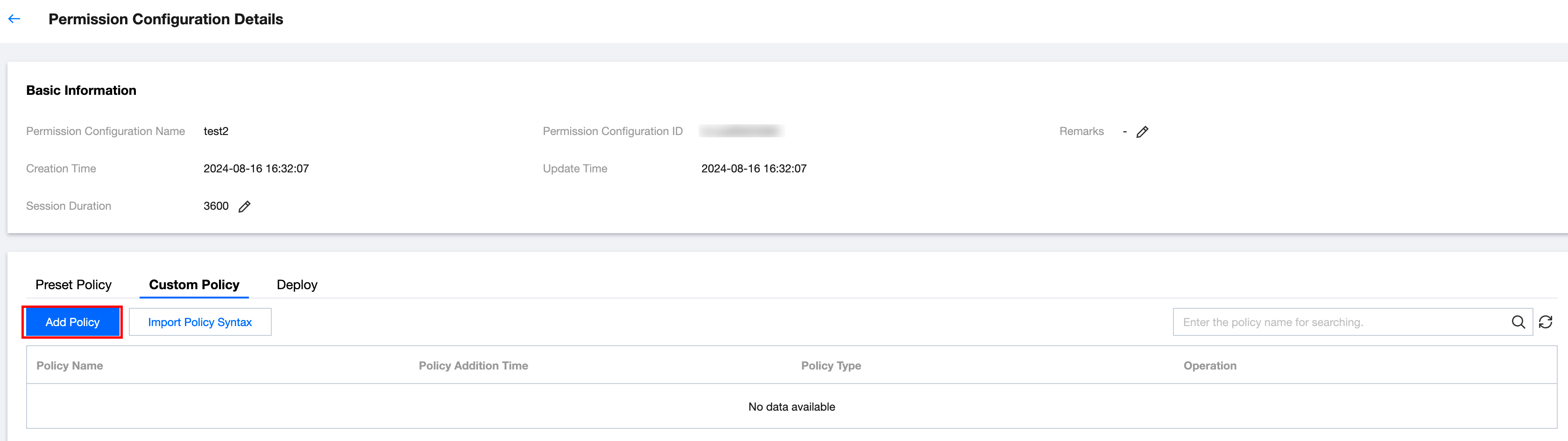
4. On the Custom Policy tab, manage custom policies.
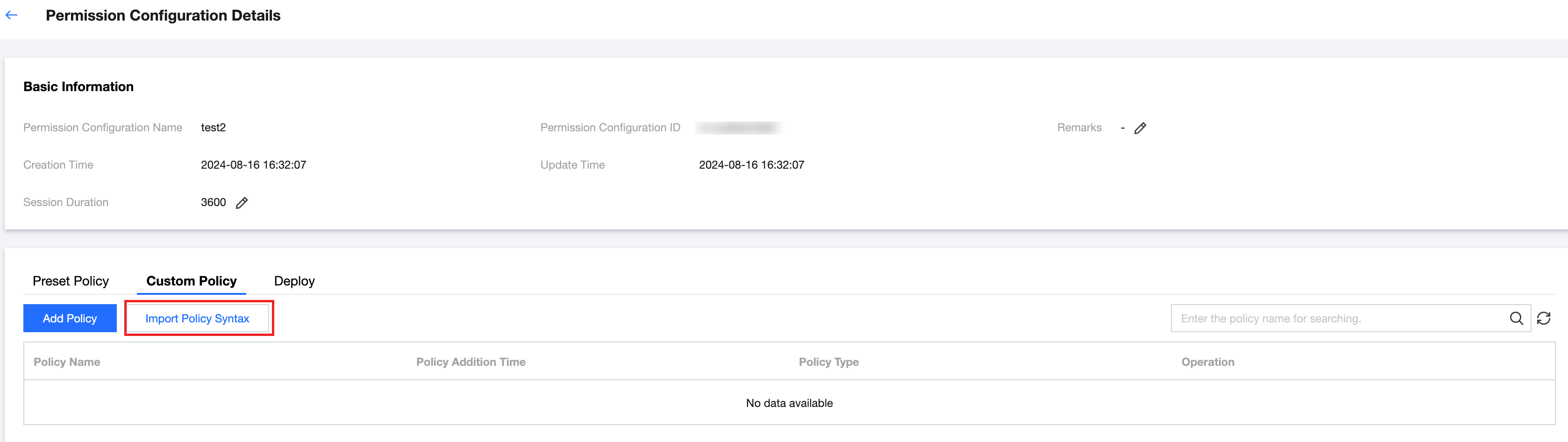
Method 2: Import Policy Syntax
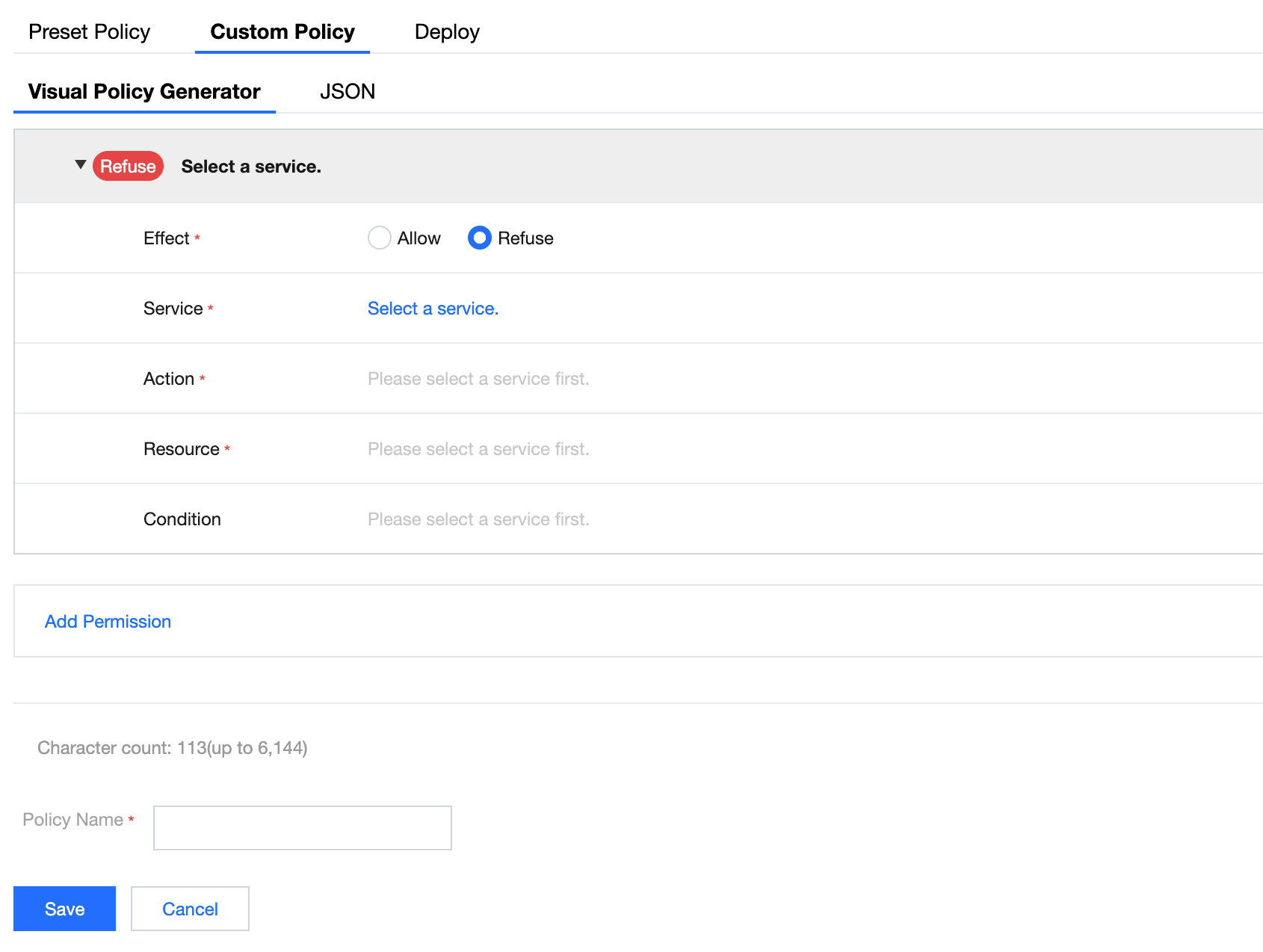
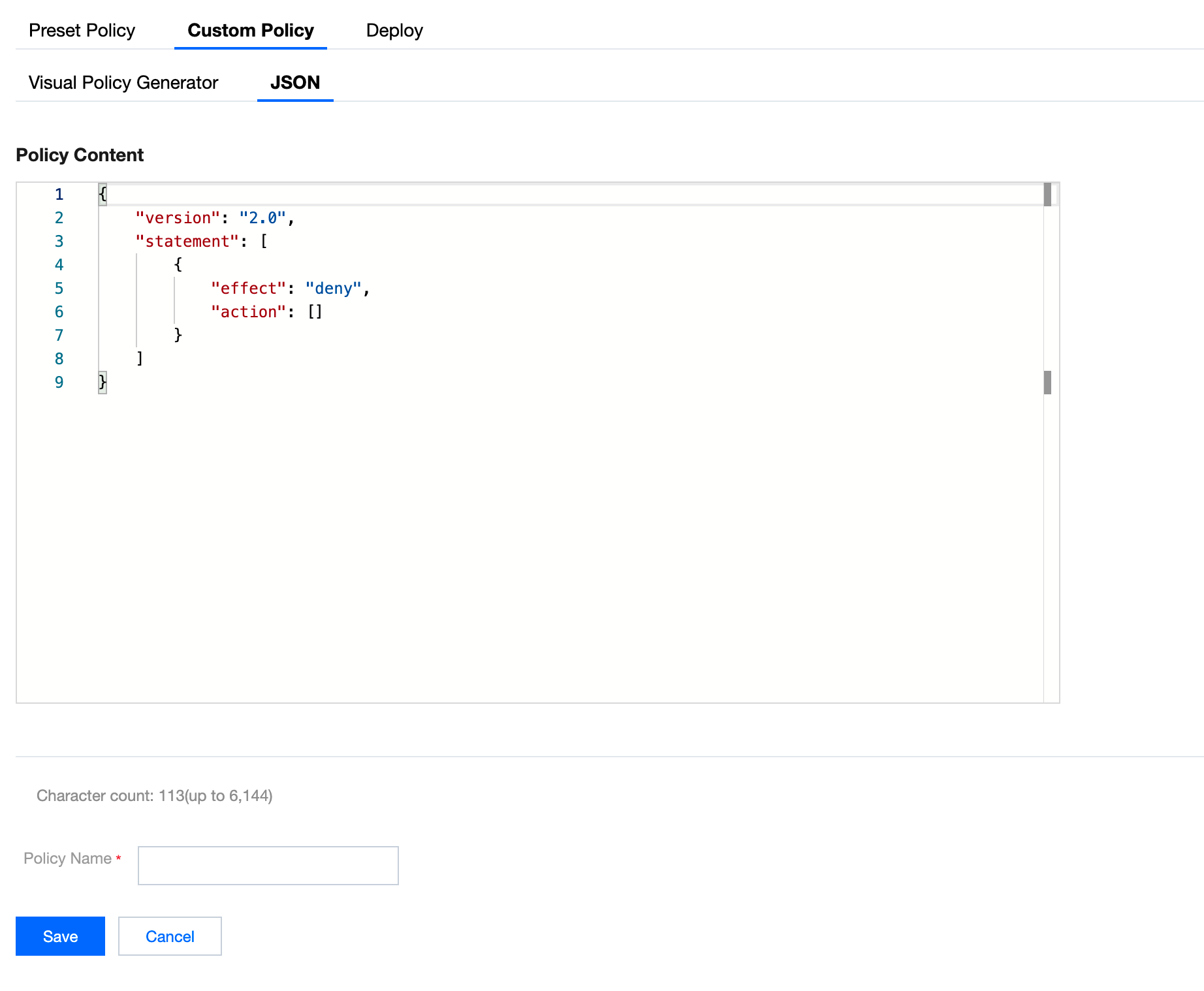
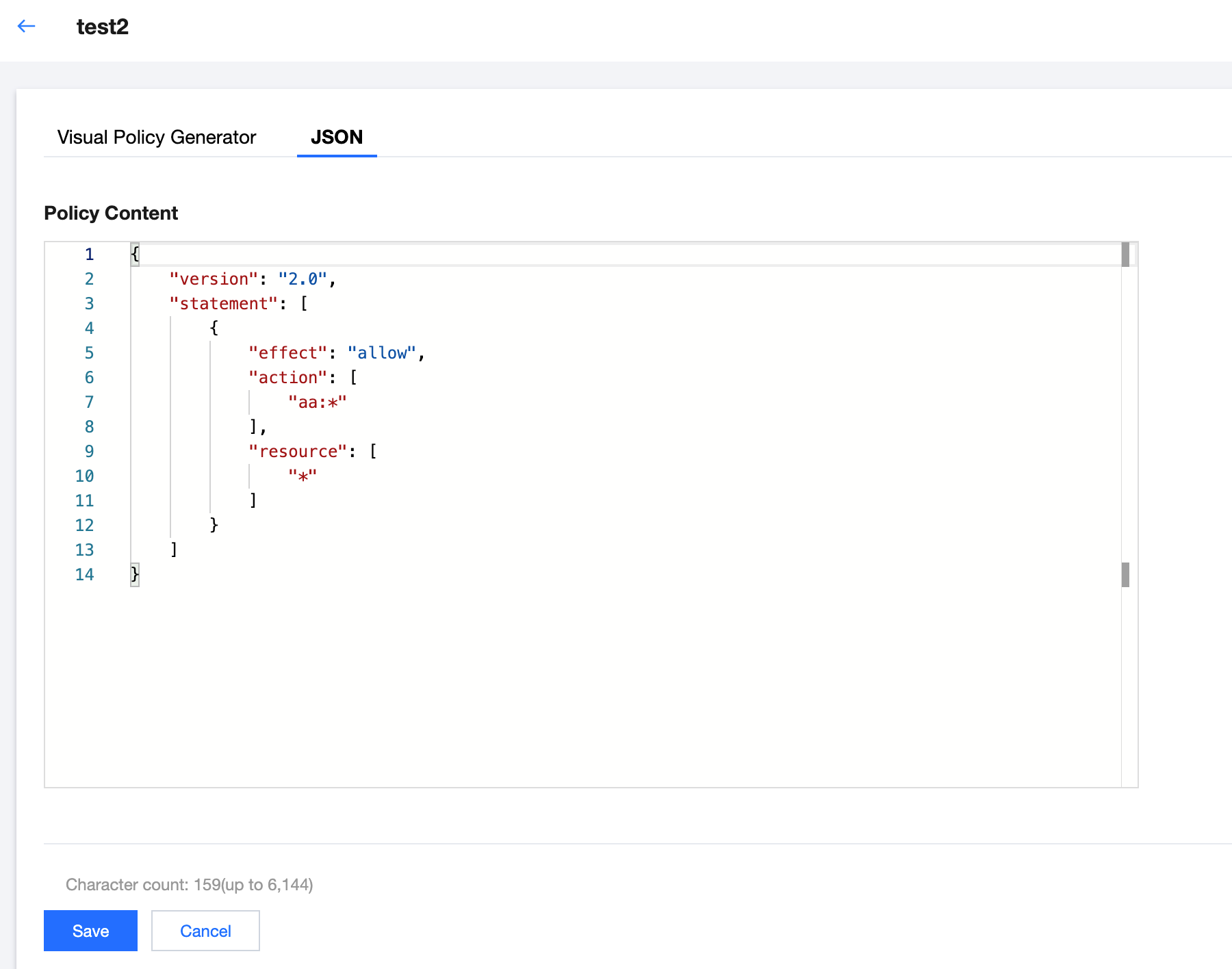
1. Click Add Policy. The custom policies reuse the CAM policy syntax. For the syntax logic, see Syntax Structure. 2. After adding, click Save.
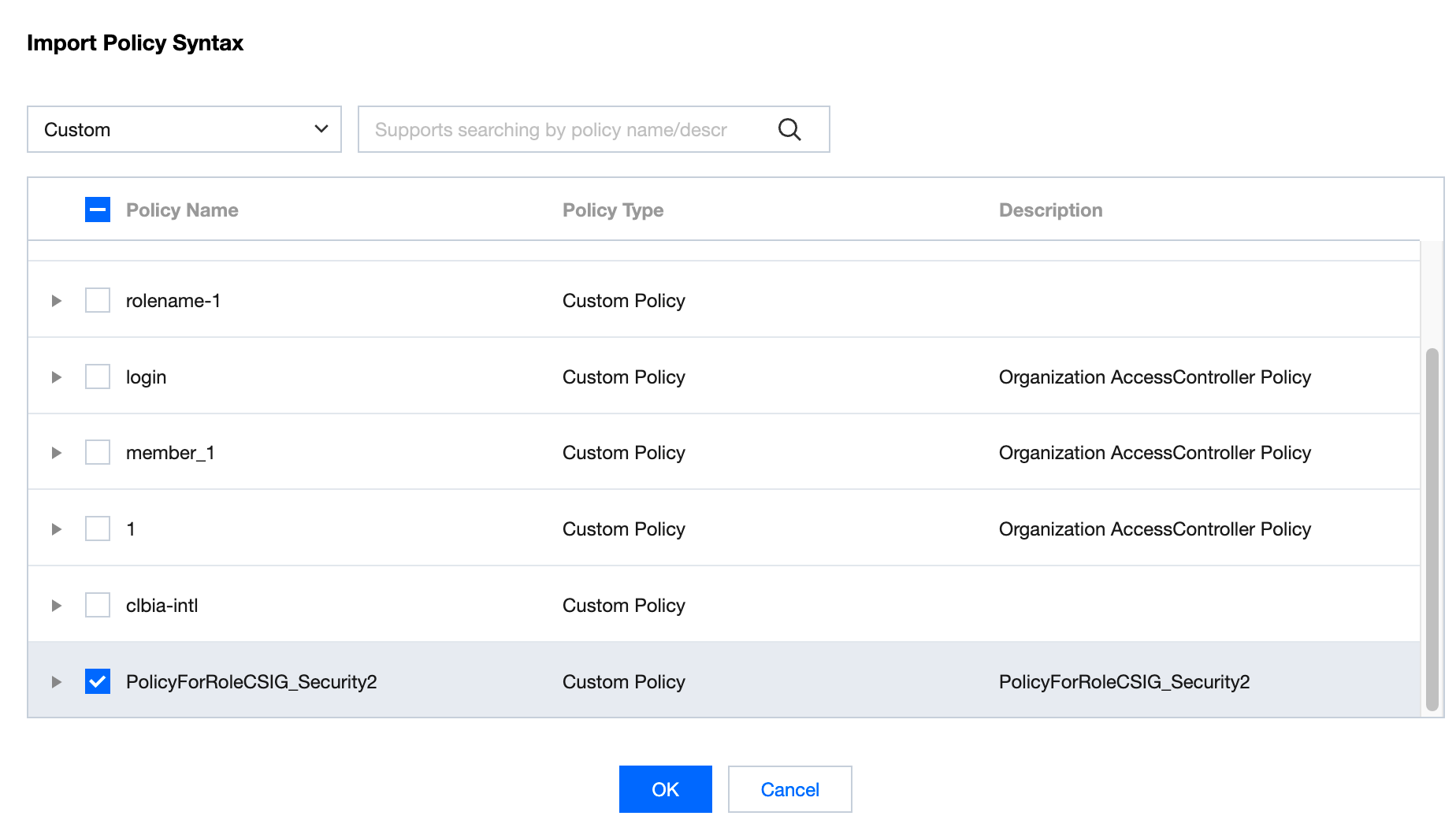
1. Add custom policies by importing existing policies, click Import Policy Syntax.
2. Check the existing custom policy in CAM, and click OK.
Modifying Custom Policy
2. In the left sidebar, click CAM Synchronization > Configuring Permission.
3. On the Configuring Permission page, click the target permission configuration name.
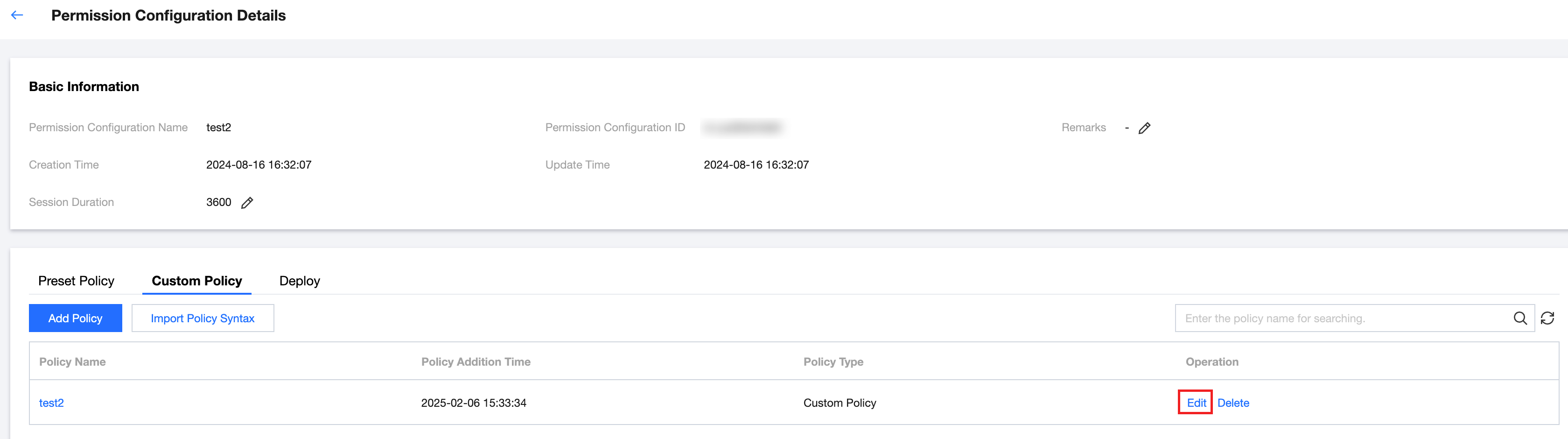
4. On the Configuring Permission Details page, click the Edit button in the operation column.
5. After modifying the custom policy content, click Save.
Deleting Custom Policy
2. In the left sidebar, click CAM Synchronization > Configuring Permission.
3. On the Configuring Permission page, click the target permission configuration name.
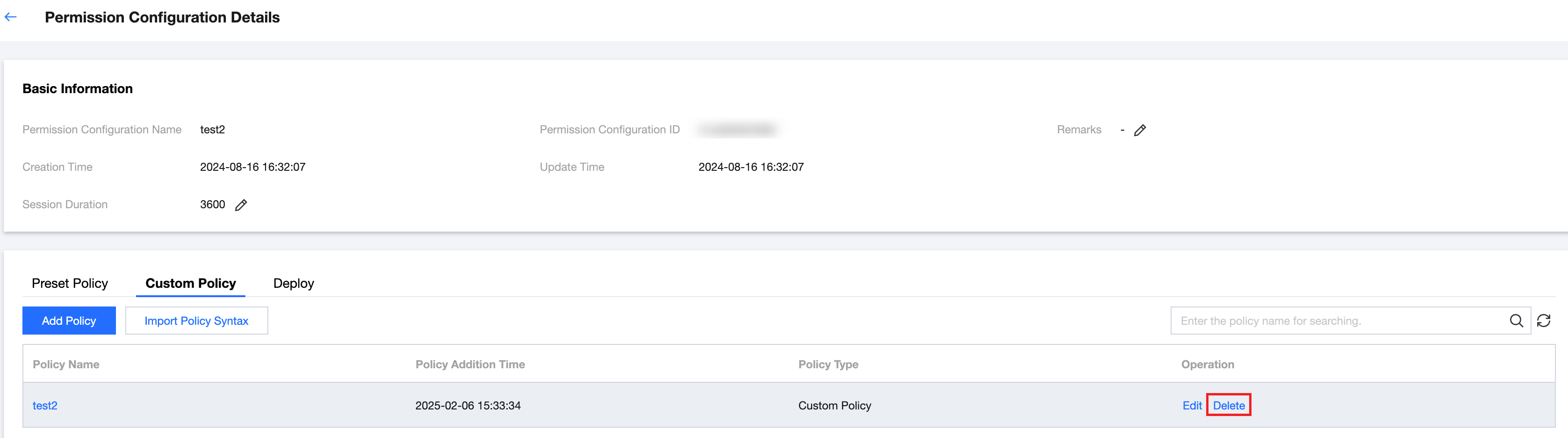
4. On the Configuring Permission Details page, click the Delete button in the operation column. In the pop-up dialog box, click OK.