tencent cloud

Cloud Infinite

Release Notes and Announcements
Release Notes
Announcements
Product Introduction
Product Overview
Product Strengths
Use Cases
Feature Overview
Regions and Domains
Specifications and Limits
Billing
Billing Overview
Billing Mode
Billable Items
Free Tier
Payment Overdue
Viewing Bill Details
FAQs
Getting Started
Registering and Logging In
Bind Bucket
Uploading and Processing File
Downloading and Deleting Images
Unbinding Buckets
Using CI via COS
Features
Image Processing
Media Processing
Content Moderation
AI Content Recognition
File Processing
Smart Voice
File processing
User Guide
Overview
Bucket Management
Smart Toolbox
Job and Workflow
Data Monitoring
Usage statistics
Use Cases
Copyright Protection Solutions
Image Processing Practices
Working with API Authorization Policies
Workflow Practices
API Documentation
API Overview
Structure
Common Request Headers
Common Response Headers
Activate Vast Service
Image Processing
AI-Based Content Recognition
Smart Audio
Media Processing
Content Moderation
Document Processing
File Processing
Job and Workflow
Cloud Virus Detection
Error Codes
Request Signature
SDK Documentation
SDK Overview
Android SDK
iOS SDK
COS Android SDK
C SDK
C++ SDK
.NET(C#) SDK
Go SDK
COS iOS SDK
Java SDK
JavaScript SDK
Node.js SDK
PHP SDK
Python SDK
Mini Program SDK
Personal Information Protection Policy for SDK
Security and Compliance
Permission ‍Management
FAQs
Basic Settings
Document Processing
Media Processing
Content Recognition
Smart Audio
Agreements
Service Level Agreement
Contact Us
Glossary

Text Watermarking

PDF
포커스 모드
폰트 크기
마지막 업데이트 시간: 2025-11-19 19:57:03

Feature Overview

CI uses the watermark API to add text watermarks in real time. An input image cannot be larger than 32 MB, with its width and height not exceeding 30,000 pixels and the total number of pixels not exceeding 250 million. The width and height of the output image cannot exceed 9,999 pixels. For an input animated image, its total number of pixels (Width x Height x Number of frames) cannot exceed 250 million.
An image can be processed:
Upon download
Upon upload
In cloud

API Format

1. Processing upon download

GET /<ObjectKey>?watermark/2/text/<encodedText>
/font/<encodedFont>
/fontsize/<fontSize>
/fill/<encodedColor>
/dissolve/<dissolve>
/gravity/<gravity>
/dx/<dx>
/dy/<dy>
/batch/<type>
/degree/<degree>
/shadow/<shadow> HTTP/1.1
Host: <BucketName-APPID>.cos.<Region>.myqcloud.com
Date: <GMT Date>
Authorization: <Auth String>
Note:
Spaces and line breaks above are for readability only and can be ignored.

2. Processing upon upload

PUT /<ObjectKey> HTTP/1.1
Host: <BucketName-APPID>.cos.<Region>.myqcloud.com
Date: GMT Date
Authorization: Auth String
Pic-Operations:
{
"is_pic_info": 1,
"rules": [{
"fileid": "exampleobject",
"rule": "watermark/2/text/<encodedText>
/font/<encodedFont>
/fontsize/<fontSize>
/fill/<encodedColor>
/dissolve/<dissolve>
/gravity/<gravity>
/dx/<dx>
/dy/<dy>
/batch/<type>
/degree/<degree>
/shadow/<shadow>"
}]
}
Note:
Pic-Operations is a JSON string. Its parameters are as described in Persistent Image Processing.

3. Processing in-cloud data

POST /<ObjectKey>?image_process HTTP/1.1
Host: <BucketName-APPID>.cos.<Region>.myqcloud.com
Date: GMT Date
Content-length: Size
Authorization: Auth String
Pic-Operations:
{
"is_pic_info": 1,
"rules": [{
"fileid": "exampleobject",
"rule": "watermark/2/text/<encodedText>
/font/<encodedFont>
/fontsize/<fontSize>
/fill/<encodedColor>
/dissolve/<dissolve>
/gravity/<gravity>
/dx/<dx>
/dy/<dy>
/batch/<type>
/degree/<degree>
/shadow/<shadow>"
}]
}
Note:
Authorization: Auth String (See Request Signature for details.)
When this feature is used by a sub-account, relevant permissions must be granted as instructed in Authorization Granularity Details.

Parameters

In the code above, watermark is the operation name and the number 2 indicates that the watermark is a text.
Parameter
Description
ObjectKey
Object name, such as folder/sample.jpg.
/text/
Watermark text, which must be URL-safe Base64-encoded
/font/
Font of the text, which must be URL-safe Base64-encoded. Default font: Tahoma.ttf (see Supported Fonts).
/fontsize/
Font size, in pt. Default value: 13. To scale the text watermark proportionally based on the original image, convert the text watermark to a PNG image. For more configuration information, see Image Watermarking.
/fill/
Font color. The value must be in hexadecimal format, for example, #FF0000. For format conversion, see RGB Color Codes Chart. The value must be URL-safe Base64-encoded. Default value: #3D3D3D (gray).
/dissolve/
Text opacity. Value range: 1−100. Default value: 90 (meaning 90% opacity)
/gravity/
Position of the text watermark, which is a square in a 3x3 grid. Default value: southeast
/dx/
Horizontal offset in pixels. Default value: 0
/dy/
Vertical offset in pixels. Default value: 0
/batch/
Whether to tile the text watermark. If this parameter is set to 1, the text watermark will be tiled across the input image.
/degree/
Angle to rotate text watermarks. This parameter is valid only when /batch/ is set to 1. Value range: 0−360. Default value: 0
/shadow/
Text shadow effect. Value range: 0−100. Default value: 0, indicating no shadow.

3x3 Grid Position Diagram

The 3x3 grid position diagram is as follows. Once you specify the gravity parameter for an operation, the corresponding red dot becomes the reference point, and offsets will be relative to this point.
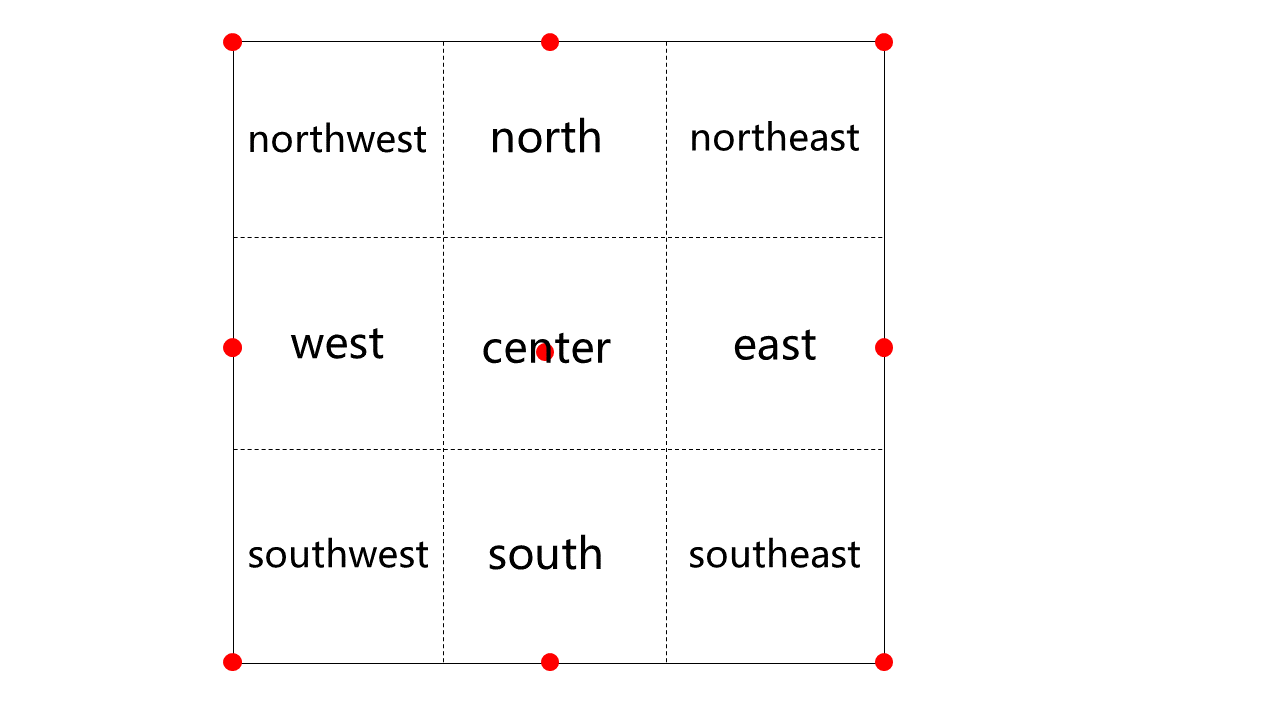

Note:
If gravity is set to center, dx and dy are invalid.
If gravity is set to north or south, dx is invalid.
If gravity is set to west or east, dy is invalid.

Examples

Note:
Processing upon download is used as an example here, which does not store the output image in a bucket. If you need to store the output image, see Persistent Image Processing and use Processing upon upload or Processing in-cloud data.

Example 1: Adding a text watermark

http://examples-1251000004.cos.ap-shanghai.myqcloud.com/sample.jpeg?watermark/2/text/6IW-6K6v5LqRwrfkuIfosaHkvJjlm74/fill/IzNEM0QzRA/fontsize/20/dissolve/50/gravity/northeast/dx/20/dy/20/batch/1/degree/45

After text watermarks are added:


Example 2: Adding a text watermark with a signature carried

This example processes the image in the same way as in the example above except that a signature is carried. The signature is joined with other processing parameters using an ampersand (&).
http://examples-1251000004.cos.ap-shanghai.myqcloud.com/sample.jpeg?q-sign-algorithm=<signature>&watermark/2/text/6IW-6K6v5LqRwrfkuIfosaHkvJjlm74/fill/IzNEM0QzRA/fontsize/20/dissolve/50/gravity/northeast/dx/20/dy/20/batch/1/degree/45
Note:
You can get the value of <signature> as instructed in Request Signature.

Notes

To prevent unauthorized users from accessing or downloading the input image by using a URL that does not contain any processing parameter, you can add the processing parameters to the request signature, making the processing parameters the key of the parameter with the value left empty. The following is a simple example for your reference (it might have expired or become inaccessible). For more information, see Upload via Pre-Signed URL.
http://examples-1251000004.cos.ap-shanghai.myqcloud.com/sample.jpeg?q-sign-algorithm=sha1&q-ak=AKID********************&q-sign-time=1593342360;1593342720&q-key-time=1593342360;1593342720&q-header-list=&q-url-param-list=watermark%252f1%252fimage%252fahr0cdovl2v4yw1wbgvzlteyntewmdawmdqucgljc2gubxlxy2xvdwquy29tl3nodwl5aw4uanbn%252fgravity%252fsoutheast&q-signature=26a429871963375c88081ef60247c5746e834a98&watermark/1/image/aHR0cDovL2V4YW1wbGVzLTEyNTEwMDAwMDQucGljc2gubXlxY2xvdWQuY29tL3NodWl5aW4uanBn/gravity/southeast


도움말 및 지원

문제 해결에 도움이 되었나요?

피드백