Content Moderation supports adding business fields UserInfo to tag data during moderation, such as nickname, account information, room number, etc. For details, see API Documentation.
It helps you manage users, IP addresses, etc. that need to be blocked or allowed in a targeted manner. For example, you can blacklist a specific nickname, and all data containing that nickname field will be blocked by default.
Business Field Risk Library manages the business fields you actively add when calling the moderation interface.
The Image-Text Risk Library manages image or text content.
Currently, the business fields that can be added to the Risk Library include:
Field Name
Description
TokenId
Generally used to represent account information, with a length not exceeding 128 bytes.
Note:
The maximum number of field entries that can be added to a Business Field Risk Library is 10,000.
Operation Steps
1. Log in to the Cloud Infinite console, on the Bucket Management page, click the target Bucket name.
2. In the left sidebar, select Content Moderation > Custom Risk Library, and choose the Business Field Risk Library tab.
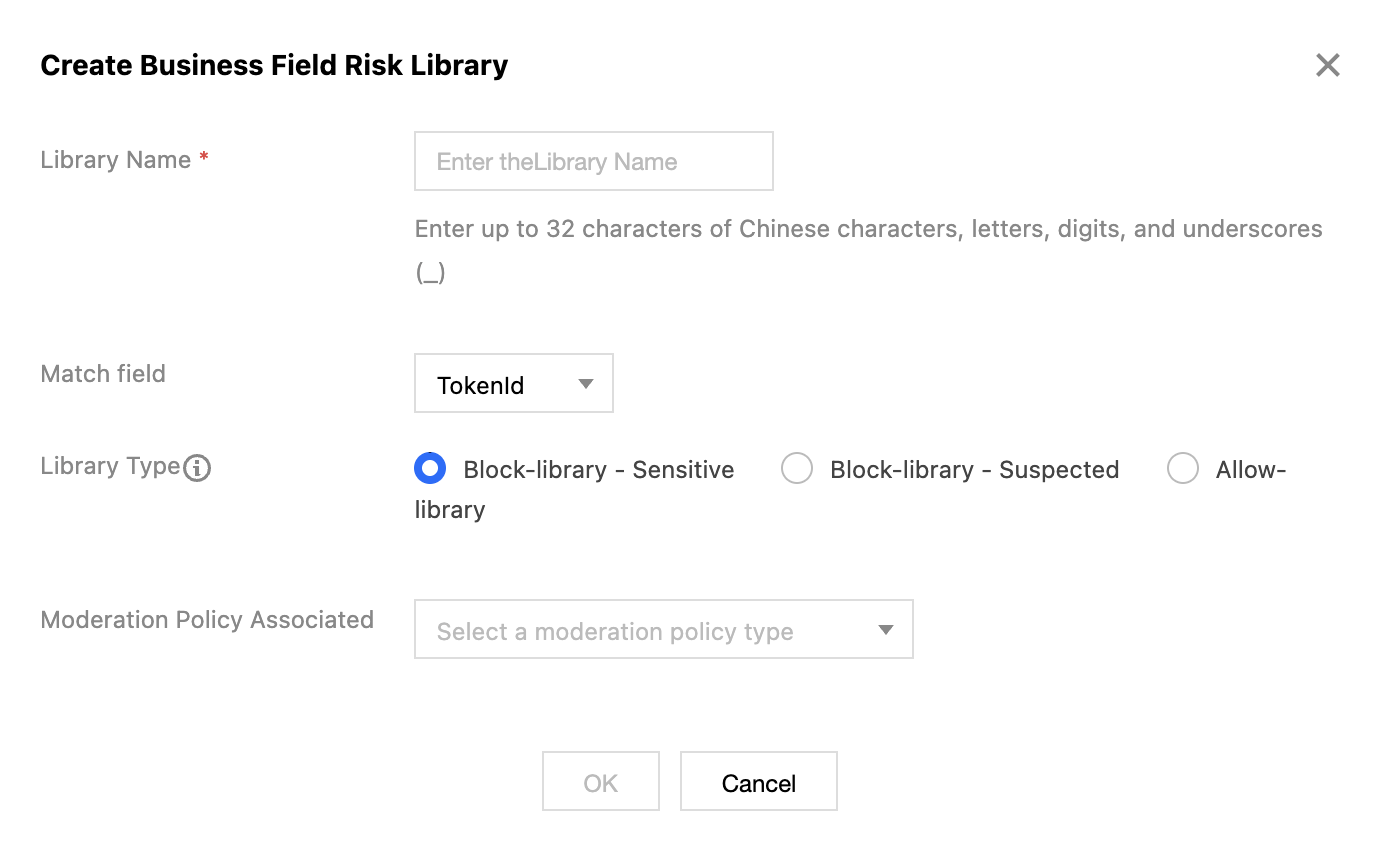
3. Click Create Business Field Risk Library, and fill in the relevant content.
Library Name: Supporting only Chinese, English, numbers, and underscores, with a maximum length of 32 characters.
Matching Field: Select the business fields that require control. Currently, only TokenId is supported.
Library Type: Select the corresponding library type. When content in the library is matched, the moderation result will return the corresponding type. Black libraries are categorized into sensitive and suspected types, while white libraries return normal.
Associated Moderation Policy: The Business Field Risk Library requires association with a policy for use and only takes effect for the associated policies.
4. Click OK to complete the creation of the Business Field Risk Library.
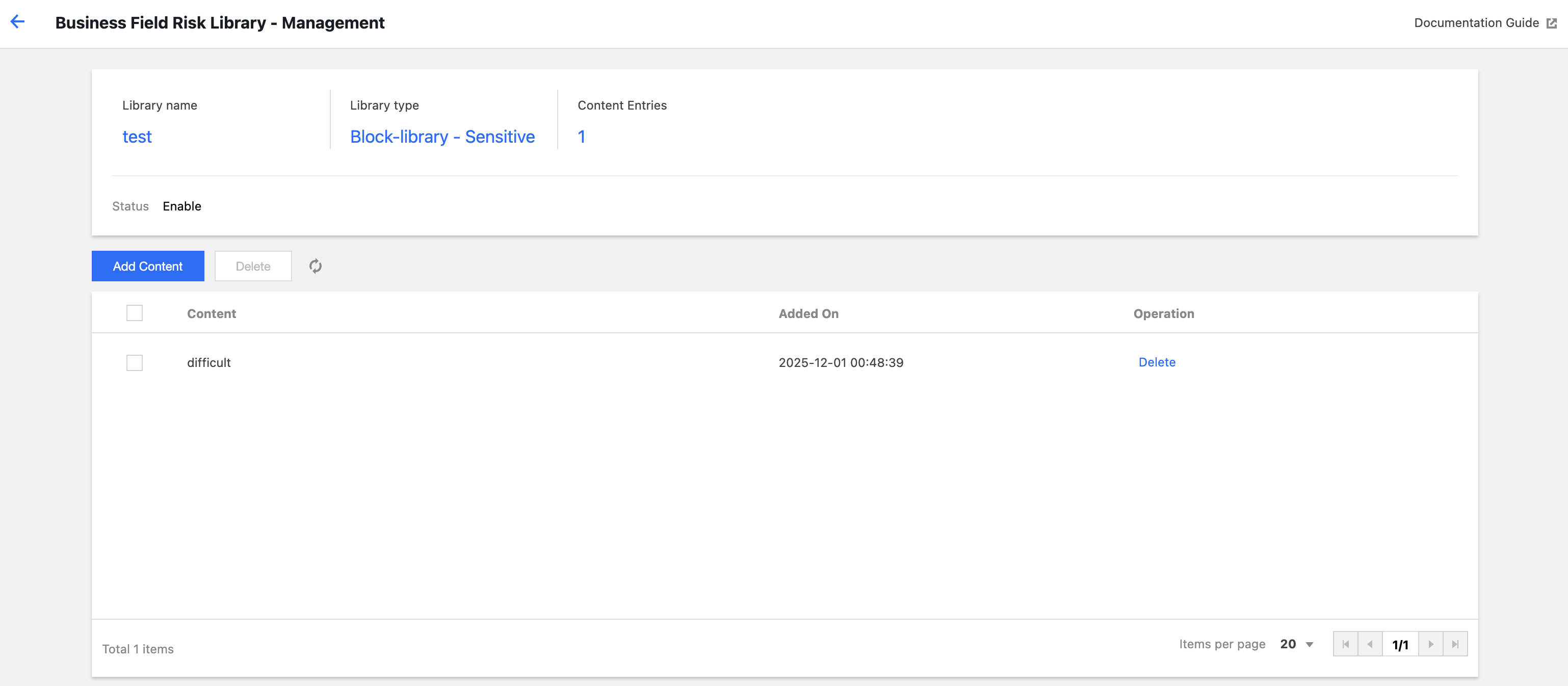
5. After creation is complete, you can manage, edit, or delete the Business Field Risk Library.
Click Manage to go to the management page of the current library. You can add/delete content on this page, where "content" refers to the values corresponding to the business fields. For example, if you select the matching field as TokenId, and TokenId represents the account ID, then the content here is the specific account ID, such as 12345678, 1008787.
Click Edit to modify account settings: you can change the name and associated policy, but the matching field and library type cannot be modified.