tencent cloud

Tencent Cloud Lighthouse

Release Notes and Announcements
Image Release Notes
Announcements
Product Introduction
Overview
Basic Concepts
Strengths
Scenarios
Use Limits
Region and Network Connectivity
Product Comparison
User Guide
Billing
Billing Overview
Instance Package
Pricing Details
Purchase Methods
Configuration Adjustment (for Upgrade Only)
Overdue Payments
Refund
Getting Started
One-Click Application Creation Using Lighthouse
Quick Instance Creation
User Guide
Instances
Cloud Disks
Images
Firewall
Private Network Interconnection
Data Backup and Restoration Using Snapshots
Cloud Access Management
OPS and Monitoring
File Transfer
Use Cases
Website Building
Development Environment Building
Cloud Storage System Building
E-commerce Platform Building
Personal Live Streaming Room Building
FTP Service Building
SSL Certificate Installation
Troubleshooting
Windows Instance: RDP Connection to the Remote Computer Fails
Windows Instance: Offline Password Resetting Fails or Invalid
Linux/Windows Instance: Online Password Resetting Fails or Invalid
API Documentation
History
Introduction
API Category
Making API Requests
Image APIs
Firewall APIs
Key APIs
Instance APIs
Snapshot APIs
CCN APIs
Other APIs
Cloud Disk APIs
Scene APIs
Package APIs
Quota APIs
Region APIs
Data Types
Error Codes
FAQs
Agreements
Privacy Policy
Data Processing And Security Agreement
Contact Us

Connecting to a Windows Instance via VNC

PDF
포커스 모드
폰트 크기
마지막 업데이트 시간: 2022-05-12 12:24:11

Overview

VNC login provided by Tencent Cloud allows you to remotely log in to a Lighthouse instance via a web browser. If Remote Desktop Connection is not installed or cannot be used, you can log in to an instance via VNC to check the instance status and perform basic management operations.

Use Limits

VNC currently does not support copy and paste, Chinese input methods, and file upload or download.
When you use VNC to log in to an instance, you must use a mainstream browser, such as Chrome, Firefox, and IE 10 or later.
VNC login is a dedicated terminal, meaning only one user can use VNC login at a time.

Prerequisites

You must have the admin account (Administrator) and password for logging in to a Windows instance remotely.
If you set a login password when creating an instance, use it for login. If you forgot it, you can reset it.
If you choose to generate a random password when creating an instance, you can get it from Message Center.

Directions

1. Log in to the Lighthouse console.
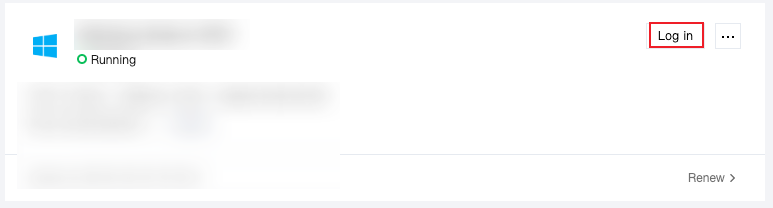
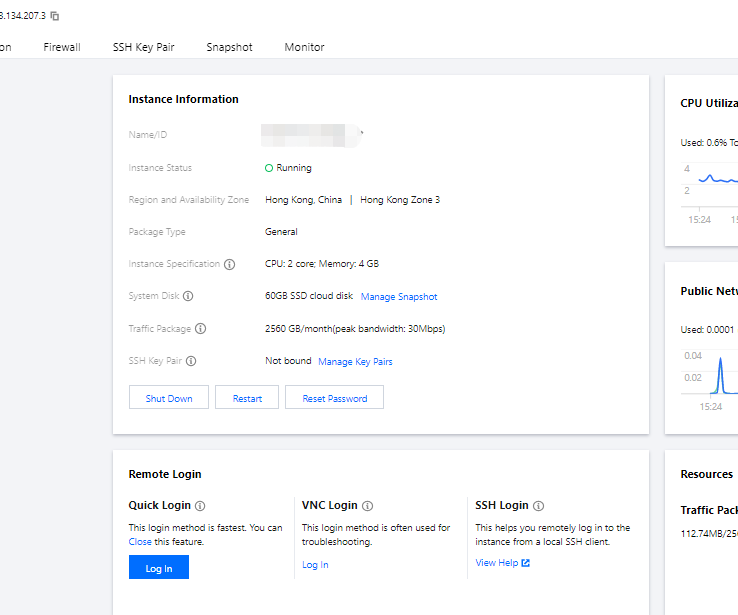
2. Find the target instance in the server list and select a login method as desired.
Click Log in in the instance card of the server list.


On the server details page, select the Overview tab, and click Log In under Remote Login > VNC Login.

After successful login, you can set up low-load lightweight applications with a moderate number of access requests, such as small and middle-sized websites, web applications, blogs, forums, mini programs, mini games, ecommerce, cloud storage, image hosting, and cloud-based environments for developing, testing, and learning.
도움말 및 지원

문제 해결에 도움이 되었나요?

피드백