tencent cloud

Tencent Cloud Lighthouse

Release Notes and Announcements
Image Release Notes
Announcements
Product Introduction
Overview
Basic Concepts
Strengths
Scenarios
Use Limits
Region and Network Connectivity
Product Comparison
User Guide
Billing
Billing Overview
Instance Package
Pricing Details
Purchase Methods
Configuration Adjustment (for Upgrade Only)
Overdue Payments
Refund
Getting Started
One-Click Application Creation Using Lighthouse
Quick Instance Creation
User Guide
Instances
Cloud Disks
Images
Firewall
Private Network Interconnection
Data Backup and Restoration Using Snapshots
Cloud Access Management
OPS and Monitoring
File Transfer
Use Cases
Website Building
Development Environment Building
Cloud Storage System Building
E-commerce Platform Building
Personal Live Streaming Room Building
FTP Service Building
SSL Certificate Installation
Troubleshooting
Windows Instance: RDP Connection to the Remote Computer Fails
Windows Instance: Offline Password Resetting Fails or Invalid
Linux/Windows Instance: Online Password Resetting Fails or Invalid
API Documentation
History
Introduction
API Category
Making API Requests
Image APIs
Firewall APIs
Key APIs
Instance APIs
Snapshot APIs
CCN APIs
Other APIs
Cloud Disk APIs
Scene APIs
Package APIs
Quota APIs
Region APIs
Data Types
Error Codes
FAQs
Agreements
Privacy Policy
Data Processing And Security Agreement
Contact Us

Adjusting the Public IP Address of an Instance

PDF
포커스 모드
폰트 크기
마지막 업데이트 시간: 2022-09-26 11:28:02

Overview

This document describes how to change the instance public IP in the Lighthouse console.

Usage Limits

The public IP can be changed only once for each instance throughout its entire lifecycle.
You can change instance public IPs only three times per day in each region, and this quota is shared with other Tencent Cloud products using public IPs. For example, if you have changed the public IP of three CVM instances in the one region under your account, you cannot change the public IP of any Lighthouse instance on the same day.
If an instance IP is blocked due to DDoS attacks and in the Security Isolated status, you need to wait 2–24 hours until it is unblocked before changing it.
The public IP cannot be changed when the instance status is Frozen, Blocked, or Pending released.
After the change, the previous public IP is released and cannot be restored.
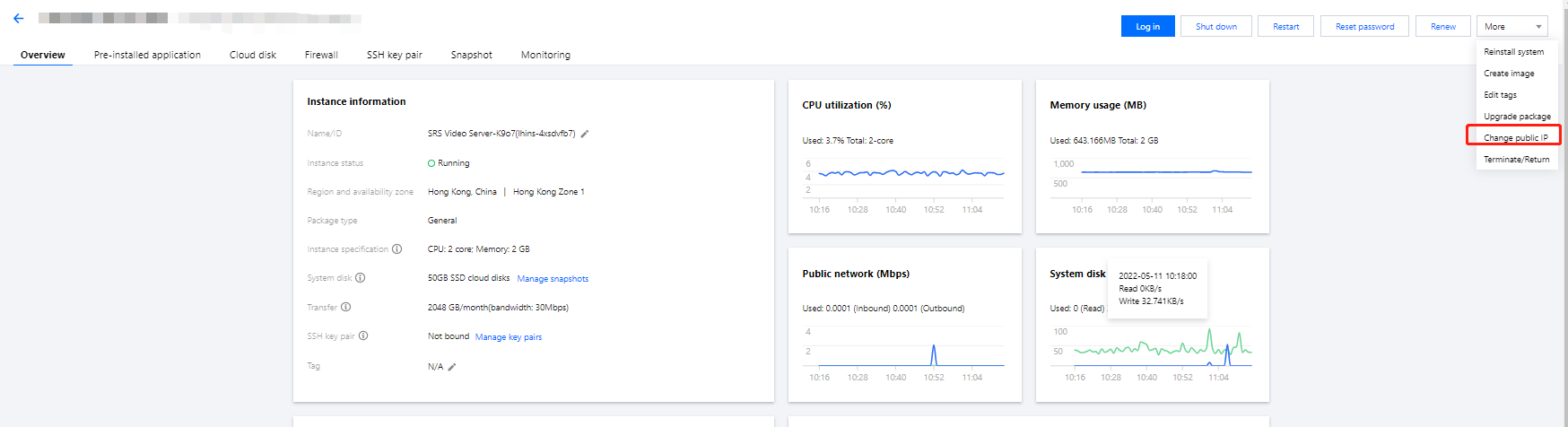
Directions

1. Log in to the Lighthouse console and select the target instance.
2. On the instance details page, select More > Change public IP.

3. In the Change public IP pop-up window, click OK.

도움말 및 지원

문제 해결에 도움이 되었나요?

피드백