Managing the Exchange
다운로드
포커스 모드
폰트 크기
During the use of exchanges, you may need to perform certain management operations, such as unbinding relationships or deleting unnecessary exchanges. This document introduces how to manage exchanges in the console.
Unbinding an Exchange
Note:
In the Managed Edition cluster, the default exchange named "AMQP default exchange" is bound to every queue by default, with the Routing Key equal to the queue name. The binding relationship of the default exchange cannot be unbound or deleted.
After the exchange is unbound, the corresponding route will no longer provide services and cannot be recovered. Proceed with caution.
1. Log in to the TDMQ for RabbitMQ console.
2. In the left sidebar, choose Cluster > Exchange. Select a vhost, locate the target exchange, and click View Binding in the Operation column.
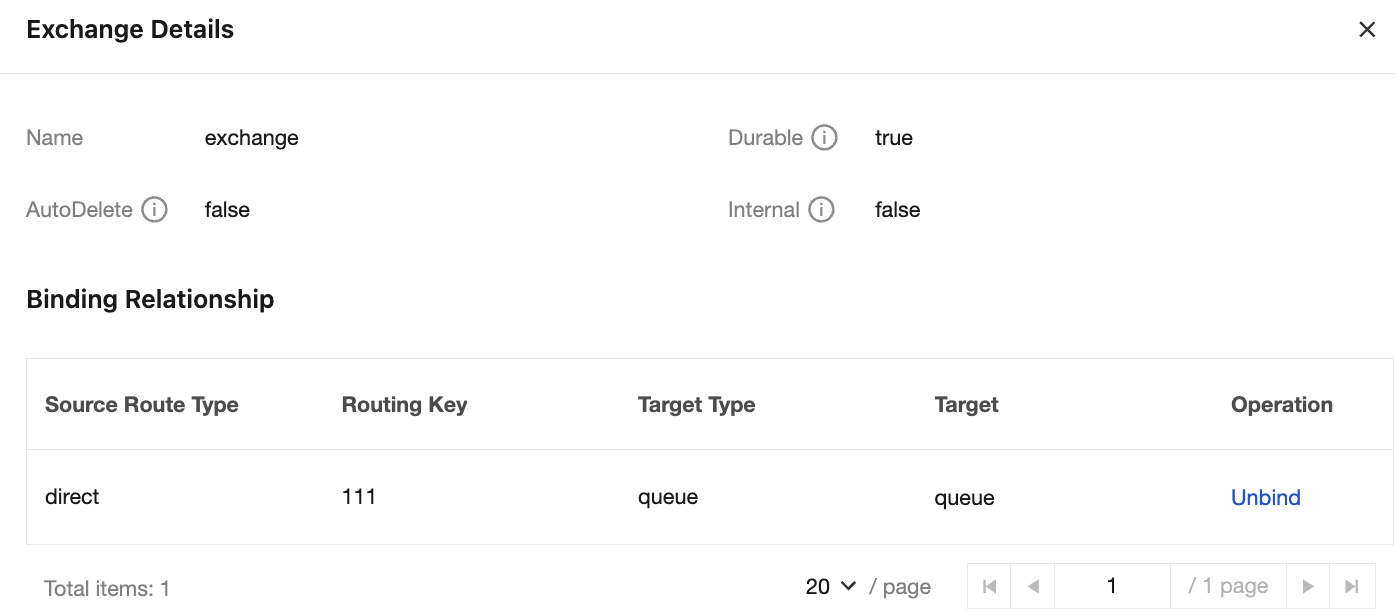
3. In the pop-up right sidebar, you can view the list of routing relationships bound to the exchange. Click Unbind in the Operation column.
4. Click Delete for confirmation in the pop-up window to unbind the binding relationship of the exchange.
Editing an Exchange
Note:
After an exchange is created, only its description can be modified. Other configuration properties cannot be manually modified. If you are using a Managed Edition cluster, you can dynamically adjust certain properties of the exchange in batches by customizing the vhost policy. For detailed steps, see Configuring a Vhost Policy.
1. In the exchange list, locate the target exchange and click Edit in the Operation column.
2. In the pop-up dialog box, you can edit the exchange description.
3. Click Submit to complete the editing of the exchange.
Deleting an Exchange
Note:
After an exchange is deleted, all configurations under it (including binding relationships between the exchange and other exchanges or between the exchange and queues) will be cleared and cannot be recovered.
1. In the exchange list, locate the target exchange and click Delete in the Operation column.
2. In the pop-up prompt window, click Delete to complete the deletion.
피드백