To help customers analyze user visits, EdgeOne packages access logs on an hourly basis and provides a download service. By default, EdgeOne does not store access logs. If you need to retain access logs for auditing or analysis purposes, you must manually enable the offline log feature in the console. Once enabled, EdgeOne will begin storing logs and allow you to download the log files for the corresponding time period.
Note:
For sites added to EO after January 20, 2026, the offline log feature must be manually enabled before log storage begins. Existing paid-tier sites that were already onboarded are not affected.
After December 2, 2025, offline log files will no longer include edge function sub-request logs, allowing you to compare "the number of logs in offline logs" with "actual user request counts".
Offline Log Format
Logs are stored in JSON Lines format by default. Each JSON line represents a single log.
Log packages are compressed into the .gz format using gzip. Due to a directory system limitation in MacOS, double-clicking to extract the files on MacOS may cause an error. If this occurs, go to the directory containing the logs and use the following Terminal command to extract them.
gunzip <your_file_name>.log
Log Packaging Rules
Logs are packaged on an hourly basis by default. If there are no requests for accessing your business within an hour, no log packages will be generated for the time interval.
Since EdgeOne nodes are distributed globally, the storage time of offline logs (the time in log package filenames) is set to UTC +00:00 by default in order to synchronize all time zones.
Offline logs are collected from EdgeOne nodes, resulting in varying delays. Typically, you can query and download log packages after a delay of about three hours. Log packages are continuously appended to and generally stabilize within about 24 hours.
Log Storage Region
Logs generated by nodes within Mainland China are stored in Mainland China.
Logs generated by nodes outside Mainland China are stored in Singapore.
Log Retention Period
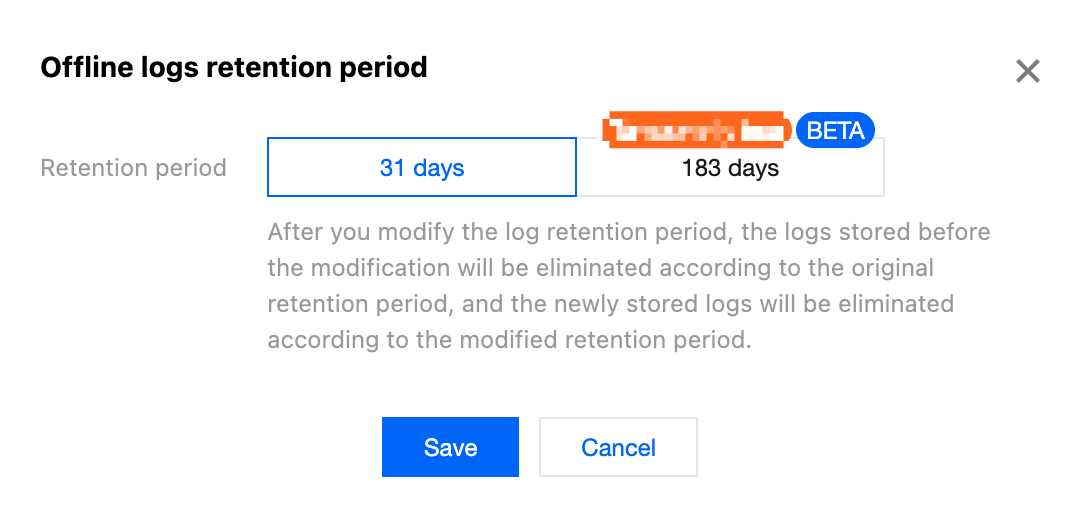
The default retention period of offline logs is 31 days. For sites with Standard and Enterprise plans, the retention period of offline logs can be adjusted to 183 days to meet relevant compliance requirements. For details, see Plan Support Differences.
Directions
1. Log in to the Tencent Cloud EdgeOne console, enter Service Overview in the left menu bar, and click the site to be configured under Website Security Acceleration.
2. On the site details page, click Log Service > Offline Logs.
3. On the offline logs page, click Settings
on the right side of the filter field.
4. In the pop-up window, modify the retention period of offline logs and click Save . After you modify the log retention period, the logs stored before the modification will be eliminated according to the original retention period, and the newly stored logs will be eliminated according to the modified retention period.
Example: Querying Offline Logs for a Specified Domain Name within a Specified Time Period
Sample Scenario
After you add an acceleration domain name and add www.example.com to the EdgeOne service, you shall download all site acceleration logs for www.example.com from June 23, 2024 to June 25, 2024 to perform data analysis. You can refer to the following directions.
Directions
1. Log in to the Tencent Cloud EdgeOne console, enter Service Overview in the left menu bar, and click the site to be configured under Website Security Acceleration.
2. On the site details page, click Log Service > Offline Logs.
3. On the offline logs page, select the dates from June 23, 2024 to June 25, 2024 to filter by time range. On the right side, select Site Acceleration Logs as the log type and www.example.com as the domain name. The page will automatically display the query results of logs meeting the conditions after filtering.
4. In the log list obtained through query, you can download log packages as needed using the following 3 methods:
Click Download in the Operation column, to download the log package for the corresponding domain name/L4 proxy instance and the corresponding time period.
Click Get Download URLs, to copy the download link for the corresponding log package.
Select the required log packages, and click Batch Get Download URLs to copy the download links for all required log packages in batch.